ToskLight is a suite for planning lighting rigs, programming shows, and running lighting and media. Start with the application that suits the job:
ToskLight Architect plans the rig. Add fixtures, arrange and patch them, then build the venue around them. Prepare drawings and inspect the result in the Visualizer.
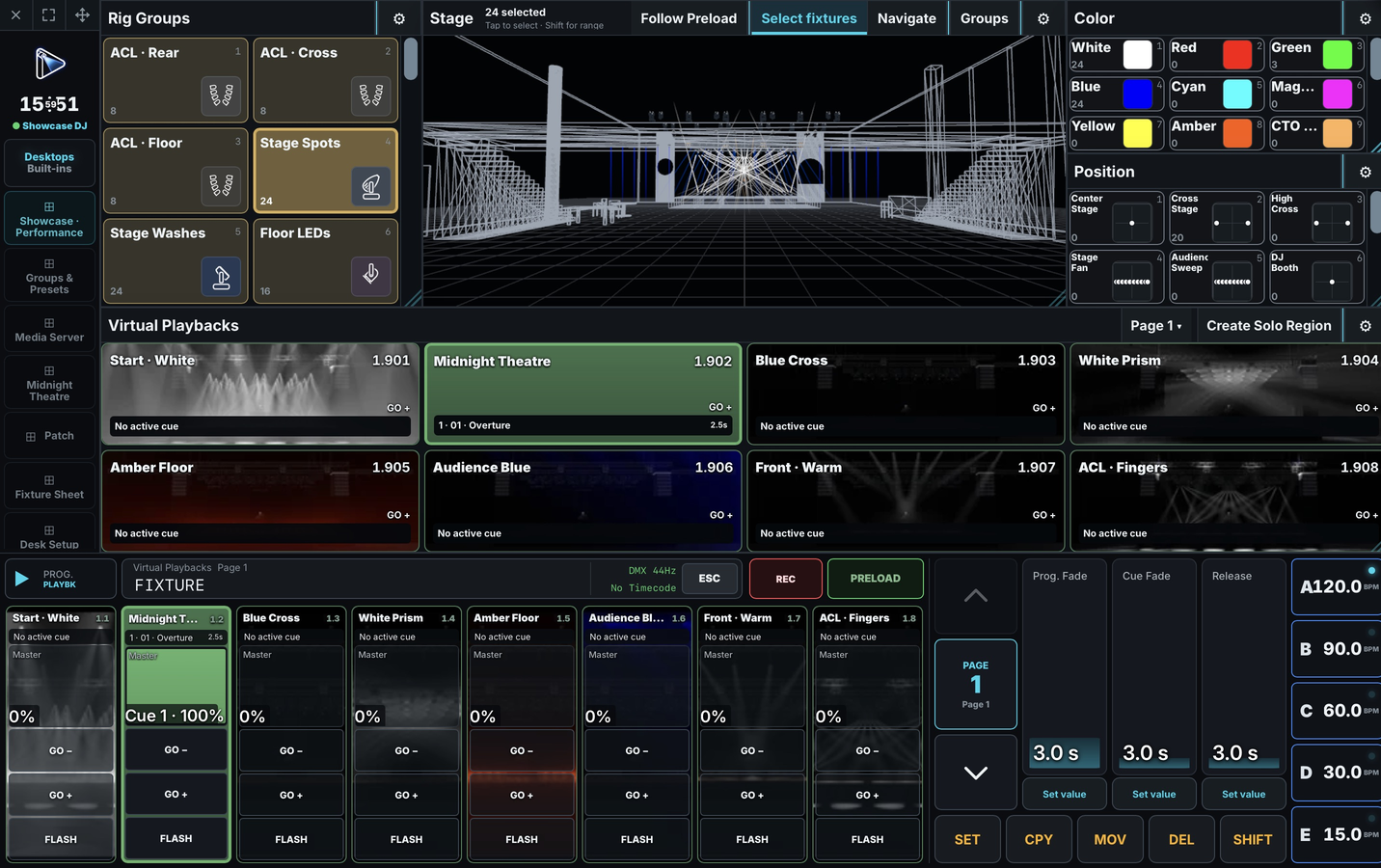
ToskLight Control programs and runs the show. Select fixtures, build Groups and Presets, record Cues, and operate Playbacks. Control also builds and patches rigs directly.
ToskLight Pixel is the optional media server. Use it for video, pictures, text, generated visuals, and effects on screens, projectors, or mapped pixels.
ToskLight Control, Architect, and Pixel application icons
Architect and Control use the same fixture library, patch sheet, and portable .show format. Architect is optional: you can add, position, and patch the whole rig in Control. The shared fixture and patch instructions apply to both.
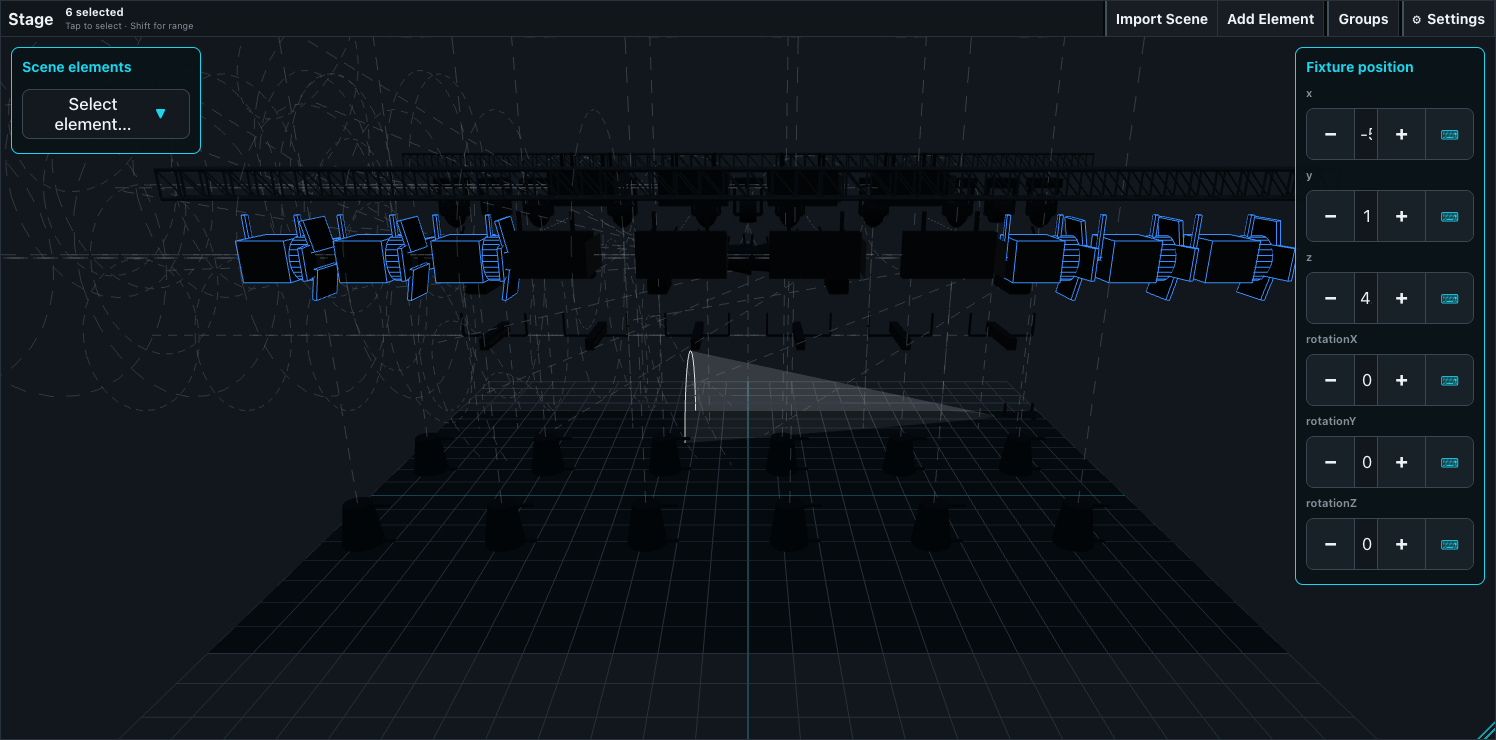
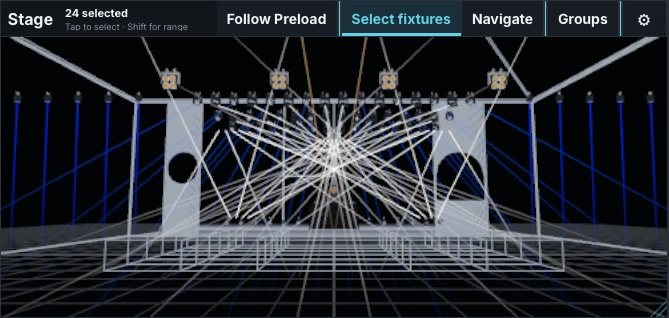
Architect's Visualizer draws the rig and its lighting. Use it to check the plan without a desk or follow Control's output while rehearsing the programmed show. The Architect visualization guide explains scene sources and live DMX. Control's Stage provides a 2D plan and lightweight 3D wireframe for selecting and positioning fixtures.
Pixel's generated visuals are media content. They are separate from the lighting Visualizer, even though Pixel calls their settings page Visualizers.
From rig to show
This walkthrough starts in Architect. If you are working at the desk already, begin with the same fixture and patch tasks in Control.
Add the fixtures. Choose their profiles and modes, give them fixture IDs, and patch addresses when known. You can program unpatched fixtures and assign addresses later.
Arrange the rig. Position, rotate, and align fixtures. Add truss, staging, scenery, and any media surfaces around them; group Venue elements when they should be handled together. Save the rig as a native .show file.
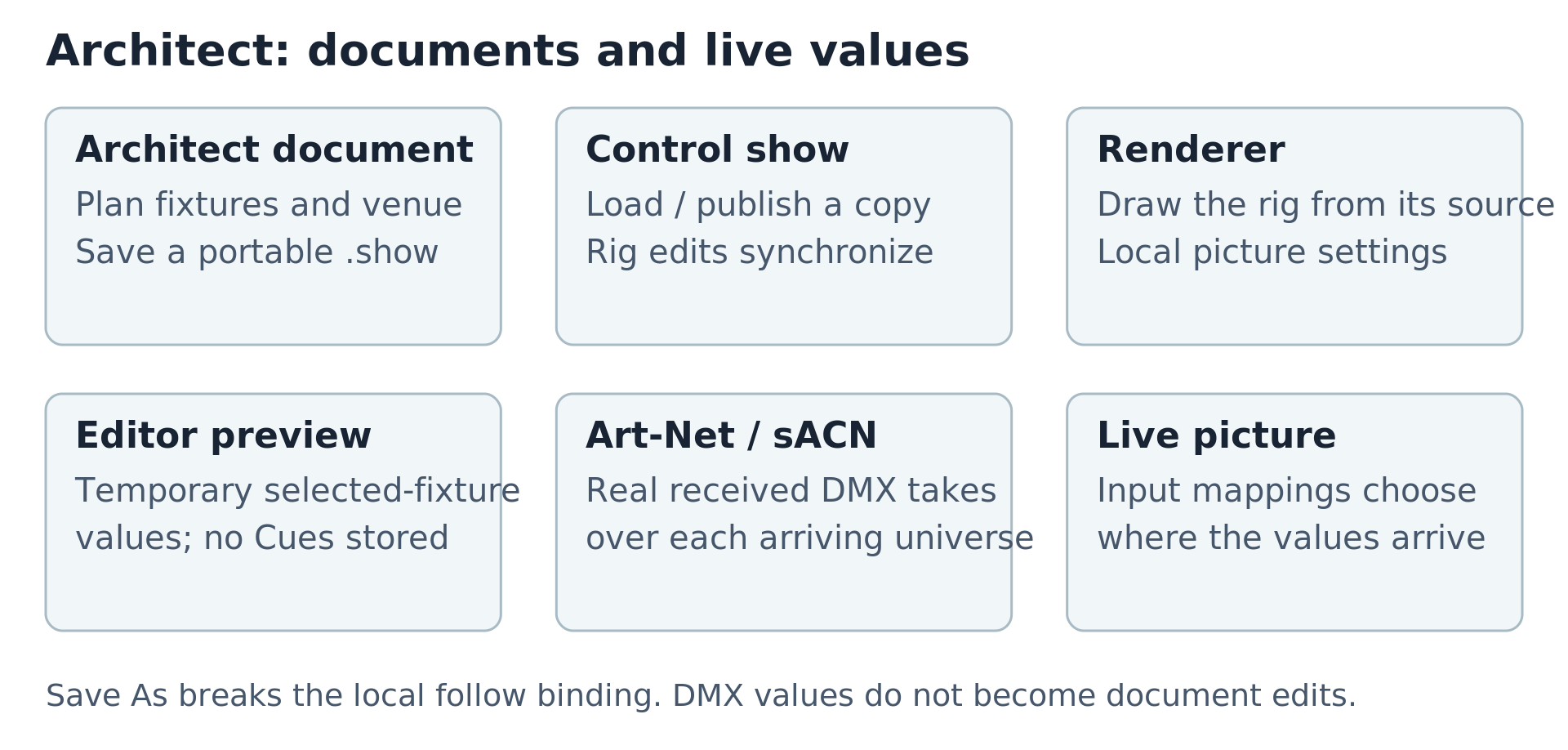
Open the rig in Control. Publish it from Architect, load the offered show in Control, or open the saved file. Use a bound Architect document when rig changes should synchronize with the active Control show. Independent file copies stay independent.
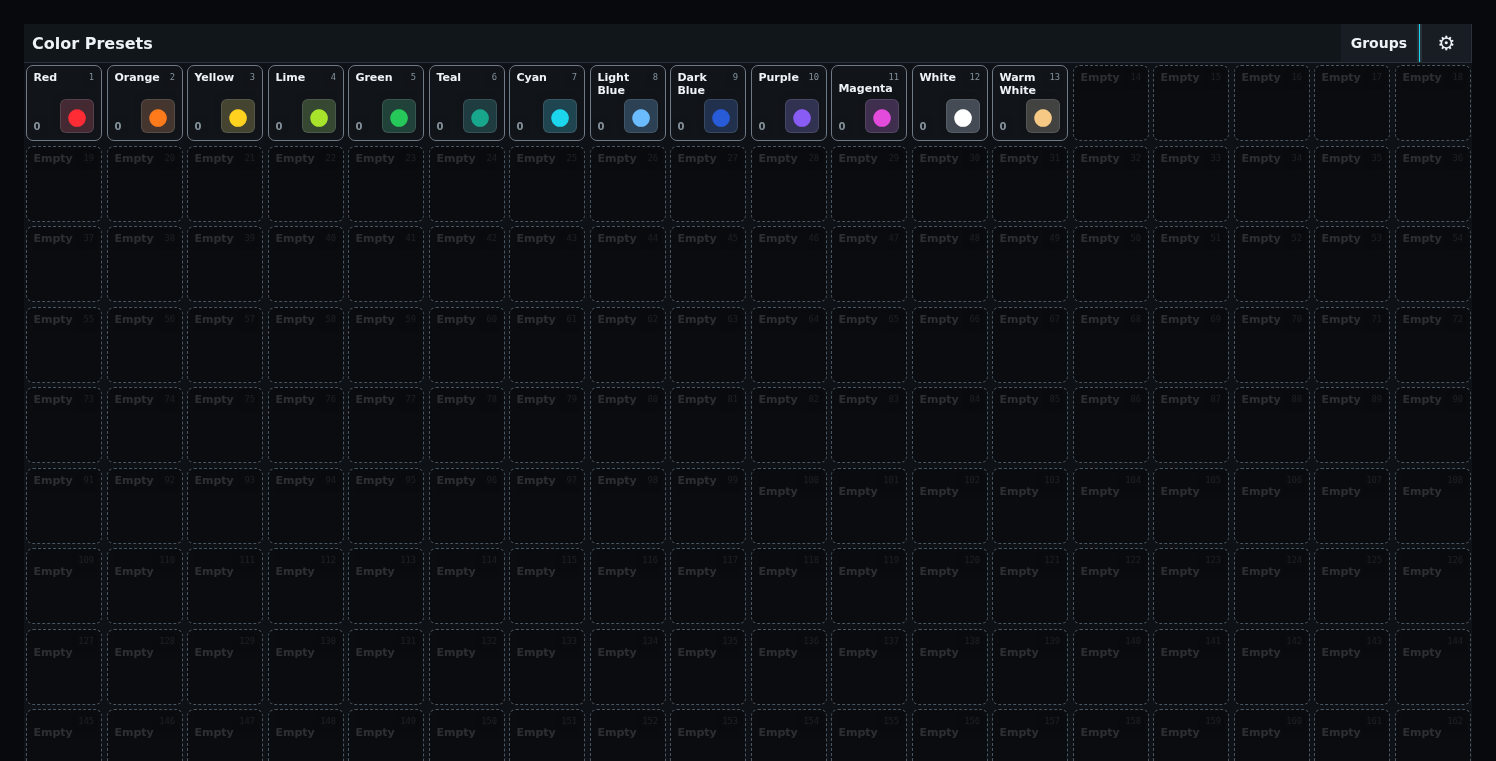
Program the show. Build ordered Groups, reusable Presets, and Dynamics. Record looks into Cues, arrange Cuelists, and assign Playbacks. Use touch controls, encoders, and the programmer command line together.
Rehearse in the Visualizer. Check looks, Cue transitions, timing, and releases. Configure matching Art-Net or sACN output and input when following live DMX.
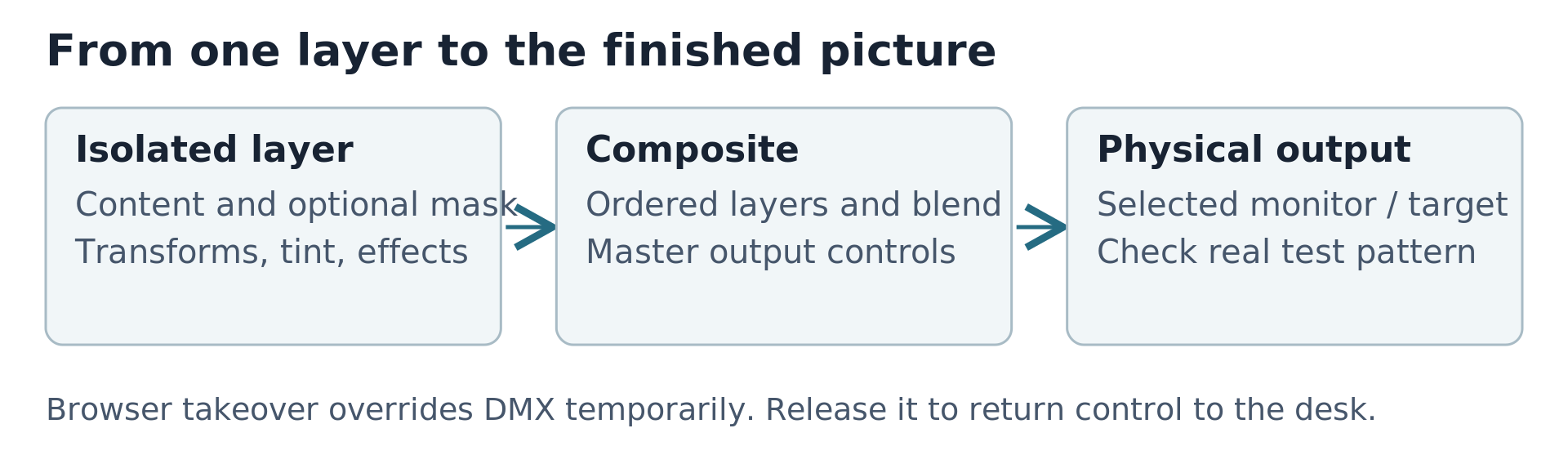
Add Pixel if needed. Test its physical output, prepare the media library, then discover and patch its output in Control. Program media layers alongside lighting.
Check the production rig. Verify actual fixtures, destinations, and media displays. Save a named revision before the show.
The programmer command line is the desk's lighting command entry, such as 1THRU12AT100ENT. It is an operator control available alongside the keypad and encoders. Terminal commands used for installation are separate.
Start with the Demo Show
The bundled Demo Show provides a rig and programming to inspect before building your own. Its physical Groups describe the rig, such as stage Profiles, Wash fixtures, audience lights, and Sunstrips. Referenced Groups combine those selections for busking; Presets, Cues, and Playbacks build on them.
Open the Demo Show and inspect a Group, a Preset, and its playback. Load Clean Built-in Default creates a fresh working copy when you want to start again. It leaves the bundled source available for another reset.
Control with fixture selection, Groups, Stage, and the Programmer
ToskLight ships as a desktop application with its own Light server, and as standalone server archives for browser-connected desks.
Desktop application
Download tosklight-bundle-macos_arm64.zip from the matching GitHub release.
Expand the ZIP. In Terminal, change into the expanded bundle and run bash sign-macos-apps-locally.sh. This applies and verifies fresh local ad-hoc signatures for ToskLight Control, ToskLight Architect, and ToskLight Pixel without an Apple Developer identity.
Move the application you want to use to Applications.
The testing build is not Developer-ID signed or notarized. Verify that the archive came from the expected GitHub release, then Control-click the application in Finder, choose Open, and confirm Open. If directed to System Settings, use Privacy & Security > Open Anyway for ToskLight.
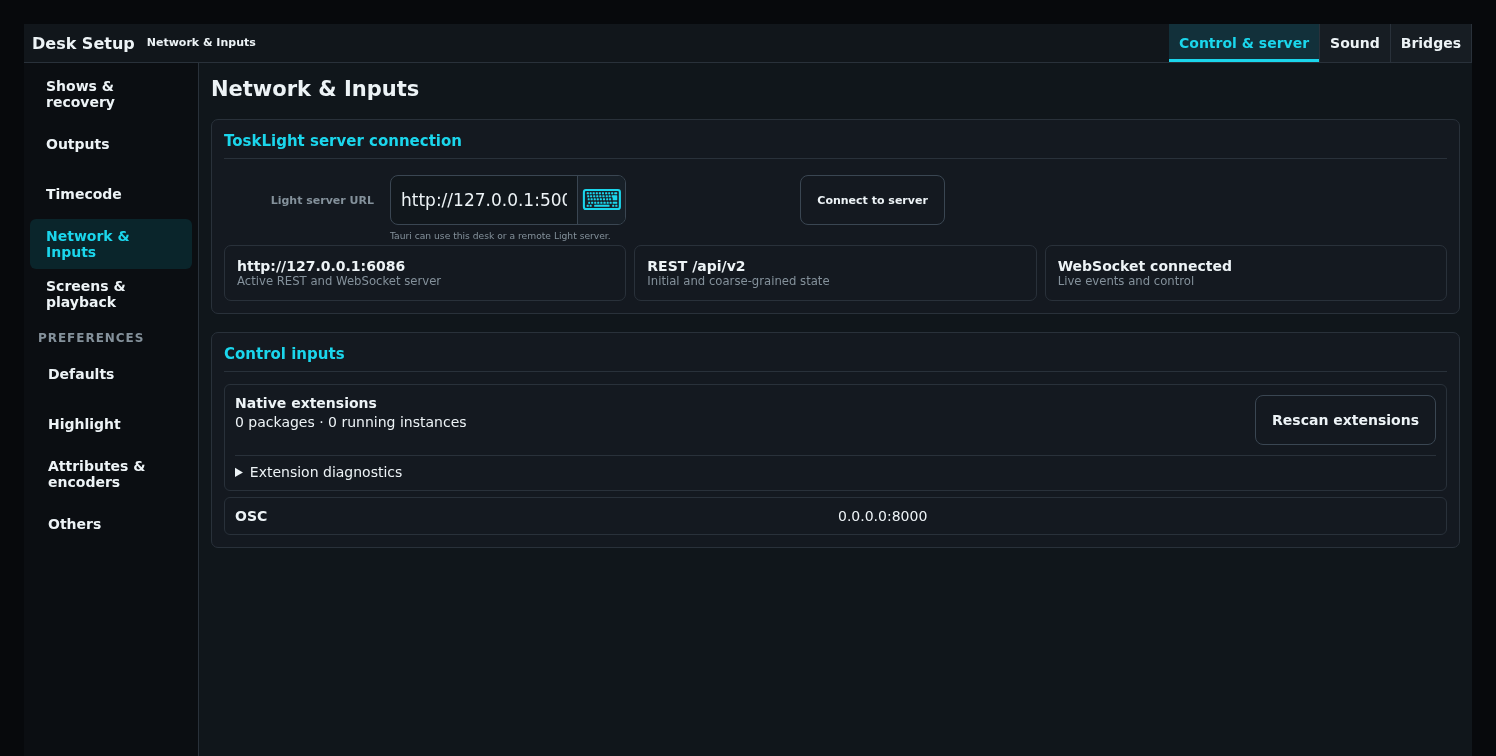
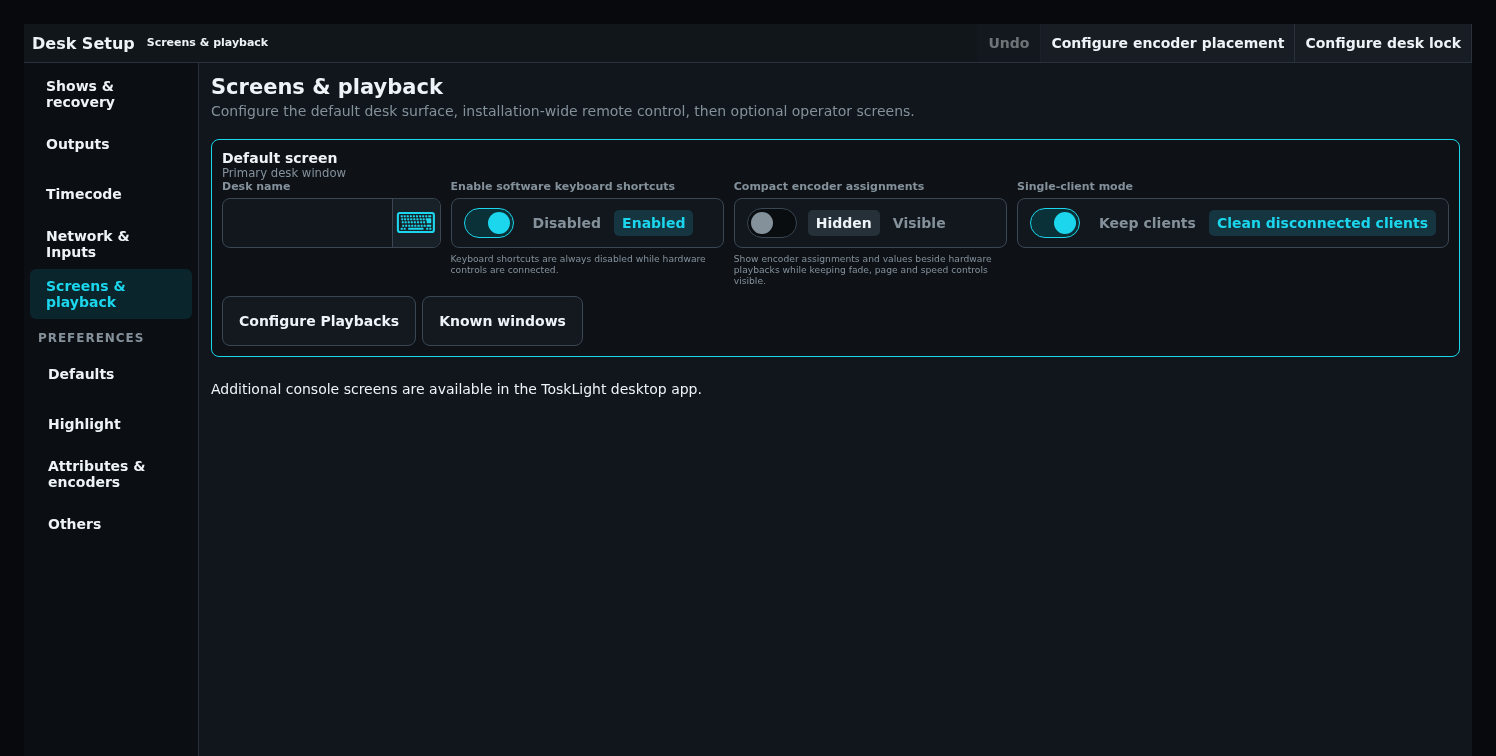
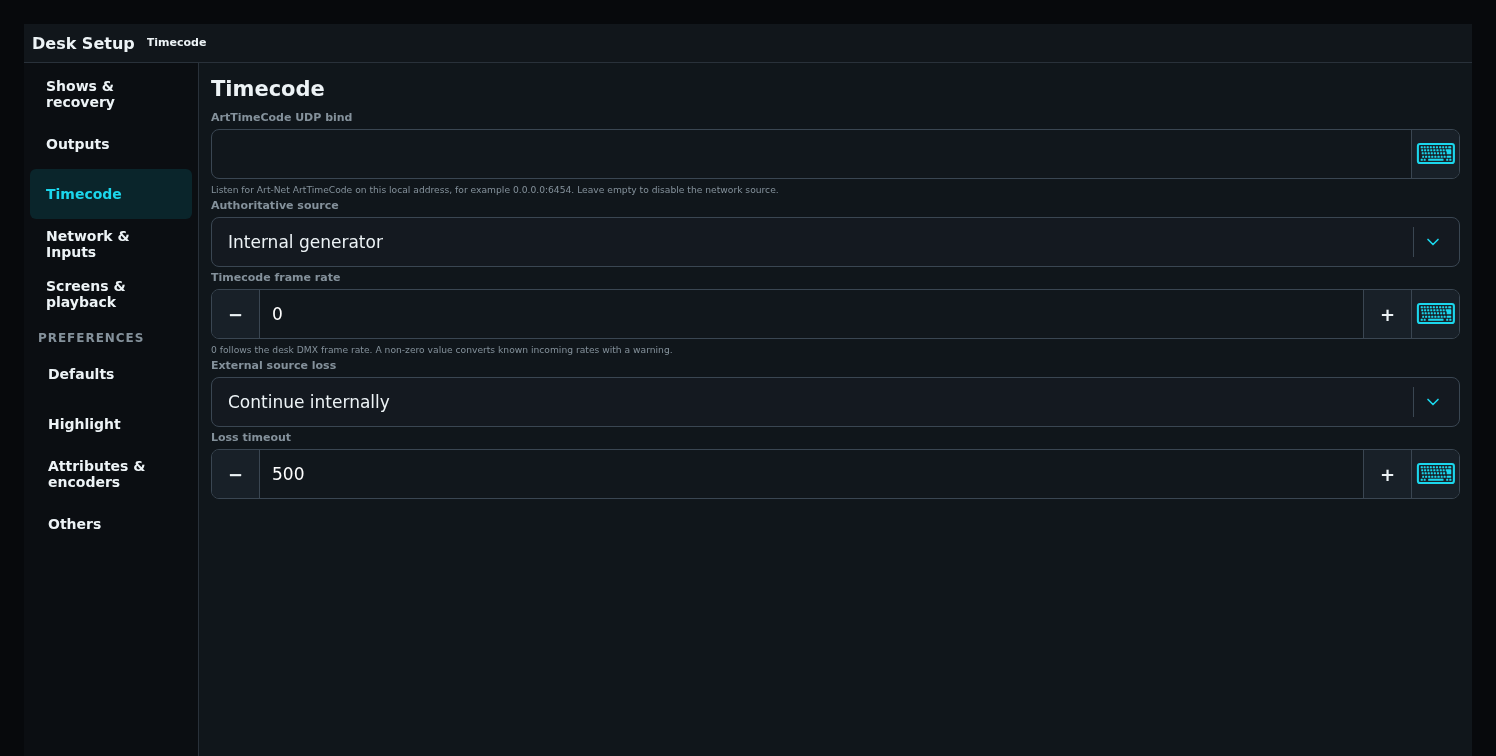
Control's bundled server uses 127.0.0.1:5000; open Desk Setup > Network & Inputs and confirm the active server URL.
The signing script does not remove quarantine or disable Gatekeeper. If it fails, verify the ZIP against report-checksums.txt and use the newest release instead of overriding macOS security checks. The archive also includes macos-first-start.txt beside the applications for offline reference.
Double-click tosklight-media-macos_arm64.app to start ToskLight Pixel on the first display. Before the first valid DMX frame it shows the browser address and projector-alignment marks; its persistent configuration and library live under Application Support.
Use the separate ToskLight Hardware Controls application for an attached control surface when it is included in the release. Choose OSC for an on-screen surface over the network, or Native Hardware for a configured attached device. Native mode mirrors device feedback and dims its on-screen controls. Set Desk HTTP port in Settings if Control uses a port other than 5000. The selected mode is remembered.
Standalone server and browser desk
Choose the archive matching macOS Apple Silicon, Windows AMD64, Linux AMD64, or Linux ARM64. Start light-headless with a writable data directory, then open the displayed address in a supported browser. Use --bind 0.0.0.0:5000 only on a trusted lighting network.
When the server is reachable over a LAN, set LIGHT_DESK_TOKEN before starting it. Browser and API clients must then send that shared desk token. Every connected surface operates the same desk and Programmer.
First-start checklist
Desk Setup reports a connected server and the expected active show.
A new show can be created and appears in the show library.
The correct physical screens are assigned.
OSC, native extensions, Art-Net, and sACN are disabled until intentionally configured.
The DMX view reports the expected frame rate with no send errors.
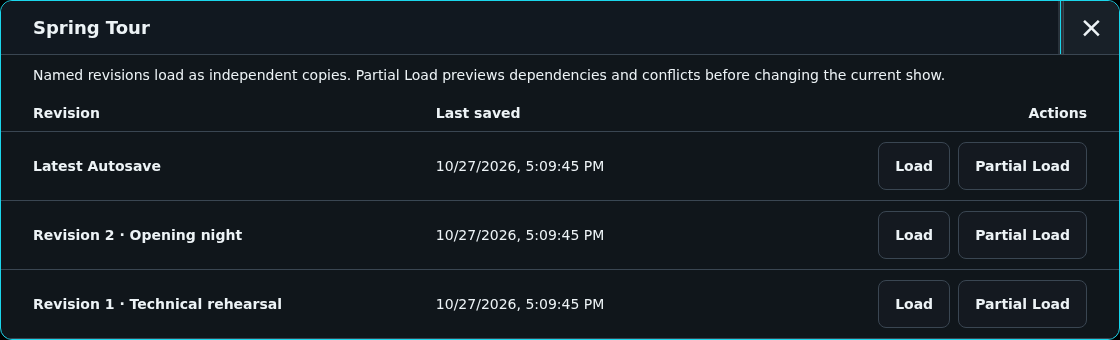
A named revision can be created and loaded as a separate autosaved copy before real programming begins, without rewinding the original show's Latest Autosave.
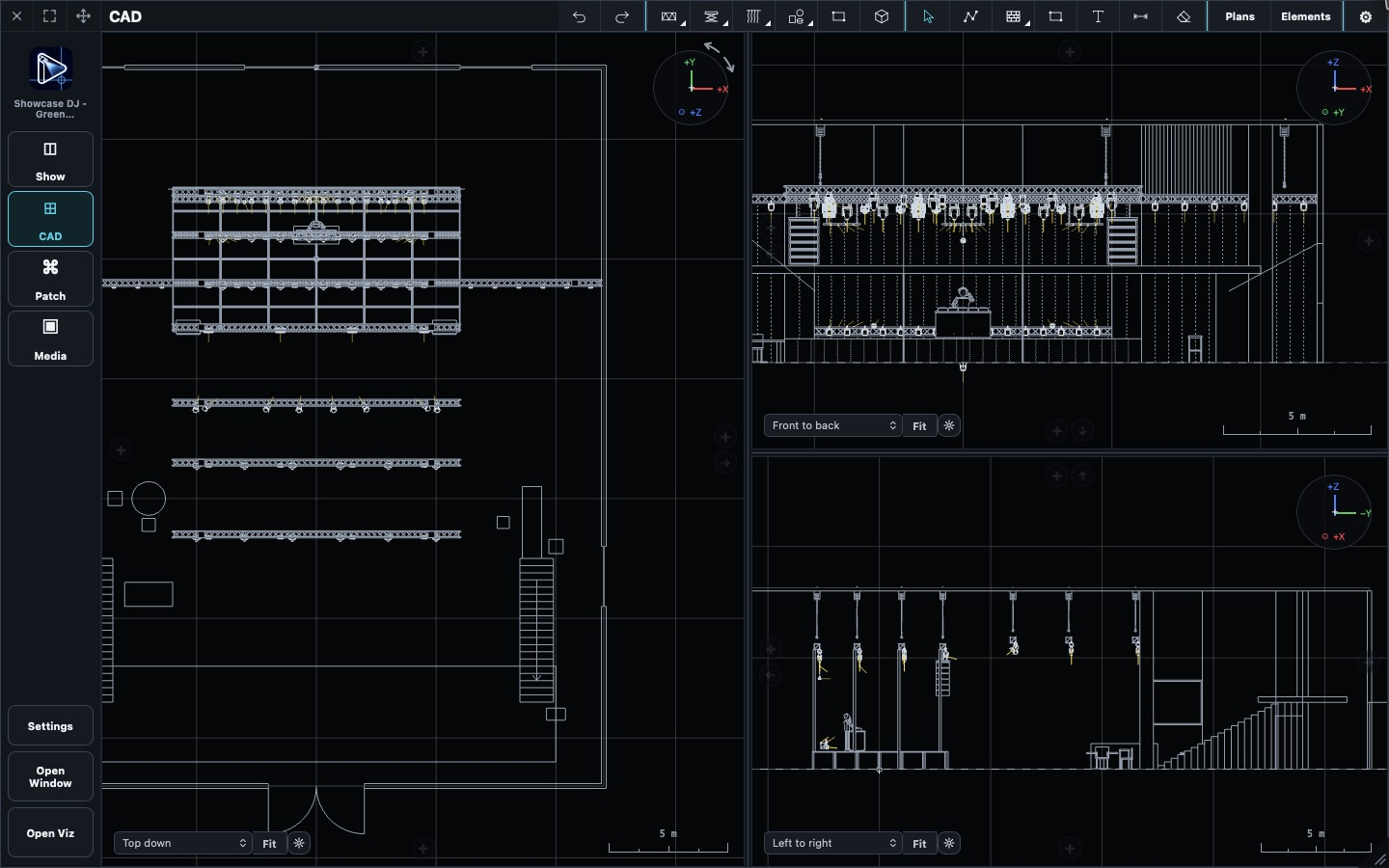
ToskLight Architect plans the venue and lighting rig before programming begins in Control. Build and patch the rig, position fixtures, prepare drawings, and inspect the result in the Visualizer. The portable .show document carries the rig and its embedded fixture profiles.
Start with fixtures, then build the venue around them:
Create and open a rig: documents, the Demo Show, project information, and multiple windows.
Fixtures and patch: choose fixtures, patch modes and addresses, and edit profiles. Architect patch views covers sheet editing, layers, and the address grid.
Work with Control: publish the rig, keep edits synchronized, and resolve conflicts.
Media surfaces: screens, LED walls, projectors, sources, and fallback pictures.
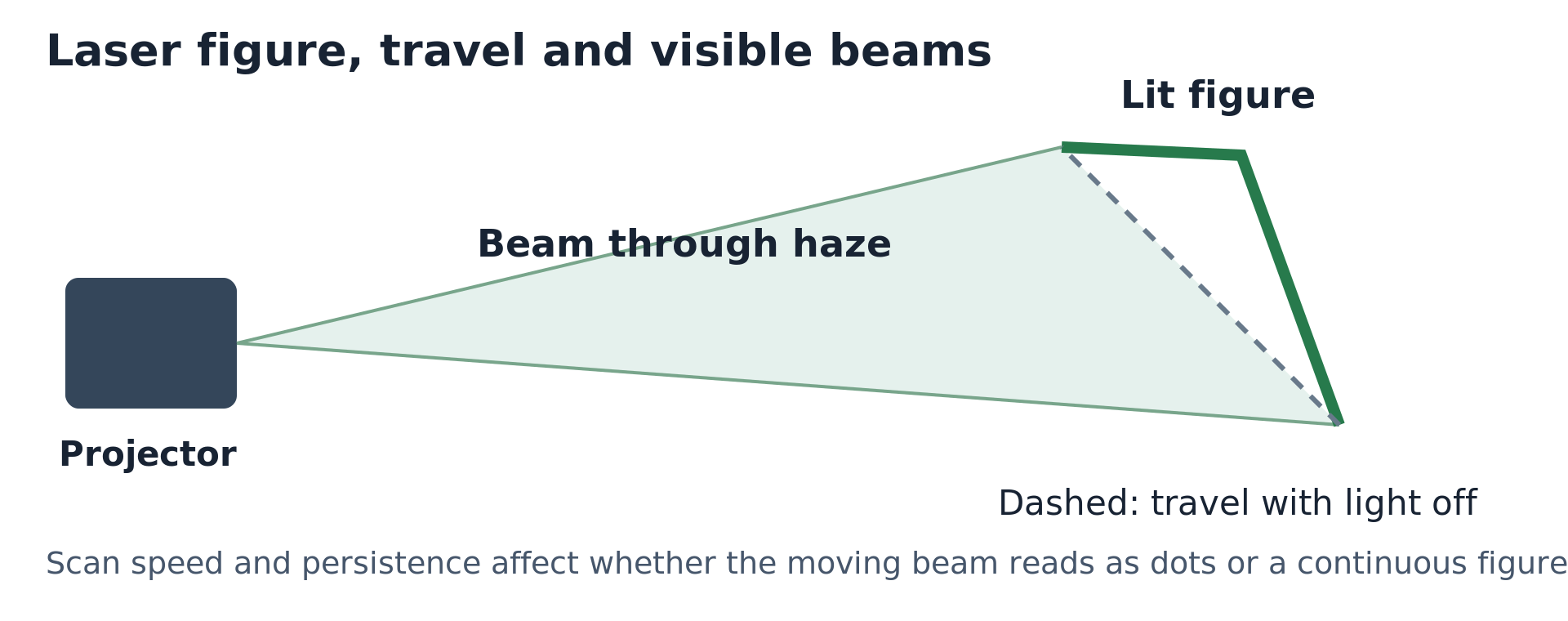
Special effects: lasers, sparks, flames, and released scenery.
Tracking points: aim points, attached objects, and the distinction from live tracking.
Visualize the rig: preview, live inputs, cameras, and local settings.
Advanced rig planning covers fixture models, crowd areas, and snapshots and native 4K images.
Architect can stay synchronized with a Control show while cues and playbacks remain under Control's authority. Use Work with Control before editing a desk's rig from another computer.
Create and open a rig
Start ToskLight Architect to plan a rig in a portable .show document. On first launch, Architect opens a writable Demo Show copy. Later launches reopen the recent document.
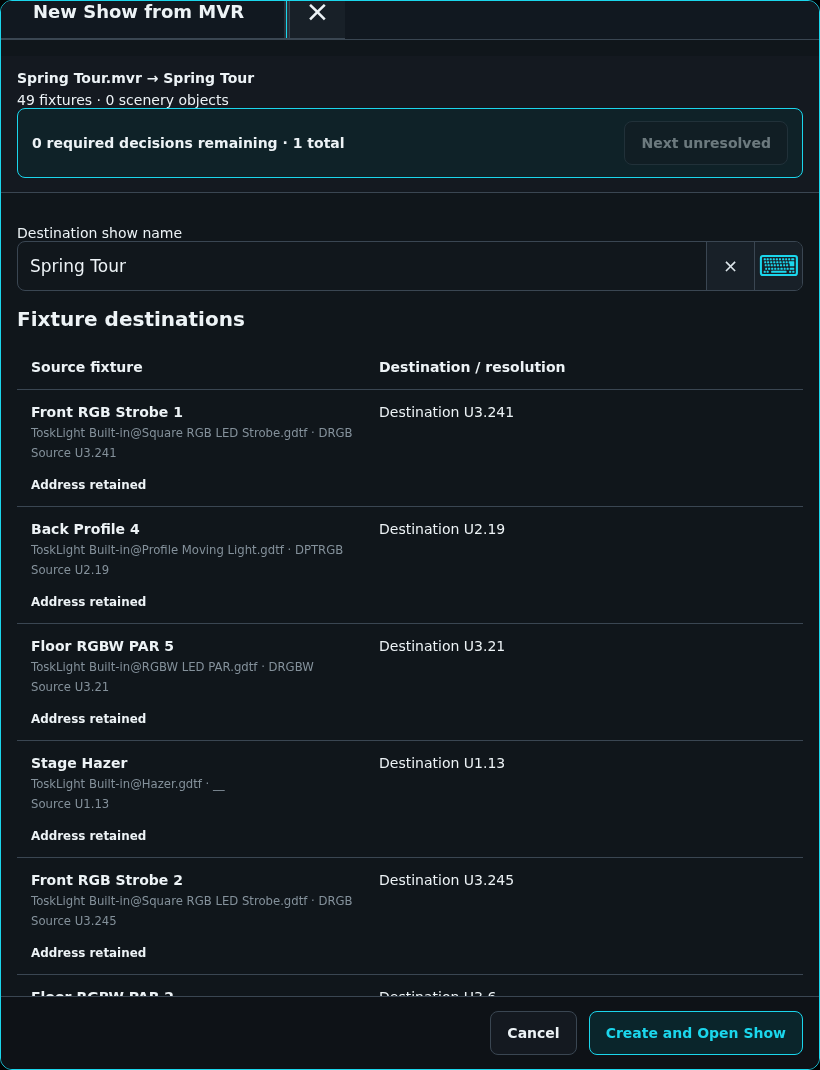
Use New Show on the Show screen for a new rig, or choose Open > Load Show from Disk for an existing file. A show brought from Control can stay synchronized with that desk; see Work with Control.
The sidebar opens Show, CAD, Patch, and Media. Settings holds Visualizer, Library, and DMX configuration. Open Window opens another Architect window on the same document, useful for keeping CAD and Patch on separate screens. The renderer opens separately through Open Viz.
Open the Demo Show
Choose New Show > Open Demo Show for a writable copy of the bundled rig. The copy contains a patched lighting rig, scenery, effects, crowds, and media surfaces, ready to inspect in the Visualizer.
Each use creates a separate show in this installation's shows folder: Demo Show, then Demo Show 2, and so on. The file bar reports the copy's name and location. You can edit, rename, or delete it; the bundled template remains unchanged.
The Desk's Default Stage Show, Architect's Demo Show copies, and Visualizer demo mode use the same portable template and embedded fixture revisions.
The Show screen
Show, at the top of the dock, is the open show as a document. It is available with no show open, because it is where a show is created or opened. Its file actions run across the top: New Show and Open Demo Show under New Show; Load Show from Disk, Load Recent Shows, and Load from ToskLight Control under Open; then Save As, Publish to ToskLight Control, Import MVR and Export MVR.
Load Recent Shows opens a modal with a scrollable table of files opened on this computer, newest first. Names omit the .show extension; Location shows an Internal badge for internal files, and Last saved shows the file timestamp. Files moved or deleted are omitted. Use the modal close control to dismiss it. Load from ToskLight Control lists only active shows announced by discovered desks. The table includes the desk IP address and operating system when announced. There is no manual host or IP input.
A show loaded from a desk stays synchronized with that desk. Use Save As for an independent copy, or Publish to ToskLight Control to add a locally planned show to a desk. See Work with Control.
Below them the show is seen from both sides at once. The left half draws the rig from above, with the show's name over it. The right half is Show information, which titles every printed CAD page, in two columns:
Show, on the left: Project, Venue, Show date and Version.
Lighting designer, on the right: Name, Phone, Email and the Company logo.
Below both columns are the show name, last-saved time, and fixture and universe counts. Project information saves automatically to the open show and appears in printed title blocks. Wait for Saving project information… to finish before closing the application. A failed save keeps your draft and offers Retry saving project information.
Creating, opening, copying, publishing or exporting a show waits for pending project edits to save. A failed save stops that action. PDF export reads the updated project information before building its pages.
Upload logo accepts PNG, JPEG, or WebP up to 10 MB. Replace logo and Remove logo save automatically too. The show carries the image, and each printed title block fits it without changing its proportions.
Make Default keeps the lighting designer's name, phone, email and logo on this computer, not in the show. Every show created afterwards with New Show starts with them; shows that are opened, copied from a desk or opened from the demo keep their own. Press it again whenever the details change.
Rename the show
A show has a name of its own, separate from its file. The Show screen shows it over the rig overview, with a pencil beside it. Press the pencil and type the new name. Press Enter or click away to keep it; Escape cancels, and an empty name changes nothing. The name is what a desk's Load Show menu offers, so a renamed show is offered under its new name at once. The file keeps its name; Save As writes the show to a new one. Renaming a show that follows a desk renames it on this computer only: the desk's show keeps the name its own library gave it.
Fixture library and patch
Build and patch the rig in either Architect or Control. Both use the same fixture profiles and patch sheet. Start in Architect when planning the rig, or open Show > Show Patch in Control to work directly on the production show.
For a fixture that needs a new or corrected profile, use Create and revise fixture profiles. Calibration belongs either to the profile or to one installed unit; the linked chapters explain which to use.
Choose and import fixture types
Choose the exact profile revision and mode for each physical fixture before patching. A show embeds that revision, so later library edits or deletion leave the patched show unchanged.
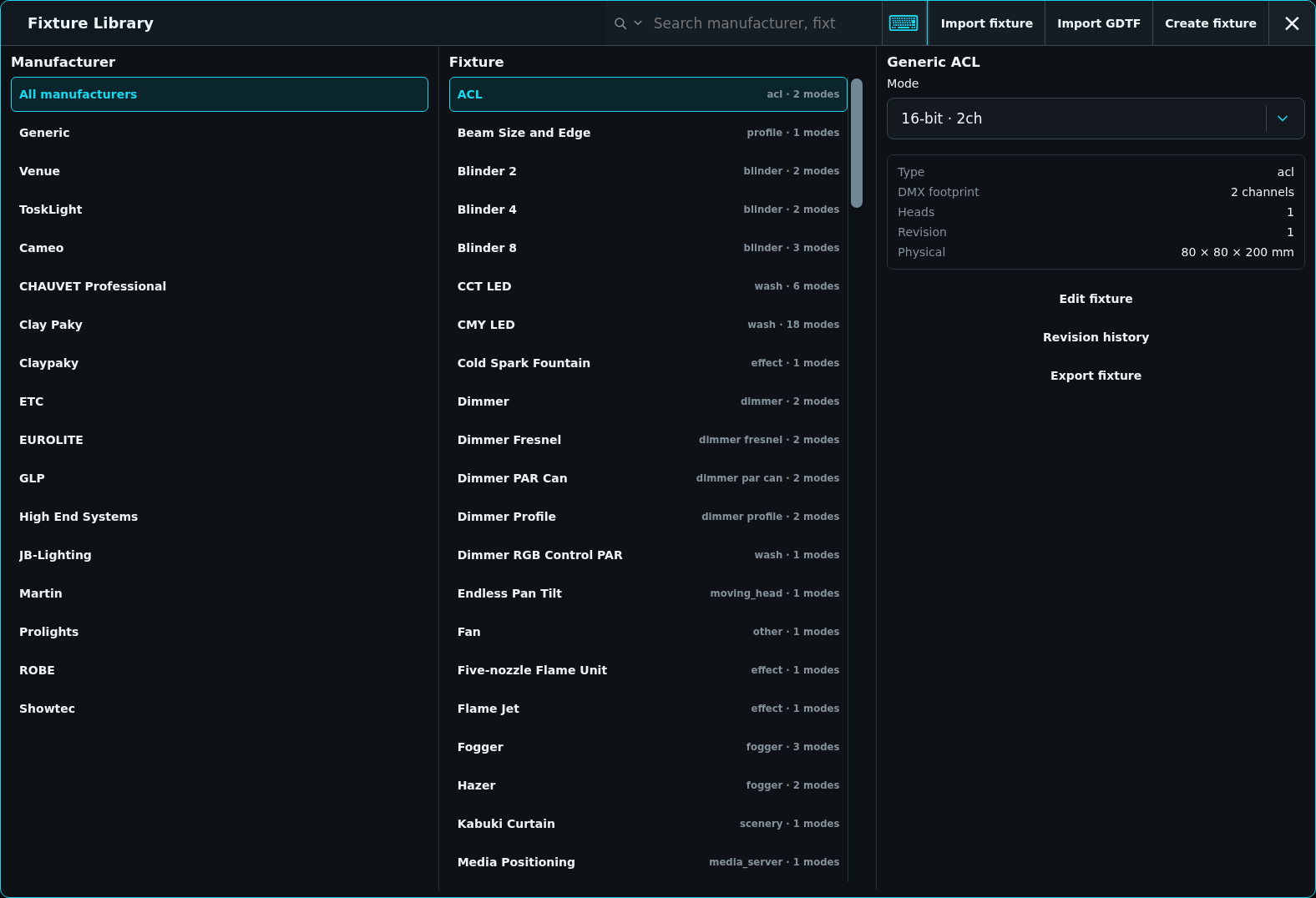
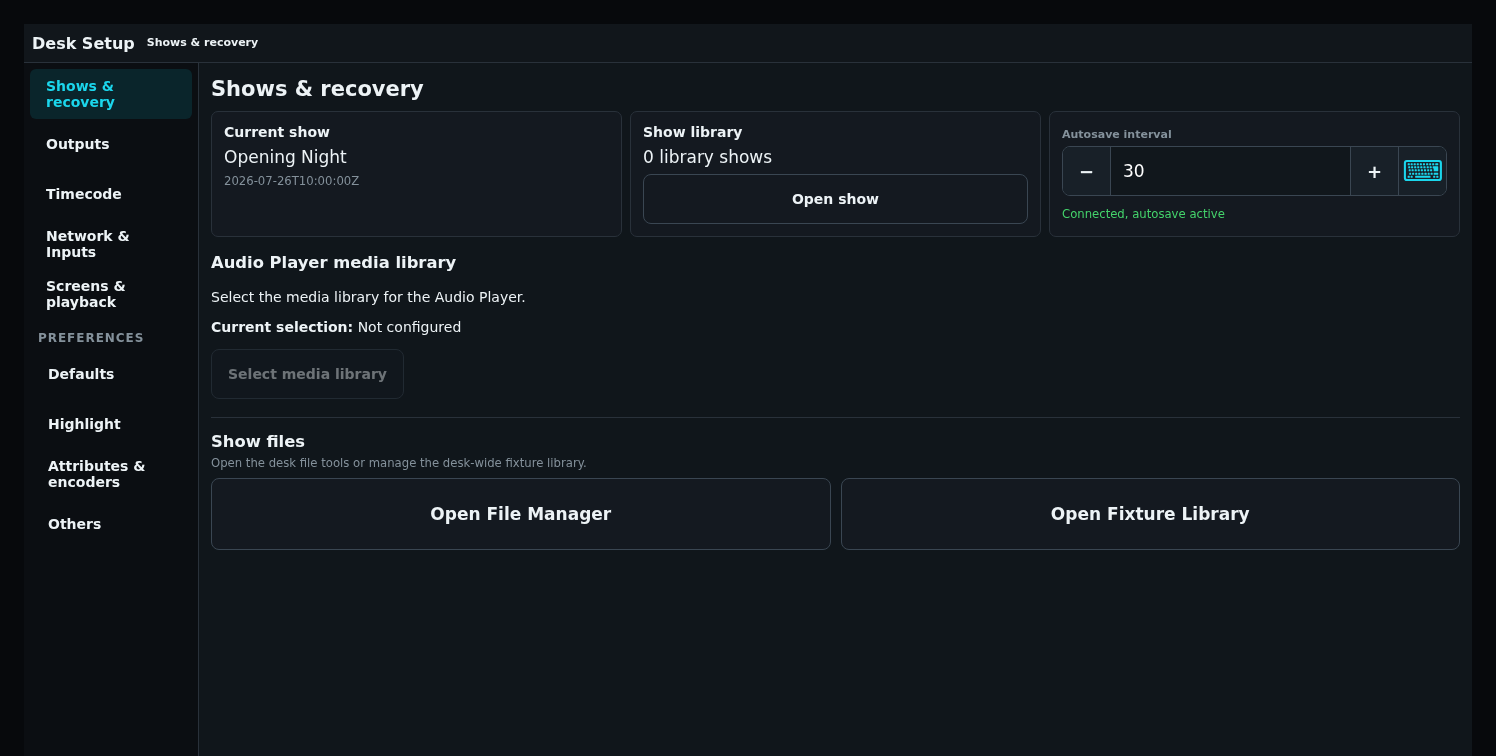
In Control, open Desk Setup > Shows & recovery > Open Fixture Library. In Architect, open Settings > Library. Search by manufacturer, fixture, or mode; the list filters as you type. Search Options can restrict the fixture type.
A profile contains the fixture's identity and ordered modes. Modes describe its DMX channels and logical heads. Conventional Dimmer PAR Can, Dimmer Profile, and Dimmer Fresnel are separate profiles, each with 8-bit and 16-bit dimmer modes. Choose the physical lantern first, then its personality.
Fixture-library manufacturers, modes, footprint, heads, and revision
Transfer fixture packages
Use .toskfixture to move a complete ToskLight profile, including its simulation data and assets, to another desk. Shipped fixtures use the same package format as imported and operator-authored fixtures.
Select the intended fixture revision and choose Export fixture.
Copy the resulting package to the other desk.
Choose Import fixture there and select the package.
Check the imported profile and mode before patching it.
Packages retain the stable fixture, mode, head, channel, function, split, and geometry identities. Importing identical content changes nothing. Changed content with the same fixture identity and manufacturer/name creates the next local revision. Reusing an identity for another fixture family is rejected.
When correcting a profile, export a working fixture as the template and retain its identity. Existing shows keep their embedded revision; they do not adopt the correction automatically.
Import GDTF
Choose Import GDTF and select a .gdtf archive.
Review the preview's modes, channel widths, coarse/fine addresses, DMX breaks, functions, defaults, and physical endpoints.
Map any unknown attribute to the matching desk attribute. Create a custom attribute first if no suitable one exists.
Read the import limitations, then choose Import fixture or Import and remember mappings.
Importing an existing fixture creates a new library revision. Fixtures already patched in a show keep their selected revision. A failed import leaves the original data untouched and explains the problem in the import dialog or Fixture Library.
The preview distinguishes usable channel data from geometry, optical measurements, and wheel information retained only in the source archive. Unsupported executable relationships, including conditional function ownership or response curves the reader cannot represent, stop the import with an explanation. Retained measurements do not establish that a fixture has been physically calibrated.
Preview a GDTF import
Retained source and MVR export
The imported GDTF archive travels with the profile in .toskfixture packages and native shows. Editing the profile retains the archive and its original association.
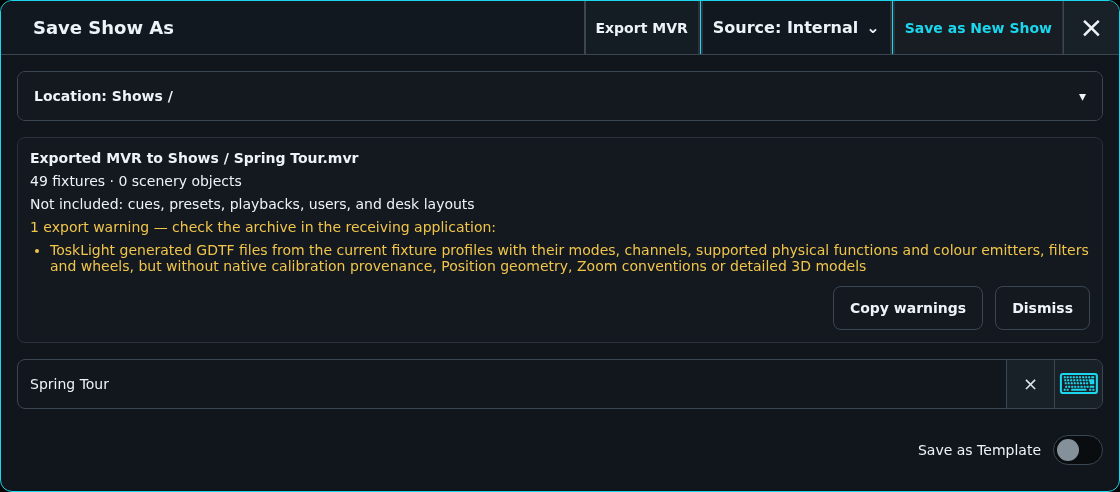
MVR export reuses the original bytes only while they match the exported profile's recorded import snapshot. An edited profile, an older import without an association, or a profile without source GDTF uses generated GDTF. The export reports its limitations; revision number alone does not establish a match.
Generated GDTF preserves supported functions, directed physical endpoints, units, channel widths, fine bytes, defaults, and supported physical Color data. Native calibration provenance, Position geometry, Zoom opening convention, scanner kinematics, and detailed models remain in ToskLight metadata. Unsupported curves or units produce warnings. The Fixture Library does not export standalone GDTF files.
Build the rig in Architect or directly in Control. Both applications use the shared fixture library and patch sheet. Architect is optional.
In Control, open Show > Show Patch. In Architect, choose Patch in the sidebar. Choose the exact profile revision and mode before adding fixtures; the show embeds that revision.
Add fixtures
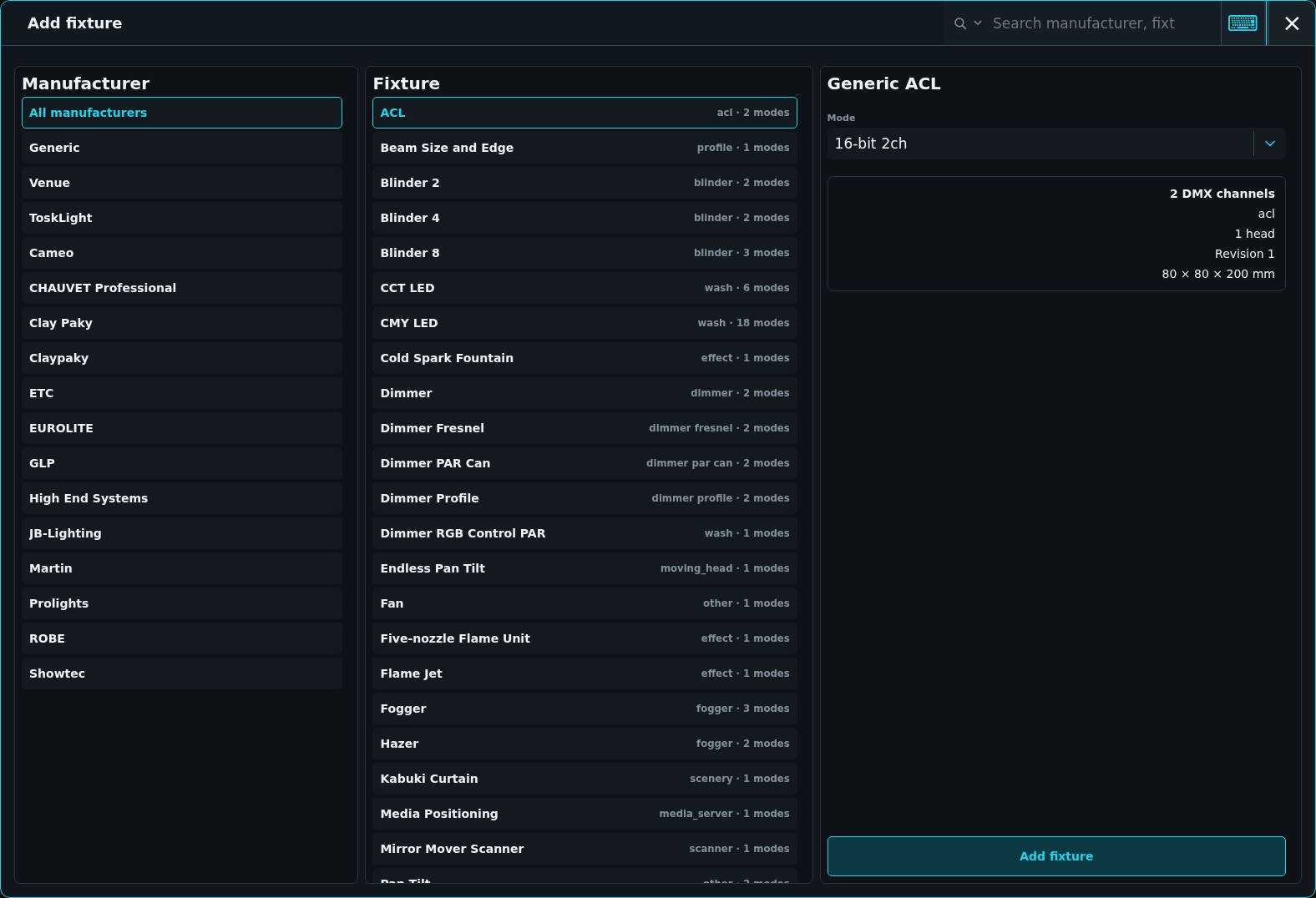
Choose + Add fixture and search by manufacturer, fixture, or mode. The list filters as you type.
Select the mode and check its footprint and physical details.
Set Count and Start fixture ID. Used IDs are skipped while the requested count is preserved.
Choose Address and enter a starting universe.address, or Empty to leave the fixtures unpatched.
Check every proposed footprint, then choose Add fixtures.
An unpatched fixture remains selectable and programmable. It keeps its profile, position, Groups, Presets, and Cues, and produces no DMX until patched.
Cancel, Add fixtures, and Close are in the placement title bar. Closing after changing values asks Yes, close or Stay in Add Fixture; staying preserves the entries.
Set addresses
The placement grid shows all 512 slots of a universe. Existing fixtures are grey, proposed fixtures are blue, and collisions turn red. Each range shows its fixture ID and name.
Drag a proposed range, or select it and touch a free address, to change that fixture's address. Each fixture in a batch can have its own address. Every footprint must fit in its universe and avoid existing or proposed fixtures.
For keypad entry after choosing a fixture type, enter <amount>AT<universe>.<address> and press ENT. The batch advances by the selected mode's footprint. Chain entries before ENT to place batches at several addresses.
Select an address cell and press SET, or press SET before touching the cell. Choose the new universe.address. Clear address · Unpatch removes only the selected split's address.
The desk checks the complete patch before applying it. An invalid address or collision leaves the current patch unchanged. Closing without confirmation discards the pending address.
Scenic objects
The manufacturer list starts with All manufacturers, Generic, and Venue, followed by manufacturers alphabetically. Venue objects use reserved IDs beginning 0.1. Their placement asks for name, count, and mode, without a DMX address.
Scenery remains in Show Patch and Stage. Visual-only profiles and IDs beginning 0. are excluded from the Fixture Sheet. Continue with Build the venue after placing the lights.
Check the patch
In Control, inspect DMX > Universe for footprint and channel ownership. Set a safe test value and check real output. Save a named revision before a large repatch.
Fixture placement and address preview
Import a CSV patch list
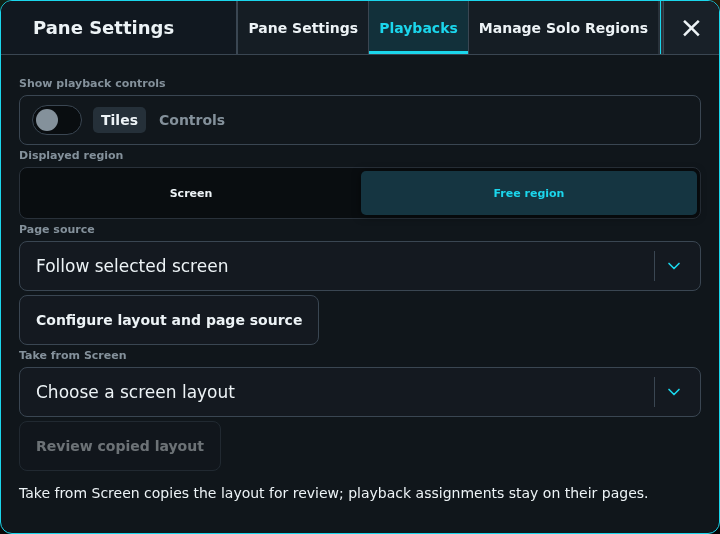
Open the top-right ⚙ Settings in Show Patch and press Import CSV in the Settings title to add a whole fixture list from a spreadsheet, paperwork export, or another desk. Every CSV row becomes one fixture. The import only adds fixtures; it never changes or removes fixtures already in the show. From Media Servers or Tracking, the same action switches to Fixtures first. In a Show Patch pane, Import CSV sits in the title of that pane's Pane Settings.
Columns. Choose the file. Comma, semicolon, and tab separated files are detected automatically, and quoted cells may contain the separator. Choose whether the first row holds Column names or Fixture data, and whether X / Y / Z are in Metres or Millimetres. Above every column, assign Patch, Fixture ID, Fixture Name, Fixture Type, Manufacturer, Mode, X, Y, Z, RotX, RotY, RotZ, or Ignore. Recognised column names are suggested; each field can be assigned to only one column, so choosing it again moves it.
Fixture types. Rows are grouped by manufacturer, fixture type, and mode. A group uses a library fixture directly when exactly one library mode has the same manufacturer, fixture name, and mode name, ignoring only letter case and repeated spaces. Without a Manufacturer column, the Fixture Type may contain both, such as Martin MAC Aura. Without a Mode column, only a fixture with a single mode matches. Every other group stops in the wizard: choose the manufacturer, fixture, and mode it should use, or Skip these rows. The wizard moves to the next unmatched group after each choice and preselects a likely fixture, which you still confirm. Exact matches can be changed here too.
Review. Check every row's fixture ID, name, library fixture, patch, location, and rotation, then press Import. All importable rows are added together in one Patch change on the layer currently selected in Show Patch (Default when All fixtures is shown).
Cell rules:
Patch accepts universe.address, universe/address, or one absolute address, where 513 means 2.1. An empty cell or - imports the fixture unpatched. Only the first split of a multi-split mode is patched from the CSV.
Fixture ID must be a whole number that is not used in the show or earlier in the file. Venue profiles use 0.x. An empty cell takes the lowest free ID.
Fixture Name defaults to the fixture name followed by its ID.
X / Y / Z and RotX / RotY / RotZ default to 0; rotation is in degrees. A decimal comma is accepted.
Address conflicts with the show or an earlier row are imported unpatched by default; choose Skip row to leave them out instead.
Rows with an unusable cell are listed as Not imported with the reason and never block the other rows. Closing after choosing a file asks for confirmation.
Heads, splits, and multi-patch
Choose logical heads when parts of a fixture need separate programming. Use splits for independently addressed blocks, and multi-patch when physical copies share one logical fixture.
Independent splits
For a multi-split profile mode, the placement dialog shows Independent split patches with one optional universe.address field per split and its separate footprint. Clear a field to leave only that split unpatched. Batch placement advances every patched split by its own footprint, validates all split ranges independently, and rejects overlap between splits, fixtures, and multi-patch instances. The Patch table presents every split as its own S<number> <universe>.<address> or — target.
Multi-patch
Multi-patch gives one logical fixture additional physical output instances. Use it when several physical units must always share the same logical programming. Every instance uses the same embedded fixture profile and values but has its own per-split universe/address assignments, optional stage position, and physical Pan/Tilt inversion. The same independent footprint and overlap checks apply to every instance. Do not use multi-patch for separately selectable heads; use a multi-head fixture definition instead.
Repatch a multi-patch instance through the same Multi-patch Address screen used for a fixture address. It shows all 512 slots of the selected universe, supports selecting a free start slot by touch, and allows dragging the pending footprint to another address. Set Address and Close remain together in the title bar; only the edited instance is excluded from the occupied-address display, so the fixture's primary patch and its sibling multi-patches remain protected from overlap.
Venue objects have no multi-patch: + Add multi-patch is unavailable while one is selected. Place each span of a truss run, each deck, stair, pipe, or curtain as its own Venue object, so each has its own 0.x ID, placement, and size. A show saved with multi-patch copies of a Venue object opens with every copy turned into a Venue object of its own, keeping its name, placement, and size and numbered after the show's existing 0.x objects.
Multi-head fixtures
Multi-Head Fixtures are lamps that have more than one individually controllable light source. Good examples are LED strips with individual controllable segments, LED PAR-Bars with 4 individually controllable heads, etc.
Every of these heads acts like a single fixture, but they are grouped together and patched together.
You give a multi-head fixture one fixture ID, such as 100. Its master uses sub-address 100.0, while its individually controllable heads automatically receive 100.1, 100.2, and so on.
For a ten-head Sunstrip with shared tilt, 100ENT selects 100.0 followed by 100.1 through 100.10. Use 100.0ENT when you want only the master and its shared tilt parameters.
Bare fixture ranges intentionally select controllable heads without their masters: 100THRU110ENT expands to the child heads of fixtures 100 through 110. To select the shared masters instead, use 100.0THRU110.0ENT.
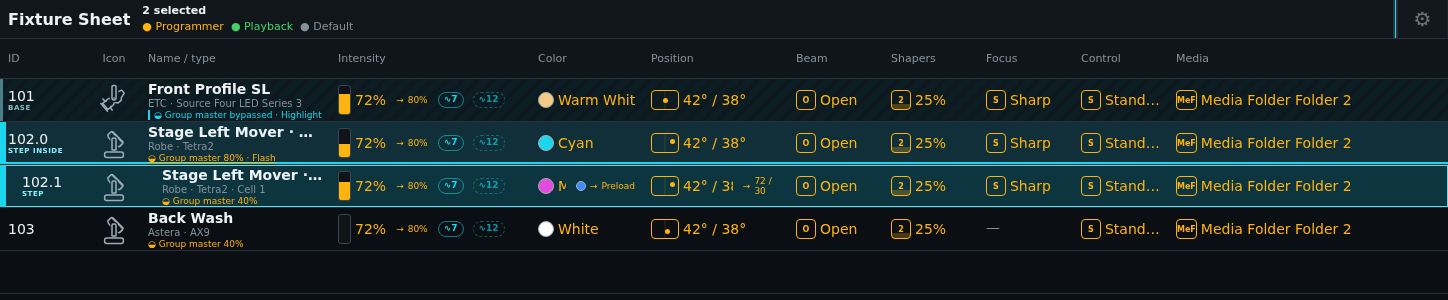
In the fixture sheet, a multi-head fixture appears as separate .0, .1, .2, and subsequent rows. There is no additional aggregate row.
Replace a physical fixture
In Control, arm SET, open the fixture's Fixture / mode cell, and choose Replace fixture with another product. Search by manufacturer, product or mode, then choose the replacement personality. This changes the existing fixture; its number, root identity, placement and stored programming stay attached to it.
Choose a target for every existing logical head. Correspondences preserve those logical programming identities even when the replacement mode orders its heads differently. Leave unmatched — keep dormant programming is an explicit decision: existing references remain stored, but cannot drive a missing head. New unmatched heads receive new identities. No correspondence is inferred from head names or indices.
For an old shared physical head, choose the new destination owners separately for each programming family. Several destination heads may receive that existing source, or choose Leave unmatched — keep dormant programming. This correspondence applies to existing Preset, Cue, Group and held Programmer sources captured by this replacement. Group membership and its spread order remain unchanged; later membership edits still affect the Group. Fresh explicit master programming such as FIXTURE 1.0 retains its ordinary master behavior. A saved show with these correspondences requires programming contract 4; an older engine must refuse to load or edit it rather than silently ignore the destinations.
Review the new footprint before pressing Set. Root and multi-patch addresses are retained by split number; new splits start unpatched, and removed splits stop output. Overlaps or an invalid footprint reject the entire replacement. If the show changed while the dialog was open, reopen the editor and review the replacement again. Cancelling before Set writes nothing. After Set, the dialog shows Replacing fixture… and waits for the atomic result.
Identity-bound installed calibration remains stored with its original source identity and becomes inactive when the replacement is incompatible; revalidate or explicitly author a new calibration. Semantic color and aim programming resolve through the replacement's capabilities. A color wheel may approximate a requested color, unsupported attributes remain passive, and Direct colors retain their original recipe with best-effort translation on a foreign model. Save/reopen and inspect emitted DMX after a replacement.
This replacement confirmation is currently available in Control. Architect's existing same-product mode editor remains separate.
Inspect and configure the patch
The patch lists fixture IDs, modes, addresses, master policy, installed appearance, placement, and layers. Location and rotation describe the installed object; they are separate from Programmer values.
Fixtures, Points, Media Servers, and Tracking are tabs at the top right of Show Patch, next to ⚙ Settings. The tabs and ⚙ stay in the same place on all four views; a narrow window shortens the Fixtures actions instead. Points, Media Servers and Tracking each scroll as one page with the same inner margins as Settings, so their last controls stay reachable on a short display. ⚙ opens the Show Patch Settings on the page for the current view: Columns for the Fixtures table (also from Points, which has no settings of its own), Media Servers for the thumbnail cache, and Tracking for the PosiStageNet source.
Sort and choose columns
Click a column header in Show Patch to order the table by that column, for example Fixture ID or Patch; click it again to reverse the order. An arrow marks the column the table is ordered by. Patch orders by universe, then address. Unpatched fixtures and fixtures without a fixture ID always come last, and fixtures with the same value keep Fixture ID order. Shift ranges follow the order the table shows. Show Patch opens ordered by Fixture ID.
Choose which columns Show Patch draws from its settings: the gear in the Show Patch header, or Pane Settings → Show Patch for a Show Patch pane. Switch a column to Hidden to leave it out; every column is visible until you hide it. Each pane keeps its own choice, and the full-screen Show Patch keeps one for the desk. The last visible column cannot be hidden.
Physical instance settings
The combined MIB cell shows Off or one non-negative delay in seconds. 0 s means Move in Black is enabled with no delay and is distinct from Off. One SET action writes enabled state and millisecond delay atomically; fractional seconds are accepted when representable.
The two-row Masters cell shows Group Masters and Grand Master participation. Its one editor chooses Not controlled, Group Master, Grand Master, or Both and atomically applies the eligible policies. A fixture is eligible when its mode has a level channel (Intensity, Volume) or a channel that follows the virtual intensity: masters scale the level parameters before DMX, and other channels follow them only through the virtual intensity. Ignoring a master is an intentional live-output exception: the fixture's levels remain live while that master is reduced. It does not bypass Blackout, output-route disable, hazardous-fixture safety, or emergency suppression. Multi-patch rows show this logical-fixture value as shared.
The two-row Pan / Tilt cell shows each physical instance's inversion. Its one editor chooses None, Invert Pan, Invert Tilt, or Invert Both without changing Programmer, Preset, Cue, or tracking values. Inverted maps 0% to the high endpoint and 100% to the low endpoint while leaving 50% unchanged. The main fixture and each multi-patch instance can use different values. Inapplicable axes stay visibly unavailable and retain their dormant value.
The Light source cell shows the selected installed source, effective color temperature and luminous output above its gel/filter. SET opens one physical-instance editor for Profile default or a typed lamp source, whole-kelvin CCT from 1,000-25,000 K, and an optional positive lumen output; leaving output empty inherits the embedded fixture profile. Gel selection opens its own preset grid. Choosing a gel closes that grid and returns to the Light source editor with the selection applied. Open white and a named custom color remain available there as well. Every installation starts with the Generic gels catalog (G00–G15), which can be edited like any other installation-owned catalog. Catalog CSV import uses exactly number,name,display_rgb,visualizer_rgb and presents additions, replacements, conflicts, and row-specific errors before explicit confirmation. Assigning a catalog entry embeds its number, name, display color, and separate visualizer color in the show, so another desk can render the look without that installation catalog. Fixtures without light-emitting geometry leave this cell unavailable.
Use Open Stage Renderer in the Show Patch title bar to open the dedicated PreViz Renderer window. It follows the authoritative show patch and live output as the patch changes; there is no embedded preview overlay. Selection in Show Patch remains normal desk selection and does not add hidden output values.
Configure the installation-wide identification look under Desk Setup > Preferences > Highlight. See Configure Highlight for the settings and compatibility choices.
Older portable shows may still contain raw per-fixture Highlight override maps. ToskLight preserves those maps losslessly and continues evaluating them while the installation is in LegacyRaw or NeedsReview compatibility mode. They remain hidden from ordinary Patch editing; changing a fixture mode retains only overrides whose stable channel identities and resolutions are still compatible. Choosing Use semantic Highlight Look is the explicit decision to stop evaluating the legacy raw maps. It does not delete or rewrite them, add new maps to the show, or store transient Highlight state.
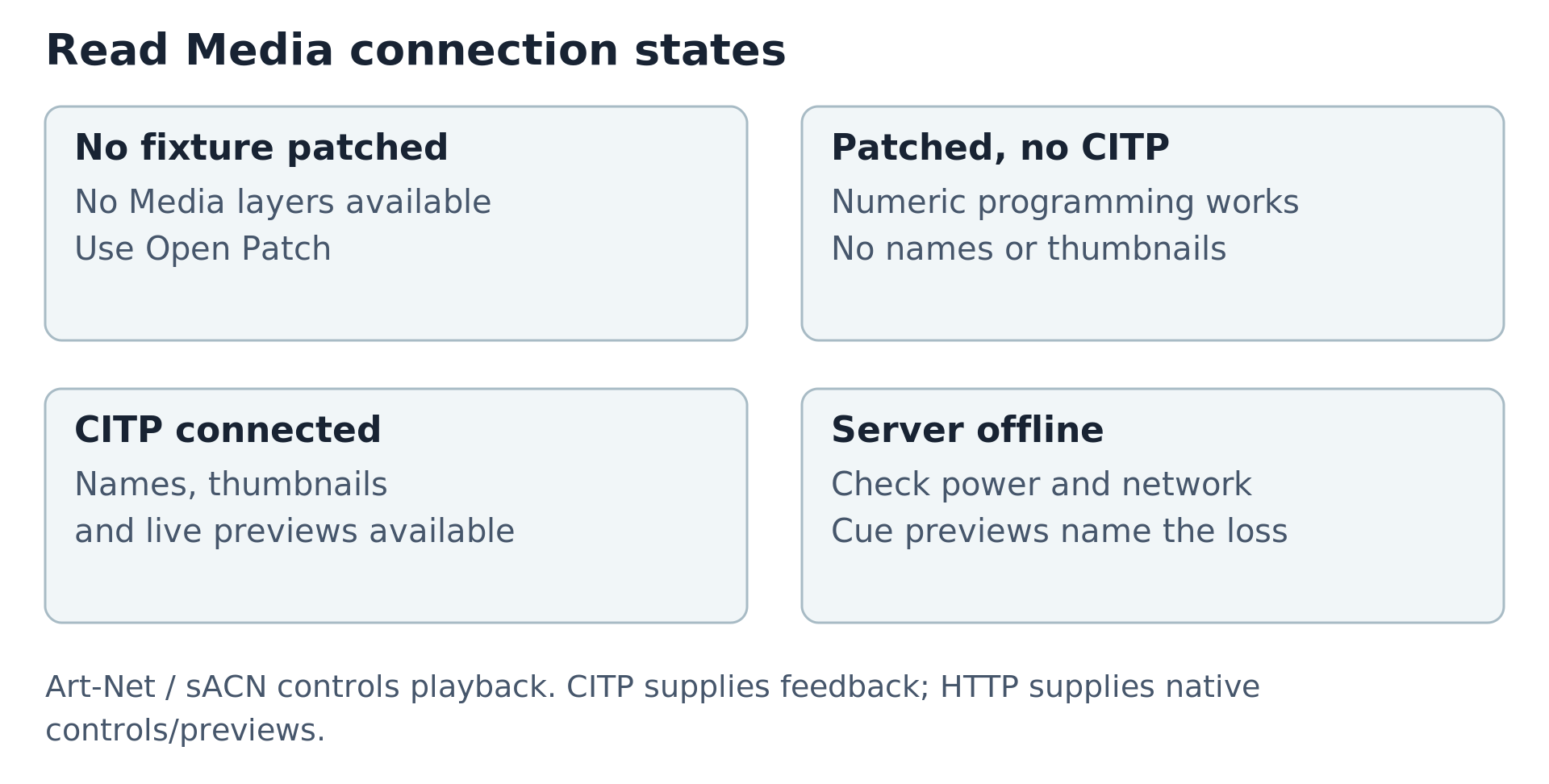
Show Patch > Media Servers opens with a table of every patched Media Server, one row each, ordered by fixture number. A server stays in the table while its network control is off; only its connection is paused.
Column
Meaning
Type
ToskLight Media for a ToskLight Pixel Media Server, CITP media server for any other CITP-capable media server, or No network control when the profile offers none.
Protocol
CITP connects the desk to the server; Off stops the desk from talking to it. Only protocols the fixture profile supports are offered.
IP address and CITP port
Where the server listens for CITP. The address must be a literal IPv4 or IPv6 address, and the port must be 1–65535; the row explains a wrong value and keeps Apply disabled until it is fixed.
HTTP port
ToskLight Media only: the native-control and configuration endpoint on the same IP address, normally 8080. It is independent of CITP; enter a custom port explicitly.
Status
The desk's own connection state: Connected, Offline, Not checked, Checking…, or Off. Below it, whether the last discovery Found the address on the network. An offline row shows the server's reason and what to check.
Actions
Apply stores the row's protocol and address. Check connection asks that server once whether it answers and updates Status. Refresh Thumbnails reconnects and fetches that server's media thumbnails. Start live preview shows the server's output under the row.
The status follows the desk as it changes: when a connection attempt succeeds or fails, every open Show Patch updates without refreshing. When you apply a new address, the row checks the server once at that address. Each row works on its own; refreshing or applying one server never disables another row or clears its message.
⚙ > Media Servers > Clear Thumbnail Cache drops every Media Server thumbnail the desk has cached, for example after replacing media on a server. Live previews and the patch stay as they are; use Refresh Thumbnails on a row to fetch its thumbnails again.
Discovering a ToskLight Pixel Media Server
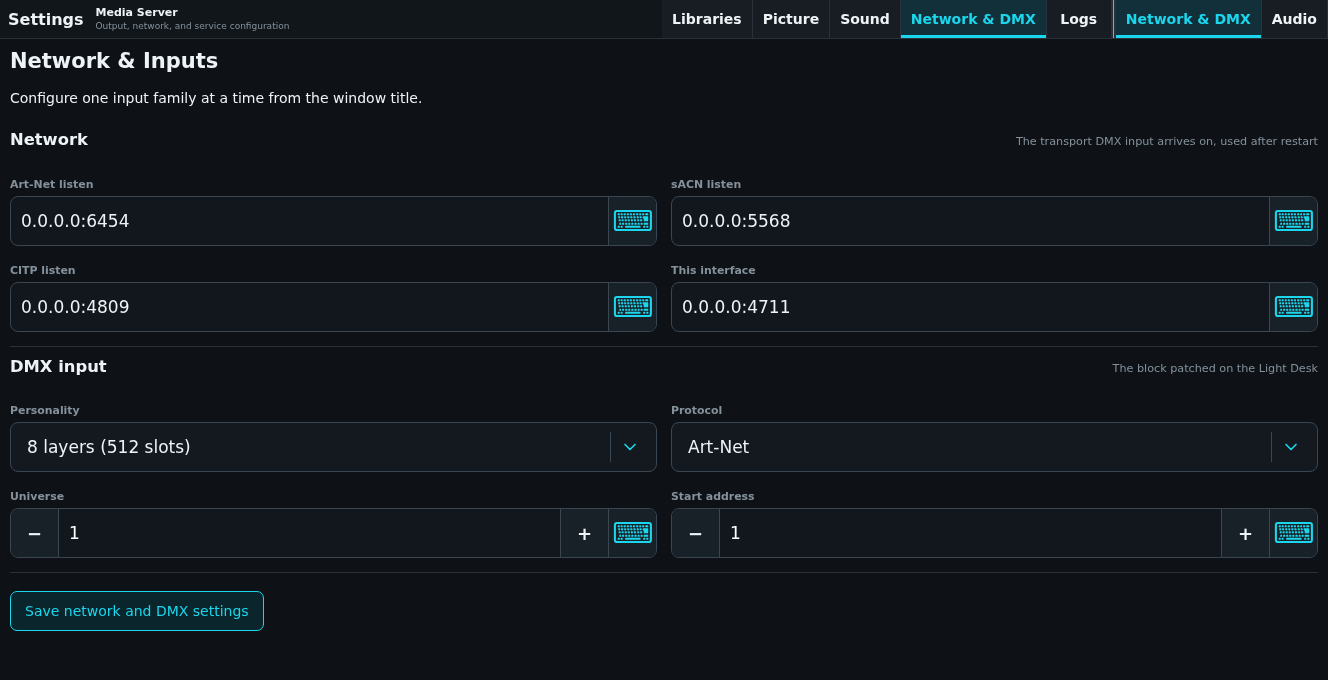
Open Show Patch > Media Servers to discover ToskLight Pixel Media servers on the local network. Refresh Discovery, in its own group at the top right of the window beside the view tabs, repeats the search without restarting either application. Each output is shown by its Media Server and output name. Below the name are the server's IP address, its type (ToskLight Media), its CITP port, whether it is Online, and the desk's connection to it (Connected, Offline, Not checked, or Not connected (not patched)). Next comes the output's current configuration:
the suggested DMX universe.address
the 2 layers or 8 layers personality
the protocol and universe it listens to (for example listens to sACN 101)
whether its tempo follows the Playback BPM channel or a desk Speed Group
Configured ToskLight Media endpoints are checked on their stored HTTP ports during Refresh Discovery. Unconfigured discovery searches standard CITP 4809 and HTTP 8080, not custom ports. Configure a custom endpoint in the patched row first. CITP does not advertise or determine its HTTP port.
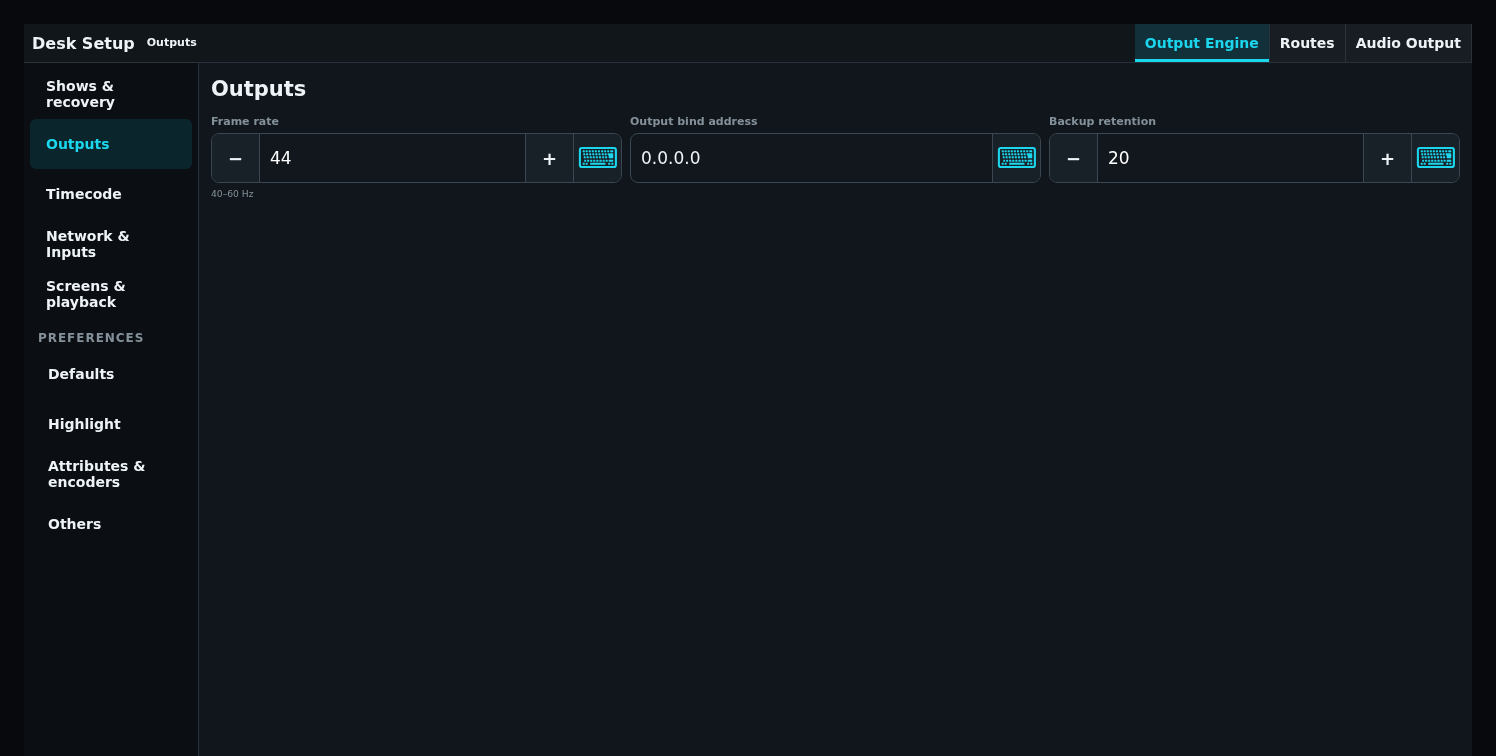
The suggested desk universe is the one whose output route (Setup › Outputs) sends what the server listens to. When no desk route sends it, the card says so. A discovered output remains explicitly Not patched until you choose an action; discovery alone never changes the show.
The status beside each output tells you what to do next:
Patched: a desk fixture controls this output with the matching personality, at the server's address, and a desk output route delivers that universe to the server.
Mode differs: the desk fixture uses the other personality. Every layer after the first would be misaddressed, so the card explains the difference, and Patch suggested switches the desk fixture to the output's personality.
Endpoint differs: the desk fixture controls the server at another IP address or CITP port than discovery found. Patch suggested updates the desk endpoint.
Address differs: the desk sends the fixture's universe or address somewhere other than where the output listens. The card names both sides. Patch suggested moves the desk patch to the server; Patch address moves both.
Not received: no desk output route sends the fixture's universe onto the network, or the fixture is unpatched, so the server receives nothing. Add an output route under Setup › Outputs, or choose Patch address.
Needs update: the Media Server reports a personality the desk cannot patch, or is too old to describe its outputs in the current format (for example, it still offers the retired channel layouts). The patch actions stay disabled. Update ToskLight Media, or choose 2 or 8 layers under its Settings > Network & DMX, then Refresh Discovery.
Unavailable: the server answered discovery but not its configuration API. Check that it is running and reachable on its configured HTTP port (default 8080), then refresh.
Patch suggested creates the matching ToskLight Pixel fixture, or updates the existing one, at the desk universe and address that reach the output. It also sets the fixture's CITP endpoint to the discovered server. Patch actions preserve the stored HTTP port when IP and CITP still match. Resolve conflicting output bindings or endpoints before patching. It never changes the Media Server. The normal Patch footprint and collision checks run before the desk accepts it; a refusal is shown on the card and says that the Media Server was not changed.
Patch address lets you choose another desk universe and address. Before anything changes, the desk looks up how it sends that universe. When no enabled network output route sends it, nothing changes and the card asks you to add the route. Otherwise:
The desk patch is validated and stored.
The selected Media Server output moves to that address. Its DMX input also moves to the route's protocol and universe, for example Art-Net 1 when desk universe 1 is sent as Art-Net universe 1. When a universe is sent both ways, the server keeps the protocol it already uses.
The card confirms both sides, or says that the server listens there only after its next restart.
If the Media Server answers with a different address than requested, the card says so rather than reporting success. If the remote update fails, the desk restores its previous patch (or removes the newly created fixture) and asks you to Refresh Discovery to confirm the server's address. If restoring also fails, the card says that the desk and the server may differ. It never silently reports mismatched addresses as patched. When the Media Server refuses the change, the message says why and what to do: a value it rejected (such as an 8-layer block that no longer fits the universe) names that value, a change it could not save asks you to check free space and write access for its configuration folder, and an output it no longer has asks you to refresh discovery.
Native Media controls (effects and text) act on the output the fixture was patched to. If that output has since been removed from the Media Server, the desk reports it instead of controlling a different screen; refresh discovery and patch the output again.
The Media Server may report that its DMX input change needs a restart; Show Patch keeps that state visible. An unreachable server or discovery failure does not disable the ordinary fixture-library and manual Media Server patch workflows.
Pixel also publishes GDTF and desk-native personality downloads in its management interface under DMX > Connect to Console. Use those files when patching Pixel from MagicQ, grandMA2, grandMA3, or another GDTF-compatible desk. The Layer and Master personalities come from the same canonical channel layout as Pixel's DMX receiver; patch every Layer consecutively and one Master immediately after them.
Architect patch views
Open Patch to edit the rig in a sheet or inspect the address grid. Use Fixtures and patch for choosing fixtures, modes, splits, addressing, and multi-patching.
An unpatched fixture remains in the rig and can be positioned and visualized. Give it an address when it should receive DMX. Use the Visualization sheet view when placement matters more than addressing.
Editing the patch sheet
The dock has four screens: Show, CAD, Patch and Media. Patch lists every fixture with a DMX address, including lamps, lasers, foggers, particle effects, and patched scenery. Switch on Show all above its layers to include unpatched Venue objects such as trusses, stage elements, curtains, and imported models. + Add fixture then offers these objects too. Selecting a Venue object in a view switches Show all on. The Patch title has two tabs at its right end, directly left of the window's Settings (⚙): Sheet is the patch sheet, and DMX is the address grid described in "The Patch screen's DMX tab" below.
The Visualizer follows the selection of CAD and Patch. Every selected fixture, imported model and Venue object, trusses, stage elements and curtains included, is outlined in blue there, in the 3D views and on the plan and elevations alike. Selecting more, deselecting and changing the selection update the outline at once; clearing the selection removes it. The outline only marks the object: its light output, position and material stay as they are, and clicking in the Visualizer picks as it always does.
Click a column header to order the sheet by that column, for example Fixture ID or Patch; click it again to reverse the order. An arrow marks the column the sheet is ordered by. Patch orders by universe, then address. Fixtures with nothing in the column, such as unpatched fixtures or fixtures without a note, always come last, and fixtures with the same value keep Fixture ID order. Shift and drag ranges follow the order the sheet shows. The sheet opens ordered by Fixture ID.
Choose which columns the sheet shows from the window's Settings (⚙) under Columns; the last visible column cannot be switched off. Patch and Venue each remember their own columns on this computer. Above the switches, View offers three quick views, which only the Architect has, the desk's Show Patch window does not:
Visualization: Fixture ID, Name, Location, Rotation, Bracket, Shaper, Footprint, Colour, Chain, Scale, Layer, 2D, 3D and Note.
Compact: Fixture ID, Name, Patch, Layer and Note.
Footprint width, Footprint height and Footprint depth size a generated Venue object, a truss's length, a curtain's width and drop, a stage element's rise, and show a dash for the measurements the object is not made to, and for everything else in the rig. Click a size to type it in metres; a size the object cannot be built at is refused with the range it can take. The size is kept when the object is edited here or on the desk.
Colour sets a generated Venue object's colour, a curtain's serge, a black truss, with Default colour returning it to its own material. Chain chooses Plain chain, Motor on top or Motor on bottom; the end without the motor has a steelflex. The Visualizer draws each object with what was chosen for it, and a desk shows and edits the same columns in Show Patch.
Scale draws a Venue object, an imported model above all, at a multiple of the size it was built at, from 0.01 to 100. 1, or an empty entry, is its built size; anything outside the range is refused with the range. The plan, the Visualizer and a desk's Stage all draw it at that scale, and everything that is not a Venue object shows a dash.
View names the quick view whose columns the sheet shows exactly; changing a single column leaves it reading Custom.
Masters says which masters reduce a fixture: none, group (the Group Masters only), grand (the Grand Master only) or both. Click it to choose another value; anything short of both warns which master the fixture stays live under. A fixture with no intensity shows —.
MIB is Move in Black: Off, or the delay before the fixture moves while dark, from 0s to 30s with decimals such as 2.5s. Click it to switch Move in Black off or on and set the delay.
Click a fixture's Note to open the note editor.
No Layer Assigned, under All fixtures, lists every fixture on the screen that has no layer of its own: fixtures still on the default layer, and fixtures whose layer no longer exists. While Show all is off, the sidebar hides layers whose fixtures all belong to another screen, such as a Trusses layer on the Patch screen. It also hides No Layer Assigned when it would be empty. An empty layer you created stays listed. Selecting fixtures in the drawing switches Show all on only when that selection happens; returning to the screen later does not switch it on again. The layer list appears once the screen's fixtures have arrived, already reduced to what the screen shows, so no layer flashes up and vanishes as the screen opens.
To delete a layer, press the bin to the right of its fixture count and confirm. Its fixtures stay in the show and move to No Layer Assigned. A locked layer must be unlocked first, and the default layer has no bin. The bin is the Architect's; on the desk, delete a layer with the keyboard shortcut or the hardware button.
While a layer is open, selecting stays in it: clicking, Shift and drag ranges, and Ctrl-click only ever select that layer's fixtures, and the sheet keeps showing the layer. A selection made in the drawing or another window opens All fixtures only when it includes fixtures outside the open layer.
Right-click a value to edit it. When the fixture you right-click belongs to the selection, the editor changes every selected fixture; when it does not, the selection is replaced by that fixture and only that fixture is edited.
A Fixture ID range in the value entry can be left open: 1100THRUENTER numbers the selected fixtures 1100, 1101, 1102 and on, and 1101THRU−ENTER numbers them 1101, 1100, 1099 and on. A closed range such as 1012THRU1004 still counts from its first value towards its last.
After Enter, the sheet scrolls to the fixture whose value you opened when the new value moved its row out of view, for example when a new Fixture ID sorts it further down.
With several fixtures selected, Delete asks whether to delete or unpatch all of them. Delete removes every selected fixture from the show and clears the selection; Unpatch keeps their fixture lines and clears all their DMX addresses. Either choice is applied as one patch change. Fixtures on a locked layer are left out, and a fixture outside the selection is still deleted on its own.
The Patch screen's DMX tab
The DMX tab in the Patch title shows every channel of every patched universe as a grid of numbered cells. A cell is lit when a fixture, one of its splits, or one of its multi-patches occupies that address and dark when nothing does. The addresses of one fixture share a single outline, a fixture's first address carries a mark on its left edge, so neighbouring fixtures stay apart, and an address two patches share is drawn in orange. Select a cell to see which fixture owns it, its patch range, split, fixture channel and attribute, and the address's DIP-switch setting. Sheet returns to the patch sheet.
The tab's only window setting (⚙) is Show sidebar, which shows or hides the side column; this computer remembers the choice.
To repatch a fixture, drag its block by any of its cells to the new addresses. The block keeps the cell you took it by under the pointer, stops at the start and end of the universe, and can be dropped into another patched universe. A split or a multi-patch copy moves on its own. Moved blocks are outlined with a dashed line, and Pending patch at the top of the side column lists every move with its old and new address. Nothing is written until Apply Patch, which writes every moved fixture as one patch change; Discard puts the blocks back. A refused change stays pending and shows the reason. Dragging back to the stored address takes a move off the list. Because Apply Patch is in the side column, blocks can only be dragged while Show sidebar is on.
Create and revise fixture profiles
Create fixture opens a blank profile with one mode named Default and one editable main head. Edit as new revision opens the same editor with the chosen revision. The title bar contains Identity, Simulation, Geometry, Modes, Save fixture, and Close; the Modes tab also adds Add mode at the top right. There is no footer Cancel action.
Closing an unchanged editor is immediate. Closing a changed editor through Close, Escape, or the backdrop asks whether to Stay or Discard changes. Saving an existing profile first asks to Save and create revision. A failed or stale save keeps the editor open and explains the problem.
Identity
Identity covers who the fixture is: manufacturer, full and short names, fixture type, notes, stage icon, photograph, and optional visualizer GLB model. Notes, photograph, and visualizer are shown side by side; drag the visualizer preview to inspect the GLB from another angle and scroll to zoom. Manufacturer remains free text. Use its lookup button to search the unique desk-library manufacturers with the shared full-text keyboard and fill the field without saving the editor.
Simulation
Simulation is what the Stage needs in order to draw the fixture. Body chooses the shape it is drawn as, Physical is how the lantern is built: dimensions, weight, power consumption, connectors, light source, colour rendering index, and lens. Optics is what comes out of it: colour temperature, luminous output, beam angle, relative output, edge, field uniformity, and light-source dimensions.
Colour temperature, luminous output, and beam angle describe the light rather than the lantern, so they are part of Optics. A profile written before that keeps working untouched: the values are read from where they used to be stored and belong to Optics from then on, including in the profile revision a patched show has already embedded.
Leave any optics field empty to use the normal appearance for the fixture type.
Every physical figure is entered in a fixed unit and precision:
Field
Unit
Precision
Width, Height, Depth
millimetres (mm)
whole numbers
Weight
kilograms (kg)
up to two decimal places
Power consumption
watts (W)
whole numbers
Sharpness, Uniformity
percent (%), 0 to 100
one decimal place, always shown as e.g. 85.0
A figure beyond its precision (420.5 mm, 24.555 kg) is kept on screen and named under the field, and Save fixture lists it instead of saving. Nothing is rounded for you. Every shipped fixture is stored at this precision. A profile imported from before these rules, with a dimension such as 498.2 mm, still loads and patches unchanged; its off-precision figures are named when you open it in the editor and must be corrected before that revision can be saved.
Generic body names one of the bodies ToskLight ships (the full list is in the Model Catalogue) so a PAR 64 long nose is drawn as one rather than as whatever its declared type suggests. Press the field to open the body picker, which shows a picture of every body grouped by kind and can be searched by name. Leave it on Guess from the fixture type and the body is inferred from the declared type and the channels the mode has, which is right for most fixtures and cannot tell a PAR 64 from a PAR 16 or a two-cell blinder from an eight. A fixture that ships its own visualizer model is drawn with that model, whatever the body says.
Mounting is what holds the lantern up, and it is what ToskLight Architect rigs it by: drag a lamp near a truss and the pipe line of its clip lands on the chord the clip reaches. Hangs by is a hook clamp over a pipe, a yoke or bracket bolted down, or nothing at all for a fixture that stands (a hazer, a floor can) which is then never picked up by a truss. The rest is six figures in whole millimetres from the centre of the body: Pipe across, deep and up put the bar where it ends up, and Clip width, depth and height say how big the hardware around it is, which is how near a pipe has to come to catch it. The clip is taken to hang directly under the pipe, as a hook clamp does.
Shipped fixture profiles include mounting data. Fill this in for a model you imported yourself, where only you know where the clamp is. The figures are read against the fixture's declared Physical size, so a lamp placed larger or smaller in the plan keeps its clamp in proportion; a fixture with no declared size takes the clip as it stands.
Modes and heads
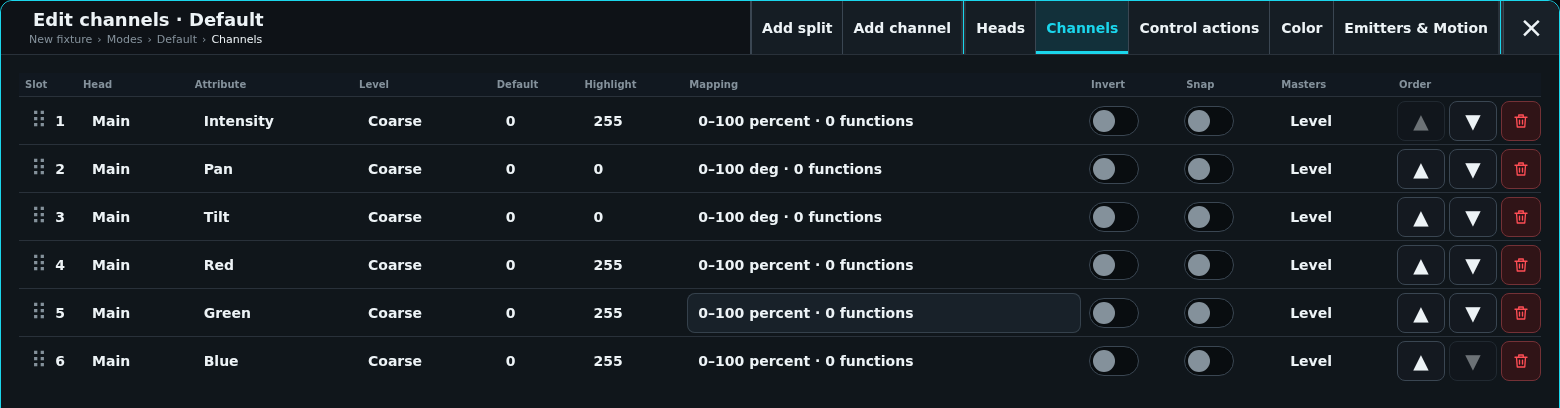
Modes have stable identities, names, notes, and complete channel configuration. Each row in the full-width Modes list edits that mode's name and notes directly and summarizes its heads, logical channels, and splits. Add modes from the title bar; reorder them with drag-and-drop. Removing a mode asks for confirmation first, because its heads, channels, and functions go with it; the final mode cannot be removed. Edit channels opens the nested tabs in this order: Heads, Channels, Control actions, Color, and Emitters & Motion.
The path under each editor window's title (for example Acme Orbit › Modes › Default › Channels) shows where you are among the nested windows. Press an earlier step to close every window below it.
Every head has a stable identity and an optional master/shared designation. Heads describe logical emitters, not patch blocks: one head may own channels in several independently patched splits. At most one head is master/shared. A head that still owns channels cannot be removed until those channels are reassigned or removed.
A split is an independently patchable address block configured in Channels. Its footprint follows the slots its channels take up, and every physical channel belongs to one split; each split gets its own optional universe and address in Show Patch. An unpatched split remains selectable, programmable, and visible but emits no DMX.
Nested fixture mode editor with Heads, Channels, Color, and Geometry tabs
Channels
Channels are arranged by split, one row per DMX slot, in the order the manufacturer's chart lists them. Every cell shows its value; press it to open the list or number keypad that changes it. Each row has these columns:
Attribute opens a picker for the encoder group, activation group, and attribute. Choose Static for a slot without a Programmer control.
Level selects Coarse, Fine, Ultra, or Extreme. To create 16-bit Pan, assign Pan to two slots and set the second to Fine. It becomes Pan's second byte and reads ↳ Pan. A Fine slot needs a matching Coarse slot on the same head. Returning it to Coarse creates a separate channel. Adding or removing a byte retains the meaning of defaults, Highlight, and function values.
Default and Highlight open a number keypad for raw values.
Mapping edits the physical minimum, maximum, and unit. The function table sits below the range. Use Details for behavior-specific fields, such as fixed-value labels or angular motion.
Invert and Snap control inversion and whether the value jumps instead of fading.
Masters shows how each channel follows the Cue, Group, Grand Master, and Blackout. Level channels follow those masters before conversion to DMX and read Level. Other channels follow virtual intensity only when configured to do so.
Every light-emitting head without a physical Intensity channel has a virtual dimmer. Program, record, and master it like physical intensity. Its color emitters start on Follow under React to Virtual Intensity; emitters on a head with a physical dimmer start on Ignore. CMY flags also start on Ignore.
Inverse makes the channel full at zero virtual intensity and zero at full virtual intensity. The table marks Follow as VI and Inverse as −VI. A Cue without an Intensity value for that head cannot dim it from its fader.
The table is the tab's only scrolling area: it scrolls up, down, and sideways under a fixed column header, while the mode editor's title bar and split headers stay in place. In a channel's Mapping window the function table likewise scrolls on its own below the physical range.
Only the Coarse row carries these settings; a further byte shows a dash. Drag a row by the handle beside its slot number, or use its move buttons. The red bin removes a slot after asking, and the slots after it move up.
Add split and Add channel sit in the mode editor's title bar while Channels is open; a new channel goes into the split that is open. With more than one split, each has a one-line header with its name and how many channels it holds (press it to open that split) and its own move and remove buttons. A split's footprint follows its slots, so it is never typed. Typed control actions have their own Control actions tab, with Add control action in the title bar. The editor blocks invalid footprints and overlapping slots. Choose a safe home and Highlight look, then verify them on the real fixture. Detailed raw-value, color-system, and control-action authoring is fixture-developer documentation.
A Static output channel has no Programmer control. It transmits its authored Default raw value during normal output and its separately authored Highlight raw value while Highlight is active, so a normally fixed control slot can still switch a fixture display or identification mode for Highlight. A per-fixture Highlight override may replace that Highlight raw value.
Emitters & Motion
A mode says which of its heads owns which of the fixture's emitters, and which attribute moves each of its moving parts; that is the whole of what a personality says about geometry. An emitter no head owns is not lit in that mode: which is how one personality gives every ring of a wash a head of its own and another drives them all together, without either describing the lantern twice.
Under Moving parts, press a part to choose which of this mode's channels drives it. Only attributes the mode's channels carry are offered, each once with the slots that carry it, plus Not driven to leave the part resting where it is drawn. A template's pan arm and tilt head start out driven by Pan and Tilt in every mode.
Geometry
Geometry belongs to the fixture, not to one of its personalities: a moving head has the same yoke whichever mode it is patched in. It is edited once, in the profile's own Geometry tab, and every mode binds its heads to the emitters described there.
A profile written before this carried a whole graph on each mode. Reading one moves the graph to the fixture and leaves the head each emitter named behind as that mode's binding, so nothing an operator authored is lost and no show needs repatching. Modes are compared by what they describe rather than by the identifiers they were written with, and a mode that adds parts the others leave out (a wash whose zone personalities drive four heads where its plain ones drive one) is read as that personality driving more of the same lantern.
Where a profile's modes genuinely describe different geometry the profile is left exactly as it was.
Choose a suitable fixture geometry and use the preview to confirm the lamp's shape. Detailed model hierarchy, emitter, pivot, and projection authoring is fixture-developer documentation.
The Geometry tab fills the editor window: the part and emitter list, the selected part's properties, and the live 3D preview sit side by side, and each scrolls on its own. The preview shows the lamp itself (its parts, their transforms and the emitter faces) framed on a dark-blue background; it draws no beam, so check how the light falls on Stage. A part's properties are split into tabs: Generic (name, parent part, GLB node binding, and Remove part), Translation, Rotation, Scale, Pivot, and Animate.
Animate makes a part move and describes how: Motion kind, Motion axis, the physical minimum and maximum, and its speeds. It does not name the attribute that drives the part; each mode chooses that under Emitters & Motion.
An axis that moves (a yoke's pan, a head's tilt) can also declare how fast it actually travels: Top speed, Acceleration, and Deceleration, in degrees per second for a rotation and in millimetres for a translation. A real lantern does not arrive instantly, and two fixtures given the same position at the same moment do not arrive together. Leave the figures empty and the axis moves as fast as it is told to, which is how every fixture behaved before.
Save a revision
The server assigns revision numbers atomically and rejects concurrent edits. Open Revision history to inspect immutable revisions, edit an older revision as a new one, or delete an unused revision. Deletion warns when a patched show embeds that revision; the show's snapshot remains intact even if deletion is confirmed.
Open Mapping > Details on a Continuous function to document its physical response. The function's raw endpoints and physical values define the mapping; decreasing physical values are valid, such as Zoom running from a wide beam to a narrow one.
Choose Mapping quality as Unknown, Estimated, Manufacturer or Measured. Manufacturer and Measured require a Mapping source. Use Mapping revision to identify a revised calibration. A Zoom function explicitly measured in degrees can also declare Beam angle or Field angle; leave the convention Unknown when the source does not say which it is.
The default is a straight line between the function endpoints. Use sampled mapping adds those endpoints, then Add intermediate sample adds a point on the curve to edit. Raw values must increase, and physical values must keep moving in the same direction. The first and last samples must match the function endpoints. Changing an endpoint leaves the samples intact and reports the mismatch; Use function endpoints repairs those two samples explicitly. Use linear mapping removes intermediate samples while retaining quality/source information.
The preview shows raw DMX against physical values and a midpoint readout. Invalid samples stay visible for correction and block saving. Changing channel resolution keeps the curve's relative raw positions, unless reducing resolution would merge sample points; that change is refused. Existing profiles without calibration remain valid and read as Unknown.
The profile and its .toskfixture package retain the mapping. Physical Position, Focus, and Zoom resolve through the declared physical data; the editor preview lets you inspect the mapping before saving.
Configure fixture Color models
Configure the fixture's additive, subtractive, hue/saturation, or wheel color system. Every head has its own section and its own color system, so each cell or pixel of a multi-head fixture is configured independently. Copy to other heads gives every other head that has the same kind of channels its own copy, bound to that head's channels; each copy can then be edited on its own. Heads without matching channels, such as a shared master head, keep what they have.
Each color system also declares its Color Intent calibration: Measured for data taken with a colorimeter or spectrometer, Nominal for datasheet or typical values, Uncalibrated when the data cannot promise a colour. Raise the Calibration revision whenever the colour data changes and name its Calibration source. A Subtractive CMY system can hold the Measured filter output: the open beam and the beam with each flag fully in. Color Intent uses this data to decide how closely the fixture can show a colour and says so.
For a Discrete color wheel, Fill slots from wheel functions creates one slot for each named position of the wheel channel. Colors you already defined are kept. Each slot has a display color that the Visualizer shows while the wheel is in that slot. Choose one in the picker to store it with the profile; it is marked Defined color. A slot without a defined color shows the color its name describes, marked From the slot name: Open or White shows white, Deep Red a dark red, CTO a warm tint. A slot whose name describes no color leaves the fixture's own color in the Visualizer. Steady colour for Color Intent says whether Color Intent may park the wheel in that slot: left on Judge by the slot name, a split, scroll, rotation or effect position is never used. Each wheel slot gives every field room for its value; in a narrow window DMX from and DMX to move onto their own line rather than shrinking. Then use Generate portable presets in Control → Special Dialog when fixed or indexed choices should be added to the show.
Physical optical paths
The Color tab also contains Physical optical paths, one per head. Use Create physical path to start from the head's existing Color controls. Existing emitter values retain their evidence quality; a missing source or filter measurement stays Unknown. These settings are saved with the fixture and its portable package. Live Color matching uses them: a requested colour is fitted to this head's native controls through its optical path, and the Color dialog's approximation reports the result with the path's evidence quality.
Native Color controls lists the exact profile channels participating in Color. Include all emitters, filters, wheels and color-mode controls. Function selectors identify the actual native channel and raw interval, including channels whose programmer aliases overlap. Service/reset functions cannot become recordable Color values.
Choose an Unknown source, a Fixed lamp source, or Additive emitters. An emitter declares its visible/UV/IR role, XYZ when known, maximum drive, response exponent and native direction. A reversed native direction means the beginning of that function is full output and the end is off. For a fixed source, XYZ known starts with zero output; enter the actual source values rather than accepting an invented white. Manufacturer and Measured quality require a source record.
Add filters in the order light passes through them. CMY flags, correction filters and wheels are separate stages, each attached to an exact channel function. Move earlier/later changes the order while preserving identity and data. An isolated wheel-color XYZ is not a transmission measurement and cannot predict its combination with another filter. Missing transmission is reported explicitly. Spectra and whole-path recipe measurements imported in a .toskfixture remain intact; the current form shows their retained sample counts.
Changing a referenced channel's byte layout is refused until its physical path is reconfigured. Deleting a referenced channel/function leaves a validation error, so incomplete calibration cannot silently be saved. Updating the optical model revision pins a new appearance model; it does not rewrite stored show presets.
UV emitter data
In a physical optical path, select UV effect as the emitter purpose and bind its exact native UV function. Missing color measurements do not mean the UV control is absent. XYZ describes only its visible output, which may include violet light; leave it unknown unless supported by data. A measured zero and an unknown value are different. Spectral measurements remain optional. UV strength and fluorescent scenery appearance cannot be inferred from the visible color alone.
Optical wheels
The Simulation tab's Optical wheels section assigns gobo artwork and prism appearances to individual wheel and slot numbers. Wheel 1 matches Gobo 1 or Prism 1, wheel 2 matches Gobo 2 or Prism 2, and so on. Gobo slot zero is open; later slots may carry a name and an image mask, where white passes light. Each wheel may reuse another wheel's slot numbers. Prism slots choose Radial or Linear, the number of copies, and their spread in degrees from the beam axis. Slot zero stays open. An empty prism list retains the generic appearance. Export carries these settings and artwork with the fixture revision.
Calibrate an installed fixture
In Show Patch, open the physical fixture row's Pan / Tilt editor, then Position calibration…. Each multi-patch copy has its own calibration. Enter signed, unwrapped Pan zero offset (°) and Tilt zero offset (°), quality, source and revision. Manufacturer and Measured quality require a source. Clear calibration returns that physical instance to missing calibration; the fixture-library profile remains unchanged.
The offsets are stored with the portable show/patch and survive edits in Architect. When Position is programmed in degrees or as a Target, the desk applies them while converting to Pan/Tilt DMX, so they change the DMX output and the Stage beam that follows it. Existing Pan/Tilt inversion and mounting rotation remain separate settings; the resolver applies direction and zero correction once.
Installed Color calibration
In Show Patch, use SET or the context menu on a physical fixture's Light source cell. Open its calibration action. With no Stage geometry emitter, choose Color calibration… directly. A root fixture and each multi-patch copy hold independent observations.
Add an emitter's output gain when its output differs from the profile: 1.0 keeps the profile output and 0.0 represents no output. This scales the emitter's XYZ and spectral power together; it does not describe a hue change or invent missing emitter data. For CMY, wheels or other compound optical paths, add a whole-path observation with output XYZ and the complete native recipe used to measure it, including parked wheels. Recipe defaults are an editing template; these controls send no commands to a lamp. Record quality, evidence source and revision honestly. Manufacturer and Measured require a source.
Observations retain the exact profile revision, mode and optical path. If the patched fixture changes, incompatible observations remain saved but inactive. Clear them before authoring new ones for that lamp. A physical hardware swap using the same profile also needs a calibration review. New Architect duplicates start without Color calibration. Clear Color calibration removes observations from only the selected physical instance.
Compatible observations apply to live Color fitting and the installed fixture's physical appearance. Stale observations stay stored but inactive. Stored Preset and Cue Color intent remains unchanged.
Physical geometry and individual axis calibration
In the Fixture Library's Geometry editor, Declare physical geometry records the coordinate convention and the quality of the supporting measurements. Geometry uses local millimetres with Y up; the neutral beam points along −Y. A bracket can be unknown, fixed, or an authored hinge with a body, pivot and axis. An unknown pivot must not be labelled measured. Physical movement paths need identity scale; bake visual model scale into the actual dimensions.
In a mode's Emitters & Motion editor, Configure physical Position connects a physical axis to an exact native channel function. Configure the function's angular motion and units first. Absolute angle uses degrees; continuous rotation speed uses degrees per second. Multiple turns remain signed angles, and a speed-only axis cannot provide an absolute position.
In Patch, open Pan / Tilt → Position calibration for the physical lamp or copy. Individual axis overrides replace its usual Pan/Tilt zero and direction together. Each override belongs to that profile, mode and physical geometry. Replacing the lamp or changing its geometry retains old measurements as inactive; Clear axis overrides removes that set without discarding the family offsets. Copies have independent calibration. New duplicated hardware starts without installed measurements.
These declarations and corrections drive fixture-independent Position programming: Angles and Target values reach each lamp's DMX through its own calibrated model, and Stage aims the beam with the same model.
Size and finish Venue objects
Set dimensions on the placed object in Show Patch. In Architect's Patch sheet, turn Show all on to see the same fields. Each object keeps its own size and finish.
Set dimensions
Footprint width, Footprint height, and Footprint depth expose the dimensions available for that object. A curtain has width and drop, a truss has length, and a stage deck has its supported base size and rise. Fixed dimensions show a dash.
Enter one value or a THRU spread for a selection, as with Location. A value outside the supported range is refused with the accepted range. Editing the name, layer, or position retains the dimensions.
Stage elements have fixed base sizes of 1 × 0.5 m, 1 × 1 m, or 2 × 1 m and an adjustable rise from 0.1 to 1.2 m. Existing objects retain their embedded profile and supported size. Stage elements, decks, and stairs are positioned by the middle of their footprint at floor level. At Z 0 the feet stand on the stage floor; raising the deck keeps the feet there.
Stage Element uses a scissor lift; Stage Deck uses regular feet. Stage Stairs keeps its stair geometry. The Visualizer and CAD draw those differences.
Choose materials and chain placement
Open Colour to choose a finish, such as red serge or black truss. Default colour restores the object's material: black serge for curtains, aluminium for truss, and dark brown multiplex for staging. Existing objects retain that default finish.
For a chain, Chain chooses Plain chain, Motor on top, or Motor on bottom. A new chain defaults to a motor on top. The other end shows its fixing when a nearby truss supports it. Older chains retain their hoist position. Inapplicable cells show a dash.
Scale an imported model
Use Scale when a model's authored size differs from the intended size, such as a hall modelled in centimetres. Values range from 0.01 to 100; 1 or an empty entry restores the authored size.
The Visualizer, Architect plans, and Control's Stage use the same scale. Lamps, Crowd Areas, and multi-patch copies have no scale field. Crowd Areas use their independent width and depth instead.
Choose a scenic object
The Venue library includes staging, curtains, mirror balls, backline, PA, flight cases, and people. Pipes, trusses, and chains use the Rigging type. Their objects have no DMX footprint.
Generated Flight Rack, PA Speaker, and Line Array objects expose dimensions suited to the object, such as rack units, pole height, or array elements. Existing shows keep their earlier modelled objects.
The shipped library includes these Generic and manufacturer profiles. Check the selected mode against the physical fixture before patching.
Generic ACL: a compact 200 mm-long, 80 mm-diameter conventional ACL lamp with aligned lens and beam geometry. Blinder 2, Blinder 4, and Blinder 8 are three fixtures, because a two-lamp bar and an eight are different lanterns rather than two personalities of one. Each has the groupings its lamp count allows: one and two channel, and on the eight also four: and each dimmer channel owns a non-master logical head that drives its share of the lamps. Shows patched before the split keep the fixture they were patched with. Fogger provides Fog, Fan/Fog, and Fog/Fan modes; Hazer provides both two-channel orderings.
Generic RGBW, RGBWA, and RGBWAUV LED: one canonical RGB-first emitter order with an 8-bit dimmer first, an 8-bit dimmer last, or a virtual dimmer. Generic RGBCCT LED provides the six useful placements of the RGB block, cold white, and warm white (RGBCW, RGBWC, CRGBW, CWRGB, WRGBC, and WCRGB), each with those same three dimmer choices.
Generic Dimmer RGB Control PAR (LED PAR 56 Suedbahnhof): the operator-supplied five-channel personality in Fixed 0, Red, Green, Blue, Fixed 0 order. The first and fifth slots are static outputs that always transmit zero; the RGB emitters use virtual intensity because the fixture has no physical dimmer channel.
Generic rare-capability references: Endless Pan Tilt retains endless 16-bit axis representation on the canonical Pan and Tilt controls; Beam Size and Edge keeps Zoom independent from Softness; Media Positioning provides independent media-layer X and Y axes; Flame Jet supplies a ToskLight-authored single-nozzle demonstration; and Kabuki Curtain maps one raw slot to Reset, Hold, and a latched Release through its portable physics script. These are explicit transferable reference personalities: match their documented channel order to the device rather than treating them as manufacturer profiles.
ToskLight product and Visualizer profiles: Audio Player is an Internal fixture: one independently programmable Audio service voice with a regular fixture ID and no DMX address. It is addressed through the canonical Media attributes: Media Folder, Media File, Play mode, and Volume: so the Media encoder group and the Media pane control it exactly like any other media source. Play mode carries transport and repeat together: a looping mode repeats the file, a once mode plays it through, and Stop and Pause hold the voice silent. Stop is the patched default. Play mode names every mode it can be in: Loop, Reverse, Bounce, the Once and Reverse once end states, their tempo-synced counterparts, Stop, and Pause: so the encoder and the Media pane show the mode by name instead of a percentage, and each mode can be chosen directly or generated as a preset. Media Server play mode is named the same way. Shows patched before this change keep their stored Audio Folder/File, Transport, Repeat, and Volume attributes and continue to play. Media Server provides two complete personalities: 158 slots for two layers and 512 slots for eight layers. Each 59-slot layer is an independently programmable logical head; the trailing 40-slot output block belongs to the shared master head and exposes Output, Geometry, Mask position, Shapers, Colour, and the fixed Layer Opacity Cycle effect. Shows patched before the release keep their embedded 75-slot legacy, 89/323-slot mask-position, or 119/353-slot effect-bank snapshots and still load, but the Media Server decodes only the two current personalities, so repatch those fixtures. Both personalities use the complete master with two selectable effect banks per layer, each carrying Effect Select, Effect Strength, and four effect parameters, plus blend mode and strobe, in and out points, four visualizer parameters, and 3D model mapping with pan and tilt. The output block mirrors through a negative scale instead of a Flip/mirror channel. Visualizer Camera keeps the stable 17-slot X/Y/Z, Yaw/Pitch/Roll, and Zoom wire contract, while Visualizer Laser provides the packaged demo laser and its scan program. This manufacturer is reserved for implemented ToskLight-owned product fixtures; planned further Visualizer fixtures do not appear until their capabilities exist.
JB-Lighting JBLED A7: Standard and Compressed RGB personalities in 8-bit and 16-bit color, with the complete shutter-effect table and a documented open shutter as the safe home and Highlight look.
Martin MAC 250 Entour: 16 Bit and 16 Bit Extended; MAC 300: Mode 4; ELP CL Profile: 10-Channel; and ELP WW Profile: 4-Channel.
Cameo AURO SPOT Z300: 17-Channel and 20-Channel, with named color and gobo wheel positions, gobo shake and wheel rotation bands, prism, frost, auto program, auto movement, and device-setting functions from Cameo's DMX chart; ROOT PAR 6: D7CH with its physical delay channel and virtual intensity; and Q-SPOT 40 TW: all five 1-, 2-, 3-, and 8-channel personalities.
Prolights ECL Fresnel CT+M: STANDARD; Clay Paky Stage Zoom 1200: the venue's 20-slot 16-bit, gobo-fine, lamp-control personality in addition to its existing modes.
High End Systems Trackspot: the classic seven-channel mirror scanner in low- and high-resolution DMX personalities.
Showtec Sunstrip Active DMX: ten independently controlled tungsten lamps.
Showtec Sunstrip LED RGB 42206: ten independently controlled RGB pixels, each with its own additive color system, so every pixel shows its own color in the Visualizer.
ROBE Robin DLS Profile, Robin 600X LEDWash, Robin LEDBeam 150, Robin 300 LEDWash, and Robin DLF Wash: every documented manufacturer personality. The 600X and 300 zone modes expose their three concentric RGBW zones as logical heads.
Claypaky Sharpy, ETC Source Four LED Series 2 Lustr, CHAUVET Professional COLORado 1 Solo, and GLP JDC1. JDC1 SPix modes expose all twelve RGB plate pixels and twelve white beam segments as logical heads.
Position physical data. The Cameo AURO SPOT Z300, JB-Lighting JBLED A7, ROBE Robin DLS Profile and Martin MAC 300 bind their Pan and Tilt channels to the yoke and head axes of their geometry in every mode, so fixture-independent Position programming can aim them in degrees. Only the travel comes from the manufacturer: the centre of the documented travel is taken as the neutral pose, and the pivots, zero and direction are marked estimated rather than measured. Correct them per fixture with Show Patch → Pan / Tilt → Position calibration. Every other mover with one Pan and one Tilt channel, such as the Claypaky Sharpy, Martin MAC 250 Entour, ROBE Robin 300/600X LEDWash, DLF Wash and LEDBeam 150, or the Default Stage's built-in moving lights, gets a nominal Position model when it is patched. Its travel is the one its channels declare in degrees, centred on the neutral pose; a channel that declares no travel in degrees gets a nominal Pan of 540° and Tilt of 270°, also centred. The beam is placed on the tilt axis. These angles are labelled estimated and uncalibrated, and the stored fixture type does not change. Calibrate the fixture, or add Position data to its fixture type, for exact aiming. A Tilt-only fixture such as the GLP JDC1 gets the same nominal model with its missing Pan held fixed at 0°, an absolute Pan or Tilt that turns endlessly keeps its multi-turn angle, and a scanner aims its beam through a modelled mirror. A fixture this cannot describe has no Position and stays Unsupported: an axis that only takes a rotation speed, a laser's scan engine, and a Media server's model rotation. Every shipped fixture with a Zoom declares its opening as a Beam angle or Field angle: the AURO SPOT Z300 and the other fixtures whose manual states the range cite it, and the rest carry a nominal range marked estimated.
The Source Four LED Series 2 configuration can independently enable Strobe, Fan Control, and Plus Seven. Its package contains the canonical console personalities, including the common fully enabled and Plus Seven variants, instead of multiplying every fixture-menu option permutation into a separate mode.
Channel order, footprints, fine-byte slots, safe defaults, and physical ranges come from the corresponding manufacturer DMX charts. So do the positions on colour and gobo wheels, prisms, macros, effect banks, and the power, special-function and reset channels: the shipped manufacturer packages name each band the chart prints, so an encoder reads "Gobo 3" or "Total reset" rather than a percentage. Where a manufacturer chart is genuinely proportional - a frost, a fan, a macro speed - the channel stays a single range, and where one DMX range carries two mutually exclusive meanings chosen from the fixture menu, such as ROBE's combined Pan/Tilt speed and time, the package keeps the range unnamed rather than asserting one of them. Shipped packages are not privileged or reserved: after loading, they are normal desk-library profiles. When a newer shipped package is installed, ToskLight updates it only if its last package-installed revision is still current. An operator-created later revision is preserved and reported instead of being overwritten.
Export a working fixture as a template, retain its identity when correcting it, and import the result as a new immutable revision. If an import contains an unknown attribute, map it to a compatible desk attribute or create a custom one before importing; existing revisions remain readable and exportable.
Position, rotate, and align fixtures
Select fixtures in CAD or Patch, then use Info > Placement for measured positions. The CAD gizmo moves and rotates the same placement. Selection order controls every spread and Placement Assistant layout.
Position and rotate the selection
Plans, Elements and Info share the side panel at the right of the drawing. Each panel's title row holds its name, its tabs and a + button whose menu lists what can be added there: on Plans a Fixture list page, on Elements the drawings or objects of the open tab. Drag the panel's left edge to make it wider or narrower, or focus the edge and use ← and →; the width is kept for the next time.
Info follows the selection. Select one element in a view and it opens at the foot of the side panel; with no panel open, it is the whole side panel. Its title row has two tabs, Generic and Placement; the tab you chose stays open as the selection changes.
For one element, Generic edits its Name and Notes and, for a lamp, its Patch as universe.address, one field per split, and an empty field unpatches it. Placement edits its Position (X, Y and Z in metres) and Rotation (X, Y and Z in degrees). A generated Venue object, such as a truss, curtain, or stage element, shows its Size instead of a scale: only the measurements its profile lets you set, such as a truss's width (its length), a curtain's width and height or a stage element's height, in metres within the range the profile allows. A size outside that range is put back without saving. A stage element's or stairs' Position is where its feet stand, the middle of its footprint on the floor, so Z 0 stands on the stage floor, and changing its height raises or lowers the deck without moving the feet. Every other generated object is positioned by its centre. Its Parameters follow: a Colour as a hex value, empty for the kind's default, and for a chain its Chain top and Chain bottom. A placed 3D model shows Scale. A lamp shows its Bracket angle and Barndoors angle, empty when none are fitted. Every number field names its unit.
An element keeps the exact version of its profile it was placed with, so a show always draws what it drew when it was built. When this computer's library holds a newer profile version, Placement offers Update to the newest version. The newer revision may correct a part such as a truss section or the size of a corner block. It changes nothing else: the name, position, rotation, patch and the measurements you set stay as they are, and a measurement the profile does not let you set, such as a truss's section, comes back at the corrected one. Elements you do not update are left alone. The fields take typing from the keyboard: a change is written when you press Enter or leave the field, and Escape puts back what was there.
With several elements selected, Generic lists them by ID, Name, Model and Patch, and a multi-patched fixture says how many copies it has. Click one to select only that element. Placement edits them together: X, Y, Z, Rot X, Rot Y and Rot Z, and for the lamps among them Bracket angle and Barndoors. A field shows the value they share, or the ends of an even spread as 1 THRU 5. When the values follow no such line the field is empty and shows the range they cover, lowest to highest, in the field's unit, such as -1.2m THRU 1.2m. Type one value to set every element, or a range, 1 THRU 5, 1 … 5 or 1 ... 5, to spread it evenly from the first selected element to the last. Placement Assistant lays the selection out in the order it was selected: along a Line from a start to an end, in a Grid from a start with a number of columns and a spacing across and deep, or around a Circle from its centre, radius, start angle and arc, where 360° spaces the elements evenly around the whole circle. Nothing moves until Apply.
When every selected element was patched from the same model, Shared model follows the placement fields and names it, All 4 × Generic Stage Element 2 × 1 m. It carries that model's own controls: the measurements its profile lets you set, such as a stage element's Height or a truss's Width, or a placed model's Scale, and the Parameters it is built with. They read and spread like the fields above, one value for the whole selection or a range across it, and each measurement is held inside the range the profile allows. Sameness is the model itself: four 2 × 1 m stage elements share one, a 2 × 1 m beside a 1 × 1 m does not, and a mixed selection keeps the placement fields alone.
The move gizmo stands on the selected element's own origin, or on the centre of a selected group. Drag an arrow to move along that axis, or the square to move freely. Holding Shift while dragging an arrow spreads the selection along it, from the first selected element to the last.
Hold Option (on Windows and Linux, Ctrl) while dragging the gizmo to place a copy instead: the copy follows the pointer and the original stays where it is. The preview follows the key as you press and release it mid-drag, and the key's state as you let go of the mouse decides: held, one copy is placed where the preview shows it; let go of the key first, and the drag moves the selection as usual, with no copy made. A copy is a new, unpatched element with its own identity and the next free number, as with Duplicate. It becomes the selection, and one Undo takes it away again. Option-dragging anywhere but the gizmo still pans the view.
The amber quarter arc between the two arrows turns the selection about the axis the view looks along: Z in a plan, Y in a front or back view, X in a side view. Drag along the arc; the turn follows the pointer round the gizmo in 15° steps, and holding Shift turns it freely in tenths of a degree. Beside the gizmo, Rotation Z +30° (or X, or Y) says how far it has turned. A turn changes the same rotation the Info panel's Rotation field for that axis sets, so the arc and the typed field always agree. One element turns about its own origin; several turn together about the gizmo, each carried round it as well as turned. Letting go commits the turn as one step, which Undo puts back; letting go where you started turns nothing. The arc keeps its size on screen at every zoom.
While you drag, the gizmo shows where its origin is on the two axes the view shows, X and Y in a plan, the horizontal axis and Z in an elevation, in metres, the same figures as the Info panel's position. Type a number while still dragging to place the origin there on the axis you are moving along, or start it with + or − to move it by that distance along the axis's positive or negative direction; the preview follows what you type, and Enter (or letting go) commits it. On a free drag with the square, the underlined axis is the one you type into; Tab switches to the other. A comma works as the decimal point. Text that is not yet a number, such as a lone sign, is marked and moves nothing: Enter does nothing and letting go abandons the move. Escape clears what you typed, and a second Escape abandons the move. A typed move neither snaps nor spreads.
Snapping
With Settings (⚙) → Enable snapping on, a moved object that comes within about 12 pixels of a fit lands exactly on it, and a magenta diamond marks the fit while the drag holds it. Snapping is part of an ordinary drag of the move gizmo; no key needs to be held:
Trusses join where their connectors meet: the ends of a straight truss, and the end of each arm of a corner, T-piece, cross or node, where the coupler egg sits. A corner block is 500 mm overall wherever it has arms. Connectors join only within one truss system: three-point to three-point, four-point to four-point.
Stage elements, including decks on either kind of feet and stairs, butt against their neighbours. Each side aligns independently. Slide a deck along the front of a wider one to close the gap. Its end also snaps into line when it approaches the wider deck's end. Two sides that meet on both axes put corner on corner. A magenta line runs along each side that was lined up. This works for elements turned in quarter turns; one turned at another angle still puts its corners on another's. In a side or front view a stage element's feet land on another stage element's top. A stage element stands on its position: the position is the floor under the middle of its feet.
Curtains hang their rail just under a truss or pipe, and line their ends up with the ends of the next curtain.
Handrails land their foot line on the outside edge of a stage element, and their ends on that element's corners, so a run of rail closes a side of the deck.
Lamps clamp onto the nearest pipe of a truss; with snapping on, a lamp dropped onto a truss is also recorded as mounted on it. What reaches the pipe is the lamp's own mounting clip, which its profile declares: for example, the hook clamp on a yoke or the omega bracket under a moving head. A short lamp catches a pipe only from the distance its real hardware reaches. A fixture whose profile says it hangs from nothing, such as a hazer or a floor can, is never picked up by a truss. See Mounting in the fixture profile editor to set the clip on a model you imported.
Only the axes the drag can move change, so a plan view never changes heights. A truss, pipe, or rail more than half a metre off the view's plane is out of reach. For example, a plan view cannot snap a lamp on the floor to a truss 6 m above it. Measure snaps its ends in the same way, onto connectors, stage corners, curtain ends and the centre of every object. Hold Shift to place freely: while it is held, a drag or a measurement snaps to nothing and a moved lamp is not mounted.
Snapping is on by default. Switch it off in CAD Settings when objects must be placed freely.
The trash button at the top of Info, Delete and Backspace delete the selection from the show, with every multi-patch copy of each fixture. A single selected element goes at once; several are always confirmed first, and Cancel leaves every one of them in place. A deletion is one step: Undo in the CAD title, or ⌘Z, brings back everything it removed, same fixtures, numbers, patch and place, and Redo deletes it again. While a field has the focus, Backspace edits the field, and during a move it edits the typed position.
With Select in hand, right-click an element in a viewport for its menu: Group, Ungroup, Duplicate and Delete. Lamps, trusses, stage parts and imported models all offer Duplicate and Delete; Group and Ungroup stand above them and appear only when they would do something. Right-clicking an element that belongs to the selection keeps the selection, so the menu acts on all of it; right-clicking another element selects it (with its group) first. A right-click on empty plan opens nothing, and while a drawing tool is in hand a right-click still finishes the line instead. From the keyboard, press the Menu key or Shift+F10 to open the menu for the selection, the arrow keys to move, Enter to choose and Escape to close it.
Group and Ungroup are the same actions as ⌘G and ⇧⌘G and as the buttons at the top of Objects, described under Groups. Group shows when two or more selected Venue elements are not already exactly one group, Ungroup when the selection touches a group.
Duplicate (⌘D, Ctrl+D) adds a copy of each selected element beside it, edges touching, to the right in the viewport where you opened the menu, or the last-used viewport for ⌘D. A copy is a new element with its own identity and the next free fixture (or virtual) number above its original's, keeps its profile, mode, size, rotation and name, and is not patched. Give it a DMX address in Info when it needs one. The copies become the selection. Undo takes them away again.
Delete is the trash button's delete: one element goes at once, several are confirmed first, and Undo brings the elements back.
A multi-patched fixture stands in the plan once for each copy. Click a copy and Info edits that copy alone: its name, position and rotation change, and the fixture and its other copies stay where they are. Copy at the top of Info switches between the original and each copy, named by its DMX address. Notes and scale belong to the fixture, so their labels say (all copies). Dragging in the plan still moves the fixture with all its copies.
Build the venue
Use the CAD title's add tools for stage decks, trusses, scenery, and imported venue models. These objects travel with the show and appear in Control's Stage and the Visualizer.
A Venue object uses a 0.N identifier and has no DMX address. Its dimensions and placement describe the rig. Fixtures that control physical effects or moving scenery use their own DMX personalities.
Architect CAD with rig views and Placement controls
Add venue objects
The CAD screen's own title holds its tools, as icon buttons grouped and divided like every other title's buttons. Rest the pointer on a button, or reach it with the keyboard, and its name appears in a tooltip just below it, above the side panel and the viewports. A drawing tool's tooltip also shows the key that picks it, such as Draw line · L. From left to right:
Undo and Redo step back and forward through moves and deletions in the drawing. ⌘Z (Ctrl+Z) undoes too, and ⇧⌘Z (Ctrl+Y) redoes.
The add group places venue objects. Add truss, Add stage element, Add scenery and Add primitive each place their part at once when pressed. A small caret in the button's bottom-right corner opens a menu of the parts that button can place, each shown by its picture; the part the button places now is highlighted. Choosing a part places it and makes it the part the button places from then on, and this computer remembers that choice for the next time you open the CAD screen. Every part in the menu has a small button at the right of its row, which can be reached with Tab. Beside a truss or a stage deck it is Place Multiple (a grid of four squares), described below. Beside every other part, the stairs, the handrail, scenery and primitives, it is ++, Add Several: it holds that exact part, with its options and size, without placing one first, and every click on a CAD view then places another copy where you click, until you press Escape or Done on the banner.
Add truss (a truss segment) lists these sections: Pipe, 2-point, 3-point deco, 3-point regular, 4-point and 4-point large, with the straight truss and, for 3-point regular and 4-point, the corner pieces made for that section. It places a 3-point regular straight truss until you choose another.
Add stage element (a deck raised off the floor) lists the decks on Regular feet and the decks on Scissor feet, each by platform size, the one Stairs and the Handrail. Stairs is one entry. It places a flight without rails. With the flight selected, choose its rails on the Placement tab in Info, under Parameters → Handrails: None, Left, Right or Both sides, left and right as seen climbing it. The drawing shows the change at once. Either kind of deck is built to the height set in Info, so there is no part per leg height. Stairs climb to the height set there in 200 mm steps, and a handrail is a stage edge guard 1 m high, set to any length from 0.4 m to 24 m. It places a 2 × 1 m deck on scissor feet until you choose another. From above, a flight is drawn as stairs rather than a deck: a line across it at every nosing, an arrow pointing up the climb and its rails along the chosen sides. A flight climbs along its longer side, as it does in the Visualizer. An elevation that looks across the climb shows the steps in profile, rising the way the arrow points. One that looks along it shows the flight end on, at its full height. Turning the flight turns this with it.
Add scenery (a drape on its rail) lists Curtain, Chain, Disco ball, Stage railing, and Flight rack. Curtain is generated at the width and drop set in Info. Set a disco ball's Diameter from 0.2 to 1.5 m and its Chain up to 3 m. A Flight rack starts at 8U and 0.6 m deep. Its Units can be 1 to 24 and its Depth 0.4 to 1 m, both adjustable after placement. Every view draws its road-case shape with rounded corners, ball caps, and a panel per unit. The button places Curtain until you choose another part.
Add primitive (a box, a ball and a cylinder) lists Box, Cylinder and Ball. Each fills the width, height, and depth set in Info and uses the chosen Colour, neutral grey by default. A cylinder stands upright, so its height is its length. Load model… at the end of its menu opens the file picker for a 3D model, glTF, GLB, 3MF or OBJ, and places it at the stage origin, selected, while Loading the 3D model… shows until it is in. Place, turn and scale it from Info like any Venue object; the show carries the model itself, so it opens again with the show. A file that cannot be read is refused with the reason and changes nothing; closing the picker loads nothing.
Place Multiple, beside each truss and stage deck in those two menus, opens a dialog that lays out many of that exact part at once and writes them in one step. A plan of the arrangement under the fields shows every element as it will be placed and follows each change. Nothing is placed until Place; Cancel places nothing at all, and everything placed is left selected so you can move, turn or size it as one.
For a truss, type the First point and Last point of the run (X, Y and Z in metres) and how many Sections it is made of. The sections are spaced evenly from the first point to the last, each centred on its share of the run, and each is turned about Z only to the run's heading on the plan, never pitched or rolled. When the two points stand at different heights, each section is raised to the height of its own place along the run, so the run is stepped, not tilted. A straight section's Section length starts at the length that fills the run end to end and can be typed; a corner piece keeps its own size.
For a stage deck, choose whether the decks lie Long side across or Long side deep, how many go Across (X) and Deep (Y), and the Grid centre (X, Y and the height Z the decks are placed at). The decks butt against each other at their own footprint, so the grid has no gaps and no overlaps, and the dialog names the size it will cover.
Add venue element (a box) opens a dialog listing the Venue objects in this computer's fixture library that no button above places, crowds, PA and backline, figures and imported venue models, each shown by its picture on a dark ground. The trusses, decks, scenic elements and primitives are left out on purpose: place those from their own buttons and part menus. The PA Speaker is set in Info: Pole stand puts it up on a pole, and Pole sets the pole's height up to 2 m under its 0.6 m cabinet. The Line Array is set by its Elements, 1 to 24 under its flying frame. Type in the dialog's search to narrow the list by name or type. Choosing an object only selects it; Add in the title bar (or a double-click on the object) places one. Each object's ++ button, Add Several, closes the dialog and prepares repeated placement. Click a CAD view to place each copy. A plan places it on the floor; an elevation uses the clicked height. Press Escape or Done on the banner to stop.
A placed part goes to the stage origin with the next free virtual ID, the drawing shows it at once, and it is selected so Info opens to place it and set its size. A Place Multiple takes the next free virtual IDs one after another, in the order it lays the elements out. A part whose profile is not in this computer's fixture library is listed but cannot be chosen, and pressing a button whose part is missing says so instead of placing anything. When the show refuses a placement, the reason appears at the top right of the drawing.
Draw walls and fit openings
Draw wall, beside Draw line, draws a connected run: click the start and each corner, then Escape to finish. It snaps to existing corners, points along walls, and horizontal/vertical/45° directions. Hold Shift to disable corner, wall, angle and loop-closure snapping.
Use its dropdown for windows, doors, pillars and stairs. With a window or door active, hover a wall to preview the opening, then click to attach it. Escape ends repeated placement. Select the wall or opening and use Info > Placement:
Object
Main settings
Wall
Length, height, thickness, colour and room ceiling height.
Window
Width, height, sill and rectangular, round or arched shape.
Door
Width, height, single/double leaves, inward/outward swing and hinge side.
Pillar
Round, square or rectangular footprint and dimensions.
Floor, roof or balcony
Outline, elevation above floor and slab thickness.
Stairs
Width, rise, run and step count.
Furniture
Table shape/size, chair style, or bar dimensions.
Openings move with their wall. Overlapping openings or openings outside it are refused. Snap endpoints to nearby walls (25 cm) can close a nearby endpoint when placing/applying a wall; turn it off for a deliberate gap. Connected segments appear as continuous walls in plans and 3D, while remaining individually selectable and colourable. Enclosed walls create a ceiling at the lowest requested Room ceiling height.
Slab outlines need at least three non-crossing points. Edit local X/Depth points, add/remove points, then position and rotate the whole slab. Elevation is measured from its placement's floor datum; duplicate and raise balconies for stacked levels. Stairs rise along positive local Depth; rotate them with Angle. Stairs intersecting a floor or balcony create a cutout automatically, which follows later stair edits.
Top views draw wall outlines. Side views outline obstructing near walls so you can see and select the interior. Exported plans retain the venue. In 3D, a camera outside an enclosed room hides obstructing near walls and ceilings; from inside they remain visible. Cutaway surfaces still block light and cast shadows. Windows and doors are real openings. Balconies remain visible.
Objects in the Elements panel
Objects, the second tab of Elements, lists what the venue is built from apart from the lamps: Venue items, every shipped Venue object, generated like trusses, curtains and stage elements or drawn from a model like truss corners, decks on legs and the disco ball, and 3D models, which lists only the models imported into this show. Each row names the object, its ID, its kind and its size in metres.
Groups
Select two or more Venue elements, such as the trusses of a rig or the decks of a stage, and press Group at the top of Objects, ⌘G, or Group in the right-click menu of a viewport. The group is saved in the show as Group 1, Group 2 and so on, and is listed under Groups above the other objects; its elements move there from the lists below. ▸ opens a group to show its members.
A click selects the whole group: its row, one of its members in the list, or any of its elements in a view, and so does a selection rectangle that catches one of them. Hold Shift to select elements individually. Shift-click in a view adds or removes just that element, and Shift-click on a member in the list selects only that member. A selected group moves together with the gizmo, like any selection. Every element of a selected group is drawn in violet, in the CAD views and in the 3D PreViz alike. An individually selected element keeps the ordinary blue selection colour, including one Shift-picked out of its group. Ungroup, at the top of Objects, in the right-click menu, or ⇧⌘G, dissolves every group the selection touches and leaves its elements where they are. An element is in one group at most: grouping it again takes it out of its old group. A deleted element leaves its group, and a group with no element left goes with it. + adds more: the same truss, stage element, curtain, primitive and venue element as the title, and Import 3D model…, which places a GLB, glTF, 3MF or OBJ file as described below and selects it. Select a row to select the object in the views; Info below then sets its position, rotation and scale.
Place your own venue models
With Show all on, the Patch sheet's title bar has + Import 3D model beside + Add fixture, for a venue the fixture library does not have: the hall you are playing, a stage build, a set piece. Choose a GLB, glTF, 3MF or OBJ file on this computer and it is placed at once, at the stage origin, on the layer that is open, or the default layer when All fixtures is. It gets the next free 0.x ID and is selected, so set its Location and Rotation in the sheet like any other Venue object.
The model is kept in the show, not in the fixture library. It is listed under the manufacturer Imported models, travels with the show when it is saved, copied or opened on a desk, and is drawn by the Visualizer and the desk's Stage exactly like a shipped Venue object. While one copy of it is in the show, + Add fixture on the Patch sheet offers it again for another; import the file again to replace a model with a changed version, which is placed as a new object.
Whatever format you choose, the show keeps the model as one self-contained GLB, so it needs no other file once it is imported and moving the originals later changes nothing.
GLB is kept as it is. It must be a GLB 2.0 file with its buffers and textures inside it.
glTF (.gltf) may keep its .bin buffers and its textures beside it, as most tools write it; leave them in the folder they were exported to, next to the .gltf. A file that needs mesh compression such as Draco or meshopt is refused; export it again without.
3MF follows the file's build placement and declared unit, which defaults to millimetres. It is turned upright from Z up to Y up, as the same CAD tool's own glTF export would, and its base material colours are kept.
OBJ says nothing about units, so it is read as metres with Y up; scale it in the modelling tool before exporting if it was built in millimetres. Its .mtl material library must be beside it, and each material's diffuse colour is kept.
glTF and GLB are read in metres with Y up, as glTF defines. A model is drawn at the size it was built, so a 20 m hall is 20 m wide, and it may have at most 2,000,000 triangles and 64 MB once packed together. Surface colours are drawn and textures are not. A file that breaks any of these rules, or names a file that is not beside it, is refused with the reason, and nothing is added.
Open CAD to prepare plans and elevations of the rig. Use Elements > Drawings for venue underlays and annotations, and Plans for printable pages. Set the title-block information and company logo on the Show screen.
Prepare a print page
Open Plans, then add a plan page from the viewport you want to print. Each page keeps that viewport's orientation and cut planes. Use the + menu in Plans to add a Fixture list. Tick the pages to include, then choose Export to PDF.
The page's cogwheel controls fixture IDs, DMX patch labels, mounting hardware, drawings, and cut planes for that page. Drawing tools are unavailable while print pages are open.
Compose and export plans
Plan frames remain visible when you turn their CAD viewport. Each sheet keeps its saved view rotation, so the frame, labels and title block turn together relative to the rig. The Plans list shows that rotation. Use View rotation in the selected page settings to change the printed view while keeping its centre. Rotate page changes the paper between portrait and landscape.
Plans use the same fixture poses, wall joins, and drawing geometry as CAD. Each page retains its own drawing visibility and mounting-hardware settings.
Set Page title in the selected page settings. Pages, titles, inclusion, framing and view rotation are saved in the portable show document and travel with Save As. Existing pages from this computer are adopted once when the document has no saved pages. Wait for page saving to finish before exporting; a failed save offers Retry saving pages.
Use Delete page to remove the selected sheet. Fixed scale locks a plan to its Scale 1: denominator, including after paper rotation. The frame can still move; unlock it to resize freely.
The title block prints the page title above the project or show name, then the venue and designer's details. Vertical Project and Designer labels identify the two left sections. Missing phone and email rows are omitted. The right side holds the Printed timestamp, fixture and universe counts, scale, grid spacing and logo. The company logo fits its box without changing its proportions. A separate gray footer on the left identifies ToskLight Architect and www.tosklight.de. The application shows white text on a dark block; PDF output uses black text on white. The default vector logo retains its blue accent in both.
PDF plans retain vector fixture outlines and text, so zooming or printing does not depend on a bitmap export resolution. A supplied company logo retains the resolution of its uploaded image. Fixture IDs and DMX labels use transparent, collision-aware placement that keeps text clear of the lamp drawings as well as other labels, with leader lines back to their lamps when needed. Print mode shows labels for the selected sheet, or the first included sheet when none is selected, while retaining the other page frames. If labels cannot fit at a readable size, the preview warns and export asks you to use closer framing or split the plan into pages.
Plan orientation
The top-down plan reads like a map: +X runs to the right and +Y up, so upstage is at the top of the drawing and the audience at the bottom. The orientation mark in each viewport names the axes it shows. Rotating a top-down viewport turns the whole plan with it; the mark follows, so a quarter turn clockwise shows +Y to the right and −X up.
A lamp's technical drawing keeps the shape of its selected top, front or side view. Rotation about that view's normal turns the drawing; rotations out of its plane do not squash or shear it. Live model projections and physical Venue elements retain their full 3D placement.
Cut planes
Seen from the side, a stage with curtains both sides is a wall: the near one hides the rig the drawing is about. Each CAD viewport therefore carries a pair of cut planes, set beside its view selector, that limit how far into the drawing it looks.
Give a From and a To depth in metres. Either may be left empty, which is what "everything upstage of the house curtain" means: a near limit and no far one. The axis being cut is the one the view looks along, so a top-down plan cuts by Height and the four elevations cut by Depth. The control shows the drawing's own near and far ends as placeholders, and Show all returns the whole drawing.
An element has thickness, so a plane passing through one still shows it; only an element lying wholly beyond the cut is dropped. A pair given the wrong way round reads as the same slice. What the cut takes away is also unselectable, since you cannot pick what the drawing does not show.
A print page added from a viewport takes that viewport's cut planes with it, so a PDF prints the slice you composed. A viewport without cut planes shows the whole drawing.
Drawings under the plan
A plot is drawn over the venue, so the venue's own drawing can be placed under it. Elements in the CAD title opens a side panel whose title row carries its two tabs, Drawings and Objects, and a + button that adds to the open tab. On Drawings, + → Import drawing (DXF, SVG)… takes a DXF or an SVG, reads it, and tells you what it found, what the file says its units are, how large the drawing is in metres, and how many lines it holds, before anything is placed. Nothing is written into the show until you press Place Drawing.
Every drawing belongs to one axis, the one it was drawn for: a ground plan to the top-down view, a section or a front elevation to the matching elevation. It appears on the views that show that axis and nowhere else, and a rotated top-down view turns its drawings with the rig.
Placement is in metres of the show, not of the file: give the drawing's origin an X and Y, a Scale if the file was not drawn at full size, and a Rotation if it does not face the way the rig does. Check the result against something you know, a stage width, a truss span, and the rest of the drawing follows. Show takes a drawing off the views without removing it; Remove deletes it from the show.
The show stores the drawing as lines. A placed drawing travels with the show: save it, copy it to another machine, open it there, and the plan is still under the rig with no file to go looking for. Re-importing the same drawing after the CAD file changes places it again as a new drawing.
Lines, polylines, circles, arcs and ellipses are drawn, and so are the blocks a plan is assembled from. Text, dimensions, hatches and splines are not: a drawing under a plot is there to say where the walls are, and the lettering of somebody else's title block is not part of that. Cut planes do not apply to drawings either, so a view cut to a slice of the rig still shows the venue it stands in.
Drawings lists every placed drawing and every line, box, text and measurement drawn on a view, as a tree you arrange freely. + → New folder adds a folder, inside the selected folder, or at the top level, ready to be named. Drag a row onto a folder to put it inside, or onto another row to put it before that row. The selected row carries the same moves as buttons: ↑ and ↓ move it among its neighbours, and ⇤ takes it out of its folder. A selected folder also shows ✎ to rename it and ✕ to delete it, which hands what it held to the folder around it, so no drawing is lost. The arrangement is saved in the show and every Architect window follows it. Drawings without a folder open at the top level. Select a placed drawing to set its X, Y, Scale and Rotation below the tree, or a drawn item to Erase it.
Each print page carries its own switches for the drawings on its axis, beside the page's cut planes. A page prints every drawing of its axis unless you switch one off.
Grid, annotations, and shortcuts
A pale grey grid is drawn over every view. Its lines are one step of the scale indicator apart, so zooming changes the grid with the scale. Settings (⚙) → Grid switches it off, sets its colour, or fixes its spacing to a length that no longer follows the scale. Type the colour as a hex value such as #c9d1d9 and press Enter, pick it from the colour panel, or choose one of the presets. The grid is a setting of this computer's Architect, not of the show: every show opened here uses it, every open Architect window follows a change at once, and a show carried to another machine is drawn with that machine's grid. Show sub-grid adds small plus signs at the scale indicator's quarter steps between the lines. A grid too dense to read at the current zoom is left out until you zoom in.
What the drawing tools draw is saved in the show, shown in every Architect window, and printed on that view's plan pages:
Draw line: click each point. The length of the segment you are drawing is shown on it until you click. Double-click, press Enter or right-click to finish an open line, a right-click adds no point where the pointer is; click the first point again to close it.
Draw box: click one corner, then click the opposite corner.
With snapping on, line and box points snap onto nearby truss corners, connectors, or stage corners. Without an object to snap to, a line nearly horizontal or vertical becomes exactly so. Other coordinates snap to whole 10 cm. Hold Shift to draw exactly where the pointer is.
Place text: click where the text starts, type, and press Enter. Text is sized for the zoom it was placed at and grows and shrinks with the plan. With Select in hand, click placed text to pick it: it is outlined in cyan and picked on its own, so the element drawn under the words stays unselected. Drag the words to move them, or use the gizmo that stands on the text's start, the square moves it freely, an arrow along one axis. While text is picked, Info shows its Text, its Height, its Font and its Position, X and Y on a plan, Across and Height on an elevation, and typing a value there moves or rewords it. Font sets the words in the screen's own typeface (the default), ISO 3098 (osifont) for lettering to the technical-drawing standard, or one of Allen V. Hershey's plotter alphabets: Hershey Simplex (single stroke), Hershey Duplex (heavier) or Hershey Complex (serif). The Hershey alphabets have no umlauts, ß or some symbols; those characters are drawn in osifont. The show keeps only the font's name, so it opens anywhere, and a font a later release adds shows in the screen's own typeface here. The fonts ship with ToskLight under their own open licences, listed with the third-party notices. A printed plan embeds each font its text is set in, so the PDF shows the same lettering on any computer and its words can still be searched and copied; text in the screen's own typeface and every measurement print in Helvetica. Every move or change is one step Undo puts back, and it is kept with the show. Click anywhere else to put the text down.
Measure: drag from one point to another. The measurement is drawn in amber with a tick at each end and its distance, in millimetres below a metre, in metres above. With snapping on, each end snaps onto the nearest connector, stage corner, curtain end or object centre; hold Shift to measure from exactly where you press.
Erase: click a line, box, measurement or text to remove it.
Escape drops a line, box or text still in progress; pressing it again returns to Select. The middle mouse button or Alt still pans while any tool is in hand. On a rotated top-down view, what you draw turns with the rig. Drawing is off while the print pages are open.
Single keys work the CAD screen without the pointer. They act on the viewport you last clicked in, and are ignored while you type in a field or a dialog is open:
Key
Does
V
Select
L
Draw line
P
Draw box
T
Place text
M
Measure
R
Erase
1 to 5
Top down, Left to right, Right to left, Front to back, Back to front, framed on the rig
+ and −
Zoom in and out
W, A, S, D
Move the view up, left, down and right
⌘D (Ctrl+D)
Duplicate the selection beside itself and select the copies
⌘G (Ctrl+G)
Group the selected Venue elements
⇧⌘G (Shift+Ctrl+G)
Ungroup the selected groups
Set project paperwork under Show information on the Show screen.
Fixture drawings in plans and documents
Plans and the Visualizer use the top, left, right, front, and back drawings carried by the fixture profile. The SVG's millimetre coordinate space, origin, and orientation place it at physical scale. A fixture whose package carries no model of its own is drawn in the CAD from the line drawing of the shipped model the Visualizer shows for it, at the fixture's size; generated Venue objects keep their own drawing. The Visualizer's own plan and elevation views draw such a fixture from the same line drawings, its top drawing on the plan and its front and side drawings on the elevations, mirrored for the back and the right, and fall back to the model's generated silhouette for a view it has no drawing of. Only if neither exists is the renderer's fixture-type vector used, followed by a plain box for an unknown type.
Every CAD view shows the stage the way the Visualizer's own views do: the plan has downstage at the bottom, Left to right (standing house left) has downstage on the right, Right to left has it on the left, and the front elevation is seen from the audience. A fixture's front, its lens and its direction indicator land on the same side of the stage as in the 3D view.
Blinders, flat LED PARs, strobes and floods are drawn facing the audience from above and from the front, and PARs and Fresnels point forward from above. From the side, every lamp that hangs in a frame is drawn exactly as the Visualizer poses it for the fixture's Bracket angle, 0 included: the body turns about its hinge, the clamp and the hanging frame stay where they are and are drawn in front of it. A Fresnel at 45° is drawn with its body turned 45° nose-down about the bracket bolts while its hanging frame and coupler do not move, and the 3D view shows it the same. An elevation shows whichever side of the lamp its rotation turns toward it, to the nearest quarter turn: a lamp turned 90° shows its side, and its bracket angle, on the front elevation. At 0 a blinder hangs face-down like any other lamp; turn the bracket to point it at the audience. A multi-patch instance uses its own bracket angle. A fixture drawn from its own 3D model turns as a whole by its bracket angle in every view. The plan (top) view keeps each drawing's own pose. LED wash moving heads are drawn from the front looking straight at you. Export MVR writes a bracketed lamp the same way, turned about the same hinge, so its light leaves the lens where the CAD and the 3D view show it; see Shows, Revisions, and MVR.
Each lamp's direction indicator starts where its light leaves it, the lens of the body it is drawn with, and points where the lamp points: its bracket angle and its rotation, as the Visualizer aims it, with moving heads at their home pan and tilt. A lamp with no known lens starts its indicator at its position. The viewports and printed pages draw the same indicator; a viewport draws it in a half-transparent yellow, so it stands apart from the lamp's outline.
A print page's cogwheel has a Mounting hardware switch, on by default. Switch it off to omit clamps wherever the model provides a drawing without them. The viewports always show the hardware.
On-screen plans and printed plans use the same fixture drawings. Parts nearer the view hide parts behind them.
Fixture library and MVR
Open Settings > Library to choose profiles or create a fixture revision. This library belongs to the computer; a show keeps the profile revisions embedded when its fixtures were patched.
The profile editor is shared with Control. See Fixtures and patch for library import, channel editing, geometry, and calibration. Architect's asset pickers read this computer's filesystem, so photographs, icons, and GLB models can be selected directly.
Review an MVR before importing
Import MVR previews the exact embedded fixture files and modes. Native ToskLight profiles take precedence; a broken embedded GDTF cannot silently use an installed fixture with the same name. Read Import limitations before applying. Fixtures without usable profiles can be kept unresolved for recovery or skipped; choosing a different DMX address cannot resolve missing profile data.
Conflicting immutable native profile revisions are listed with affected fixture counts. Import is blocked by default. Choose Import conflicting profiles as new identities to copy the exact archive profiles without overwriting existing profiles or changing unrelated fixtures. Imported fixtures are bound to the copied identities. Mode, channel, geometry and profile-authored calibration identities inside each copied profile remain consistent. Per-fixture identity-bound corrections keep their original source identity and become inactive until revalidated for the new profile identity; they are never silently rebound. Retained GDTF bytes keep their original association evidence; export generates GDTF if that association no longer matches the new identity. The source is never silently revalidated.
Apply uses the data captured by the preview, even if the picked file changes. Opening another show or preparing another archive replaces that preview. If the destination patch changes, preview again. An invalid address leaves the preview available so you can correct it. Reimporting the same fixture does not conflict with its own existing address. The planning patch sheet continues to show intentional address overlaps; resolve them before running the show on a control desk.
Source, additional DMX-break and unsupported-scenery warnings remain visible after a successful import until Done. The portable show retains its imported profiles and source evidence without requiring them to be installed in this machine's fixture library.
Publish a planned rig to Control when it is ready for programming. On the Show screen, choose Publish to ToskLight Control, then choose a discovered desk. Control adds it as a new show, and Architect follows that desk copy. Open the show in Control to begin synchronized editing.
Use Save As for an independent show with a new identity and no desk binding. Opening a portable .show file on another computer also carries no binding.
Architect document synchronization and live lighting inputs
Load from ToskLight Control
The third action under Open opens a modal listing the currently active shows announced by control desks on the network. Desks without an active show are omitted. Select Load beside a show to copy the desk's currently active show into Architect. There is no IP address input or manual desk configuration. The list follows network discovery as desks arrive and disappear.
The loaded document is bound to that desk and that show on this computer, and from then on the two stay in step on their own. A portable copy transferred to another computer, or written with Save As, carries no desk binding.
Stay in step with Control
A document loaded from ToskLight Control follows the desk's show without any Save:
Every edit made here, moving a lamp, drawing an annotation, renaming a layer, editing the show information, reaches the desk as soon as it is made. One drag, one paste or one undo is one change on the desk, however many lamps it moves.
Every change made on the desk to the rig, a fixture's address, a layer, a note, appears here without reopening the document. Cues, playbacks, programmer values, selection and Highlight are the desk's own and never travel.
Edits are saved on this computer before anything is sent. Quit, lose the network or restart the computer, and they are still there; they reach the desk, each exactly once and in order, the next time it can be reached.
Live control, the preview controls, received DMX, never becomes an edit and is never sent.
The chip under the file name in the dock says where the document stands. It shows nothing for a document that follows no desk.
Chip
Meaning
Synced (green)
The desk has every edit. Only this state says Saved to Control.
N pending (blue)
Saved on this computer and on its way to the desk.
Offline (grey)
The desk cannot be reached, the operator chose Work offline, or the desk has a different show open, then it reads Show not active on Control. Edits keep being saved here and are sent once the show is open on the desk again; nothing is ever written into another show.
N conflicts (amber)
Someone on the desk changed the same thing.
Sync error (red)
Something needs a look: the desk refused a change, a different desk answers at the desk's address, or a file this computer keeps for synchronization was damaged and has been rebuilt.
When two people change different things, a layer's order here and its name on the desk, both changes are kept. When both change the same thing, the desk's version stays in the document and the chip turns amber. Press it: the panel lists each conflict with Control's version and yours. Keep Control's drops your version; Use mine sends yours again, this time over Control's. Until you choose, your version is kept and nothing is lost.
A change the desk refuses outright appears in the same panel with Discard my change and Send again. Dismiss clears a sync error once you have read it. Work offline stops talking to the desk while you keep working; Reconnect catches up.
On the desk, the show name in the dock shows ⇄ Architect while an Architect is following the show.
If a file this computer keeps for synchronization is damaged, the document still opens. A damaged list of followed documents opens the document on its own, without its desk, and says why; the damaged file is left in place. A damaged record of unconfirmed edits is set aside, and the edits are recovered from the document itself.
Load from Visualizer
The desk's Load Show menu offers the document this editor has open, in the same way and with the same result: the desk imports it as an ordinary show and opens it. Only an editor that actually has a document open is offered, an editor with nothing open is on the network, and says so, but there is nothing to load from it.
Discovery unavailable
Discovery is a convenience and never a requirement. A network with no discovery, a firewall that blocks it, or a machine where the responder will not start costs the button and nothing else: both applications start, run, and open files exactly as they did before. A show file opened through Open or Show from USB is the same show file either button would have fetched.
Media surfaces
The PreViz Rig Editor's Media workspace authors screens, televisions, LED walls, and projectors as portable show objects. A surface can contain several separately positioned and cropped sections; each section keeps its physical size and full 3D transform. LED sections additionally use a named module type and an editable occupancy grid, so deliberate holes remain holes while the picture continues across the complete wall.
Choose a live output
Under Servers & outputs, use Discover servers for running CITP peers, or add the media server's host and port manually. Enumerate outputs asks that server for its current numeric output list and stores the selected output identity, name, resolution, and aspect ratio in the show. A manually entered output remains available for servers that cannot be reached while planning.
The server table fills the height of the window. Select a server to configure it in the sidebar on the right: its DMX patch, name, CITP host and port, and discovery identity. Delete in the sidebar removes the server together with its outputs and its patched Media Server fixture; a surface that showed one of those outputs keeps only its fallback picture.
The standalone Visualizer reconnects and renews its preview subscription automatically; it never silently changes a missing numeric output to another one.
ToskLight Pixel publishes each enabled logical output as its own stable CITP preview source. More than one authored surface can use the same source without decoding or uploading the same frame more than once.
Portable fallback pictures
Import image copies a PNG, JPEG, or WebP into the show. The original path is not retained. The bytes, dimensions, media type, and digest therefore travel through ordinary show backup, restore, and selective import. A surface may use the picture on its own, or as the fallback for a live source.
When live input stops, the standalone Visualizer holds the last good frame for two seconds and then shows the imported fallback. With no fallback it becomes black. A returning source resumes on its next valid frame. The desk's embedded Stage and helper renderer keep the authored physical geometry but open no CITP sockets and decode no media content.
Surface appearance
Projection screens retain their authored reflective colour, gain, roughness, and edge feathering. TVs retain a physical bezel and emissive spill. LED walls retain module gaps, occupied cells, and pixel-pitch character. Projectors keep their body, transform, throw ratio, lens shift, cone length, and spill. Normalized top-left crop controls use the same orientation on every surface type; the crop preview in the editor shows exactly which part of the source remains.
Special effects
Lasers, flame units, cold-spark fountains, and releasable scenery can be part of the visualized rig. Patch the matching fixture profile, place it, and drive it through Architect's preview or live DMX. The fixture package determines how its channels appear in the Visualizer.
Flame and spark fixtures
The Generic Cold Spark Fountain exposes intensity, fountain height, and visible spark lifetime. Generic Flame Jet shows a single nozzle; Generic Five-nozzle Flame Unit shows five positioned nozzles. These are reference profiles. Use a manufacturer profile with the real device's chart for a production patch.
Flames and sparks are visible geometry: scenery in front hides them, and bright particles contribute to bloom. They do not cast light or shadows. A renderer restart starts particles from current DMX rather than restoring individual particles.
Lasers
A laser profile needs its own scan engine to reproduce its patterns. A laser without that script stays dark, and the Visualizer reports why. Set the fixture's installed position, rotation, and bracket angle to aim the projector. Its position channels usually move the pattern inside the scan field.
The visible figure is the scanned path on the stage floor. Haze makes the beam between the aperture and figure visible. Walls and scenery stop the beam, but the Visualizer does not draw its pattern on those surfaces. Plan views show fixtures and their aim without laser figures or beams.
Laser brightness in Quick Settings scales all laser figures and beams from zero to four times their built-in strength. It belongs to this renderer on this computer. It does not change the show's DMX.
Choose a laser pattern
The supplied Visualizer Laser profile adds four Control choices: Standard patterns uses the normal pattern bank, Single point holds one beam, and Segmented line draws a horizontal line with blank gaps. Dotted line spreads separate stationary beams across a line. Pattern size sets the line width within the configured scan angle. Use Color for white, cyan, or another supported colour.
Aim a single beam with the installed rotation and Bracket angle. Changing its scan position moves the point within the projector's scan field.
Laser figure, blanked travel, and beam through haze
Persistence of vision
Quick Settings controls how long flashes remain visible in the rendered picture. These settings affect lamps and strobes as well as lasers, and stay on this computer.
Persistence of vision sets the time for full brightness to decay to black. A tenth of a second approximates an eye's persistence. At zero, each frame shows only the current fixture state. A light rising in level appears immediately.
Persistence falloff shapes that decay. At 1.00, it is linear. Above 1.00, the bright beginning stays visible while the dim tail fades faster. The default is 2.00.
Decay uses full brightness as its reference, so a half-brightness flash fades out in half the time of a full-brightness flash. Strobe rendering also accounts for the fraction of a frame during which the shutter was open.
Physics scenery
The Generic Kabuki Curtain demonstrates a released scenic body. Its single channel uses 0-31 for Reset, 32-191 for Hold, and 192-255 for Release. Use the manufacturer profile's own values for another device.
Release latches. The body continues falling if DMX disappears, the renderer reconnects, or Release remains selected. Use explicit Reset or Running & Output > Visualizer > Reset physics scenery to restore its authored pose.
Released bodies fall against the authored floor and settle with their lower face on it. High and Ultra may also include collisions with static scenery. Body-to-body collision depends on the profile. Restart restores the recorded release time or settled result; a backwards timecode seek reconstructs the release/reset state.
Fixture authors can use the Architect scripting reference to package scan engines, particle emitters, or physics actions.
Tracking points
A 3D Point gives the show a named position. Fixtures can aim at it, and fixtures or scenery can use it as a Position Reference. Plan its resting position in the rig before programming movement in Control.
Use Architect to place the point as a ToskLight > 3D Point fixture. The Points view and Position Reference assignments described here are Control's operator controls.
Points
Show Patch > Points lists every 3D Point of the show in fixture ID order: the places the Position encoders aim at. A Point is an ordinary ToskLight → 3D Point fixture, so it keeps one identity whether it has a DMX address, has none, or is moved by a tracker, and it is saved with the show like any fixture.
+ Create Point, beside the view tabs, adds an aim Point without a DMX address at the stage origin. It takes the next fixture ID after the highest one in the show and is named Point 1, Point 2 and so on; the new row is highlighted. The same happens when you choose Create Point from the Position Point encoder, which opens this view.
Each row shows:
Column
Meaning
ID
The Point's fixture ID. Change it in Fixtures with Set fixture ID.
Name
Type a new name and press Enter, or use the keyboard button. The Point encoder and the Position Reference column use this name.
X, Y, Z
Where the Point rests on stage, in metres. Point X/Y/Z on the Point's own encoders, a cue or a tracker move it from there.
Patch
Unpatched, or the universe.address it sends its pose to. Patch or unpatch it in Fixtures.
Tracking
The PosiStageNet tracker bound to it, or —. Bind trackers in Tracking.
Delete asks once more with Confirm delete before the Point is removed. Programming that still aims at it keeps the reference and reads Missing point on the Point encoder until you choose another Point; fixtures hung on it read None in Position Reference.
Position Reference: attach objects to a 3D Point
A 3D Point (manufacturer ToskLight) is a reference object you patch like any fixture and move from the Position encoders: Point X, Point Y and Point Z in metres and Point Rot X, Point Rot Y and Point Rot Z in degrees. Every axis rests at the centre of its range, so a freshly patched point sits exactly where you placed it.
As soon as the show holds a 3D Point, Show Patch draws a Position Reference column. Select any fixture or Venue object, press SET and touch its Position Reference cell, or right-click the cell, and choose a point by its fixture ID and name; None places it against the stage again. A truss and every lamp hung on it can reference the same point: when that point is moved or rotated, everything referencing it moves with it, relative to the point's own origin. The location and rotation stored for a referencing fixture describe where it sits while the point rests at its origin, and they do not change when the point moves. A 3D Point shows a dash in the column and cannot reference another point, and nothing can reference itself. The column disappears again when the last point leaves the show; a fixture whose point was deleted reads None and is drawn against the stage.
The Visualizer and the desk's Stage draw a referencing fixture or Venue object where the point puts it, and Fixture 1 AT Fixture 5 aims at the moved object. The Architect's 2D CAD keeps drawing it where it was rigged, because the plan uses the rigged placement; Settings > General > Show fixture IDs also shows Follows 3D Point labels. Select an object to read its full reference in Info > Placement.
Left unpatched, a 3D Point is a programmer-only object. Patched, it sends its pose over DMX so a hoist controller or another visualizer can follow the same point. Its modes are Position 16 bit, Position 24 bit and Position 32 bit (X, Y and Z at that width, no rotation) and Full 16 bit, Full 24 bit and Full 32 bit (the same position axes followed by the three rotations at 16 bit each). Position is offset binary: the middle value of the channel is no offset, values below it move the point negative and values above it positive, reaching ±100 m at the ends of the range. Rotation is ±180° about its middle value.
Live tracking
A 3D Point can exist without a tracking system. PosiStageNet supplies live positions after an operator binds a tracker to a point in Control. Architect's CAD shows the rigged placement while the Visualizer displays the live result.
See Tracking with PosiStageNet for receiving trackers, binding them, calibrating the stage, and handling stale input.
Visualize the rig
Choose Open Viz in Architect to launch the renderer against the open planning document. Keep CAD or Patch alongside it to inspect placement changes as you work. Architect's fixture preview lights the rig before a desk is connected.
Scene sources
The dedicated Visualizer can follow an Architect document, a running Control show, an opened portable show, or the Demo Show. Its scene source supplies the rig; live Art-Net or sACN supplies fixture values. Preview values from Architect apply before a universe has received live DMX.
A Visualizer following a Control desk needs a real output route. When both applications run on one computer, use an explicit loopback unicast route. See DMX output for Control's output configuration.
Lighting the rig without a desk
Select fixtures in the patch sheet and use the preview controls to light them. The preview works without a desk or network route.
Simple exposes Intensity, Pan, Tilt, Colour and Gobo. It sets them on every selected fixture at once, through the fixture's own profile, so one colour works on an RGB fixture and a CMY one without you having to know which you are looking at, and a 16-bit channel gets its fine byte.
Full DMX is available when exactly one fixture is selected, and shows every slot of that fixture's complete mode: every logical head, every channel, coarse and fine bytes, named as the fixture library names them. Selecting none or several disables Full DMX and leaves its existing preview values alone.
Clear returns the selected fixtures to their defaults.
Preview values last for the window's current session and clear when the document closes. Use Control's Programmer to store presets, cues, and playbacks. Architect has no Programmer command line.
When real DMX arrives
Preview values apply to a fixture while no source has delivered that fixture's universe.
Start a real Art-Net or sACN source for one of the show's universes and the fixtures on it follow the network immediately. Fixtures on other universes keep the editor's values.
Stop that source and the visualizer holds the last values it received rather than reverting to the preview look. A universe that has received real DMX holds it until you clear it or a source resumes.
Editor values and received DMX are never blended for the same parameter. A universe has one owner at a time.
The visualizer's status line says which is happening: No DMX in — the Viz editor is driving these fixtures when the preview plane is lighting the rig, and the ordinary Waiting for DMX when nothing is driving it at all.
Settings, below the screens, holds the pages that are not a view of the rig: Visualizer, Library and DMX. It opens on Visualizer. Visualizer is one page of boxes that fill the window's width, two to a row, three or four once the window is wide enough, and one to a row in a narrow window: Lamp and Laser atmosphere, then Rendering, Features and Picture. Features holds Crowd amount beside the labels, selection and floor grid. When the boxes are taller than the window, the page scrolls, so every control can be reached however short the window is.
The DMX settings page
DMX is a page of Settings. Its own three tabs sit left of the Settings pages in the title:
Network configures where the show's DMX arrives from: the network interface this computer receives it on, and the live DMX inputs described below.
Values is the desk's DMX Output window applied to the DMX this machine receives. Each universe the show patches or listens on is a row of dots, one for every channel, that brighten with the received level. A patched channel's dot has a grey outline and an unpatched one a dark red outline. A universe's header names the protocol, frame rate and sender, Holding the last frame once a source stops, or Waiting for DMX before anything arrived. Select a dot to read its value, fixture and DIP switches; with nothing selected, the side column lists every input being listened on with its health, its sender, and how many packets it accepted. Values has no window settings. The editor outputs no DMX, so nothing on this tab overrides a value.
Sources lists every Art-Net node and sACN source this computer finds on the network, one row per IP address. Each row shows its name, IP address, protocols, and the universes it Sends and Receives. Inputs lists each DMX input and the Art-Net universe it sends; Outputs lists each DMX output and the Art-Net universe it plays. A universe is highlighted while its data is arriving. Select a node's name to read its long name, MAC address and status report.
Values listens exactly where the Visualizer does: the show's output routes, the live DMX inputs over them, and the Art-Net and sACN defaults for every patched universe when neither names any, each on the interface chosen for its protocol. It only listens while the tab is open, and shares its ports so a Visualizer on the same computer keeps receiving beside it.
Sources sends an Art-Net poll to each network every three seconds and lists the nodes that answer; a node that stops answering disappears after about ten seconds. sACN has no poll: a source is listed from the universe-discovery announcements it sends every ten seconds. The ToskLight desk does both, so it appears with every universe its routes send. A sender that neither answers polls nor announces still appears, with the universes it is seen sending: any Art-Net broadcast, and sACN on the show's own universes. sACN receivers announce nothing, so they cannot be listed. Like Values, Sources uses the interface chosen for each protocol and only looks while the tab is open. A node that answers polls only by unicast can be missed while a Visualizer on the same computer is receiving Art-Net.
Choose the input network
A computer with more than one network, a lighting network beside an office or venue network, or two lighting networks, can receive DMX on only the one that carries it. The Input Interfaces section at the top of the DMX settings page's Network tab has one choice per protocol:
Art-Net interface and sACN interface each offer All interfaces, the default, and every network interface this computer has, by its system name and IPv4 address, for example en0 · 10.0.0.5. The loopback interface is marked (this computer only).
Choosing an interface takes effect at once: the Values tab and a running Visualizer listen on that interface only. Art-Net broadcast, sACN multicast, and unicast addressed to that interface all still arrive; DMX arriving on any other network is ignored.
The two protocols are independent, so Art-Net can come from one network and sACN from another.
The choice belongs to this computer, not the show. It is saved with the Visualizer's settings, so the Visualizer and the editor always listen on the same network, and a show opened on another computer never carries this one's interface names.
An interface is remembered by its name, so an address that changes when the network is renewed is still the same choice. When the chosen interface is not connected, it is listed as not connected and a warning says that the protocol is not received until it returns: the editor does not quietly fall back to every network. New interfaces appear in the list within a few seconds of being connected.
Configure live DMX inputs
The DMX settings page's Network tab maps a logical show universe to the Art-Net or sACN universe the separate Visualizer output receives. Each mapping can be enabled or disabled and carries its protocol, wire universe, delivery mode, and UDP port. Art-Net offers Broadcast or Unicast; sACN offers Multicast or Unicast. Choose Apply to store the mappings in the portable show, or Cancel to discard the draft. The network interface the mappings are received on is chosen separately for each computer, as described above, and is never written into the show.
When a desk is detected, Take from Desk reads that desk's compatible output routes through a read-only Visualizer session. With more than one desk, first select the source. The imported routes are only a preview until Apply is chosen: taking routes does not replace the show and does not change the desk. An explicit show input wins over a derived output route for the same logical universe.
A Visualizer showing the editor's document always receives where these settings say. The per-universe input pins in the Visualizer's own Quick Settings apply only while it shows a desk or an opened show file; they are hidden while the editor is the source and never replace the show's inputs.
Use Running & Output > Visualizer to control a connected external Visualizer from the Desk. The tab is available while a Visualizer is connected. Settings for the Desk's internal Stage view remain in Settings.
Choose a view
The eight named views are the same ones the Visualizer's own number keys reach, in the same order:
3D Full
Everything the renderer can do: beams, haze, shadows and bloom
Top Down
The stage plan
Front → Back
The elevation from the audience
Left → Right, Right → Left
The elevations from the wings
3D Simple
A fast 3D picture for previsualization
Back → Front
The elevation from upstage
3D Lines
Bodies and aim lines, no beams
Pressing one sends it. The Visualizer takes the view and frames the rig in it, so Top Down shows the framed rig.
Rendering quality, Draft, Standard, High or Ultra, is sent the same way. It decides how much the renderer spends on volumetrics, shadows and bloom, and applies immediately without the Visualizer reconnecting or reloading the show.
Draft preserves the rig, optics, and laser content at a reduced rendering resolution. Fine model and media detail is softer. Its opaque-scenery shadow budget covers two lights, so other lamps may light through opaque objects. Drapes retain separate blocking checks. Use Ultra or a native 4K image to inspect fine lighting detail.
3D Lines shows model-derived edges with depth occlusion, without lighting, shadows, or bloom. Static views stop submitting new GPU work. Standalone Draft and Lines cap steady animation at 60 Hz; Standard, High, and Ultra follow the display rate.
Fresnels have soft field edges; PAR and ACL fields retain a brighter centre and soft falloff. Explicit tungsten and halogen sources also have an estimated heating and cooling response. Choose the installed Light source in Show Patch when the profile does not identify it. LEDs and unknown sources respond immediately. This preview behavior does not change DMX values or Cue fade timing, and remains separate from observer persistence.
Reset physics scenery is a separate authoritative show-control action. It restores every released physics body on the selected renderer target to its authored pose. Re-selecting a view, losing DMX, or reconnecting is not a reset.
At Ultra, the dedicated Visualizer provides independent cloudiness and turbulence controls for lamps and lasers in Quick Settings. Cloudiness ranges from even to patchy haze; turbulence controls how quickly it changes. Draft, Standard, and High use uniform fog.
Control's internal Stage has lightweight 2D plan and 3D wireframe views. Open the separate Architect Visualizer for rendered beams, haze, and shadows. Use native 4K images when you need a full-quality export.
Desk and local control
A Desk view command selects and frames that view on the connected Visualizer. Between Desk commands, the local operator can navigate the camera or select a view with the number keys. Selecting a view again restores its Desk framing.
The local operator can set Rendering quality in Quick Settings. A local setting is marked (local) in the status bar and is kept until Follow source is selected. If the renderer must reduce the requested quality, Quick Settings shows the active limit and how to restore it.
Visualizer Camera
Patch ToskLight Visualizer Camera when camera position and zoom must be recorded and played back with DMX. It controls the dedicated external 3D Visualizer only; Stage panes and 2D views keep their own cameras.
While camera DMX is live, it controls X/Y/Z, Yaw/Pitch/Roll, and Zoom. Local camera navigation sets Local camera control. Press C to resume the current DMX pose. If camera input is lost or the camera is unpatched, the Visualizer holds its last pose and local navigation remains available.
Advanced rig planning
Use these references when the rig needs more scene detail or an export for another renderer.
Fixture models: model selection, physical size, rigging, and emitting faces.
Crowd areas: authored audience areas and the amount shown by each renderer.
Snapshots and 4K images: capture a lighting state, exchange its geometry, or render a native 4K image.
A fixture profile may name its own 3D model. Most do not, the shipped library, an MVR import and a hand-built profile all commonly arrive with nothing but channels, so the Visualizer chooses one of the models ToskLight ships instead of drawing a box.
A profile can also name the body it wants. Settings > Library, then Simulation > Body in the profile editor offers every model ToskLight ships, listed in the Model Catalogue, and a profile that names one is drawn as that. This is how a PAR 64 long nose is told apart from a PAR 16, or an eight-cell blinder from a two: the guess below cannot make those distinctions, because nothing in a channel set does.
When a profile names no body, or names one this build does not contain, the Visualizer chooses a fallback. It checks the declared fixture type first, then the available channels.
The guess never looks at a manufacturer or a product name. It looks at what the profile says about itself, in two passes.
Declared fixture type
If the profile declares a fixture type, that decides it. A profile that calls itself a blinder is drawn as a blinder even if its author gave it a colour mixer.
Fixture type contains
Model
hazer, haze, fogger, fog, smoke
hazer
laser, lasers
show-laser
scanner, mirror
scanner-mirror-spot
blinder
blinder-4-cell
strobe
led-strobe
strip, sunstrip, pixel, bar
led-strip-rgbcct-1000
fresnel
fresnel-barn-doors
par, parcan, acl
led-par-x-in-1 with colour mixing, otherwise par-64-short-nose-black
wash
moving-head-led-wash-400 if it moves, otherwise led-par-x-in-1
profile, spot, ellipsoidal, beam
moving-head-profile if it moves, otherwise profile-spot
A laser is decided by its type alone. Nothing in a channel set distinguishes one, a show laser's chart calls the position of its figure inside the scan field Pan and Tilt, which reads as a moving head to every rule below, so a projector whose profile does not say it is a laser is neither drawn nor rendered as one.
Channel-based fallback
A profile with no type, or a type nobody recognises, is read from its channel set. The rules are applied in this order, because the tests are not mutually exclusive, a moving head with both a gobo wheel and a colour mixer is a profile, and a fixture with a strobe channel and an RGB mixer is an LED PAR that happens to strobe.
The mode has
Model
A fog, haze or smoke channel
hazer
Pan and Tilt, plus a colour wheel or a gobo wheel
moving-head-profile
Pan and Tilt, plus colour mixing and no gobo
moving-head-led-wash-400
Pan and Tilt, and nothing else to go on
moving-head-wash
Colour mixing, no Pan or Tilt
led-par-x-in-1
A Strobe channel, no colour mixing, no Pan or Tilt
led-strobe
Nothing but a level
fresnel-barn-doors
Colour mixing means RGB or CMY: a subtractive head is still a mixing head, and neither is a gobo spot.
A bare dimmer channel uses the Fresnel fallback. Set the body explicitly when that is the wrong shape for the rig.
Model size and rigging
Each model is authored in metres at the size of the product it represents. A profile's declared physical dimensions override that model size, so a smaller declared size draws a smaller fixture in the rig. Copy the size from the Model Catalogue into the profile if you want them to agree exactly.
Every model that flies carries its rigging as one switchable part: a half-coupler at the hanging point with its safety bond. A fixture the show has on a floor base rather than on a bar can have that part hidden without touching the rest of the model.
Fixtures also declare where their hardware swivels, the bracket bolts a static lantern tilts on, and the hinge of each barn-door leaf, so those parts can be aimed rather than being frozen where they were modelled. A lantern's Bracket angle turns its body about those bracket bolts while the hanging frame and the coupler stay where they hang, in the Visualizer and in the Viz editor's side views alike.
Emitting faces
The Visualizer lights the fixture's emitting face: the lens of a moving head or Fresnel, the row of lamps on a blinder or Sunstrip, or the front of an LED strip. The face stands across the aim, so it turns with pan and tilt and it is seen edge-on from the side, exactly as the real fixture is.
Its shape and size come from the profile's own optics block when the library declares one. When the profile says nothing, which is the common case, the declared fixture type decides, bounded by two things it can never exceed: the body of the fixture that carries it, and the spacing between neighbouring lamps of the same fixture, so a bank of lamps stays a row of lamps instead of merging into one bright tube.
The scanner models keep their chassis still. Only the mirror and its gimbal move, around the mirror's centre, while the outgoing beam steers from that centre. This draws the scanner's visible mechanics without calculating reflections inside the fixture.
The LED PAR, pizza lamp model has separate red, green and blue diode faces. Each set follows its corresponding colour channel and the dimmer and shutter; their combined colour still produces one beam. The Generic Dimmer RGB Control PAR uses this model. Selecting a pizza model does not turn its diode faces into separately addressable pixels.
Crowd areas
Add Venue > Crowd Area for a visual-only audience. It has no DMX address. Choose Sitting, Standing still or Dancing, each at Sparse, Medium or Dense density.
Set Info > Placement > Size > Width / Depth in Architect, or Footprint width / depth in Control's Show Patch. The footprint changes independently from human height. Crowd Areas can range from 1 to 250 metres on each side.
The chosen footprint, mode and density produce a stable layout after saving or restarting. Moving another fixture does not reshuffle the audience.
Draft and Standard omit crowds. High and Ultra draw them with a performance limit. Use Quick Settings > Crowd amount to reduce the visible audience from 100% to 0% on this renderer. It does not rewrite the show's authored area or density.
Detailed people
Quick Settings > Features > Detailed people adds three-dimensional bodies, shaped clothing, hair and facial features in Ultra. Architect exposes this switch in its Visualizer settings too. It defaults to off, preserving the existing silhouettes. Clothing stays dark and skin and clothing respond to the show lights; the bodies have no artificial glow or bright contour lines.
The switch remains available in Draft and 3D Lines. Those live views stay lightweight, while Render 4K freezes the requested detail and uses it for the native Ultra image. Changing the switch after starting the image does not change that frozen image.
Crowd amount still controls population. Detail does not move or resize people, change a crowd's seed, or increase its live quality budget. Sitting people retain their seated height. Detailed 4K audiences cost more to render at full population; reduce Crowd amount when a smaller population is appropriate. Plans keep their footprint rectangles, and High keeps the lightweight silhouettes.
Scene snapshots retain their simple crowd silhouettes. The Detailed people switch applies to native Ultra and 4K images.
Snapshots and 4K images
Press Cmd+S (Ctrl+S on Windows/Linux) or File > Take Snapshot in the Visualizer to capture the current rig, fixture values and camera. The status line confirms it without interrupting output. The snapshot stores the scene data for exchange or inspection.
Render a 4K image
In ToskLight Architect, open the native 3D window with Open Viz. In that window, choose File > Render 4K Image, or the rendering row in Quick Settings. With the 3D window focused, press Cmd+Shift+R on macOS or Ctrl+Shift+R on Windows/Linux. The shortcut is inactive while entering text or while a modal dialog is open. Cmd/Ctrl+S still captures a scene snapshot. Control's embedded Stage has no image-export action.
The image captures Architect's current camera, resolved fixture values, crowd amount, Detailed people preference, and available media pixels. It renders a new 3840 × 2160 PNG with the regular ToskLight renderer at full native Ultra quality. It does not enlarge the live pane's raster. The camera keeps its vertical field of view with 16:9 framing, so the image can show more or less at the sides than a differently shaped pane. An orthographic view stays orthographic. Starting from 3D Lines renders the same camera with full lighting.
In Architect's Quick Settings, choose Fog amount, Ambient, Exposure and Detailed people before rendering. The image freezes those preferences, including Detailed people when the live quality omits them. A Draft or Lines preview keeps its existing quality. Later rig or preference changes leave the captured moment unchanged.
Architect freezes the latest available decoded media pixels. An expired feed or a capture made before the first decoded frame is identified explicitly. The image uses only the frozen known fallback or black, never a later server frame.
Progress, cancellation, failures and the saved path appear in the view. After success, use Open or Reveal. Start another image after the current job and its cleanup finish. Cancellation cannot interrupt GPU work already submitted, so cleanup can take time. Images are saved in the Visualizer Images folder beside Snapshots and are not deleted by the twelve-snapshot retention rule below. Image rendering needs graphics resources while the job is active.
Find a snapshot
Quick Settings lists the newest twelve snapshots and their folder. Selecting a snapshot and pressing Enter reports its saved folder. Taking another removes the oldest snapshot; copy any you want to keep elsewhere first.
Each snapshot contains rig.glb for 3D geometry exchange and snapshot.json for the resolved scene values, including each lit head's placement, aim, colour, level, cone and patch address.
Tracking with PosiStageNet
A tracking system (an OpenFollow station, or anything else that speaks PosiStageNet) says where things on stage are. ToskLight listens, and an object it is told about can become a 3D Point in your show. Fixtures already follow 3D Points, so a light aimed at the point follows the performer.
Open Show Patch and choose the Tracking tab.
What the desk does and does not do
The tracking system does not aim anything. It sends positions; the desk decides what they mean. That is why traffic on the network moves nothing on its own. A tracker only moves a 3D Point after you have given it one on this tab.
While a tracker is bound to a 3D Point, that point is the marker. A cue with a stored position cannot pull it away, and an encoder will not move it. To take it back, unbind it, or switch the binding off: both are on this tab, and both take effect immediately.
Set up the source
PosiStageNet is multicast, so the desk joins a group and listens; there is nothing to connect to.
Receive PosiStageNet stays on the Tracking tab. Off means nothing is received and no point is held.
Where the desk listens is part of Tracking Settings: press ⚙ at the top right of Show Patch and choose Tracking (the Tracking tab opens it there directly). When Show Patch is a pane, the same settings are in the pane's settings.
Setting
What it is
Multicast group
Where the tracking system transmits. 236.10.10.10 unless it has been moved. It must be a multicast group, 224.0.0.0 to 239.255.255.255.
Port
56565 unless it has been moved. 1 to 65535.
Stale after (ms)
How long without a packet before a tracker is reported stale, 50 to 60000.
Change the values and press Apply tracking settings; Revert returns to the stored values. A value the desk cannot use is named beside its field and nothing is sent. If the desk refuses the change, the message says why, and the desk keeps listening where it was. The values are saved with the show.
The status line on the Tracking tab says what is happening in plain words:
Listening … Nothing has arrived yet: the sender may be off, or the desk may be on another network. The status cannot distinguish those cases.
Receiving on … from …: packets are arriving from the named sender.
Nothing heard … for 4s. Bound points are holding their last position.: the source has gone quiet; the bound points retain their position.
Bind a tracker to a 3D Point
Every tracker the desk has heard from is listed with its position in your show's own metres and how long ago it was last seen. Choose a 3D Point in its row to bind it.
Names come in their own packet about once a second, so a tracker that has just appeared shows only its number for a moment. That is normal.
Under Bound points each binding shows where the point actually ended up. If a marker walks further from the point's patched position than a 3D Point can reach, the point stops at the end of its travel and the row says out of reach: move the point's patched position closer to the area being covered.
When the tracking system goes quiet
Bound points hold their last position. They do not jump back to what the show says, and they do not go to the origin. A light stays where it was pointed, which is a light you can take over. The Tracking tab says the source is stale, and how long it has been silent.
Switching Receive PosiStageNet off is different: that is something you did on purpose, and the points go back to the show at once.
Zones
A zone is a box on stage. When somebody the zone watches is inside it, the zone runs a Macro; when the last of them leaves, it runs another. Anything you can write in a Macro is what a zone can do, including turning a playback on and off again.
Setting
What it is
From / To
The two opposite corners of the box, in show metres.
On entering
The Macro to run when the zone becomes occupied.
On leaving
The Macro to run when it becomes empty. Leave it at None for a zone that should not turn itself off.
Hold for
How long the change has to last before it counts.
Hold for is what keeps a performer standing on the edge of a zone from firing the Macro over and over: the desk waits for the new state to settle before acting on it.
A source going quiet does not empty its zones. A network switch rebooting is not everybody walking off stage, so nothing runs and the zones stay as they were.
Calibration
PosiStageNet uses metres with X right, Y up and Z depth. The desk converts this to its stage coordinates: X across, Y upstage and Z up. Positive PSN depth becomes downstage. Calibration offsets and zone corners use desk coordinates; Rotation turns about desk Z.
Use Origin x/y/z when the tracking system was told its origin is somewhere else, and Rotation when it was set up facing another way. Scale is there for a system reporting in something other than metres.
Where the configuration lives
All of it is show data: the bindings, the zones, the calibration, and the group. It travels with the show to whichever desk is in the building. A show saved before this existed opens with tracking switched off and nothing bound.
ToskLight Control
ToskLight Control application icon
ToskLight Control programs and runs the show. Use its Programmer to build looks, store them as Cues, assign playbacks, and send DMX to the rig. Its lightweight Stage shows Live or Preload fixture state; launch the separate Architect Visualizer for rendered lighting.
Open a rig prepared in Architect, or patch fixtures directly in Control using the same fixture and patch tools. Architect is optional. Add Pixel when the show needs media playback or mapped output.
The programmer command line is the desk's operator command language. You can combine it with touch, keyboard shortcuts, encoders, and attached controls. The keypad reference lists every key and shortcut.
Fixtures, patch, Groups, Presets, Cues, Dynamics, and Playbacks travel in the .show file. Screen layouts, local devices, and installation settings stay with the desk.
Prepare Control
Load the production show, configure the desk, and check output before programming. You can build and patch the rig entirely in Control; Architect is optional.
The portable .show file carries the rig and its programming. Screens, layouts, network bindings, and installation preferences stay with the desk. Back up both show files and desk data when moving an installation.
Configure the desk
Desk Setup contains installation preferences and controls for show-owned attributes and encoder configuration. Screens, control inputs, network binding, and backup settings stay with the installation. Custom attributes belong to the show. Configure the desk before checking physical output.
Preferences contains the focused Defaults, Attributes & encoders, Highlight, and Others pages. Defaults selects Record & Update, Playback, or Pools from the window title. The Pools tab sets the default and minimum tile widths for the shared Group, Preset, Cuelist, Macro, and Dynamics pools, as well as their default colors. Desk Setup saves each change immediately through the service that owns that setting; there is no separate Save changes step.
Attributes & encoders selects its section from the window title: Encoder groups, Attribute activation groups, and Attributes.
Encoder groups edits the live encoder layout at the width configured with Screens & playback → Configure encoder placement. There is no separate read-only preview: this page is the layout. Every encoder group has its own section, headed with how many encoders and pages it holds, and each page inside it shows one slot per encoder. An empty slot is drawn dimmed and dashed; choose Assign attribute on it to place an attribute that currently has no encoder.
Drag an assigned encoder (with a mouse or a finger) onto any slot to reorder it, move it to another page, or move it into another encoder group. The layout follows the pointer: the encoders behind the drag snap into the slots they would take, so the arrangement you see before you let go is the one that is kept. Both affected groups are renumbered so no slot is left with a hole. Release outside every slot to leave the layout as it was. The arrow buttons remain for keyboard use.
Attribute activation groups starts from a preset (None, All, By Encoder Group, or Intelligent (the server-projected recommendation)) in its own section, alongside Restore recommended defaults. A preset replaces the groups outright. Each activation group then gets its own section, so you can rename it, delete it, remove a member, or add an unassigned attribute without losing your place. An attribute belongs to at most one activation group, so adding it to a group moves it out of its previous one, and a group disappears once its last member leaves.
Attributes gives every encoder group its own section listing the attributes this show can program, each showing whether it is Built-in or Custom and where it sits.
New custom attribute creates a show-owned control for something the desk does not have yet (a Media Group, say) with your own name and the encoder group it belongs to. It is placed on the first free encoder slot of that group and can be dragged elsewhere from Encoder groups.
Imported attribute names is for the other case: a fixture file that spells an attribute the desk already has differently. Enter the name as the GDTF file writes it and choose the attribute it means (a GDTF MediaRank onto media.folder, MediaPosition onto media.file) instead of adding a second control for the same thing. Imports record their own choices here too, and every entry stays editable or can be forgotten. These mappings belong to the desk, not to the show file, and a fixture revision that already resolved keeps its mapping.
Saving some server settings reports Restart required. Finish the configuration, restart once, then recheck the status and output diagnostics.
Screens and Desktop layouts
Open Show > Desk Setup > Screens & playback to configure the primary desk surface and, in the desktop application, optional operator screens.
Configure a screen
Name the default screen, then choose Configure Playbacks. Each row sets First Playback Number, Playbacks in row, Input type, and Buttons. Choose its Page source, then Save.
A Fader row controls levels. A Buttons row provides actions only. Potentiometer or encoder provides a rotary level control: turn or drag for level, press its centre for the Playback action, or choose Set value for numeric entry. These are separate from Programmer encoders.
Enable software keyboard shortcuts controls this screen's software shortcuts; attached hardware disables them automatically. Other default-screen changes save immediately. Undo in the setup title reverses the latest saved change. Opening settings or changing setup sections does not create an Undo step.
Choose Known windows to see every window that has connected. Every window operates the one desk, so the list identifies windows rather than desk configurations to pick between. Connected windows appear first, followed by disconnected ones; each group is ordered by the most recent connection. Every entry shows its stable client identity, connection state, and last-connected time. Older migrated entries show Last connected unknown until that window connects again. The window you are looking at is marked This window.
A disconnected window can be dropped with Forget window and a named confirmation, or every disconnected one at once with Forget other windows. This window and any connected window cannot be forgotten. Forgetting removes only the record that the window has connected before. The desk is untouched: its page, playback selection, desk lock, and Update defaults belong to the desk and outlive any single window, as do portable shows, users, optional screens, installation-wide configuration, Playback assignments, and show-owned Solo Regions. A forgotten window that connects again is simply known again, operating the same desk.
Choose Configure desk lock in the Screens & playback title bar to open its configuration modal. Set the lock message, unlock control, and optional wallpaper, then choose Save Lock Configuration in the modal title bar. The Show menu's Lock Desk action applies that saved configuration.
When hardware is connected, Hardware lighting provides virtual faders for LED brightness, Gooseneck brightness, and Gooseneck color. Move a fader from 0 to 100%; changes apply automatically while you move it. On Compact Connect, color blends its two lamp channels: 0 is blue, 100 is white, and intermediate values mix them. A brightness of 0 turns that illumination off. The settings are saved with the desk and restored when the hardware reconnects. They apply while ToskLight controls the hardware; another application that takes ownership keeps its own lighting settings.
Preload capture configuration lives in Desk Setup > Preferences > Others. Desk Setup > Network & Inputs selects Control & server, Sound, or Bridges from the window title. Control & server contains remote-server, native-extension, and OSC status. Sound contains Sound-to-Light input, and Bridges contains Matter. Switching tabs keeps unfinished fields mounted and does not change which service owns them.
Desk input status and Preload capture settings
OSC
Network & Inputs > Control & server reports the active OSC bind address; it does not edit that binding. Configure the server-side OSC bind through the installation configuration, then return here to verify what the running desk loaded. Bind only to the trusted lighting-network interface. One ToskLight application and its attached OSC hardware form one desk: a physical button continues the desk's visible command and behaves like the corresponding UI button. There is no desk alias to configure. What a surface may do is decided by the path it connects on: /light/desk/... is a desk button and takes the full command set, /light/remote/... is a remote-control guest and operates playback only. See the OSC Protocol reference for both paths.
After binding, test a harmless selection and confirm the command text and result in the application. Avoid exposing OSC to untrusted networks; OSC itself does not provide the desk-token boundary used by remote application connections.
Sound-to-Light audio input
Under Network & Inputs > Sound > Sound input, request microphone access and choose the audio input used by Sound to Light. This is one browser-local selection for the current desk and is shared by Speed Groups A–E. It is not portable show data and is not sent to the server as a device identifier. Use Refresh inputs after connecting or renaming an audio interface.
Speed Group source, frequency region, gain, confidence, smoothing, tempo range, hold, and ratio remain in each Speed Group's settings. Open those settings with Shift-tap/Shift-click or a hold on the Speed Group control.
Software keypad
On Screens & playback, the default-screen card can enable or disable all software keyboard shortcuts. Software shortcuts are also disabled automatically while hardware controls are connected so one physical action is not processed twice. The complete key map is in Command Line Reference.
Remote servers
The desktop app normally connects to http://127.0.0.1:5000. Change Light server URL to operate a remote server, then press Connect to server. For a LAN server, ask the installation administrator for the protected connection details.
See REST API for HTTP session authentication. OSC explains surface subscriptions and current-page versus explicit-page playback addresses.
ToskLight renders logical universes and sends them through configured Art-Net, sACN, or built-in USB DMX routes. DMX input is not provided by these output transports.
Configure the engine
In Desk Setup > Outputs, choose a 40-60 Hz frame rate, the output bind address, and backup retention. Backup retention limits how many automatic recovery checkpoints are kept; configure the checkpoint interval under Shows & recovery. Bind to the interface used by the isolated lighting network. Save and restart when requested.
Output engine and universe-route configuration
Create routes
Open Desk Setup > Outputs > Routes. A route maps one logical show universe to an Art-Net or sACN destination universe, or to one local USB DMX device. Create, edit, enable, disable, and verify routes beside the output-engine configuration rather than inside the DMX monitor.
Choose Add route to create one, or Edit route beside a versioned route to change its protocol, logical universe, destination universe, delivery mode, address, minimum universe size, or enabled state. Art-Net Broadcast uses the global 255.255.255.255:6454 destination. Art-Net Unicast requires an IPv4 address and port. sACN Multicast derives 239.255.x.y:5568 from the destination universe, while sACN Unicast requires an IPv4 address and port. Art-Net does not offer Multicast, and sACN does not offer Broadcast.
The output bind address selects the lighting-network interface. Use a specific IPv4 address on a multi-interface desk when the operating system must not choose the egress interface. An unavailable address prevents the output engine from starting with an actionable bind error; 0.0.0.0 deliberately leaves interface selection to the operating system. Runtime diagnostics report the configured bind address plus every route's resolved delivery mode and socket destination.
New routes start with a minimum of 128 slots. Every enabled route emits a frame on every output tick even when its logical universe has no patch; that idle payload contains zeros and is at least the configured minimum size. A patched fixture extends the payload through its complete footprint, and every patched channel contains its fixture default or zero when no default is configured.
Discovery by other controllers
The desk announces itself on the lighting network, so node-management tools, other consoles, and the DMX Sources tab in ToskLight PreViz can list it:
It answers Art-Net polls with ArtPollReply packets that name the desk and list every Art-Net universe an enabled route sends, each as an input port, four to a reply, grouped by net and sub-net. A desk without Art-Net routes still answers, with no ports.
It sends E1.31 universe discovery to 239.255.250.214:5568 listing every sACN universe an enabled route sends: at once when that set changes, and every ten seconds.
The Nodes tab of the DMX built-in shows what the desk sends and hears on the lighting network: each route with its live status, the announcements above, the controllers that polled the desk, and other Art-Net or sACN sources. A source that sends a universe one of your routes also sends is flagged as a Conflict on both rows, so a second console or a forgotten media server on the same universe is visible before it fights your output. ToskLight's own Media Server and Visualizer name themselves on the network and are marked as such in the list, so they are never mistaken for someone else's console.
Polls are answered within one output frame on every network the output bind address allows. The desk listens on each network's broadcast address, so Art-Net sent directly to this computer (for a Visualizer running beside the desk) still reaches that Visualizer. A consequence is that only broadcast polls are answered: a poll sent to the desk's own address or to 255.255.255.255 is not. Announcing changes no route and adds no output.
Configure USB DMX
Connect the interface, then open Desk Setup > Outputs > Routes and choose Scan USB devices beside Add route. Every discovered interface appears with its USB serial identity and an Add route for device action. That action opens the normal route editor with the device already selected. ToskLight chooses ENTTEC USB Pro or Open DMX automatically when the device metadata is conclusive; otherwise the editor asks which kind of interface is connected.
On macOS, one physical interface can appear under paired /dev/cu. callout and /dev/tty. dial-in prefixes. ToskLight recommends and selects the usable callout device automatically instead of presenting both as separate interfaces. Assign one logical universe and save the route. The desk remembers the exact USB serial identity when available; without one, it remembers the selected physical connection and never silently substitutes the first similar device.
Built-in support is intentionally limited to host-timed FTDI Open DMX interfaces and the documented ENTTEC DMX USB Pro v1.44 framing family. Open DMX continuously generates BREAK, mark-after-break, and the complete frame at 40 Hz. USB Pro interfaces retain their last buffered frame when output stops; Open DMX shutdown cannot promise a final electrical state. Disconnecting or failing one USB device does not block Art-Net, sACN, or another device. Diagnostics show Online/Reconnecting state, accepted frames, reconnect attempts, the last error, dropped frames, and the final shutdown outcome.
Do not select a driver based only on a similar product name. Unsupported, ambiguous, or duplicate device identities remain Offline with an actionable diagnostic. Electrical BREAK/MAB timing, isolation, and behavior after unplug still require validation with the actual interface before a production show.
For backward compatibility, a historical route with an explicit destination migrates to Unicast. A historical Art-Net route without a destination migrates to Broadcast; a historical sACN route without a destination migrates to Multicast. The explicit mode then survives save/reload, show switching, and restart. Disabling keeps the mapping in the show but stops its output, so another independent desk can own that destination universe. Art-Net stops without a final black frame; sACN sends its required stream-termination burst to the route's resolved Multicast or Unicast destination. Removing a route requires explicit confirmation.
Verify output
The Universe view shows the value for every DMX slot and identifies the patched fixture channel. Select a channel to see its fixture, attribute, DIP-switch address, and raw value. Diagnostic overrides write raw output outside normal programming; release every override after testing.
Before a show, confirm the measured frame rate over the last 60 seconds, the frames delivered below rate, send errors, bind interface, route enablement, delivery mode, resolved socket destination, universe mapping, and representative fixture movement. Output is not proved merely because the programmer shows a value.
Shared desk and show recovery
The desk has one Programmer. Every surface showing it is a view onto that one, not a copy.
One desk, many surfaces
Whoever is standing at the desk (at the main window, an optional screen, a browser session, an OSC wing, the keyboard) is operating the same command line, the same ordered selection, the same Programmer values. A value confirmed on one surface is on all of them, because there is only one place for it to be. Typing GROUP 7 on a wing shows G7 on the main screen, and finishing it there finishes it everywhere.
There is no operator to switch to and none to add. What differs between surfaces is not who is behind them but what they are allowed to do.
Guest surfaces
Sometimes somebody else needs to work a light while you are programming. Two ways to let them, neither of which gives them a Programmer of their own:
Mark a screen Not Editable. In a screen's settings, set Programming to Not editable. That screen still shows the fixture sheet, the Stage and the desk's values, and still runs playbacks, macros and timecodes: it simply cannot record, update or assign. Use it for a repeater in the foyer, a monitor by the stage door, or a tablet somebody is holding.
Connect an OSC remote on the remote-control path. A surface that subscribes on remote works playbacks and nothing else; one that subscribes on desk is a desk button and takes the full command set including Record, Update and Assign. See OSC.
A guest working a fader while you have Record armed moves the fader. It does not become the target of your Record, because the guest never reaches the Programmer at all.
Desk Lock
Desk Lock is one lock over the whole installation. Locking the desk in front of you locks every screen and every attached control surface with it, including an OSC wing. Running output is unaffected; only input is held.
Shows and recovery
Desk Setup > Shows & recovery displays the active show, library, server state, and autosave status. Set the recovery checkpoint interval from 5-3600 seconds, with a 30-second default.
Open show opens the Load Show picker. Choose Load Latest or a named revision; loading uses a safe-blackout transition. Open File Manager opens the desk's file tools.
Show edits autosave to the portable .show file. Named revisions are separate restore points and do not stop later autosaves. Keep the show files and desk data in an installation backup.
Audio Player media library selects the folder the Internal Audio Players read from. That folder is also offered in the File Manager as its own location beside Shows, named Audio Library, so audio files can be browsed, renamed, and copied without leaving the desk. Selecting a different folder replaces the location; clearing the selection removes it. A location configured under File Manager roots that already points at the same folder is not repeated.
Desk show and recovery status
The desk database stores the show-library index, active-show choice, configuration, desk interaction state, and the desk's durable Programmer. Portable show files are stored separately. Keep both when backing up an installation.
An installation from before the desk had one Programmer may hold several. On first start the desk keeps the one touched most recently and writes the rest, whole, to backups/desk-collapse-*.json under the data directory, so nothing programmed is lost. The log says what it kept and where the rest went.
If startup reports an invalid show, preserve the affected file, load a known revision or other show, and inspect diagnostics before overwriting anything. See Shows, Revisions, and MVR.
While the desk is in show recovery, the show that could not be loaded is still named, but none of it runs: the desk shows and outputs an empty show, with no fixtures, Groups, Presets, Cues, Playbacks, Schedules, Timecodes or Cue previews. Nothing changes that show's file. Recording, editing, patching, importing into it, renaming it, or changing its description is refused with The active show could not be loaded; load the built-in default or a new empty show first. Desk settings, sessions and the show library keep working. Choose Load Clean Built-in Default, Initialize New Empty Show, or open another show to leave recovery; the damaged file stays in the library exactly as it was.
Shows programmed before fixture-independent programming
The desk programs Position in degrees and targets, Color as one fixture-independent colour, and Zoom in degrees. A show, a stored Programmer, or a saved Playback or Dynamics state from an earlier build can still hold the old values:
Pan and Tilt as percentages of the fixture's channel;
Red, Green, Blue and the other single colour channels as separate values;
Zoom as a percentage.
The desk never converts these old values. A percentage is not reinterpreted as degrees or as a colour. What happens instead depends on where the old values are:
A show with old values is not opened. The message names the affected Presets, Cues, Groups or Dynamics. The show file is left exactly as it was, and the desk settings are unaffected. Open or create a different show to keep working. To use the old show, open it in the earlier build, or re-record that programming with the current Color, Position and Zoom controls.
A stored Programmer, Playback or Dynamics state with old values is not restored. The desk starts in recovery. The original data is kept, and a copy is written to backups/runtime-recovery-*.json under the data directory.
Undo or Redo that would bring back a version recorded with old values is refused. The current version stays as it is, and the message says to re-record it instead.
New old-style values are not stored either. A value sent to a single colour channel, to Pan or Tilt as a percentage, or to Zoom as a percentage (from an integration, a FixAT such as ATTRIBUTE pan FixAT 50, or a Preset, Cue, Group or Dynamic written to the show) is refused with a message and changes nothing. Where the meaning is the same, the desk converts instead: a Red, Green, Blue, Amber, UV, Saturation or White Blend percentage becomes that part of the fixture's colour, exactly as the Color encoder sets it, and Release of Position or Color releases the whole Position or Color.
A show saved by this desk carries a programming-contract marker. An earlier build refuses that show instead of misreading it.
Configure Highlight
Open Desk Setup > Preferences > Highlight to configure Highlight look, the transient identification look shared by every show and operator desk connected to this server. Intensity is required. Shutter is fixed to the fixture profile's authored Open function and cannot be changed to a raw, closed, or strobe value. Color can be Ignore or one named color; Iris, Zoom, Focus, and Frost independently use Ignore or a normalized value. Ignore leaves the current programmer, playback, default, or other lower-priority value visible.
This is installation data, not portable show content. A NeedsReview or LegacyRaw warning means an older show contains raw per-fixture Highlight data. Review the semantic settings before choosing Use semantic Highlight Look; that choice changes evaluation policy but preserves the original show data for compatibility.
Attached hardware controls
The separate ToskLight Hardware Controls application is used for the attached hardware-control surface when that artifact is included in the release.
Hardware Controls has an OSC | Native Hardware | Native Simulator mode switch in its title bar, and the status beside it always names the active mode:
OSC sends the on-screen controls to the desk over the documented OSC protocol and shows whether the desk is connected, its current page, and the last control sent.
Native Hardware exercises a device attached to the desk through its native extension. The device's controls go straight to the desk, so the on-screen controls are dimmed and only mirror feedback. The status shows whether the device is connected, starting, unavailable (no extension configured) or in error, with the extension's last error. It reads that health from the desk server, so set Desk HTTP port in Settings when the server does not use port 5000.
Native Simulator connects the on-screen surface to the loopback relay of the supervised simulator extension. Its buttons, faders, and encoders become typed native-extension inputs; this mode does not open an OSC subscription. Build and install the simulator extension as described in the native-extension SDK before using this mode.
Switching mode closes the previous connection before the new one opens, and the choice is kept for the next launch.
Built-in MIDI and RTP-MIDI transports have been removed from the server. Native device and protocol integrations are installed as separately approved extension packages. Network & Inputs > Control & server > Native extensions shows the effective package folder and configuration file, manifest and digest validation, local approval state, configured instances, process health, restarts, protocol errors, and bounded queue drops. A missing, invalid, unapproved, or crashing extension does not prevent the desk from becoming ready.
To install one, copy its complete package folder into the exact Extensions folder shown by diagnostics, then use the authenticated Rescan extensions action. Portable/headless archives normally use extensions beside the server executable; the desktop uses extensions in its application-data folder; repository development uses .artifacts/runtime/extensions. Do not copy individual files into a live package folder. Stage the complete folder elsewhere and replace it atomically so a rescan cannot observe half an update.
Approval and assignment are deliberately file-based in this version. Edit extensions.json in the reported Light data folder. Its version-1 document maps the extension's exact manifest ID to the package digest shown by diagnostics, then defines enabled instances with a stable local ID, the desk ID, stable device identity, extension settings, and logical control bindings. Restart or rescan after saving. A new digest is a new approval decision; ToskLight disables a changed package until the document names that digest. Never approve a digest copied from an untrusted source without comparing it to the validated local package.
Disable or remove an instance in extensions.json before unplugging or deleting its package. The host requests graceful release, then terminates a child that does not stop within the deadline. Removing the package without changing the file leaves an actionable missing-package diagnostic and does not affect software control. Device paths such as /dev/tty* and COM4 are locators, not identities; use a USB serial, HID identity, MIDI endpoint identity, or another stable identifier supplied by the package. An ambiguous device remains unclaimed.
Platform trust remains the operator's responsibility. On macOS, review quarantine and input/device permissions for an unsigned package before approval. On Windows, review the publisher and device-driver requirements. HID, serial, USB, MIDI, and network permissions belong to the extension executable, not to shows or Macro code. Extension stderr and host health are bounded in the normal runtime log and authenticated diagnostics; no extension may add a settings page or render its own UI.
When an older installation is first opened, its exact MIDI input names and RTP-MIDI bind are preserved in Diagnostics > Compatibility reports. Older portable shows receive a recovery backup; unsupported MIDI Control Mappings are removed from the active object set and copied verbatim into the show compatibility report. OSC mappings remain unchanged. Recreate a removed integration only after installing and approving the intended extension package—ToskLight never guesses which package should receive legacy settings or mappings.
Timecode source selection and loss behavior remain server-owned and are reported separately under Timecode. Extension-provided timecode enters that same authoritative router under its extension/instance source identity. A telemetry-only extension reports typed channel values, units, quality, stale/loss, and rate errors in diagnostics; telemetry never enters fixture output or the DMX scheduler.
For package authors, the complete package, manifest, private IPC, input, feedback-output, telemetry, timecode, lifecycle, and conformance contract is in the native-extension SDK and conformance guide.
Operate playbacks through Matter
Open Show > Enter Setup > Network & Inputs > Bridges > Matter bridge, then use the Matter server disabled toggle. When enabled, its label changes to Matter server enabled. This is physical desk installation data, not Desktop layout or show data: changing a Desktop, changing or loading a show, or switching the current playback page does not change the setting, pairing identity, or commissioned fabrics. Disabling the setting stops Matter networking and advertising without deleting that persisted identity.
When the status says Ready to commission, enter the displayed Manual pairing code in the Matter controller. QR payload exposes the standard MT: payload for controller or integration tooling. A basic commissioning window is time-limited by Matter; if the desk has not yet been commissioned and the window expires, disable and re-enable the bridge to open a new window. Starting Matter networking… means the UDP and mDNS sockets are not ready yet. A displayed error, such as a port conflict or missing suitable network interface, means the desk is not advertising and is not commissionable.
Matter advertises assigned Cuelist, Dynamic, and Group Master playbacks. Cuelists and Dynamics appear as dimmable lights; Group Masters appear as color lights. One-button and faderless assignments are included. Speed Groups, Programmer Fade, Cue Fade, Grand Master, Macro, and every other playback target are deliberately omitted, as are empty page/playback slots and pool entries that are not assigned to a page. Desk Setup lists every advertised playback with its Dimmable or Color kind so you can diagnose an object that is missing from the controller. A Color entry also says Group color active while that runtime contribution is coloring its Group.
Each endpoint is derived from the explicit global page and playback address, so changing the page visible on an operator screen never retargets a Matter light. Adding, removing, renaming, or changing the eligible kind of an assigned playback briefly restarts only Matter networking so controllers can rediscover the changed endpoint list; commissioned fabric data is retained.
Matter On/Off and Level Control writes use the same authoritative playback dispatcher as desk controls. A faderless assignment gains a Matter-only virtual master without adding a fader to its desk layout: a non-zero Cuelist or Dynamic Level always activates it, while Off or Level 0 always stops it, independently of the playback's authored activation settings. A later On restores the current non-zero level or starts at full. Group Level controls the normal Group Master.
A Group color write creates a runtime Group color contribution for every fixture in that Group. It is below live Programmer color and above Cue, playback, and Dynamic color; fixtures use their profile's normal RGB, CMY, hue/saturation, or color-wheel projection, and fixtures without color capability ignore it. Returning the Group Master to 0% does not release the color. It is released explicitly, removed if the Group is deleted, and cleared when a different show is installed; it is not saved into the show or desk file. Hue/saturation and color-temperature changes are synchronized both ways, and the controller retains its last-used color mode when a desk-side Group color changes.
Desk-side button actions, fader movement, tracking, automatic release, Group color changes, and other playback changes are read from the same authoritative runtime and mirrored back to subscribed Matter controllers. The standard Matter UDP port is exclusive; only one Matter service can own it on a host.
Current builds use the official rs-matter development vendor, product, and attestation credentials because ToskLight does not yet ship CSA-issued production credentials. Controllers that accept development devices can commission the bridge; a controller that requires certified production attestation may warn or reject it.
Create, open, and save shows
Keep the native .show file as the production source. It contains the patch, installed positions, embedded fixture profiles, Groups, Presets, Cuelists, Playbacks, and other show objects. Desk configuration stays with the installation.
Create a show
Open the Show menu and choose New Show. Start with an empty show, a clean Demo Show, a template, or an MVR import.
Create Empty Show immediately creates and autosaves a working show named New Empty Show, adding a number when needed. You can program before naming it. Its first internal Save As renames that same show and keeps its identity and programming.
On a new installation, Default Stage Show is the working copy of the bundled Demo Show. Your changes autosave to that copy. Load Clean Built-in Default creates a separate fresh copy from the untouched bundled source.
Use template shows for your own reusable starting rigs and programming.
Load a show
Choose Load Show from the Show menu.
Open Source: Internal in the title bar and choose Internal, a listed USB drive, or Network.
Browse folders, using Up one folder to return to the parent.
Choose Load Latest beside the intended show.
Folders appear before .show files. Each show row includes its last-saved time and an ellipsis button. The ellipsis opens the revision table, with Latest Autosave first and named revisions below it. See Named revisions and copies before loading an earlier version.
Partial Load opens the selected source's dependency and conflict preview without activating it. It is available for the latest autosave and named revisions.
Save a copy
Open Save Show As to choose a name and destination. Its title-bar Source dropdown offers Internal, connected USB drives, and Network. USB drives appear directly in that list.
Click Location to expand the folder table. Open the destination folder, then collapse the table to keep its path visible above the name. Folder-read failures show an error in place of the folder list.
Saving to another folder creates an independent portable copy. An existing destination file is refused. The current show and named history remain intact.
For established internal shows, selecting an existing show as the destination opens a separate overwrite confirmation. Read Named revisions and copies before confirming it. A failed save leaves an actionable status with the destination or reason.
Save Named Revision creates an immutable restore point; ordinary edits continue to autosave. Create a revision before a large repatch or programming change.
Load a rig from Architect
Choose Network in Load Show to find documents offered by Architect and other desks. Load the intended document to make it the active local show. An independently opened or saved .show copy stays independent.
Architect can bind a document to the active show on a Control desk. Rig edits then synchronize in both directions, while Cue programming, Programmer values, and playback operation stay on Control. Check Architect's sync status and resolve pending changes or conflicts before handing over the rig. See Work with Control.
If discovery finds no document, open the saved portable .show file instead. Check that Architect has the intended show open and that both applications can communicate on the production network.
Show menu and show-management actions
Load the latest autosave or a named revision
Check the rig on Stage
Stage is a selection and viewing surface for the show's saved rig. Edit installed positions in Show > Show Patch, or use Architect's CAD tools. Every Stage view uses those same 3D positions.
Control Stage provides a 2D plan and a lightweight 3D wireframe view. For full lighting, haze, and shadows, open the separate Visualizer.
In 2D, choose a view from above, front, back, or either wing in Stage settings. Moving a fixture in Patch updates every view. The 2D view has no separate fixture arrangement to maintain.
Choose Select fixtures to work on the Programmer selection, or Navigate to orbit and inspect. Navigation leaves fixture positions unchanged. Open Stage Renderer in Show Patch opens the dedicated Visualizer beside the patch.
Stage selection and view controls
Inspect dark fixtures
In 3D, Beam direction guidelines draws a dotted aim line for a directional emitter while it is off. The setting starts off and is shared by Control's Stage window and panes; fixed additional screens retain their own choice. It is unavailable in 2D.
Broad sources such as strobes and Sunstrips remain visible without an aim line. Check their orientation in Patch and the fixture's model.
Add or change scenery
Use the shared patch guide to add Venue objects. Build the venue covers generated objects, dimensions, imported venue models, and placement. Venue objects remain in Patch and Stage and travel with the show.
Patch layers control the same scenery and lights in Stage and the Visualizer. Standalone MVR geometry is reported as an import warning; recreate required scenery as Venue objects.
Compare live and pending looks
Follow Preload selects whether a Stage view displays live output or the pending Preload scene. Two panes can make different choices, so both looks can remain visible while you prepare a transition.
Stage is a programming aid. Confirm color, focus, beam, and intensity on real fixtures, and inspect DMX output when diagnosing a mismatch.
Stage display settings
Attributes and activation
ToskLight uses stable canonical attribute IDs for programming, Presets, Cues, feedback, and Stage visualization. Fixture profiles retain their authored channel names and map them to those desk attributes. The fixture profile remains authoritative for raw DMX ranges and safe functions.
The built-in default encoder assignments and activation groups are generated from the Desk code and listed in the Appendix. They are defaults, not a requirement: a show can arrange encoders and activation groups differently in Show > Desk Setup > Preferences > Attributes & encoders.
Fixture mappings
The mapping layer lets fixtures with different physical channel names program the same desk control. For example, Cyan, Magenta, and Yellow filtration map inversely to canonical Red, Green, and Blue; Cold White and Warm White map to White and Amber. The physical fixture-channel identity and its authored range are retained. A fixture must not map two separately controllable channels on the same logical head to one canonical attribute.
Some functions are typed actions rather than recordable values: Lamp On, Lamp Off, Reset, and documented Fan actions are examples. Older attribute IDs remain readable for show compatibility, but new fixture definitions use the current canonical IDs.
Custom attributes
Open Show > Desk Setup > Preferences > Attributes & encoders > Attributes and choose New custom attribute. Enter its name and encoder group. The desk creates its custom identity and places the continuous control in the first free encoder slot of that group.
Use Encoder groups to move the control to another slot or page. Existing fixture revisions retain their resolved attribute mappings.
Use Imported attribute names when a fixture profile names an existing desk attribute differently. Map that name to the existing attribute rather than creating a duplicate. These mappings are Desk-local; a fixture revision keeps the mapping it already resolved.
Activation
An activation group makes the supported members active together when one member changes. Missing members are skipped for each fixture and logical head. A member belongs to one group only.
When a member changes, the Desk captures the linked values once from the current Normal, Blind, or Preload context. They remain fixed in the Programmer. Changing the group layout affects future activations only; it never rewrites recorded Cues.
Named revisions and show copies
Use a named revision as an immutable restore point. Load Latest Autosave resumes the newest work; Load Revision as Copy opens an independent show without rewinding the original.
The copy name identifies the source show, revision number, and date. Its source remains visible in the Show menu and left dock. Later changes autosave to the copy, which stays in the library after a restart and can have its own revisions.
Because autosave already protects the active copy, Save asks where the copy should remain. Choose Keep as Separate Show to leave it independent, or Overwrite Original Show to replace the original show's mutable Latest Autosave. If the original was deleted, the overwrite-original choice is unavailable and the copy remains fully usable.
For an established, named show, Save As can create another named show or select the original or another existing show as a destination. Choosing an existing destination opens a separate destructive confirmation; cancel is the safe default. A confirmed overwrite first creates an internal recovery backup, replaces only the destination's Latest Autosave, and preserves the destination identity and all of its named revisions. The revision copy and immutable source revision are retained until explicitly deleted.
Show menu and its primary show-management actions
Load the latest autosave or a named revision
Import and export MVR
Import MVR
Choose New Show > Load from MVR and review the preview before creating the show. The preview reports matched profiles, missing GDTF modes, address conflicts, and unsupported standalone scene geometry. Resolve each fixture conflict by choosing a safe address, importing unpatched, or skipping it. Standalone geometry is not imported; recreate required scenery with visual-only Venue fixtures in Show Patch. Apply only after checking the result. Merge-into-existing-show support exists internally but currently has no operator control and must not be relied on as an available workflow.
Preview of a new show from an MVR archive
Supported embedded GDTF files use the same precise importer as Fixture Library. Preview keeps each fixture tied to its source file and selected mode; a later library edit does not change that choice. Different source contents sharing one fixture identifier receive separate revisions. Native ToskLight fixture information is preferred when present; conflicting immutable native revisions must be resolved before import. Skipped fixtures do not add profiles to the library. The preview lists conflicting native profile revisions and their affected fixture counts. Import conflicting profiles as new identities explicitly copies the exact archive profiles under new identities; it never overwrites existing revisions or changes unrelated fixtures already using them. Imported fixtures are bound to the copied identities. The default blocks import until this choice is made. Address decisions remain separate. Profile-authored calibration and internal mode/head/channel identities are copied exactly. Per-fixture identity-bound calibration observations are retained with their original source identity and become inactive until revalidated for the new profile identity; they are never silently rebound. Retained original GDTF bytes and association evidence are kept; a changed identity may no longer match that association, so export generates GDTF unless the source is explicitly revalidated. If the destination show or the exact native profile slot changes after preview, inspect the archive again.
Fixtures without a usable profile remain visible as unresolved import records, with their source archives retained for recovery. Unknown attributes need a verified mapping for the exact archive in Fixture Library. A fixture with multiple DMX breaks receives the available primary address; additional breaks remain explicitly unpatched and produce a warning. Import unpatched clears all outputs of that fixture, including secondary breaks and physical copies. Imported fixtures keep the layers the file puts them on: each lands on the patch layer with the same name, and a layer the show does not have yet is created under the file's name. Only layers that receive a fixture are created; the file's default layer, and fixtures on no layer, go to the show's default layer.
Export MVR
Choose Save As and press Export MVR in the title bar. The active show is written as an .mvr archive under the name in the name field, into the location the dialog shows; there is no preview step. The dialog then summarizes the archive it just wrote: where it was saved, how many fixtures and scenery objects it carries, what MVR does not include (cues, presets, playbacks, users, and desk layouts), and every export warning in full. Read the warnings before handing the archive on: they say which fixture profiles were generated or left without a GDTF, and what the receiving application will miss. Copy warnings copies them for the receiving team; Dismiss clears the summary, which otherwise stays until you save or export again. If the export fails (for example because a file of that name already exists there) the dialog shows the error with a copy button instead, and nothing is overwritten.
The export includes fixture UUIDs, patch, transforms, and a GDTF file for each fixture type that can be represented, so another application (including the GDTF Share MVR viewer) can open the archive. A retained original GDTF is reused only when its recorded import snapshot matches the actual profile being exported. Edited profiles and older imports without that association receive a specific warning and are exported from their current embedded profile. Shipped fixtures and desk-authored profiles without source archives follow the same generated path: modes, exact channels, fine bytes, splits, supported function ranges and physical endpoints, defaults, Highlight values and one beam per logical head.
Generated GDTF also preserves the supported physical colour model: additive emitters, continuous colour filters, colour wheels and their filters, and fixed sources. It does not carry native measurement provenance, Position calibration and axis geometry, the Zoom opening convention, scanner mirror kinematics, or a detailed 3D model. Native ToskLight metadata retains those details. Unsupported curves or units are reported with their reason; the exporter does not silently substitute an older archive. ToskLight-specific fixture metadata retains the complete authored profile even when standard GDTF cannot represent it.
Fixtures are grouped into MVR layers named after the patch layers, in the order the patch lists them; a layer with no fixtures is exported too.
Each fixture's position and rotation follow the MVR transform convention, so another application draws it facing the way the Stage does; the bracket angle is folded into the exported transform, because MVR has no separate bracket. A lamp that hangs in a frame turns its body about the frame's bracket bolts, as the CAD and the Visualizer show it, so the exported transform is the turned body's: its lens sits where it does in ToskLight and its beam points the same way. Another application therefore turns the hanging frame and clamp with the body, since MVR cannot keep them level. A fixture drawn from its own 3D model turns as a whole about its origin, and a lamp at bracket 0 exports exactly as before.
An imported MVR fixture takes its whole orientation as its rotation, with its bracket level. An MVR this desk or the PreViz Rig Editor exported brings its fixtures back with their own location, rotation and bracket angle, so a lamp shines from the same place in the same direction after the round trip. If another application saves the archive without ToskLight's fixture information, its fixtures are read like any other MVR: the bracket stays in the rotation and the location is the turned body's.
Visual-only Venue fixtures are exported as fixtures; there is no separate Stage scene-asset collection. Check the archive in the receiving application before relying on it as an interchange master.
Save Show As showing the summary and warnings of an MVR export
MVR is an exchange format, not a replacement for the native .show history. Keep the native show and named revisions as the operational source.
Start from a template show
New Show keeps Load from MVR in the title bar. Load Clean Built-in Default and Create Empty Show share the first row at equal widths. Start from a base show lists each base name, portable description, last saved time, and Create show action. Edit description opens a separate editor; Save description stores it with the portable show. Existing shows without a description remain usable and display “No description”. Creating from a base makes an independent copy, including its description, and leaves the base unchanged.
Optional operator screens
The Tauri desktop application can add optional screens. Choose Add Screen in the Screens & playback title bar; it sits in its own button group, apart from Undo and the configuration actions. The browser version shows no Add Screen action. Each new screen appears as a row with its name and the Copy browser link, Configure screen, Open Screen, and Remove Screen buttons.
Configure screen opens one modal with the Layout, Settings, Placement, and Playbacks tabs in its title bar. Each tab is a single form without extra frames or headings, and every change saves immediately. On Layout, Content and the chosen pane or Desktop span the form; Dock and Playbacks sit side by side above Command line and Programming, and Page controls follows below. In a narrow modal the four switches stack in one column and the form scrolls. Playbacks edits the screen's playback rows in place, without a second dialog: choose Add Row in the modal title bar, drag a row by its handle to reorder it, or remove it with its delete button. A row layout that would run past Playback position 1000 stays on screen with a Not saved yet note until you correct it; switching tabs keeps what you typed. If the desk rejects a change, the modal says Could not save this screen with the reason.
Each optional screen can use its normal configurable Desktop or a Fixed full-screen pane. A fixed pane fills the screen's pane workspace without pane headers, resizing, settings, selection, or editing controls. Configure it from the controlling screen; the external display remains view-only.
The fixed-pane choices are Fixture Sheet, Stage - 2D, Stage - 3D, Cues - Cuelist, and Text. Their display settings and any fixed Cuelist or text file are stored with that optional screen. If configured content is missing, the screen shows an unavailable state and does not substitute another Cuelist or file.
A screen's Content is Desktop, Controls only, Fixed full-screen pane, Fixed left pane, or Fixed right pane. Only Desktop and Fixed full-screen pane put pane content above the control region.
Controls only gives the whole screen height to the control region: the encoders when this screen carries them, the Playback section otherwise. Nothing is reserved above it.
Fixed left pane and Fixed right pane divide the entire screen, not just its upper part. The chosen widget keeps its configured Pane width (%) (a share of the window width, so it holds its proportion on every display) over the full height on that side, and the control region takes every remaining pixel on the other side. There is no empty region above either one. When the screen carries neither the encoders nor Playbacks, the remaining side stays empty.
Show Dock needs Desktop content. Every other content mode turns the Dock off and keeps its control disabled. Returning to Desktop makes the Dock control available again, but does not silently turn it back on. Playbacks and Page Controls remain independent and reserve their normal screen space wherever a control region exists.
The encoder section of an optional screen never carries the keypad, the programmer fader or the Delete and Move tools; those stay on the main screen. It keeps the encoder group tabs with their Align, Special Dialog and Dynamics controls and the encoders below them. Command line adds the programmer command line above them on that screen.
While an optional screen carries both the encoders and Playbacks, one button toggles between the two sections. It sits at the top right of the command line where that screen shows it, and directly right of Dynamics on the encoder tab row where it does not. A screen without the encoders has nothing to toggle and shows no such button.
On a Desktop screen the control region is the bottom band across the whole window width, as on the main screen: the Dock reaches down to it and no further.
Each optional screen can also select a physical display and enter native fullscreen. Native fullscreen controls the application window on the physical display; Fixed full-screen pane controls the content inside that window. Its Playbacks tab provides the same row controls as the default screen's Configure Playbacks dialog and also selects its page mode. Choose Own page for independent page selection, Pinned page for one fixed page, or Follow surface to track another named surface. Follow chains cannot loop. The same show-owned assignments appear on every surface displaying their address. With the Dock shown, Exit fullscreen is at its top. With the Dock hidden, it is in the upper-right corner.
Browser-only operation displays the default-screen controls but cannot create or claim support for native optional-screen windows.
Pressing X in an optional screen window closes that window and marks the screen closed, so it stays closed until you open it again from Setup → Screens or with its Open Screen action. The rest of the desk keeps running. Pressing X on the main window quits ToskLight.
An optional screen window is part of the same desk as the main window. It uses the main window's server and operator session, so it shows the same command line, selection and live state; it never starts a desk of its own and has no server setting. If a screen cannot join (for example because the server is not reachable or the main window is still connecting) the screen says why and retries on its own. Retry now tries again at once; pressing it repeatedly never opens another desk. Keep the main window open and connected while screens are in use.
See Encoder placement when another screen should carry the encoders.
Place the encoders
Choose Configure encoder placement in the Screens & playback title bar. Its Encoder placement modal decides which screen carries the encoder section, independently of the Playback controls. Choose Encoders on to select the main screen or any optional screen, and Visible encoders to show four, five, or six controls, including with attached hardware.
The main screen keeps its whole programmer whatever the placement is. While the encoders live on another screen, the main screen still carries its command line, its keypad and its Delete and Move tools, and its Programmer/Playback toggle stays available; only the encoder pane itself moves, and it names the screen the encoders went to. It does not announce the placement anywhere else; the setting you made stays out of the main screen list. If the chosen screen is closed, the same modal shows the placement warning and offers Use encoders on this screen to take the encoders back in one explicit action.
An optional screen that carries the encoders and also shows Playbacks or Page Controls offers a Playback/Encoders switch and starts on Encoders. The switch has no row of its own: on the encoder view it sits at the end of the encoder group tabs, directly right of Dynamics; on the Playback view it sits in the page controls, directly above PAGE UP. Neither section loses height to it. It is a single button carrying both labels, the current section in blue and the other in white; pressing it changes section. The button keeps the same size and place in either view, so the row around it never moves. A screen that carries only one of the two shows that section without a switch.
Compact encoder assignments adds readouts beside hardware Playbacks. Press Int, Col, Pos, or another group to select it; press again for the next page. These readouts do not edit values. The option starts off.
Playback rows divide available height according to their controls. Every configured row fits without scrolling. Enlarge the region or configure fewer controls if touch targets become too small. Edit Solo Regions in a Playbacks pane showing that screen, or hold the lower PROG/PLAYBK control.
Default screen and playback configuration
Build task Desktops
Create separate Desktops for common jobs such as Programming, Playback, Patch, and diagnostics. Add only the panes needed for that job. Use full built-ins for temporary work that should not change a Desktop. Layout changes are autosaved to desk data.
Desktop layout controls arrange operator panes; they do not define fixture selection geometry. There is no built-in Layout pane or window. Use Show Patch or Architect CAD to edit fixture X/Y/Z positions, Group settings to define shared Projection and Phase ranking, and a Dynamic's Projection tab for a local override. Older Desktops that contained the retired Layout pane open without it and keep their remaining panes.
Build a look in the Programmer, record it, then clear the Programmer to check the Cue on playback. Each task below links to its UI procedure and applicable command forms.
Select fixtures or a Group, press AT, enter the value, then press ENT. Mix command-line input with touch and encoders as needed.
REC stores Programmer values; clear the Programmer afterwards to check playback output.
A single CUE addresses a Cue in the selected Cuelist; CUE CUE addresses a Cuelist.
An undotted playback number uses the visibly selected surface's effective page. Use page.position when you need an explicit page.
For timing, explicit per-value TIME takes priority over Cue timing unless Force Cue Timing is enabled. Cue timing and triggers explains which Cue owns each time.
Intro
You can program the entire desk from the command line or mixed with touch commands in the UI, encoder changes and inputs from the command line.
Command types
Commands can be of the following types:
Selecting Fixtures (many commands start with selecting fixtures, in the following sections we often abbreviate this with <selection>)
Programmer Actions (setting values or presets. If the value isn't relevant for explanation, we show <value> here in the manual.)
Altering Show State (e.g. recording, updating, deleting presets, cues and other things)
Altering Playback State
Notation and multiple button roles
In the following, we indicate hardware buttons with BTN, touch commands with {TOUCH} and the text that then is shown on the command line FIXTURE. Defined blocks that usually represent multiple commands are denoted as <section>. Values are shown as regular text for simplicity. 12.34 means 12.34. Computer-Keyboard keys are marked by KEY.
Another important concept to understand is that every button can have multiple functions depending on how often and long they are pressed and whether they are pressed together with shift.
Regular Press: You hold down and release a button in a regular typing speed, e.g. GRP. Once you held down the button the action is shown in the command line GROUP
Double-Press: If a button is pressed twice, it's indicated twice in this manual, e.g. GRPGRP. The command line indicates the actual intention. When you press GRP the first time, it shows GROUP, once you pressed it the second time, it shows DEGROUP
Shift-Press: If a button is to be pressed with shift, we access the second function on that button. These are indicated with GRP. You hold down shift, then press the desired button, then let go shift. The action is performed, once you click the actual button. If you need to press multiple buttons with shift directly after each other, you do not need to release shift in between. e.g. GRPGRP can be either entered by holding down shift, then pressing GRP, then releasing shift, then holding down shift again, pressing GRP again, then releasing shift again; or you can hold down shift, press GRP twice and then release shift; the outcome is the same. The command line again indicates the intention: GRP is FIXTURE, while GRPGRP is DMX. Use the DMX form to address the fixture at a physical universe.address, a fast way to find it while quick-patching.
Long-Press/ Hold: If a button is pressed long, it's indicated with a plus, e.g. PRELOAD+ (which opens the pending Preload for inspection and editing). Long presses do not need to be confirmed and directly trigger an action, such as opening a modal or resetting a value.
Command line abbreviations
Entries in the command line are also sometimes abbreviated especially for FIXTURE, GROUP, DEGROUP, DMX (F7, G1, g4, D2.4). They abbreviate once the number gets typed.
Empty the command line
To remove the last typed command, press the key (backspace). If the command line is already empty (only shows FIXTURE or GROUP this is a no-op)
To empty the command line, press ESC once. This removes all typed commands from the command line, but keeps an eventual confirmed selection intact.
Inspect recent commands
The desk keeps track of all confirmed commands. To show that history, simply click or typ the command line to unfold Command Line History upward. It lists this desk's 50 most recent completed commands newest-first with the time it was executed and the user that executed it, as well as the amount of targets it was applied to.
An operator rejection briefly flashes the command field red and shows a short toast above it, such as No Selection or Preset not Recorded. The entered command remains visible in grey until you edit it; the rejection remains in history. Ordinary rejections do not open history automatically. An unexpected transport, synchronization or server failure opens the detailed error view so you can inspect and acknowledge the diagnostic.
Opening, closing, or inspecting history does not change the unfinished command in the normal command-line field. Choose Reuse to copy an earlier command into that field; it is not executed until you press ENT. ESC, the close button, and a pointer press outside the panel close it while preserving the current input.
History is transient desk state. Reconnecting to the same running desk restores its recent entries, while restarting the server starts a fresh history. Authentication-like command text containing password, passcode, token, secret, authorization, or API-key terms is retained only as a redacted entry.
Available buttons and computer shortcuts
The keypad and keyboard reference lists every primary and Shift-layer key, computer shortcut, double press, and hold action. The notation and complete programming examples remain here.
Selecting fixtures and Groups
Lamps are arranged in fixtures, heads and groups. Selections are always in the order you enter them; The earlier a lamp comes in the input, the earlier it comes in the selection.
You can select lamps either by clicking in the fixture sheet to select individual lamps (and multiple, since the selection does not clear automatically), select ranges (by holding down shift after selecting the first lamp, then selecting the last lamp), or by selecting groups. Important: You cannot mix touch and hardware selection. Once you change from touch to hardware, a new selection is started.
After you have selected your fixtures and groups with touch, you can directly select a preset with touch or hardware commands. If you want to assign a preset with touch to a hardware selection, you must either press ENT to finalize the selection or press AT. Pressing ENT allows you to directly manipulate the values via encoders, while pressing AT expects you to enter a value via the command line.
Selecting ranges, adding, subtracting
You can select either single fixtures 1ENT, multiple explicit fixtures 1+3, ranges 1THRU5 or a combination of them. A THRU always has the highest specificity, meaning values always assume they belong to the THRU first: 1THRU3+11THRU13 selects fixtures 1,2,3,11,12 and 13 in that order. 5THRU1 selects them in the descending order: 5,4,3,2,1.
You can also subtract from a selection: 1THRU5-2 selects fixtures 1,3,4,5 and 1THRU9-3THRU7 selects 1,2,8,9. You can also add back to a selection: 1THRU9-3THRU7+5 selects 1,2,8,9,5 or subtract multiple ranges: 1THRU9-3THRU4-6-7 selects 1,2,5,8,9.
Helpful to know: If a fixture does not exist, it is simply skipped when selecting a range. This includes the start and end fixture. So even if we only have fixtures 3,4,6 and 7, the following selection is a valid selection: 1 THRU 9
Selecting heads
Some fixtures contain multiple outputs, so called heads. they can either be addressed by their fixture ID (e.g. FIXTURE 100) which selects all heads or by only selecting their master head (usually e.g. the common pan or dimmer or the master layer for a media server) FIXTURE 100.0.
If you want to select sub-heads, you address the individual heads with FIXTURE 100.1 or ranges FIXTURE 100.1 THRU 100.10.
If a range contains a sub-head, we automatically only select sub-heads (and fixtures without any sub-heads), but not master heads: FIXTURE 100.1 THRU 109 selects all sub heads of fixtures 100 thru 109 but not their master heads. This helps quickly selecting heads for e.g. pixel effects.
Selecting by DMX address
Press GRPGRP to enter DMX, then enter one physical universe.address and confirm with ENT. For example, GRPGRP2.101ENT displays DMX 2.101 and selects the fixture that owns that slot. Universes are 1 through 65535; addresses are 1 through 512.
The address may be the start slot or any slot inside the fixture's occupied footprint. Secondary split patches and every physical multipatch instance are searched too. A multipatch still selects its one logical fixture. For a multi-head fixture, DMX lookup selects all logical heads, exactly like entering the fixture number without a .head suffix.
An unpatched, visual-only, or internal fixture never owns a DMX address. If no fixture owns the entered slot, or the address is invalid, the command is rejected and the current selection remains unchanged.
Storing Groups
To be able to reuse selections over and over, you can store groups. For that, you select the fixtures first, then press REC and then either a group tile in the group pool or stay fully in the command line: RECGRP22ENT. This stores the fixtures including their selection order in that group.
When the Group is already occupied, normal recording merges the current selection and retains its existing ordered members. REC+GRP22ENT explicitly merges. Choose one-off Smart before touching the Group for the Merge/Overwrite choice, or enter RECORD SMART GROUP 22 to overwrite it.
You can also remove a selection from a stored group. That only works via command line: REC-GRP22ENT removes the current selection from group 22.
A full command line would be for example: F1 THRU F12 + F15 + F17 RECORD GROUP 21 and then confirmed with ENT
Selecting Groups
Selecting group works exactly like selecting fixtures.
GRP1THRU5+GRP22 selects groups 1,2,3,4,5 and group 22. You can also add fixtures to a group selection: GRP22+42 selects group 22 and fixture 42. You can but do not have to add the group keyword directly after a THRU, however, if you add groups together, the second selection needs the group keyword again, otherwise you select a fixture.
You can also remove fixtures from a group selection GRP21-15 selects the group, but explicitly excludes fixture 15. You cannot subtract a group from another group though.
Dereferencing Groups
Whenever you use groups for programming, the cues and presets you store reference the actual group. When the group is updated, all cues referencing that group update as well. If you do not want this behavior for a particular cue, you can dereference a group. That works by pressing GRP twice which then expands the given group into its individual fixtures (not visibly in the command line) and then everything is programmed directly on the fixtures. Changing the group afterwards then has no effect on these cues.
A dereferenced group is shown with DEGROUP or g in the command line.
Division and offsetting
Use Division and Offset to select repeating subsets. You subset a selection by selecting only every n-th item with a custom offset. The keywords here are DIV and OFFSET. You can divide and offset any selection, not only groups.
Imagine a group with 12 fixtures, F1 THRU F12 RECORD GROUP 30. We can now take that group and take every second lamp from the group: GRP30DIV2ENT we now have selected lamp 1,3,5,7,9 and 11. If we want the other selection, we add an offset GRP30DIV2DIVDIV1ENT. This expands to G30 DIV 2 OFFSET 1 in the command line and selects every 2nd +1 lamp, namely 2,4,6,8,10 and 12.
This also works with fixture ranges: F1 THRU 12 DIV 2 selects every second lamp from fixture 1 thru 12.
Since dividing by 2 is the most common usecase and offsetting by one as well, we can omit the 2 and 1: G30 DIV OFFSET is the same as G30 DIV 2 OFFSET 1. We however also can divide by larger values then 2, e.g. G30 DIV 3 OFFSET 1 which would select 2,5,8 and 11. Its important that the OFFSET value must always be byat least 1 smaller than the DIV value, otherwise the command is erroneous.
When storing a division or offset as a group again, this usually references the group. So if you update the original group, this updates the referenced group.
Selection Shortcuts
For speed, there are shortcuts for selecting large ranges:
THRU selects all fixtures
10 THRU selects all fixtures with IDs larger or equal than 10
THRU 99 selects all fixtures with IDs smaller or equal than 99
Command Line Default Mode
The command line can be in two default modes. Fixture selection and Group selection. In Fixture mode, the user does not need to (but may) enter the FIXTURE keyword manually, while in group mode, the user does not need to enter the GROUP keyword manually.
In fixture mode 1+4 automatically becomes F1 + F4, while in group mode the same input becomes G1 + G4.
To toggle between the modes, press GRPGRPENT. You can see in which mode you are by checking the keyword that is shown in an empty command line. In fixture mode it shows FIXTURE and vice versa.
Clearing a selection
Press CLR once to clear the current selection explicitly without clearing its programmed values. If programmer values remain, the Clear button blinks; press CLR again to clear those programmer values.
Setting values and recording Presets
<selection> stands for any of the fixture or Group selections above. Set intensity (dimmer) with: <selection> AT <intensity>, e.g. 1AT100ENT this sets fixture 1 to 100% dimmer value. You can also set fractional values, e.g. <selection> At 12.34 which sets the intensity to 12.34%
Alternatively, you can also select the fixtures or groups and then turn the intensity encoder. This sets the value as well. Encoders work incrementally/ decrementally; They do not set the absolute value of all fixtures, but usually increase the value the fixture currently has by 1 per ratchet. If you want to do finer adjustments, hold while turning the encoder. Increasing / Decreasing intensity also works via command line: <selection>AT+10 adds 10% to the current values of intensity of the selected fixtures, while <selection>AT-10 removes 10%.
You can set more than just dimmer values. If you switch the encoder to the encoder attribute group of e.g. "color", the first encoders are "Red", "Green" and "Blue", followed by "White Blend". Clicking the encoder attribute group again sometimes reveals more pages: depending on the desk's Color setting this is Amber and UV, or Temperature, Duv and the color wheels (see Color Intent). Pages 3 and 4 are the reference head's own colour controls (see Direct Color); paging there changes nothing until you turn one.
You can also access other encoder attribute groups by pressing and holding 0 through 9. The fastest way however is still the touch buttons.
An AT or FixAT level entry with an empty fixture selection changes nothing and briefly shows No Selection above the command line. The bar pulses red, then returns to its regular state with the entered text greyed out. An explicit Release with nothing to release and an intentionally stored empty Group remain valid no-ops. A valid Aim command, encoder turn, Color pick or preset recall with no applicable fixture selected changes nothing and shows no message, leaving the Programmer, Undo and selection unchanged. Invalid syntax and a preset or aim target that does not exist are still rejected.
Whenever you changed a value, the selection phase of the command is over and when you now select a group or fixture via either UI or command line, this starts a new selection.
Setting non-intensity values
The default after AT is the intensity value. You however also can set other values directly. This works by typing <selection>AT2<red>DIV<green>DIV<blue>. The order is always the same as the encoders. Values you do not want to change can be left empty (e.g. <selection>AT2DIVDIV100 only sets blue to 100%) Which number is which encoder group can be taken from Shift-layer keys.
Here you can also increase/ decrease: <selection>AT2+10DIV+0DIV-10 adds 10 to red, does not change green and subtracts 10 from blue.
The values follow the first encoder page of each family, in the units that encoder shows:
Key
Command line
Values, in encoder order
2
COLOR
Red, Green, Blue, White Blend in percent
3
POSITION
Pan, Tilt in degrees
7
FOCUS
Focus in percent, Zoom in degrees
For example, 1AT345DIV30ENT displays F1 AT POSITION 45 DIV 30 and points fixture 1 to Pan 45° and Tilt 30°. Two DIV in a row show as OFFSET; after a family key they still separate two values, so AT2DIVDIV100 displays AT COLOR OFFSET 100 and sets blue. A leading - subtracts, so enter a negative angle with two minus keys: AT3--90 sets Pan to -90°. The value is the same Programmer edit an encoder makes: Position values are Angles, Color values are Color Intent, and a first Pan or Tilt value on a Target takes over the pose you were shown. A fixture without that family, or a Zoom without a declared beam or field convention, is left unchanged, as on the encoders. A live Group stores the value as its own, and in Preload the value goes into the pending Preload.
Value ranges
If you want to spread values across multiple selected fixtures, you can use the THRU keyword: <selection>AT10THRU40 sets the first fixture in the selection to 10% and the last to 40% and the fixtures in between to levels between. You can also chain multiple THRU blocks, e.g. <selection>AT10THRU100THRU10. This sets the outermost selected fixtures to 10% and the innermost to 100%.
What's important is that every value you provide in a spread range always is taken by at least one lamp. This means that you cannot provide more values than lamps.
You can also use spread ranges for other values, e.g. <selection>AT2100DIV0DIV0THRU0DIV100DIV0. This lets the lamps range from red via yellow to green. Each THRU point gives the same values in the same order. A value left empty in every point stays unchanged; a value given in one point must be given in all of them, and a spread takes absolute values only, never + or -.
Releasing values
OFF enters RELEASE. Release is a programmer value, not the same action as clearing the programmer. The complete form is <selection>ATRELEASEENT; as a quick command, AT may be omitted: <selection>OFFENT. Without another attribute-family key, Release affects Intensity.
Because Release is a value, it can be recorded into a Cue. When that Cue runs, the Cuelist releases the addressed fixture attribute and stops supplying or tracking a value for it. The desk then resolves the attribute as if that value had never been introduced by the Cuelist, revealing the next applicable source or default.
Choose another attribute group by adding its second-layer family key. For example, <selection>OFF2ENT releases only the Color attributes of the selection. To release every attribute group, use <selection>OFF0ENT. Attribute groups that are not part of the Release remain in the programmer or Cuelist unchanged.
For example, if an earlier Cue gives a fixture 100% intensity and a later Cue contains RELEASE for that intensity, the later Cue does not store 0%. It removes the Cuelist's ownership of the intensity entirely. In contrast, CLR only removes the current programmer entry and does not create a Release instruction that can be recorded.
Recording a Preset
Presets store a look for later recall.
There are two different types of presets:
"All Presets" store all attribute types that are currently in the programmer. This can be used to store full looks.
"Attribute Group Presets" (e.g. a Color Preset or Intensity Preset) only store attributes of the given attribute group. That means that e.g. a color preset only stores color values, but never intensity values. A color preset stores either a Color Intent or a Direct recipe, exactly as programmed (see Direct Color).
After setting the values you want to store, press REC and touch a Preset tile, or use REC222 to record Color Preset 22. With the normal Smart desk default, recording an existing Preset merges the Programmer into its stored values and its tile shows REC MRG; an unused slot shows REC and creates a Preset. A saved alternative Record default or a one-off option still applies. REC+222 explicitly merges. To replace the entire existing Preset, choose one-off Smart, touch its tile, then choose Overwrite; the command RECORD SMART 2.22 explicitly overwrites Color Preset 22. See Groups and Presets for the recording options.
You can also remove the current values from a preset. REC-222 this removes the active attributes from the given preset.
More about the preset pool can be found in the chapter about the preset pane.
Recalling a Preset
Once you have stored your look into a preset, you can recall that preset.
You can recall a preset for only your current selection by pressing the preset after you have a selection. This applies the preset to all fixtures from your selection for which you have recorded that preset. This also works from the command line by pressing the corresponding attribute group button twice: 22 shows then COLOR PRESET you now can enter the number of the preset you want, e.g. <selection> AT COLOR PRESET 22 followed by ENT. The list of attribute group button mappings can be found in Shift-layer keys.
You can also spread preset ranges: <selection> AT COLOR PRESET 22 THRU 24 [ENT] if e.g. color preset 22 is red and 24 is green, the selected fixtures now produces a stable gradient from red to green. The command means: take values from 22 and 24 and interpolate a gradient. It does not mean trigger preset 22, 23 and 24. This also works with touch: once you have your selection, touch the first preset, then press the THRU button, then the next preset. You can chain multiple of these and they are applied immediately and do not require ENT.
If the selected presets from a spread range do not have an overlap, the fixtures that are missing in one of the presets participating at that spread range section do not have a gradient, but only the single value from the preset they are included in.
There is also a second way to recall a preset, a full preset recall. This works by having no selection and an empty command line and then directly start with the preset recall command: 2222ENT. This loads the selection of all fixtures in that preset and applies the preset. It also works in the preset pane via touch: if you have no selection, the first touch on a preset tile activates the selection, the second one applies the preset. For full recall, spreading is not possible. A universal Color Preset requires an existing selection; with none, it leaves the desk unchanged.
Programmer Fade time
Programmer Fade sets the transition time for preset recall. Set it to 0 seconds for an immediate recall. The desk timing strip and an assigned Programmer Fade playback both control the same time. A Programmer Fade playback's Off button sets that time to zero.
For direct absolute value entry, choose Direct entry uses Programmer Fade under Desk Setup > Preferences > Others. With it off, an entry without explicit TIME is immediate. An explicit TIME in the command remains authoritative. Continuous encoder and fader gestures follow their own gesture behavior rather than acquiring a global Cue fade.
Preload GO captures Programmer Fade once for all pending Programmer values. Changing the master afterwards does not alter that running transition. Preloaded playback actions keep explicit Cue timing; where it is absent, the same captured Programmer Fade is their fallback. See Preload.
Ordinary Cue playback uses Cue Fade, the Cue's stored timing, and any stored per-value timing.
Recording fade and delay times
You can store fixed per-value fade and delay times in Cues. Enter them in the Programmer before recording:
<selection>AT<values>TIME3 which shows <selection> AT <values> FADE 3s in the command line makes the values fade with 3 seconds. Pressing TIME a second time, makes it …DELAY. A delay is the wait time from the Cue’s start until the fade or value change happens.
You can either have multiple individual commands after one another with different values and then record them into a Cue (e.g. Fixture 1 goes to 100% with a 10s fade, then fixture 2 has a 5s delay and a 5s fade until it goes to 0%) but you can also use spread operators in fade and delay times: G1 AT 100% FADE 0s THRU 5s DELAY 5s THRU 0s. This lets the first fixture in the group wait 5s and then snap (0s) to 100%, while the last fixture in the group does not wait and immediately fades over 5s. The fixtures in between interpolate their delay and fade times.
Record the Programmer into a Cue to retain these per-value times. Presets capture values without this timing metadata; recalling a Preset uses the current Programmer Fade.
For Cue playback, stored per-value timing remains authoritative unless Force Cue Timing is enabled. Preset recall uses the current Programmer Fade; use the recorded Cue when you need to play the Cue’s own timing.
Recording Cues
Quick guide: press REC and touch the Cuelist. Empty: REC, record the first Cue directly. One Cue: REC, choose Add, Merge, or Overwrite. Two or more Cues: REC CUE, add the next Cue. Groups and Presets normally use Merge and show REC MRG when populated; empty targets show REC. One-off options and saved alternative defaults can change the operation.
What is in the programmer is what gets stored in a Cue. First select the fixtures and set the values, presets, Dynamics, fade times, and delay times that should be part of the Cue. Values that only come from a running playback, defaults, Highlight, or the resolved output are not added merely because they are visible on stage.
Recording the first Cue
After setting up the scene in the programmer, press REC. You can now touch either a Cuelist in the Cuelist Pool or a playback.
Touching an empty Cuelist creates its first Cue. Touching an empty playback creates a new Cuelist, records its first Cue, and assigns that Cuelist to the playback.
On the touch playback surface, the whole playback is the Record target. On an attached desk, only the topmost playback button is the Record target. If the playback has one button, that button is necessarily the topmost button. If it has no buttons, only the playback's visible section on the screen is a Record target. The hardware-fader is explicitly never intercepted by Record, so its level can still be changed while programming the Cue.
If the Cuelist contains exactly one Cue, the desk asks what you want to do:
Add Cue records the programmer as a new Cue at the end of the Cuelist.
Merge Cue adds the programmer contents to the existing Cue and replaces values at matching fixture/attribute addresses.
Overwrite Cue replaces the contents of the existing Cue with the programmer.
The same choice appears when recording onto a playback whose assigned Cuelist contains exactly one Cue. Once the Cuelist contains two or more Cues, recording onto the Cuelist or playback always chooses Add Cue and appends at the end.
Choosing how to record: REC REC
Use RECREC to open the Record modal while Record is armed. It is the same on the keyboard (END twice), the on-screen keys, and an attached desk. Record stays armed; press ESC to leave Record. Choose one of four options:
Smart keeps the regular Cuelist behaviour described above: a Cuelist with exactly one Cue asks Add, Merge, or Overwrite; otherwise a new Cue is added. From the command line, a Cuelist or playback target adds a Cue, and an explicit Cue number overwrites or inserts that Cue.
Merge merges the programmer into the Cue the playback is on, or into the only Cue of a Cuelist that is not running. Programmer values replace values at the same fixture/attribute; everything else in the Cue stays. With no such Cue, a new Cue is added. With an explicit Cue number it behaves like REC+, so that Cue must already exist.
Add Existing stores into the same Cue as Merge, but adds only what that Cue does not store yet. Values the Cue already has never change.
Add Cue always stores the programmer as a new Cue at the end. With an explicit Cue number it inserts that Cue, and it refuses a Cue number that already exists instead of replacing it.
Press title-bar Record to use the choice. With Set as default off (as it is whenever the modal opens), the choice applies to this Record only. The command line shows it after the verb, for example RECORD MERGE, RECORD ADD EXISTING, or RECORD ADD CUE, and the next target you touch, press on the desk, or enter uses it. Turn Set as default on to store the choice for the whole desk; every following plain REC then uses it, from every surface, until you change it again. The modal shows the Current default. To return to the regular behaviour, choose Smart with Set as default on. The default can also be changed under Record default in Record Settings (hold REC) and in Desk Setup › Defaults.
The explicit forms REC+ (merge) and REC- (remove) keep their meaning whatever the default is.
Recording a Cue from the command line
Set up the scene in the programmer first, press REC, and then enter the recording target.
To record directly into a Cuelist, press the Cue button twice to enter CUELIST: RECCUECUE<Cuelist-number>ENT. The programmer is recorded as a new Cue at the end of that Cuelist and it selects this cuelist as the active cuelist.
For the next cue, you can omit the Cuelist number and press the Cue button only once: RECCUEENT. This records a new Cue at the end of the selected Cuelist.
To record onto a playback, use RECPBK<playback-number>ENT. A playback number without a dot uses the visibly selected Playback surface's effective page. To address an explicit page, enter <page>.<playback-number>, for example RECPBK2.6ENT for playback 6 on page 2. If the playback is empty, the desk creates a new Cuelist, records its first Cue, and assigns it to that playback. If it already has a Cuelist, the desk adds the new Cue at the end.
Every surface uses the same Playback address: pages 1–99 and positions 1–1000. Repeating PBK keeps the PBK token; it does not select a separate bank. An address without a page uses the authoritative page of the visibly selected Playback surface, shared with the keyboard and attached OSC hardware.
Recording a specific Cue
If you want to decide the Cue number, enter the complete Cuelist and Cue address:
RECCUECUE<Cuelist-number>CUE<Cue-number>ENT
For example, RECCUECUE4CUE2.1ENT records Cue 2.1 in Cuelist 4. If that Cue already exists, it is overwritten. If it does not exist, it is inserted at the correct position.
For the selected Cuelist, the shorter form is RECCUE<Cue-number>ENT.
Use REC+ instead of REC to merge the programmer into an existing Cue. Use REC- to remove the programmer's fixture/attribute addresses from an existing Cue without changing its other values.
Inserting Cues, Cue numbers, and their order
Cue numbers are not decimal numbers. They are paths made from numeric parts separated by dots, and they can contain as many dots as required. Cue 2 and Cue 2.0 are therefore different Cues.
The desk compares each part in order. A Cue without another part comes before a Cue that continues from the same number. This produces the following order:
2, 2.0, 2.1, 2.1.0, 2.1.1, 2.2, 3
This allows more Cues to be inserted between existing Cues without first renumbering the Cuelist. To insert one, record the programmer at an unused Cue number in the required position. If Cues 2 and 3 already exist, RECCUE2.1ENT inserts Cue 2.1 between them in the selected Cuelist. More levels remain available: Cue 2.1.1 can be inserted between 2.1 and 2.2.
Selecting Playbacks and Cuelists
There is no separate Select button. To select a playback on the current page, press PBK<playback-number>ENT. To select a playback on an explicit page, press PBK<page>.<playback-number>ENT. The part before the dot is always the Playback page; the part after it is always the position. The current page comes from the visibly selected Playback surface and is shared by software, keyboard and attached OSC input. The selected playback's assigned Cuelist becomes the selected Cuelist. Repeated PBK presses keep this same unified address syntax.
To turn off a playback, press OFFPBK<playback-number>ENT. Use OFFPBK<page>.<playback-number>ENT for an explicit page, for example OFF PBK 3.16. The address without a page follows the visibly selected Playback surface. This uses the same Off action as pressing OFF and then touching the playback; it does not delete its Cue or Cuelist.
To select a Cuelist directly, press CUECUE<Cuelist-number>ENT. A single CUE always addresses a Cue inside the selected Cuelist. For example, CUE2.1ENT addresses Cue 2.1 in the selected Cuelist, while CUECUE4CUE2.1ENT addresses Cue 2.1 in Cuelist 4.
Running a different playback does not silently change the selection.
Going To and loading Cues
DIV enters GO TO. A Go To command must address a playback and then a Cue: DIVPBK<playback-number>CUE<Cue-number>ENT. When ENT is pressed, that playback goes directly to the addressed Cue in its assigned Cuelist.
For example, DIVPBK6CUE2.1ENT goes to Cue 2.1 on playback 6 of the current page. Use PBK2.6 to address playback 6 on page 2.
The Cuelist must be assigned to the addressed playback. A Cuelist pool address alone cannot execute Go To because it does not identify the playback that should run the Cue.
Press DIV twice to enter LOAD: DIVDIVPBK<playback-number>CUE<Cue-number>ENT. Load does not run the Cue immediately. It makes the addressed Cue the selected next Cue for that playback; the next forward GO runs it.
Cue timing and triggers
The individual fade and delay times in the programmer are stored with the Cue. Append TIME<seconds> to the complete record command to give that Cue a master fade. For example, RECCUECUE4CUE2.1TIME3ENT records Cue 2.1 in Cuelist 4 with a three-second master fade.
The record command's master fade becomes the Cue's In Fade. For a sequence Cue with In Fade zero, Cue Fade supplies the playback fallback. A stored per-value fade or delay, including explicit zero, overrides its corresponding Cue time unless Force Cue Timing is enabled in Cuelist Settings. Programmer Fade does not globally override Cue playback.
When advancing from Cue 1 to Cue 2, increasing Intensity and other incoming values use Cue 2's In timing; decreasing or released Intensity uses Cue 1's Out timing. Set Out Fade/Delay on the Cue being left.
Press TIME twice in a record command to enter its trigger delay. In Cuelist View, choose FOLLOW or TIME and set Trigger Time on the Cue that should start automatically. FOLLOW counts after the preceding transition finishes; TIME counts from its start. Trigger Time is separate from the Cue's value-level In Delay. See Programming Cues and the numerical example in Triggers, Chasers, and Speed Groups.
Updating existing programming
Hold , press REC twice, and then release . This is written as RECREC in this manual. It opens the Update modal, the same layout as the Record choice, with Smart, Merge, Add Existing, and Add Cue, a Set as default toggle that is off when the modal opens, the Current default, and title-bar Update:
Smart is the regular behaviour: a touched target opens the Update preview in its configured mode, and a command uses Update.
Merge updates with All: every applicable programmer value goes into the current Cue. Presets and Groups also gain new fixtures (Update All).
Add Existing updates Cues with Known: programmer values go into the current Cue only for fixture attributes the Cuelist already knows. Presets and Groups change only what they already store.
Add Cue stores the programmer as a new Cue at the end of the touched or addressed Cuelist; a Cue number in the Update address only names the Cuelist. Presets and Groups are updated as Smart would update them.
Press Update to arm Update with the choice. The command line shows it, for example UPDATE MERGE, and the next target uses it. With Set as default on, every following plain REC uses the choice until you change it; choose Smart with Set as default on to return to the regular behaviour. The mode words - (Tracked), ++ (Known), and + (All) below always win over the default.
Title-bar Targets opens the Update Targets modal with everything that can currently be updated from the programmer. Opening that modal does not update anything by itself; press Update on a target row to apply it, or press title-bar Cancel to close without making a change. In the single-target Update modal, the title bar holds Cancel and the Update confirmation, which stays disabled while the selected mode would change nothing. Update Settings likewise keeps Cancel and Done in its title bar.
Updating Cues
Use REC to Update programming that is already stored instead of recording a replacement. Update reads actual programmer changes only; it does not pull Highlight, defaults, unchanged tracked values, or resolved playback output into the Cue.
After arming Update, touch the Cuelist or playback that should receive the changes, or enter an explicit address with the new grammar:
RECCUE<Cue-number>ENT updates that Cue in the selected Cuelist.
RECCUECUE<Cuelist-number>CUE<Cue-number>ENT updates a Cue in an explicit Cuelist.
RECPBK<playback-number>ENT updates the current Cue of that playback on the selected surface's effective page; use <page>.<playback-number> for an explicit page.
The four Cue Update modes decide where each programmer address is written:
Update changes only values that are already stored directly in the current Cue. Inherited values and completely new values are ignored.
Tracked changes each value in the Cue where that value currently comes from. If the current look inherits a value from an earlier Cue, that earlier Cue is updated. Values that do not yet exist anywhere in the Cuelist are ignored.
Known puts the programmer value into the current Cue when that fixture attribute already exists somewhere in the Cuelist. This can bring an inherited value forward into the current Cue, but it does not introduce a completely new fixture attribute.
All puts every applicable programmer value into the current Cue, including fixture attributes that have never appeared anywhere in the Cuelist.
Touch targets open the Update preview with Update selected by default and let you choose another mode. A complete keypad command selects the mode before the target:
REC<target>ENT uses the stored Update default (Smart uses Update) and displays UPDATE.
REC-<target>ENT uses Tracked and displays UPDATE TRACKED.
REC++<target>ENT uses Known and displays UPDATE KNOWN.
REC+<target>ENT uses All and displays UPDATE ALL.
For example, REC++CUECUE4CUE2.1ENT adds eligible, already-known addresses to Cue 2.1 in Cuelist 4. The command line displays the full selected mode instead of only the + or - shorthand.
Updating Presets
Quick guide: Record Merge keeps stored contents and adds or replaces the Programmer's values. Ordinary Update changes existing addresses only; Update All also adds new addresses. Touch Update targets to review the proposed changes before confirming. An empty Preset is a Record target, not an existing Preset to Update.
Use REC to Update a Preset from the current programmer instead of recording it again. After arming Update, touch the Preset tile or enter its preset-family key and number. For example, REC222ENT displays UPDATE COLOR PRESET 22 and changes only fixture/attribute addresses that are already part of Color Preset 22.
Use Update All when programmer addresses that are not yet part of the Preset should also be added. For example, REC+222ENT displays UPDATE ALL COLOR PRESET 22. The Update preview shows what will change and what will be ignored before the desk writes the Preset.
Assigning, moving, and copying
Moving and copying Cues
Both sides of a Move or Copy use complete Cue addresses. AT separates the source from the destination:
CPYCUECUE1CUE2.1ATCUECUE2CUE4ENT
This copies Cue 2.1 from Cuelist 1 to Cue 4 in Cuelist 2. Use MOV instead of CPY to remove the source after creating the destination.
When both Cues are in the selected Cuelist, the Cuelist address can be omitted:
MOVCUE2.1ATCUE2.2ENT
The desk asks whether the operation should use only the Cue's explicitly stored commands and deltas or its complete tracked status. Copy keeps the source Cue. Move removes it and recalculates tracking through the remaining Cues.
Moving and copying objects
Groups, Presets, Cuelists, and other movable or copyable pool objects use the same source-and-destination structure. Press MOV or CPY, choose the source object, and then choose the destination. This can be completed entirely by touch, entirely through the command line, or by choosing one side with each input method.
In a complete command, AT separates source and destination: <operation> <source-object>AT<destination-object>ENT. The source and destination must be compatible object types. A Preset remains in its Preset family, while Cue-specific tracked-status choices use the Cue workflow above.
Assigning objects to Playbacks
SET enters ASSIGN. A regular SET does not assign anything; it edits a value or opens the selected object's configuration.
If no source object has been chosen, pressing SET and then touching a playback button or the playback's touch area opens that playback's configuration modal. The command-line equivalent is SETPBK<playback-number>ENT. Use <page>.<playback-number> for an explicit playback page. Completing the playback address with ENT opens the same configuration modal.
For touch assignment, press SET, choose the source Cuelist, Group, Dynamic, Macro, Timecode, or other assignable object, and then touch the target playback. The same source-then-target order applies on an attached desk.
The command-line form places AT between source and target. For example, SETCUECUE4ATPBK6ENT assigns Cuelist 4 to playback 6 on the selected surface's effective page. SETCUECUE4ATPBK2.6ENT assigns it to playback 6 on page 2. The command remains armed between source and target so touch and command-line input can be mixed.
Setting values and opening editors
A regular SET acts on the value or object you choose next. Press SET and then touch an editable value in a table to open its value-entry modal. Depending on the value type, the modal provides the virtual keyboard or virtual number pad required to enter the new value.
In most places, right-clicking an editable value or object is a shortcut for pressing SET and then touching it. Pressing SET before a pool object opens that object's editor or configuration instead of changing output. For example, SET followed by a Dynamic opens the Dynamic editor, while SET followed by a Timecode opens the Timecode editor. The same rule applies to other editable pool objects where an editor is available.
Blind programming and Preload GO
Preload is the desk's blind programming workflow and a tool to perform multiple actions at the same time.
Press PRELD to enter Preload, then program values or operate the playback domains configured for capture. Live output remains unchanged for captured domains while Preload-aware Fixture Sheet and Stage panes show the prepared result.
Press PRELD again for Preload GO. It applies all captured programmer values and queued playback actions together at one commit point. At that moment, the values move out of the Preload programmer and into a temporary transition queue. The programmer is therefore empty immediately after Preload GO, while the temporary queue remains responsible for completing the transition.
The Programmer Fade value at the moment of Preload GO supplies the transition time for the queued programmer values; changing it afterwards does not alter the running transition. Playback actions with explicit Cue timing retain that timing.
Hold PRELD+ to open the Preload modal. It lists the currently preloaded programmer changes and captured playback actions, and allows individual pending changes to be removed before Preload GO.
Press PRELD to clear the complete pending Preload without applying it. After Preload GO has committed the work, the values are no longer pending programmer values; clearing Preload does not cancel the temporary transition queue or playback actions already committed by Preload GO.
Programmer changes and eligible Playback actions are captured by Preload. Preload settings specify Playback position ranges, on all pages by default or on explicitly restricted pages. The same rules apply on every surface. See Preload and Preload GO for eligible actions and the complete live-output behavior.
Dynamics and FixAT
Use 5 to open Dynamics or to address a Dynamic preset. A Dynamic continuously modulates one or more fixture attributes over the ordinary programmer or playback value. Starting or stopping a Dynamic does not rewrite that underlying value.
A Dynamic without a fixed Group assignment can behave like a Preset: select the fixtures first, then apply the Dynamic to that current selection. A Dynamic with a fixed Group assignment always uses its stored Group target instead of the current selection.
AT enters FixAT (Fixed At). FixAT temporarily fixes the active attribute at a static programmer value above a running Dynamic without stopping the Dynamic's clock. When FixAT is removed or cleared, the Dynamic is revealed again at its current phase rather than restarting from the beginning.
For example, select the fixtures and active attribute, then enter AT50ENT to hold that attribute at 50%. An explicit attribute may also be chosen before FixAT. Fade and start-delay clauses work like other programmer values.
FixAT can also use a Preset instead of a numeric value. Enter AT first and then select the Preset, either by touching its tile or by entering the normal Preset recall command. For example, <selection>AT2222ENT displays FixAT COLOR PRESET 22 and fixes the applicable Color Preset 22 values above the running Dynamic. Removing FixAT reveals the Dynamic again at its current phase.
The full Dynamic editor, target ordering, phases, lanes, speed behavior, and the relationship between the static base, Dynamic modulation, and FixAT are explained in Dynamics.
Freezing fixtures and fixture attributes
Freeze captures the parameters of a fixture or attribute family as the lamp has them, before they are calculated to DMX, and keeps them unchanged while later programmer, Cue, Dynamic, direct-control, Group Master, Grand Master, and Blackout values change underneath it. Masters work on parameters and never change a frozen one, in a full or a partial Freeze. A parameter that is not frozen still follows them: with only Color frozen, a Cue master, Group Master, Grand Master and Blackout still dim the fixture through its unfrozen Intensity. A lamp without a dimmer channel (virtual dimmer) follows the masters through its colour emitters.
Press CLR, enter a Fixture or Group selection, and press ENT to apply a full Freeze. A Group resolves to its current fixtures; Freeze is stored on those targets, not on the Group object. Removing Freeze immediately reveals the current underlying state without rewriting it.
Press CLRCLR to enter UNFREEZE, then enter the selection and press ENT. To Freeze or Unfreeze only specific attribute families, add the corresponding second-layer family keys before ENT: 1 Intensity, 2 Color, 3 Position, and 4 Beam. A multi-head fixture's own Master channels are frozen together with its heads, and Shutter and Strobe belong to Intensity.
The Fixture Sheet marks a full Freeze as ❄ FREEZE. A partial Freeze shows the same marker together with its frozen family names. UND restores the state from before the most recent Freeze or Unfreeze action; Freeze has no separate Redo action.
Timecodes and Macros
CUE<timecode-number>ENT runs the addressed Timecode. Add + before Enter to arm it for autoplay: CUE<timecode-number>+ENT. Add - instead to disarm its autoplay: CUE<timecode-number>-ENT.
PBK<macro-number>ENT runs the addressed Macro.
A Macro's lines never pass through the command line. They run against the Programmer as it stands (including the current selection) but they do not type themselves into the command line, clear it, or leave an error on it. Whatever you have half-entered is still there, unchanged, after the Macro has run, which matters because a Macro can also be started by a Playback, OSC, a Schedule, or a Timecode while you are typing.
Inside a Macro source document, put DELAY <seconds> on its own source line to wait before the next line runs. The duration is non-negative and may use up to three decimal places, so DELAY 1.5 waits for one and a half seconds and DELAY 0.025 waits for 25 milliseconds. This is a Macro execution pause, not a Programmer or Cue timing clause. The Macro is fully validated before its first line runs, and it keeps its desk interaction sequence while waiting, so another command cannot interleave. Output, fades, and Dynamics continue running. The Macro execution display shows the active DELAY line and can cancel the wait immediately.
Prefix an address with SET to edit instead of run it. SETCUE<timecode-number>ENT opens that Timecode's editor, and SETPBK<macro-number>ENT opens that Macro's editor. The same rule opens a Cuelist: SETCUECUE<Cuelist-number>ENT.
Speed Groups
TIME enters SPD GRP. ToskLight has five Speed Groups: command-line numbers 1 through 5 address Speed Groups A through E.
Set an absolute speed with TIME<Speed-Group-number>AT<BPM>ENT. For example, TIME1AT120ENT sets Speed Group A to 120 BPM, and TIME2AT127.5ENT sets Speed Group B to 127.5 BPM.
Use + or - after AT for a relative change. TIME1AT+5ENT increases Speed Group A by 5 BPM, while TIME1AT-5ENT decreases it by 5 BPM.
To synchronize two Speed Groups, address both of them: TIME1ATTIME3ENT displays SPD GRP 1 AT SPD GRP 3 and synchronizes Speed Groups A and C to the same speed and phase. Directly setting or tapping either synchronized Speed Group breaks that synchronization and returns the changed group to independent control.
A Cuelist, Playback, or Dynamic can use a Speed Group as its authoritative rate. Choose the source first, press AT, address the Speed Group, and press ENT:
CUECUE4ATTIME2ENT sets Cuelist 4 to Speed Group B.
PBK6ATTIME2ENT sets the object assigned to playback 6 on the current page to Speed Group B.
529ATTIME2ENT sets Dynamic 29 to Speed Group B.
The source's own multiplier is applied to the Speed Group rate without changing the Speed Group itself. Selecting a different Speed Group replaces the source's previous Speed Group assignment.
Selecting and Setting Values
The programmer holds temporary selection and attribute values for the desk. Nothing becomes show programming until it is recorded.
Select fixtures
Select from Stage, Fixtures, a Group pool, or the command line. Selection is additive across touch surfaces until replaced or explicitly cleared. Use Thru, Plus, Minus, and Division for ordered ranges and subsets. Multi-head fixture IDs expand according to the rules in Fixtures and Patch.
Set values
Use AT for intensity, recall a Preset, or use the attribute encoders for color, position, beam, and other parameters. For an ordered multi-fixture selection, enter 0THRU50ENT after AT, or enter the same range in an encoder's value modal, to give the first fixture 0%, the last fixture 50%, and every fixture between them an equally interpolated value. Repeated THRU supplies additional control points: 100THRU0THRU100 places every control point on a real fixture of the ordered selection, when an interior point falls exactly between two fixtures, both receive it (six fixtures resolve to 100, 50, 0, 0, 50, 100), and the desk rejects a spread with more control points than selected fixtures instead of applying part of it. The encoder modal spreads the attribute shown on that encoder, including a Pan or Tilt angle, a Color component such as White Blend, Focus or Zoom; the command line spreads intensity, and after 2, 3 or 7 the Color, Pan/Tilt or Focus/Zoom values (see Command Line). Fixture Sheet and Channels show the current value and its source. A stepped control - a shutter, a gobo wheel, a play mode - reads out the position it currently sits in, such as Shutter open, rather than the percentage of the channel that position happens to be; a value inside a continuous range, such as a strobe sweep, still reads as a percentage. A selection sitting in different positions reads as Mixed. Per-value fade and delay can be entered from the command line.
Position encoders work in degrees and metres: page 1 is Pan and Tilt, page 2 is Point and the X, Y and Z offsets. Switching pages never changes the active Angle or Target. The first Point, X, Y or Z edit activates Target together with its offset; the first Pan or Tilt edit while Target is active takes over the resolved pose you were shown. See Programming Windows for the Position Special Dialog.
Align future encoder changes
Use Align to fan future relative encoder movement across the ordered selection. Use THRU for an absolute value spread.
Highlight and Step Through
Use Highlight and step through to identify fixtures with HIGH, PREV, NEXT, and ALL, then adjust the active fixture. The identification look stays separate from recorded values.
Clear and undo
The first CLR clears selection while leaving programmed values; the blinking Clear state shows that values remain. Press CLR again to clear the programmer. Undo and redo cover programming mutations such as recording or renaming, not live fader travel or playback execution.
Multiple users
The desk has one durable Programmer. Every surface writes into it, so a value set on a wing is the same value the main screen shows and the same value a Record captures, there is nothing to merge. Record and clear deliberately, and check what is in the Programmer when a playback is also active.
A screen marked Not Editable, and an OSC remote on the remote-control path, can work playbacks without touching the Programmer at all. See Surfaces, Sessions, and Recovery.
Groups
Groups store ordered fixture selections. Use a live reference when later membership changes should reach existing programming.
Select fixtures, press REC, and choose a Group target or enter its number. Normal record merges the selection into the Group and keeps existing members in order. Populated tiles show REC MRG; empty Groups and unused slots show REC. REC+ explicitly merges; REC- subtracts. Choose one-off Smart before touching a populated Group to choose Merge or Overwrite; RECORD SMART GROUP 22 explicitly overwrites Group 22. Intentionally empty Groups remain valid stored objects and differ from absent Group numbers. Missing Groups in a range are skipped.
The Group Pool prominently highlights the live Group references selected for programming, including multiple Groups. The bottom-left fixture count is grey when none of the members are selected. When all members are selected, it shows only the total in white. When some members are selected, it shows selected/total, with the selected count in white and the remaining text grey. These counts also reflect frozen fixture selections without selecting the Group reference itself. Double-pressing a Group selects its current members as frozen fixtures. Clearing selection returns the count to grey.
A Group reference remains connected to its source; dereference it when a frozen fixture list is required. Overwriting a Group from a selection made only of live Groups preserves their ordered references, so later source membership changes also reach the recorded Group. Derived Groups retain their ordering rule and source relationship. See Command Line Reference for exact syntax.
Plain-click a Group to select its live membership. Double-press it quickly to select the current members as frozen fixtures. Right-clicking a populated Group is the pointer shortcut for SET then tapping that Group: it selects the Group as the source for a Playback assignment. Touch-hold, or enter SETGRP<number>ENT, to open the Group settings modal. General contains only name, icon, and color. See Group projection and phase for spatial ordering.
A value programmed on a Group reaches every member that can hold it. A member without that attribute is left alone rather than given a value it has no channel for: a colour set on a Group of washes and profiles reaches the washes, and the profiles keep whatever they already had. Output and the Fixture Sheet are unchanged either way, because neither has ever shown an attribute a fixture does not have.
Group settings never contain a master. To create a Group Master, press SET, choose the explicit Group, then press the destination Playback. Every Playback targeting the same Group controls one shared master; Playbacks targeting different Groups remain independent HTP contributors. Changing a Playback to None removes that assignment without changing the Group.
A Cue stores what is currently in the programmer. Values that are merely visible from a playback, defaults, Highlight, or resolved output are not recorded. A Cue is one stored step inside a Cuelist; a playback is a control that may be assigned to that Cuelist, not the Cuelist itself.
Record the first Cue
Select fixtures and build the intended look in the programmer.
Press REC and choose a Cuelist/playback target, or enter an explicit Cue address.
Name the Cue and set fade, delay, and trigger behavior in Cuelist View.
Clear the programmer and run the Cue to prove that the stored data is sufficient.
Recording onto an empty Cuelist creates its first Cue without assigning it to a playback. Recording onto an empty playback creates a Cuelist, records its first Cue, and assigns it. On touch, the whole visible playback is the Record target. On an attached desk, only its topmost playback button is the target; if no button is assigned, use the visible on-screen section. The fader is never a Record target, so it remains usable while programming.
When a target Cuelist contains exactly one Cue, the desk asks whether to Add Cue, Merge Cue, or Overwrite Cue. Once it contains two or more Cues, recording onto the Cuelist or its playback always appends a new Cue. This is the Smart Record behaviour.
Press REC twice to choose how this Record stores the programmer: Smart, Merge (into the Cue the playback is on, programmer values win), Add Existing (only what that Cue does not store yet), or Add Cue (always a new Cue). Press title-bar Record to use the choice once, or turn on Set as default first to make it the desk's Record default for every following plain REC. Choose Smart with Set as default on to return to the regular behaviour. See Choosing How to Record.
From the command line, RECCUECUE<Cuelist-number>ENT appends to that Cuelist and selects it. RECCUEENT appends the next Cue there. RECPBK<playback-number>ENT records through the selected surface's effective page. Use <page>.<playback> for an explicit address. Every surface uses the same Playback assignments; repeated PBK presses keep PBK.
To choose the Cue number, use RECCUECUE<Cuelist-number>CUE<Cue-number>ENT, or omit the Cuelist address for the selected Cuelist. An existing Cue is overwritten; an unused number is inserted. Cue numbers are paths, not decimals: 2, 2.0, 2.1, 2.1.0, and 2.2 are all distinct and sort in that order.
Edit Cue contents
Normal Record overwrites the addressed Cue, REC+ merges programmer values, and REC- removes their fixture/attribute addresses. Copy, Move, and Delete use explicit addresses. Renumbering and edits are protected as one show mutation; check the final Cue order before proceeding.
Use REC to update existing programming. Update changes values stored directly in the current Cue; Tracked changes the earlier Cue supplying each tracked value; Known writes values into the current Cue only when their addresses already occur somewhere in the Cuelist; All also introduces new addresses. The command forms are plain REC, REC-, REC++, and REC+ respectively. Press REC twice while holding Shift, then release Shift, to choose how to update: Smart, Merge (All), Add Existing (Known), or Add Cue (a new Cue in the touched Cuelist), once or as the desk's Update default. Its title-bar Targets opens the complete Update Targets modal. The preview explains eligible, ignored, source-Cue, and destination results before confirmation. See Updating Existing Programming for exact targets and Preset updates.
For a temporary change, hold REC to open Record Settings and enable Cue only before recording. The following Cue automatically restores each Cue-only address to its previous tracked value, or releases an address that had no earlier value. Turn Cue only off again for ordinary tracking records. The setting and generated restoration data survive a show refresh or reopen. Record Settings saves each change immediately; press title-bar Done to close it. Each option explains its effect below its label: Record default is the desk's stored Record choice (Smart, Merge, Add Existing, or Add Cue) that every plain REC uses, and Cue only is kept on this screen.
Color Intent stores one color request that each fixture reproduces as closely as it can. Show color model covers choosing Direct or Color Intent and opening supported shows.
Programming a colour
In a Color Intent show the Color special dialog programs one colour for the whole selection. Every selected fixture receives the same colour, including fixtures that cannot show it; they stay selected and the desk describes what they achieve (see below).
A first edit starts from the colour the fixture shows. When the Programmer holds no colour for a fixture, the first Color encoder turn or picker touch edits the colour its output holds, for example the colour of a running Cue or Playback. Only a fixture whose output holds no colour starts from open white, the colour it shows at rest.
Intensity sets the level. The colour is only the colour: it has no level of its own, and each fixture shows it as brightly as its colour engine allows before its dimmer.
White Blend mixes towards white. At 0% the colour is shown as picked, at 50% it is half way to the chosen white, and at 100% the fixture shows only that white. White Blend never changes the level.
Temperature and Duv choose the white. Temperature sets the white in kelvin; Duv moves it off the black-body line, towards magenta below zero and towards green above it. Both faders are white at their centre.
UV is separate. A UV request never changes the visible colour, and White Blend never changes UV. A fixture without UV keeps the request stored and simply shows no UV.
Native colour channels are not controls. Red, Green, Blue, White, Amber, CMY, colour wheels, Hue, Saturation, Colour Temperature and Tint channels leave the encoders, Fixture Sheet columns and channel faders. The Color encoders and the special dialog author the colour instead.
Easy and Advanced
Setup → Attributes & encoders → Color model → Color controls on this desk chooses which Color controls this desk's encoders offer. It belongs to the desk, not to the show, and switching it never changes programmed colour:
Easy: Red, Green, Blue and White Blend on the first Color encoder page.
Easy with Amber and UV: adds a second page with Amber and UV.
Advanced: adds a second page with Temperature, Duv and the colour wheels.
Each Color encoder shows the selection's programmed value. A fixture the Programmer holds no colour for shows the colour its output holds, such as the colour of a running Cue or Playback; only a fixture whose output holds no colour shows open white, Red, Green and Blue at 100%, White Blend at 0%, 6500 K. Either way the encoder shows the colour the fixture's first edit starts from, and the Color special dialog starts from the same values. Black is a colour: a Cue that holds black reads 0%. Selected fixtures with different values show Mixed, and a fixture that holds a Direct colour shows Direct until an edit on page 1 or 2 turns it back into a Color Intent.
Pages 3 and 4 hold the reference head's own colour controls; see Direct Color.
The Color special dialog
When the lower encoder area has room, at least 680 × 210 pixels of the area itself, whatever the screen size, Special Dialog opens the compact dialog in place of the encoders:
The first page holds the colour picker (hue left to right, saturation bottom to top) and the coloured White Blend fader, with White balance and Expand below the fader.
White balance shows the second page, Temperature and Duv; Color returns to the first. Pressing Special Dialog again also switches between the two pages.
Tapping the active Color tab returns to the encoders on the page they were on.
Where the area is smaller, and after Expand, the dialog opens as the full Color window with two tabs in its title bar:
Color is the colour selection: a large hue ring with Saturation, White Blend, Temperature and Duv beside it. The window always opens on this tab.
Details shows how the rig shows that colour: the per-fixture results and Direct color. It scrolls when it is longer than the window. Tapping a Fixture Sheet colour information icon or triangle opens the window straight on this tab, at that fixture.
To spread a range, hold Shift (the desk key, the on-screen SHIFT or the attached hardware) and touch the first value, then the last. The first touch only marks endpoint 1; the range is written when the last endpoint is touched, in the order touched, so a range may run downwards. The first selected fixture receives the first value and the last receives the last. Hue takes the shorter way round the colour wheel, so 350° to 10° passes through red; a range of exactly half the wheel turns clockwise, towards increasing hue. Touching a control again without Shift returns only that control to one value; every other range stays.
Each spread can also be entered as one Shift-drag between endpoints. Markers 1 and 2 identify them. Each touch or drag forms one Undo step. Blind, Preview, Preload, Record, and Update follow the ordinary Programmer workflow. With nothing selected, the dialog changes nothing and shows no message.
Media layers
A selection of Media Server layers uses the same dialog titled Media color. The picker sets the layer's tint and White Blend turns the picture towards greyscale under that tint; the second page shows a preview instead of Temperature and Duv, and the full window's second tab is Preview instead of Details. Layer and Master Intensity stay on the Intensity controls. A selection that mixes lamps and Media layers uses the lamp dialog.
Color results and presets
The Color results explain Approximate, Out of gamut, Wheel-limited, Uncalibrated, and Unsupported readouts. The programmed request stays stored even when a fixture cannot reproduce it.
Universal Color presets
In a Color Intent show, a Color preset recorded from fixtures that all hold the same colour is stored once, as that colour, rather than once per fixture. Such a preset is universal: recalling it gives that colour to every selected fixture, including fixtures that were never part of it. Its pool tile shows the number of fixtures currently showing it.
A Color preset recorded from fixtures holding different colours keeps each fixture's own colour and only ever applies to those fixtures; it is never stretched over the rest of the selection.
Recalling a universal preset with nothing selected quietly leaves the desk unchanged. Updating a universal preset with its own colour keeps it universal; merging a different colour for a few fixtures keeps the universal colour for everyone else.
Focus and Zoom
Focus and Zoom are programmed in units that mean the same thing on every fixture type:
Zoom is the full opening angle of the beam, in degrees.
Focus is the lens travel, from 0% to 100%.
Units
Zoom is always a full opening angle in degrees. The angle uses the convention the fixture profile measured: Beam or Field angle (see Physical mapping calibration). The desk never converts between the two. It maps the requested angle to DMX through the profile's calibrated Zoom curve.
Focus is a lens setting from 0% (near end) to 100% (far end). It is not a distance in metres, and the desk never presents it as one.
Focus and Zoom are separate. Changing Zoom never changes Focus, and each has its own Undo step and its own Programmer ownership.
When a fixture cannot reach the requested angle, or its profile has no Zoom calibration, the desk keeps your requested value as programmed. It does not rewrite the value to what that fixture can do. Iris, Beam, Shutter, Strobe and Gobo controls are unchanged and stay in their own families.
Focus encoders
The Focus family's first encoder page holds Focus, Zoom and Softness, in that order.
Focus turns in 1% steps.
Zoom turns in 1° steps.
A coarse turn moves ten steps.
Softness keeps its usual fader behaviour.
On a 6-encoder layout the pages fill from left to right.
When the selection's Zoom convention is unknown or mixed, the Zoom encoder reads Zoom · Unsupported and turning it changes nothing, on the screen, on a hardware desk and over OSC. No error interrupts you, and Focus keeps working. Among the shipped fixtures, the Cameo AURO SPOT Z300 declares the Beam convention.
The on-screen encoders, an attached hardware desk, and OSC encode/N messages all make the same edits. Consecutive turns of one encoder form one Undo step, which ends shortly after you stop turning.
Focus special dialog
Select fixtures, open the Focus tab and press Special Dialog. The dialog opens directly as a standard modal over the desk. Close it with its close button or Escape. Opening or closing it changes nothing.
The dialog shows a side view of the beam:
Zoom: drag either edge of the beam, or the round handle above or below its end. Wider is a larger opening angle. The readout shows the angle in degrees with its convention, for example Beam 24.0°.
Focus: drag the focus plane, the amber line across the beam. Left is 0% (near), right is 100% (far).
The handle keeps the point where you grabbed it. Pressing slightly off-centre and releasing without moving changes nothing.
The Zoom handles remain reachable even when Focus sits at its far end.
With keyboard focus on a control, the arrow keys move one step. Shift+arrow, Page Up and Page Down move ten steps. Home and End go to the selection's limits. Keys pressed in quick succession are all applied, in order.
Your first Zoom change starts from the angle the fixtures currently output, so you do not need to program a Zoom first.
The controls are greyed out for a moment while the dialog loads the Programmer.
The Zoom range is the selected fixtures' common Zoom range. When the selected fixture types disagree, the full 0-180° range is offered.
Each drag is one Undo step. The drag stops on release. It also stops cleanly when the desk window loses focus or is hidden.
The dialog writes to the lane you are capturing to:
With Preload capturing Programmer changes, it writes to Preload and uses Programmer Fade.
Otherwise it writes to the normal Programmer.
Quiet states
The readouts show what you requested. A small note beside a readout explains anything unusual:
Note
Meaning
Requested · achieved not reported
Your requested Zoom. The angle the fixture actually reaches is not reported yet.
Requested · unsupported
The selection's Zoom convention is unknown or mixed, or the fixtures' current Zoom output cannot be read in degrees. Your requested angle stays visible; no error interrupts you. Focus keeps working.
Mixed
The selected fixtures have different requested values. Dragging sets them all to the new value.
Not programmed
Nothing is programmed yet. The control sits at its lower limit until you move it.
Not available
None of the selected fixtures has this function.
Direct Color
Direct colour programs a fixture's own colour controls (its emitters, CMY flags or colour wheels) exactly as they are, instead of describing a fixture-independent colour. Use it when only the fixture's own mix will do: a particular LED mix, a wheel slot, or a recipe that has to come back identical on the same fixture type.
This page describes Direct colour inside a Color Intent show. It is not the show-wide Direct colour model, which keeps the older per-channel colour controls.
Direct colour lives on Color encoder pages 3 and 4 and in the Direct color section on the Details tab of the full Color dialog. Pages 1 and 2 stay the ordinary Color Intent controls.
The reference head
Pages 3 and 4 show the controls of one reference head, named on every native encoder (for example Red · 101) and at the top of the Direct color section (Reference: 101 · Wash · Main).
By default the reference head is the first head in the selection order whose colour layout the desk has verified.
In the full Color dialog, touch another head under Reference head to inspect that head instead. The choice belongs to this desk window only; it is not stored in the show.
When no selected head has a verified colour layout, pages 3 and 4 are absent and the dialog says so quietly. Pages 1 and 2 keep working.
A fixture type whose profile authors no colour model, such as a Generic RGB LED, uses the uncalibrated colour layout the desk derives from its colour channels. Its Direct colour works the same way, and it replays exactly on another fixture of the same type and mode.
Each control is named by its attribute, as the attribute list names it (Red, Color Wheel 1, Color Temperature) and shows its current value as a native number at the control's full width (8, 16, 24 or 32 bit). Until you edit, the value is the one the head outputs, and the encoder says Resolved. A detent moves 1/255 of the control's range; a coarse turn moves ten times as much, and a typed value is exact. A colour wheel or macro shows its slots as choices, and the encoder shows the active slot's name. Turning it moves one choice per detent, in the order the fixture lists them, whatever the turn size; the value pad and a choice in the Direct color section jump straight to a slot. Changing slot keeps every other control of the recipe exactly as it was. Only a slot with a continuous range (for example a wheel rotation) can be adjusted in place.
On a four-encoder layout Direct is always pages 3 and 4; with Easy controls page 2 is simply empty. Wider encoder layouts continue with the Direct controls after the Color Intent controls.
Pages 3 and 4 hold at most eight controls. Every further control appears in the Direct color section of the full Color dialog, so nothing is hidden.
Looking never changes anything
Paging to 3 or 4 and back, opening and closing the Color dialog, choosing a reference head, reading values and switching Easy/Advanced change nothing: no Programmer value, no Undo step and no recorded colour.
The first Direct edit
The first time you turn a native control, the desk takes the reference head's current output (the values it showed) once, applies your turn, and switches the whole selection to that Direct recipe in one step. Every further turn of the same control gesture edits that recipe; the output is never taken again. Releasing the encoder ends the gesture as one Undo step.
A head that has no colour programmed shows its fixture defaults, and the first turn starts from those. In Preload, the first turn starts from the head's Preload output instead; until the desk has prepared that preview, the turn does nothing. If the output the encoder showed has moved on, the desk re-reads it and the next detent applies.
Mixed selections
The whole selection receives the reference head's recipe:
Native replay: heads of the same verified fixture type and colour layout play the recipe exactly, control for control.
Best-effort match: every other head matches the recipe's colour as closely as it can.
Native only: when the recipe's appearance is unknown (for example an unmeasured mix), other heads keep their visible colour instead of guessing; a known UV amount still applies, an unknown one parks UV off.
Native replay means the same controls, not a promise of the same visible colour: the Color approximation shows the measured match separately. Before you edit, the Direct color section shows which heads would replay exactly; afterwards it shows each head's status, UV handling and limitations. None of these rows interrupts you.
Back to Color Intent
The first edit on page 1 or 2 of a Direct colour turns it back into a Color Intent once:
The desk starts from the Direct colour's modelled appearance and UV. The Easy controls then show an approximation, and the dialog says Started from an approximation of the Direct colour.
If the Direct colour's appearance is unknown, nothing changes and the Color dialog asks you for a starting colour (Start from black or Start from white); the Color encoders show Choose start. The next turn uses your choice. The desk never assumes white.
An unknown UV amount starts off.
Presets and Cues keep whatever you record: a Direct recipe stays Direct, a Color Intent stays a Color Intent.
Position and aiming
Position encoders and special dialog
Position programs fixture-independent angles and targets instead of raw Pan and Tilt channel levels. A show that still holds Pan and Tilt as channel percentages is not opened; see Shows programmed before fixture-independent programming.
Encoders. Position has two encoder pages. Page 1 holds Pan and Tilt in degrees; page 2 holds Point, X, Y and Z, with the offsets in metres. Press the Position family button again to switch pages. Switching pages only changes what the encoders show; it never activates Angle or Target and sends nothing. Software encoders, the keyboard, attached hardware and OSC encode/N controls all make the same edit: up and down move one step (1° or 0.1 m), and the coarse direction moves ten. Typing a range such as 270THRU−270THRU270 in an encoder's value modal spreads that angle or offset over the ordered selection, exactly as an intensity range does; the encoder then shows the range, for example -270°...270°.
Readouts.Point shows the active Target reference: Origin or the 3D Point's name. X, Y and Z show the Target offsets in metres, for example 0.3 m. At the Origin these are stage coordinates; at a Point they are relative to the Point. The values update with every encoder step, on screen and on an attached hardware desk. They read the same whether you selected fixtures or a group, and whether the fixtures are patched or not. When the Programmer holds no Position but a Cue or Preset aims at a Target, the encoders show that Target. Before any Target is active, Point, X, Y and Z read —; while the show holds no 3D Point, Point reads No Points instead. When the selected fixtures hold different numbers, the encoder shows the lowest and highest, for example -12.5°...31°.
Choosing and creating Points. Turning Point steps through Origin and then every 3D Point of the show in fixture ID order, patched or not, and back to Origin; the encoder names the chosen Point by its fixture ID and name. Tap the middle of the Point encoder, or touch the Point display on a hardware-connected desk, to pick a Point by name; the current one is marked. The picker also offers Create Point, which opens Show > Show Patch > Points with a new aim Point, and Manage Points, which opens the same view (see Points). A Point that was deleted while the Programmer, a Cue or a Preset still aims at it reads Missing point: the reference is kept, never silently replaced, and the next Point step goes on to the Points that exist.
Angle and Target are exclusive. Turning Point, X, Y or Z while the selection holds Angles, or has no semantic Position value yet, activates Target at the Origin, or at the chosen Point, and applies that offset in the same edit. Turning Pan or Tilt while Target is active switches back to Angles.
Enter angles from the command line
1AT345DIV30ENT sets fixture 1 to Pan 45° and Tilt 30°. Use -- for a negative absolute angle; a single - means subtraction. See non-intensity values for omitted components and ranges.
Use the Position special dialog for the Pan circle, Tilt fader, Aim joystick, and Return Home.
Dynamics
The Dynamics pool holds numbered animated values. Tap a tile to toggle it for the current ordered selection, or Shift-click to edit it; use SET, choose the Dynamic, then touch a Playback to assign it. The editor shows Lanes, Phase, and Speed for attribute curves, target spreading, and BPM/Speed Group control. Take Selection stores a target (a single Group stays live; other selections are frozen); a stored target takes precedence over any active selection. Clear Selection removes it. A Dynamic without a stored target never runs on every fixture by itself: with nothing selected, the first tap selects every fixture that can run it (a fixture with a channel one of its lanes drives) and starts nothing; the second tap starts it on that selection. Use a Stage pane for Live or Follow Preload visualization.
Pane configuration: only common size and removal controls.
Dynamics editor
Speed and run mode
In the Dynamics Speed view, the large tempo button taps the chosen Speed Group. While the Dynamic follows a Speed Group, the circle in the button's upper-right corner lights at the start of every beat of that group as the desk runs it, so it follows taps, tempo changes, and changes made on another surface or over OSC. It stays amber while the group is paused, and turns to a dashed outline when the desk is not answering. The Programmer's Dynamics Speed page shows no lane chooser, because Speed applies to every lane of the Dynamic alike.
In the Dynamics Speed view, choose Loop to repeat until Off or One-shot to run one complete effective cycle and stop automatically. Run Mode is separate from Start now, Join sync now, and Next boundary, which determine when and where the cycle begins. A completed one-shot does not restart merely because its Cue, Programmer, or Playback value remains active; trigger it again with a new deliberate activation.
Projection and phase
Projection and phase order targets spatially and distribute the animation. Live Group targets can inherit their Group mapping.
Dynamic lanes
Dynamic lanes animate individual attributes. Each lane has its own units, curve, and range. The tile symbol shows which families the Dynamic contains.
Apply from the command line
Select fixtures, then use 5 to open Dynamics or address a Dynamic preset. A Dynamic with a stored Group uses that target; a targetless Dynamic uses the current selection. Use 529ATTIME2ENT to assign Dynamic 29 to Speed Group B.
FixAT holds a static Programmer value above the Dynamic while its phase keeps running. Clearing FixAT reveals the Dynamic at that current phase.
Playback operation and pages
Quick summary
A Cuelist stores the sequence; a playback is the button/fader control assigned to run it.
GO runs the next Cue. Pause/Resume holds and continues the current transition; GO also resumes a paused transition.
In timing belongs to the Cue you enter; Out timing belongs to the Cue you leave and applies to decreasing or released Intensity.
Cue Fade supplies the sequence's fallback fade. Programmer Fade controls programming transitions and Preload GO. Release supplies Out Fade when that cell is linked to Release.
Press CLR twice before checking Cue output: first clears selection, second clears Programmer values. Check the selected surface's effective page before using an undotted address.
A Cuelist contains ordered Cues. A playback is an operator control assigned to a Cuelist, Group, or specialized master.
Cuelist and assigned playback controls
Assign controls
Open Playback configuration to assign a Cuelist, Group Master, Speed Master, or special control and choose button/fader behavior.
Manage playback pages
Touch the current Page control to open Playback pages and select an existing page. The keyboard button at the right of each page opens the full-text keyboard to rename that page without selecting it. Add new page creates and selects the next numbered page. When the last page already contains an assigned playback, the Next Page control also creates and selects a new empty page automatically; it remains disabled while the last page is empty so the desk does not accumulate unused pages.
To rename the current page, press SET and then touch the Page control. Enter the new name and choose Rename Page. Page names and assignments are stored with the show, while each independently paged surface retains its own current-page position. Playback surfaces explains Own, Pinned, and Follow page sources.
Run Cues
Desk Settings → Preferences → Defaults supplies the initial Cuelist Auto-off choices and Start after first recording for newly created playback/Cuelist/first-Cue transactions. All three defaults are Off for compatibility. Changing a Desk default does not rewrite existing Cuelists. When first-record start is enabled, the new playback starts on its recorded Cue at 100% and the recorded Programmer values clear while fixture selection remains; recording into an existing empty Cuelist or adding later Cues never auto-starts.
GO advances to the next Cue and applies its tracking state with configured timing. Increasing Intensity uses the incoming Cue's In delay/fade; decreasing or released Intensity uses the outgoing Cue's Out delay/fade. For Cue 1 → Cue 2, edit Cue 2's In cells and Cue 1's Out cells. Stored per-value timing takes priority unless Force Cue Timing is enabled; see Programming Cues. The two directions may overlap or leave a black gap. If GO, GO minus, or Go To interrupts a running fade, the new transition starts from the currently resolved output rather than jumping to a stored Cue endpoint. GO minus reconstructs the previous Cue rather than relying on programmer residue. A playback button configured as Pause freezes a transition and changes to Resume while paused; pressing it again continues the same Cue without advancing. GO also continues a paused transition. Release removes the playback's ownership and permits lower-priority sources to become visible.
Flash and Temp play the Cuelist with its Cues' own timing, as GO does: the Cue fades in with its In Fade, and Follow and Time triggers advance the list while it is held. Temp works like a Flash that toggles: one press starts it and the next ends it.
A Cuelist that no longer holds any parameter turns itself off. Build the last Cue to release everything the list set, and once those releases have faded out the playback goes Off by itself. A Flash or Temp holding it ends with it, so the Temp button reads off again and its next press starts the list afresh. This applies to lists that actually held values. It does not apply to a list whose Cue has not set anything yet, a chaser, a paused list, or a list with Group values or running Dynamics.
The active playback is an explicit operator selection. Running another playback must not silently steal that selection. Cuelist View shows current/next state, Cue detail, and playback configuration.
In the Cuelist Pool, touch a Cuelist's preview image to open that actual image at a larger size; Close, Escape, or the backdrop returns to the pool. Cuelist Settings → Renumber Cues assigns the entered First new Cue number to the first Cue, then numbers every later Cue consecutively without changing their order, names, values, timing, or stable identities. Choose title-bar Renumber to apply the change or Close to cancel it.
On the touch playback surface, the whole playback is a Record target. On an attached desk, only the topmost assigned playback button is a Record target. If the playback has one button, that is the topmost button; if it has no buttons, use its visible on-screen section. The physical fader is explicitly not a Record target, so it can still be moved while recording. The touched target's normal action is suppressed while Record is armed. Outside Record, playback buttons and the fader remain independent controls. Selection retains the playback's explicit identity when pages change, even when another page uses the same slot.
The visible layout never invents controls the playback does not have. A one-button playback exposes one button; a two-button playback exposes two. Increasing its footprint can reveal additional configured controls, but the compact footprint shows only the controls that exist.
Each fixture attribute has one resolved output, even when the Programmer and several playbacks supply values.
Programmer values use LTP
Within the Programmer, the latest applicable edit wins, including Intensity. If a Group is at 80% and you then set one of its fixtures to 30%, that fixture uses 30%. An edit from another surface of the same desk follows the same rule.
Clear the Programmer before checking a Cue on its own. Its values can otherwise mask the playback result.
Playback HTP and LTP
Highest Takes Precedence (HTP) compares intensity contributions. The highest eligible value wins within the configured priorities. Bringing up another HTP intensity playback cannot reduce a higher contribution. Releasing the winner reveals the next contribution.
Latest Takes Precedence (LTP) uses the most recent eligible owner within the priority rules. Color, Position, and other non-intensity attributes normally use LTP. Cuelist Settings also offers an intensity HTP/LTP choice.
Temporary Flash and Temp controls restore the previous LTP owner when released, according to their configured release behavior. Masters and Blackout further affect output.
Find the owner
Inspect the Fixture Sheet or Channels to see the ordinary base and source. Use Running for active runtime objects and DMX for the final channel values.
For an unexpected look, check the current Cue and its tracked source, then the Programmer, temporary actions, masters, and DMX. Cuelists and tracking explains values inherited from earlier Cues.
Preload and Preload GO
Preload prepares a separate scene or queued playback actions without immediately disturbing normal live output.
Capture eligibility
Programmer capture is an independent desk option. Playback eligibility belongs to the show and uses position ranges on pages 1-99. Ranges apply to all pages by default; optional page restrictions narrow the eligible addresses. For example, 1 THRU 8 + 101 THRU 108 captures eligible actions in those positions regardless of the software screen, pane or attached hardware used. Unmatched positions or restricted-out pages act live. Overlapping ranges never duplicate a captured action.
A fresh show makes positions 1-1000 eligible on all pages, and a fresh Programmer enables Programmer capture. Turn off Programmer capture to keep Programmer changes live while eligible Playback actions are still captured.
Playback capture retains only Toggle, GO, GO minus, Off, On, Temp on, and Temp off. Flash presses and releases, normal fader moves, and an On caused only by crossing zero remain live and are not captured. A configured TEMP button keeps its normal press-to-toggle gesture: one press queues Temp on and the next queues Temp off; it does not become a held button.
Programmer capture and Playback eligibility settings
Operator flow
Press Preload to enter the pending workflow.
Make programmer changes and/or execute configured playback actions.
Inspect Preload-aware Stage/Fixture views while separately verifying that live DMX has not changed unexpectedly.
Press Preload GO to apply the captured work atomically.
Use Shift Preload to clear the pending Preload without applying it.
Preload preparation, GO and completion
The pending Programmer and one ordered Playback action queue are distinct. Each queued action retains its exact page.position address and original control source, including through page changes. A combined GO uses one commit point so the prepared change does not tear across frames. At that point the prepared values leave the programmer and enter a temporary transition queue, so the programmer is empty while the transition continues. Preload GO captures the current Programmer Fade once and applies that transition time to every pending programmer value, regardless of when or from which programming surface the value was prepared. Changing Programmer Fade after GO does not alter the running transition. Captured playback actions retain their own explicit Cue timing; when they have no explicit timing, the same GO-time Programmer Fade supplies their fallback. Cue Fade is not substituted. Preload changes are atomic: when Preload ends while you are still turning an encoder, dragging a fader or holding the Position joystick, the part of that gesture made before the switch stays in Preload, and the rest of the same motion continues on the normal Programmer as its own Undo step.
Hold Preload to open a modal listing every pending programmer change and captured playback action. Individual entries can be removed before GO. Shift Preload clears all pending work. Neither operation rewinds playback actions that have already been committed by Preload GO.
Use a dedicated Stage pane with Follow Preload for preview and another live-output pane for comparison.
Triggers, Chasers, and Speed Groups
Quick summary
GO waits for you to advance the Cuelist.
FOLLOW waits for the current Cue's transition to finish, then waits its follow delay before starting the next Cue.
TIME counts from the current Cue's start, so the next Cue may start before that transition finishes.
Set FOLLOW or TIME and its Trigger Time on the Cue you want to start automatically. A Link is different: it belongs to the Cue you are leaving.
Rehearse automatic sequences with the production pause, looping, speed, and timecode settings.
Cuelists can advance manually, after a follow delay, at a timed delay, through a Link, or from configured timecode.
Follow and timed triggers
The trigger belongs to the destination Cue. To make Cue 2 start automatically after Cue 1, edit Cue 2, choose FOLLOW or TIME, and enter its Trigger Time. Trigger Time is the automatic wait; it is separate from In Delay, which holds a value after the Cue starts and before its fade begins.
FOLLOW starts its wait after the preceding Cue's latest actual incoming or outgoing transition has finished, including applicable value delays and fades. A zero follow delay starts the next Cue as soon as that work settles. TIME starts its wait when the preceding Cue starts; it can interrupt a transition still in progress.
For example, suppose Cue 1 starts at 0 seconds and all its transitions finish at 3 seconds. Set Cue 2 to FOLLOW, Trigger Time 2 seconds: Cue 2 starts at 5 seconds. Change Cue 2 to TIME, Trigger Time 2 seconds: it starts at 2 seconds, while Cue 1 is still fading. If outgoing Intensity instead finishes at 4 seconds, FOLLOW starts Cue 2 at 6 seconds; TIME still starts it at 2 seconds. These examples assume normal timing is enabled and no pause, manual interruption, Link, or authoritative timecode intervenes.
Confirm pause, release, loop, and end-of-list behavior for every automatic sequence.
Link triggers
LINK belongs to the source Cue. After that Cue's latest real incoming or outgoing value has finished, the stored Link delay runs and playback jumps to the destination Cue. The destination is stored by stable Cue identity, so renumbering is safe. The desk rejects missing destinations, self-links, and direct or indirect Link cycles instead of guessing a fallback Cue. An explicitly loaded Cue remains the displayed effective next Cue and is retained for the next manual GO.
Disable Cue Timing treats both Cue completion and Link delay as zero without rewriting either value. A live configured Timecode source remains authoritative and suppresses Link execution; this prevents a held timecode frame and a Link from repeatedly moving playback back and forth. Link resumes when authoritative timecode is absent.
Timecode
Use the Timecode editor to build a timed show. Its chapter also covers source selection, frame rate, source loss, and audio synchronization.
Chasers and speed groups
Chaser mode steps through its Cues using the configured interval or assigned Speed Group. Speed Groups A-E can be set numerically, tapped, or synchronized. Directly setting or tapping either synchronized group breaks that relationship and returns it to independent control.
Use TIME for the SPD GRP command-line workflow documented in Command Line Reference. A Cuelist, Playback, or Dynamic can be assigned to a Speed Group by addressing that object, pressing AT, addressing the Speed Group, and pressing ENT.
Every screen, pane, and attached control operates the same show-owned Playback assignments. Pages 1-99 each have positions 1-1000. Use page.position to address one explicitly; an undotted number uses the visibly selected surface's effective page.
Display tiles or controls
Add a Playbacks pane. A Playback is a single large action tile by default, showing its title, number, image, action, and current Cue. The Cue sits in a dark insert at the bottom; shallow rows put Cue and action on one line.
Enable Show playback controls in pane Settings to show the configured buttons, faders, or push encoders instead. This changes only that pane's presentation, including in Screen and Free region modes.
Choose the displayed arrangement
Choose Screen to display a selected screen's configured rows. Choose Free region to keep independent rows and positions. Set each free row's first position, count, and presentation. A four-column, two-row arrangement starting at 1 covers positions 1-8 on its page; gaps between rows can remain.
Configured rows and columns fit inside the pane without scrolling. Resizing changes cell proportions, while the row and column counts stay fixed. Pane controls use the same Playback actions, fader modes, icons, and images as screen controls.
Take from Screen copies a saved screen arrangement into a draft. Review it, then Apply. It works with a closed screen or disconnected hardware. The copy includes layout, keeps Playback assignments unchanged, and does not follow later screen edits.
Choose the page
Own lets this surface change pages independently. Pinned holds one page. Follow tracks another named surface; following chains cannot loop. In pane Settings, a page can follow the displayed screen, follow another screen, or use a Custom page. Use the page number and caret in the pane title to select a custom page.
Different panes can operate different pages at once. Playback mode names the selected surface and effective page in the command field, even when its screen is closed. Programmer mode shows Programmer is assigned to the other screen when the encoders are placed there.
Page changes never operate Playbacks. A held Flash, Swap, or other control keeps its original address and source through a page change. Release still reaches that original Playback when its cell is no longer visible. Simultaneous holds remain independent.
Configure and operate a Playback
Right-click a cell, or press SET then its control, to open Playback configuration. An actual runtime failure gives the Playback a red outline. Ordinary command mistakes use a brief command-line pulse and toast, retaining the entered text in grey.
A Macro assignment uses GO to run once. A Timecode assignment uses GO to start or resume, Pause to pause, and Off to stop. These assignments have no fader value.
A one-Cue Cuelist uses its Cue preview when no icon or image is configured. Media-only Cues use Pixel's Program or layer image, with transparent layers over a checkerboard. Loading, missing, and offline states are named. Chosen artwork takes precedence; removing it restores the automatic preview. Editing the Cue refreshes the picture; a list without exactly one Cue returns to a plain label.
Use Solo Regions for exclusive permanent playback choices. Preload captures eligible actions by position range, independent of the surface. Flash and fader movement remain live.
Playback pane
Playback pane settings
Schedules
Schedules run a stored Playback action from the show’s wall clock. Open Scheduler from the window picker to inspect, create, edit, enable, disable, duplicate, or delete them.
Every Schedule uses the timezone shown by the server. A connected browser’s timezone does not change the preview or execution time, and there is no per-Schedule timezone setting.
Trigger types
Interval repeats from the instant the Schedule was enabled. The minimum interval is one minute. Occurrences remain exact multiples of that anchor, so a slow action does not move later occurrences.
Calendar expression uses the five fields minute hour day-of-month month weekday. Fields accept *, numbers, lists, ranges, and positive steps. Weekdays are 0 for Sunday through 6 for Saturday; #1 through #4 and L select ordinal weekdays. A rule cannot constrain both day-of-month and weekday.
One-time accepts a server-local date and time including seconds. A successful One-time Schedule disables itself and remains visible with its result.
The editor shows the server-calculated upcoming occurrences before saving. A daylight-saving gap is skipped. A repeated local time runs at most once.
Playback targets
A Schedule stores the selected page, slot, and stable Playback number. If that Playback is moved, deleted, replaced in the slot, or changed to an unsupported type, the Schedule becomes invalid and does not follow the new occupant.
Cuelist and Dynamic Playbacks support Go, Pause, On, Off, Release, and Toggle. Group Playbacks support On, Off, Release, and Toggle. Other Playback types are not Schedule targets. The optional master setting accepts 0-100% and a fade of 0-60 seconds.
Macro targets are reserved for a later release and are currently shown as unavailable.
Missed and failed occurrences
Schedules run only while their show is active and the server is running. Missed occurrences are Skipped permanently; they are never caught up or retried. A restart, show change, forward clock correction, or long inactive period advances to the next future occurrence without replaying a backlog.
The list shows the next occurrence and the latest Completed, Skipped, Failed, or Interrupted result. A failure records its reason without stopping output, rendering, the desk interface, or other Schedules.
Cuelists and tracking
A Cuelist stores ordered Cues. A playback supplies the controls that run it. One Cuelist can be assigned to several playbacks.
Build a sequence
Record the first look into a Cuelist or an empty playback.
Change the Programmer for the next look and record another Cue.
Clear the Programmer, then run the Cuelist to check its stored and tracked values.
Use RECCUECUE4ENT to append to Cuelist 4. It becomes the selected Cuelist; RECCUEENT appends the following Cue there. To insert Cue 2.1, use RECCUECUE4CUE2.1ENT.
Tracking and Cue only
A Cue stores changes. Values from an earlier Cue continue through later Cues until another value or Release replaces them. For example, Cue 1 can set a wash to blue and Cue 2 can change only its intensity. Cue 2 still uses the tracked blue.
Hold REC to open Record Settings and enable Cue only for a change that should end at the following Cue. That next Cue restores the previous tracked value, or releases the address if no previous value existed. Turn Cue only off for normal tracking records.
Release ends the Cuelist's ownership of an attribute. It can reveal another playback or the default value. A recorded 0% intensity continues to own the intensity at zero. See Release commands.
Edit the Cuelist
Open its Cues from the Cuelist Pool. Edit the name or timing cell directly, and open Cuelist Settings for Sequence or Chaser mode, priority, wrap/restart behavior, timing overrides, and renumbering.
Cue numbers are paths. 2, 2.0, 2.1, and 2.1.0 are distinct. Renumbering preserves Cue identities, names, content, and timing; check the displayed order before confirming.
Use Record and Update to change stored values. Update Tracked can change an earlier Cue supplying the current look. Inspect the preview before confirming.
Open a Cuelist, then touch an In/Out Fade or Delay cell to enter its time. Out Fade offers Use Release; Out Delay offers Use In Fade. An explicit number makes a linked field independent again.
Record a Cue master fade from the command line with RECCUECUE4CUE2.1TIME3ENT. This stores Cue 2.1 in Cuelist 4 with a three-second In Fade. Per-value TIME stores separate timing on each programmed value.
Incoming and outgoing timing
When moving from Cue 1 to Cue 2, Cue 2's In Fade and In Delay govern incoming changes. Cue 1's Out Fade and Out Delay govern decreasing or released Intensity. Editing Cue 2's Out timing changes what happens when you later leave Cue 2; it does not change the fall from Cue 1 into Cue 2. Other attributes use incoming timing.
For example, Cue 1 has one fixture at 80% and Cue 2 takes it to 20%. With Cue 1 Out Delay 0.3 seconds and Out Fade 1 second, it holds for 0.3 seconds after GO, then falls over 1 second, provided no stored per-value timing overrides those times. Another fixture rising into Cue 2 can fade at the same time using Cue 2's In timing. Independent delays can also leave a black gap.
Per-value timing and timing masters
Cue timing is the fallback for values without their own fade or delay. A stored per-value fade or delay takes priority independently: an explicit fade of 0 seconds snaps rather than inheriting the Cue fade. Enable Force Cue Timing in Cuelist Settings when the Cue's timing should govern all values instead. Disable Cue Timing is a rehearsal bypass that makes Cue and per-value timing immediate without changing the stored values; it takes priority over Force Cue Timing.
For a sequence Cue whose In Fade is zero, the desk's Cue Fade supplies the fallback. Explicit nonzero Cue In Fade remains its own time. Out Fade can link to the desk's Release master, and Out Delay can link to that Cue's effective In Fade. Linked cells show the source and current time. Returning to explicit timing restores the remembered explicit value. When Out timing has no independent value, it inherits the effective fade/delay fallback. Chasers use their single X-fade percentage timing.
Programmer Fade controls programming transitions and supplies the GO-time transition for queued Programmer values in Preload. It does not globally override ordinary Cue playback. Preloaded playback actions keep explicit Cue timing; without explicit timing they use the Programmer Fade captured at Preload GO. See Preload.
Choose when to advance
Manual GO, FOLLOW, TIME, timecode, and Link determine when playback moves. FOLLOW waits for the latest actual incoming or outgoing work to settle, then adds the follow delay stored on the next Cue. TIME counts from the preceding Cue's start. Triggers, Chasers, and Speed Groups gives a worked example.
Link is stored on its source Cue and jumps to a destination Cue by stable identity after actual completion plus its optional delay. Renumbering changes the displayed destination number without changing the Link. Missing destinations, self-links, and Link cycles are rejected before the show changes. Pause freezes a running transition. Releasing a whole playback removes its ownership immediately; Cue Out timing does not fade the release of the entire playback.
Timecode uses the same Cue times. Cue Out starts at the next Cue handover; a final Cue's Out timing does not run after clip end. Use the separate Clip Out gain fade for the clip ending. Cue timing on the timeline explains the grips, Trigger placement, and Hold/Release behavior.
Timecode
A Timecode places Cuelists, Speed Groups, and audio on one timeline. Open it from the Timecode Pool. The editor and optional audio share one transport; reopening the editor shows the live position.
Build the timeline
Use Add… for lanes and markers. A new Cuelist lane starts with a clip, and a new Speed lane starts with a keyframe. Add clip adds another clip to the selected lane. Each Cuelist has its own compact lane with Cue blocks at their actual trigger times, showing names and exact times.
Select a clip to choose its Start/End Cue and start/end behavior, or its Audio Player folder, file, repeat, and volume points. Speed keyframes expose BPM and phase; audio-volume keyframes expose fade duration. Markers label positions without executing output.
Copy clip, Copy keyframe, and Copy marker duplicate the selected item. A copied clip needs an empty interval in its lane. Use its Delete action to remove it, or editor Undo/Redo to recover an edit. Delete clip appears for a selected clip in the window title. Prev Keyframe and Next Keyframe appear while editing Speed or audio-volume keyframes; Cue navigation stays on the encoders.
Select a marker and choose Place Marker to use the playhead position, or Move To for an exact time. Timeline navigation covers scrolling, zoom, markers, and the overview. Cue timing on the timeline covers Trigger, fade points, and clip boundaries.
Inspect and run
Scrub the ruler or drag the playhead to inspect another time without seeking live output. The Playhead encoder shows that editor position. Press the transport-position button in the title to seek explicitly to it.
Playing drives the same Cuelist runtime as other controls. Pause holds Cue timing and output. Seeking, resuming, moving backwards, and looping reconstruct the state and timing progress appropriate to that frame. The editor marks the clip and Cue actually executing; Playing alone does not mark an inactive clip as executing.
Hold retains the final Cue until superseded. Release removes the clip's Cuelist ownership at its end. A missing Cuelist or Cue stays visible with an actionable Unable error, so it can be repaired.
Save and recover edits
Edits autosave without resetting playing or paused transport. The title shows Saving…, Saved, or Not saved. A failed write keeps the draft and offers Retry autosave. Stop stays available while edits save.
Duration and transport offset use HH:MM:SS.FF at 44 fps. Incomplete text stays local; invalid entries explain the accepted range when you leave the field. Escape restores the saved value. Waveform loading and errors are shown; Retry waveform reloads audio without changing transport.
Source and synchronization
Choose exactly one Timecode source under Desk Setup > General: the desk's internal generator or one exact external source identity. There is no automatic priority list. Select whether loss of the chosen external source continues on the internal clock, pauses running Timecodes, or stops them; the selected source takes authority again as soon as it returns. The desk Timecode rate can follow the DMX rate or use an explicit whole-frame rate. A known incoming rate is converted and reported; an unusable sample is rejected rather than guessed.
The same Setup section selects the server audio-output device and its signed latency trim. Rehearse loss and return with the exact adapter and device used for the show; visible frames alone do not prove that the intended source or audible output is synchronized.
Configured timecode source and loss policy
Start from the command line
CUE<timecode-number>ENT runs the addressed Timecode. Add + before Enter to arm autoplay or - to disarm it. SETCUE<timecode-number>ENT opens the editor.
Check Cue timing before adjusting shared Cue fades from a timeline.
Macros
The Macro Pool stores portable, show-owned command sequences. Tap to run; right-click or use SET to open the editor. The editor validates command text, numbers lines, and provides Run Macro, Run line, and the available safe Undo last run action. Use the Command Line Reference for the grammar and Triggers, Chasers, and Speed Groups for playback use.
Run and edit a Macro
Enter PBK<macro-number>ENT to run a Macro. Use SETPBK<macro-number>ENT to open its editor instead. Macros act on the current Programmer and selection.
A running Macro leaves any half-entered command unchanged. Its lines execute directly against the Programmer, so another control can start a Macro while you are typing.
Put DELAY <seconds> on its own source line to wait before the following line. The duration is non-negative and accepts up to three decimal places. DELAY 1.5 waits 1.5 seconds; DELAY 0.025 waits 25 milliseconds. Cancel the active wait from the execution display. Output, fades, and Dynamics keep running during the wait.
The desk validates the complete Macro before its first line runs. While it waits, other commands cannot interleave into its execution sequence. See Macro command behavior for the exact contract.
Fixture control actions
Open Control → Special Dialog to run the selected fixtures' authored control actions. The familiar Lamp, Reset, and Fan buttons apply only where a fixture profile provides the matching action; the Fixture controls row exposes every authored action by its profile name, including Custom actions. Momentary actions remain active only while held, timed actions release on the fixture profile's timer, and latched actions toggle on and off.
Control actions are live fixture overrides, not recordable encoder values. Use Generate portable presets in the same dialog when fixed or indexed fixture functions should become portable Preset choices for the selected fixtures.
These live actions are available through the UI when the profile supplies them. The programmer command line addresses recordable values separately; do not record a momentary Reset as an ordinary Cue value.
Sound to Light
Switch the lower control section to Playbacks. An ordinary tap or click on Speed Group A-E performs tap tempo immediately in both the touch-only and hardware-connected views. Hold the control, use Shift while tapping/clicking it, or right-click it to open that group's settings.
Tap tempo keeps a rolling calculation bucket. When the currently shown or calculated speed is 10 BPM or faster, a gap longer than 10 seconds makes the later tap the first tap of a new bucket. Below 10 BPM, that reset gap is longer than 30 seconds instead. The previous speed remains shown until the new bucket has enough taps to calculate a replacement.
Choose the microphone once under Desk Setup > Network & Inputs > Sound > Sound input. Permission and the selected device ID stay in this browser, scoped to the desk rather than to an individual Speed Group. They are never written into the show, so another machine or browser starts unassigned instead of trying to open a device that may not exist there. If a saved local input still exists when the application reconnects, the browser resumes capture for Speed Groups that use Sound to Light.
Each Speed Group source is exactly one of Manual, Speed Group, or Sound to Light. Manual hides source-specific settings. Speed Group follows another group; the current group is excluded and the desk rejects direct or indirect reference cycles. Sound to Light exposes the analysis settings and live feedback below.
The current analysis mode is Tempo / BPM. Choose a preset region, Sub 30-80 Hz, Low 60-180 Hz, Mid 180-2,000 Hz, High 2,000-12,000 Hz, or Full range 30-18,000 Hz, or enter a custom ordered range from 20 to 20,000 Hz. Use the live input and selected-band meters to set input gain. Confidence threshold rejects uncertain tempo estimates; Tempo smoothing reduces abrupt accepted changes; minimum and maximum tempo reject estimates outside the useful range.
The status strip distinguishes permission, input capture, and usable selected-band signal. The live panel shows detected tempo, confidence, effective speed, and the server's authoritative source. The browser analyzes at 100 ms intervals and sends normalized observations; normal request/network latency is additional. The server owns accepted tempo, smoothing, source selection, hold expiry, and the final Speed Group rate.
The Sound speed ratio maps the detected tempo from 0.125× through 8×. The title bar provides ÷2, ×2, and Pause/Resume as immediate actions; they do not dirty the settings form. A Speed Master scale is applied after the Sound ratio. Pause freezes Speed Group phase without discarding its current rate. Attached OSC hardware receives the effective mapped BPM; its beat indication stops while paused, and its Speed Group encoder follows the same authoritative value.
Apply is in the title bar. Closing an unchanged modal closes immediately. Closing after edits asks whether to Close and discard, Close and save, or Stay.
If the input disappears, the selected band becomes quiet, confidence drops, or tempo leaves the accepted range, the group holds its last accepted Sound rate for the configured Signal-loss hold and then returns to its stored manual BPM. The modal reports the reason rather than failing silently. Disabling Sound-to-Light also returns to the stored manual rate. A direct BPM command or the first Learn tap deliberately takes manual ownership and disables Sound-to-Light.
Several sessions may control the same desk and submit observations for that desk's physical input. A different desk cannot take over the same Speed Group while the first desk's short capture lease is active. The desk shares one Programmer, command line, and attached-hardware state across its connected surfaces. A different desk alias has its own interaction state.
Sound-derived speed follows the normal Chaser, playback, Grand Master, Blackout, and output paths. It does not bypass output safety or create a second browser-only playback state.
Group projection and phase
Open a Group's settings and choose Projection to map Stage X/Y/Z positions into a 2D plane. Phase ranks that plane into the one-dimensional order each fixture takes its phase from, as Grid, Radial, or Radar. Fixtures that share a rank receive the same point of a THRU spread; members without a valid Stage position remain visible and receive individual fallback ranks.
A Grid ranks by the lines its direction makes across the plane, and every fixture standing on one of those lines shares a rank, so the phase advances from line to line and never along one. At 0° the lines are the columns and a ten-by-ten grid runs in ten steps across it; at 90° they are the rows and it runs in ten steps down it. A direction between the axes makes diagonal lines the same way, so the same grid at 45° runs corner to corner in nineteen steps, each anti-diagonal moving as one. Fixtures standing close enough together to be on one line are treated as being on it, so a rig measured to the millimetre still ranks by the rows and columns it was built as.
Every projection is placed by one position and one direction, whichever kind it is. Planar looks along the direction and ranks across the plane at right angles to it; Rotation turns that plane, the position is not read, and the named Top/Front/Back/Left/Right presets remain. Cylindrical runs its axis along the direction through the position, and Rotation is where the spread starts around that axis; the spread leaves that angle in both directions and the two sides meet 180° away on the far side. Spherical points the direction from the position to the centre of the spread, which reaches its opposite 180° away, and Rotation turns the meridian that spread is measured around. With the direction along Stage +Z and no Rotation, a cylinder stands upright and starts its spread at Stage +X. Cylindrical and Spherical are aimed by Azimuth and Elevation rather than by direction components: Azimuth swings the direction about Stage +Z and Elevation lifts it off the horizon. Both tabs show what they set: Projection draws the shape in the Stage, drag to orbit it, and Phase plots the fixtures on the plane the projection ranks them in, shaded from black for the first rank to white for the last.
A Group inherits its mapping from referenced Groups until it is given one of its own; changing anything on Projection or Phase makes the mapping this Group's own. Membership remains live either way. Mixed referenced mappings use visible source order until the Group receives its own mapping. There is no general Layout pane or selection grid: edit fixture positions in Stage, Group ordering here, and a Dynamic-only override in that Dynamic's Projection tab.
Set fixture positions in the shared Patch. A Dynamic can override this mapping without changing its Group.
Presets
Preset families are Mixed, Intensity, Color, Position, and Beam. Intensity stores only intensity attributes, including Shutter and Strobe. Color stores RGB, CMY, color-wheel, and other Color attributes. Position stores only Position attributes. Beam stores Beam and Focus attributes such as Zoom, Iris, Gobo, Prism and Frost. Mixed stores any attributes the operator chooses; it does not mean a combined list of every preset family. Recalling a Preset applies compatible values to the current selection while retaining the relationship needed for later updates where supported.
Each family is a separate pool with its own local preset numbers. The command-line address combines type and number: 0.1 is Mixed 1, 1.1 is Intensity 1, 2.1 is Color 1, 3.1 is Position 1, and 4.1 is Beam 1. The dotted address is not a global preset ID, so all five presets numbered 1 can coexist.
For quick recording, press REC and touch a Preset. With the normal Smart desk default, an existing Preset merges the Programmer and shows REC MRG; an empty slot creates a Preset and shows REC.
Merging keeps other stored values and replaces matching values with the Programmer's values. A saved alternative Record default or a one-off option still applies. To replace the entire existing Preset, choose the one-off Smart option, touch the tile, then choose Overwrite. On the command line, RECORD SMART 2.1 explicitly overwrites Color Preset 1.
When you recall a Preset and record its values into a Cue, those addresses retain their source Preset. Merging or updating that Preset changes the linked Cue values, including a Cue that is already running. Clear the Programmer to see playback alone. Editing a recalled value directly before recording stores that address independently; the other recalled addresses keep their links. Older Cues containing only recorded values remain independent.
Moving a Preset preserves its links. Copying it creates a separate source. Deleting the source, or removing an attribute it supplied, makes a Cue use its recorded fallback; Cuelist View explains the missing source and how to restore or re-record it. A new Preset at the old number does not take over that link. Shows containing these links require a runtime that supports live Preset references; an older runtime refuses the show rather than silently changing its behavior.
Read the active count
A Preset's lower-left number counts fixtures currently showing its values after live sources resolve. Merely stored or overridden values do not count; no matches shows 0. The count follows live state while the pane is open. Unpatched fixtures remain part of its stored targets.
A Group tile instead shows its member or selected/total count. A universal Color Preset can apply to every selected fixture, including those absent when it was recorded. Its tile uses the same current-fixture count.
Preset previews
Preset previews show stored Color and Position intentions. Chosen button artwork takes precedence.
Use pane settings to choose the displayed family and whether tiles use type colors or individual colors. The desk defaults are pale orange-yellow for Groups, lime for Cuelists and Sequences, cyan for Dynamics, dark red for Macros, and grey for every Preset family. Desktop settings can customize or reset each default. Selection, focus, Store/Record/Update, disabled, and empty states also use borders, outlines, markers, labels, or dashed geometry so color is never their only indication. Test Presets on representative fixture modes before building Cues from them.
Preset pool and family-specific tiles
Recall from touch or command line
Select fixtures, then touch a populated Preset to recall its compatible values. On the command line, <selection>AT2222ENT recalls Color Preset 22.
With no selection, an ordinary Preset tap first selects the fixtures it stores. The next tap recalls it. 2222ENT performs a full recall from an empty command line. A universal Color Preset requires an existing selection and leaves the desk unchanged without one.
Deleted targets are skipped. Unpatched fixtures remain selectable and programmable. An empty slot is inactive until Record is armed; Record, Update, and Set retain their target behavior.
Use a Preset spread for interpolation across an ordered selection. The endpoints describe a gradient; they do not execute every Preset number between them.
Playback configuration
Press SET with no source object, then choose a playback button or touch area, to open Playback Configuration. The command-line equivalent is SETPBK<playback-number>ENT. A regular SET edits the value or object chosen next; it does not assign. Playback Configuration has Function, Behavior, and Layout tabs.
Choose the function
Choose Cue List, Macro, Timecode, Group Master, Speed Master, or Special on the left, then its target on the right. Dynamic is also available when a stored-target Dynamic can be assigned. Name and color sit below the lists.
Choose the red None function to clear the assignment without deleting its target. This is a draft until Apply; Close leaves the Playback unchanged. Apply stays disabled while the draft matches its saved configuration.
Configure behavior
Cuelist behavior settings are shared by every Playback assigned to that Cuelist:
When fader reaches zero turns the Cuelist Off at Master zero. Raising it resumes the same Cue only when that zero gesture caused the Off. X-fade endpoints and Temp do not trigger it.
When Flash is released turns it Off only if Flash started an otherwise Off Cuelist. Releasing Flash leaves an intentionally On Cuelist On.
When Flash or Swap is released chooses whether temporary release removes all temporary values or retains non-intensity state.
Turn off when other playbacks take full control requires every value to be replaced by normal full-level Playbacks. Partial takeover, Flash, and Temp do not count.
Protect from Swap keeps this Playback at its current level while another Swap is held.
Configure controls
Assign each available button, fader, or push encoder in Layout. The choice dialog explains each function. Button actions are grouped into Step Control, Permanent State, Temporary State, and Selection. Specialized masters and faders have their corresponding choices.
Choose Empty Button beside Close to leave one button unassigned. Apply saves the changed draft; Close discards it. Macro and Timecode assignments use buttons only, without a fader value.
Choosing a different playback type immediately loads its standard layout. Cue List uses Go Minus, Go Plus, Flash, and Master. Group Master uses Select, Select dereferenced, Flash, and Master. Speed Master uses Double, Half, Learn, and Learned-speed percentage. Programmer Fade and Cue Fade use Double, Half, and Off above their time fader; Off sets the time to zero. Grand Master uses Blackout, Pause Dynamics, and Flash above its fixed master fader.
The desk timing strip exposes Programmer Fade, Cue Fade, and Release together on touch and attached control surfaces. Release is the authoritative fallback for Cues whose Out Fade is linked to Release; changing it updates those linked Cues without rewriting their remembered explicit Out Fade values.
For a direct Group Master assignment, press SET, touch the source Group tile, then touch the destination Playback. The visible command line remains armed with the explicit Group until that destination completes the assignment.
All surfaces use page.position addresses, with pages 1-99 and positions 1-1000. An undotted command uses the visibly selected surface's effective page. Playback surfaces covers layouts and page sources. Macro and Timecode assignments provide button actions without a fader value.
Align and value fans
Align is available beside every standard parameter encoder group. It modifies future relative encoder movement; activating it does not change a fixture value or create an Undo step. Select fixtures in the required order, then choose Left, Right, Out, or In. The first logical encoder you move becomes the bound attribute and captures every supported fixture's current value as its anchor. Choosing an Align mode with no fixtures selected changes nothing: Align stays Off, without a notice or Undo step.
Left applies none of the signed movement to the first fixture and all of it to the last, interpolating between them.
Right applies all of the movement to the first fixture and none to the last.
Out applies all of the movement at both ends and none at the middle.
In applies none at both ends and all at the middle.
For an even selection, both central fixtures receive the middle weight. With four fixtures, Out is 100, 0, 0, 100 and In is 0, 100, 100, 0. One fixture receives the complete movement in every mode; with two fixtures, Out gives both the complete movement and In holds both at their anchors. Negative movement uses the same weights in the opposite direction. Each fixture keeps its own starting value, and the attribute's normal limits, wrap behavior, fine/coarse resolution, and profile support remain authoritative.
Choosing another Align mode keeps the result already produced and re-anchors from the current values; only later encoder movement uses the new mode. Off, Escape, Clear, Record, Preload, and Preload Go turn Align off without reverting values. Moving a different logical encoder first turns Align off, then applies that encoder movement normally. The desk's software, keyboard/command, OSC, and attached-hardware paths share this state and the same encoder transaction.
For absolute endpoint values, use a THRU spread. Align weights future relative encoder movements.
Highlight and step through
Highlight is a temporary highest-priority identification look. Select fixtures from Stage, Fixtures, a Group, or the command line, then press HIGH or Alt+H. The current valid ordered selection becomes the frozen original set: every member uses the default Highlight look of 100% intensity and white. The look is not a Programmer value and is never included by Record, Update, Merge, a Group, a Preset, or a Cue.
NEXT or Alt+Right singles out the first member, then advances through the original order. The singled-out fixture stays in Highlight; every other original member uses Low Light at 10% intensity and blue.
PREV or Alt+Left singles out the last member, then moves backward through the same order.
ALL or Alt+A restores the complete frozen original set as the actual selection and returns every surviving member to Highlight.
HIGH again removes the temporary Highlight and Low Light layers without clearing selection or Programmer values.
NEXT from the last valid item wraps to the first; PREV from the first wraps to the last. Fixtures outside the original set never receive either look. Editing a Group or making another selection while HIGH is active does not silently replace or grow the frozen set. Deleted fixtures are skipped without reordering the remaining members. Multi-head selection has already expanded into selectable heads; multipatched physical copies still share one logical step item.
The actual Programmer selection follows the Highlight focus. In All mode, encoders, Presets, special dialogs, and other value actions write every fixture in the original set. In Step mode they write only the singled-out fixture. The explicit value is retained in the Programmer. For each touched attribute, the real value immediately replaces that part of the temporary look, so it can be seen and tuned; untouched Highlight or Low Light attributes remain temporary. Moving away and back does not discard the explicit value.
The Fixture Sheet keeps the complete original set visible with a subdued treatment and marks the active step prominently. ALL returns every member to complete-selection styling. OSC and attached-hardware feedback report active state, All-versus-Step mode, index, total, and active fixture identity. Software, keyboard, OSC, attached hardware, and native extensions all call the same authoritative Highlight actions and share the repeat guard.
The transient layer is applied after ordinary Programmer, playback, and output resolution. Turning HIGH off therefore reveals the exact underlying winners in the next frame without an intervening default frame. Profile resolution, inversion, physical limits, Grand Master, Blackout, disabled routes, and hazardous safe values remain authoritative. Blind and Preload suppress live Highlight output while leaving its state inspectable.
The desk owns live Highlight output. Every surface shares the authoritative original set, position, and touched-attribute state, because there is one of each. Saving or reopening a show never restores live Highlight output or a stale step position.
Dynamic lanes
Tile names use the tile's text area without an inner scrollbar, so long names such as Beam Auxiliary Show Circle and Beam Auxiliary Show Waterfall stay distinguishable. The top-right number and bottom-right artwork sit above the name with backgrounds that fade into the tile.
The symbol at the bottom right of a Dynamics tile shows its lane families. The diagonal X divides it into four parts: I at the top for Intensity, P on the left for Position, C on the right for Color, and O at the bottom for Other. Filled parts use the Dynamic's colour; grey parts mean that family has no lane. Several filled parts show a combination. The bottom-left number is still the count of fixtures currently running that Dynamic.
The symbol follows the configured lanes, including when the Dynamic is stopped. Pan, Tilt and Target lanes belong to Position; all colour lanes belong to Color. Other covers lane families such as Focus, Zoom, Beam and Gobo. Editing lanes updates the symbol automatically; you do not need to choose an icon for the pool tile. For example, a Pan/Tilt Dynamic fills P, a colour chase fills C, and a Dynamic combining dimming with movement fills I and P. A coloured sector means the lane exists, not that it is currently outputting or running. Any saved custom artwork remains stored, but the Dynamics pool uses this automatic lane symbol.
Each lane of a Dynamic animates one attribute. Tap an empty Dynamics tile, or + Add Lane in the editor, to open the lane chooser: it lists attribute groups first, and the attributes sit inside their group.
Position, Color and Zoom lanes are fixture-independent, like every other Position, Color and Zoom value: Pan and Tilt animate Angles in degrees, Zoom the beam opening in degrees, and the Color group offers Red, Green, Blue and Amber recipe components, Hue in degrees, Saturation, White Blend, Temperature in kelvin and UV. The same Dynamic therefore runs on any mover or colour mixing system. Other attributes, such as Intensity or Focus, run between 0 and 100 %. The lane encoders, keyframe values and curves show each lane in its own units, so a Pan amplitude reads 45°, not a percentage; enter a value in those units on the encoder's value modal.
A new Pan or Tilt lane swings around Current on a Sinus: 45° for Pan, 30° for Tilt. Every Angle Dynamic moves Pan and Tilt together, so adding Pan also adds a Tilt lane that follows Current, and adding Tilt adds a Pan lane. To animate that partner, select it and choose a curve function, or add the axis yourself with + Add Lane, which replaces the partner. For a circle: add Pan, add Tilt, select the Tilt lane and choose Cosinus.
Current is the fixture's Position before the Dynamic, read again on every frame. When the fixtures aim at a Target (Point or X/Y/Z), Current is the Pan and Tilt that aim at it, so the circle runs around the Target. The Programmer keeps the Target: move the Point or edit X, Y or Z while the Dynamic runs, and the circle's centre follows. Releasing the Dynamic shows the Target's own aim. If the Target cannot be reached, for example because its Point was deleted, the Dynamic holds its Pan and Tilt instead of guessing.
Within one Dynamic, the Red, Green, Blue and Amber recipe lanes and the Hue and Saturation lanes are two different ways of writing the base colour; a Dynamic uses one of them. White Blend, Temperature and UV combine with either.
Return to Dynamics for targets, activation, speed, and run mode.
Dynamic projection and phase
The Dynamics editor separates target ordering from phase distribution. Projection places fixtures in a 2D plane and nothing else; Phase turns that plane into the one-dimensional order each lamp takes its phase from.
Projection starts from the saved live Group's mapping. Inherit follows the Group; Override enables the local controls and a Projection toggle choosing Planar, Cylindrical, or Spherical. All three are placed by one position and one direction, and each offers only what it reads: Planar takes a direction and a Rotation and reads no position, while Cylindrical and Spherical take a position and are aimed by Azimuth, Elevation, and Rotation. Azimuth swings the direction; Elevation lifts it. Rotation rolls about the resulting direction and decides where the spread starts. Angles are set in whole degrees. A simplified Stage view beside the values shows the shape, its axis, and where the spread starts, with the selected lamps as dots (or every lamp when nothing is selected), so the shape can be placed against the real rig; drag it to orbit. Changes are saved as they are made, so there is no Apply button; if the Dynamic changed elsewhere, authority reloads and your values are kept. Frozen or targetless Dynamics instead show Selection order (no Group mapping). On the encoders, projection takes two pages: the kind and its position, then its direction and rotation.
Phase owns the ordering (Inherit, Linear, Grid, Radial, Radar, or Random) alongside offset, span, anchors, blocks, repeats, wings, and uniform/per-lane phase behavior. Inherit takes the Group's ordering and appears only for a Dynamic bound to a live Group, because anything else has nothing to inherit from. Linear follows source selection order even when the Group has a spatial mapping. In per-lane mode, ordering edits affect only the selected lane; Projection remains shared. Random ignores fixture positions and projection.
Color results and fixture profiles
How a fixture shows the colour
For each fixture head the desk:
uses its continuous colour engine (LED emitters, CMY flags, or Hue/Saturation) to make the nearest colour it can, as bright as that engine goes;
uses a fixed colour-wheel slot only when the continuous engine cannot come close enough, or when the wheel is the fixture's only colour engine; and
never parks a wheel on a split colour, a scroll, a rotation or an effect, unless the fixture profile marks that position as usable for a steady colour.
Colour controls that are not part of the chosen engine are held still so they cannot tint it: colour temperature (CTC), tint, colour point, a colour wheel or colour macro in front of LED emitters or CMY flags, and a second colour wheel. Every time the colour is output, each control is set to its neutral position. The desk uses the range the profile names Open, No function or Off, or its default value when no such range exists. A fixture that has only such controls, such as a tunable-white fixture, shows white. On a fixture with several cells under one main head, colour controls of the main head stay at their defaults while each cell shows the colour.
A Hue/Saturation engine is driven through a nominal hue and saturation table, so its colour is typical rather than measured.
The same colour on the same fixture always gives exactly the same DMX, whether it comes from the Programmer, a Preset, a Cue, the command line, OSC or an attached control surface.
What the desk tells you
The full Color window lists each selected fixture head with the colour it shows in the output that was actually sent, never a separate estimate. The visible colour and UV are reported separately:
Label
Meaning
Approximate
Close to the colour; the fixture's colour data is typical rather than measured.
Out of gamut
The fixture cannot make this colour and shows the nearest one it can.
Wheel-limited
The fixture can only choose the nearest wheel slot.
Uncalibrated
The fixture profile has no colour calibration; the colour is a best guess from its channel names.
Unsupported
The fixture's colour controls cannot be described, so it keeps its colour as it is. The entry names the reason, for example LED emitters layered over a Hue/Saturation engine.
An entry also names the colour controls that are held at their neutral position, and says when a fixture can show only white.
The UV column reads UV applied, UV limited by the emitter or UV unavailable on this fixture. Each visible entry shows the remaining difference as Δu′v′, the distance between the two colours on the CIE 1976 chromaticity diagram; about 0.004 and below is not visible on stage. A fixture that nothing programs a colour for is not listed.
These are normal capability results, not errors. Nothing interrupts programming: no message, sound or window opens. The Fixture Sheet shows a steady information icon for an uncalibrated estimate. A request the fixture cannot provide, such as UV without a UV emitter, keeps its quiet triangle. Tap either mark beside Color to open that fixture's Details in the full Color window.
Fixture profiles
A profile's colour data decides how well a fixture follows the colour. Each colour system in a profile can declare its calibration as measured, nominal or uncalibrated, with a revision number that changes whenever the data changes. CMY engines can carry the measured colour of the open beam and of each flag fully in, and every wheel slot can be marked steady or not. Profiles without this data still work: they are treated as nominal, and fixtures whose profile authors no colour system at all are resolved from their channel names and reported as uncalibrated.
A show keeps the profile revision each fixture was patched with, so updating a fixture profile changes how that fixture shows the colour only when the operator updates the fixture; the colour stored in the show never changes.
Color names and Preset references
The Fixture Sheet names a recalled Color Preset only while the value retains its explicit Preset reference. Otherwise it shows the nearest known color name in angle brackets, such as <Red>. A matching numerical color does not create a Preset reference.
Position special dialog
Open Position → Special Dialog for the modal Position editor:
the Pan circle sits above the Tilt fader on the left;
the square Aim joystick sits on the right.
The modal has no Point or X/Y/Z controls; use encoder page 2 for those. Return Home sits below the joystick (see Return Position fixtures home). Opening, focusing or closing it changes nothing. Escape and the close button close it.
Pan circle. Pan is unwrapped. Dragging around the circle keeps adding turns, and the turn readout below shows the count; the stored angle never wraps to ±180°. −90° and +90° move Pan by a quarter turn. Reset sets Pan to 0° and leaves Tilt unchanged; at 0° it changes nothing.
Tilt fader. Drag, or use the arrow and Page keys, to set Tilt.
Aim joystick. Hold the joystick away from its centre to keep Pan and Tilt moving, even without moving the pointer. Movement near the centre is gentle: there is a small dead zone, then speed rises with the square of the deflection, up to full speed at the edge. Arrow keys on the focused joystick move it the same way until released.
Stopping. Movement stops immediately when you return to the centre, release, or when the pointer is cancelled or lost. It also stops when the desk window loses focus or is hidden, when you close the dialog, or when an angle reaches its limit.
Resolved values. While Target is active, Pan and Tilt in the dialog and on encoder page 1 show the commanded angles of the output you see. They are marked with where they come from:
From XYZ when the selection aims at the Origin with X/Y/Z offsets;
From Point when it aims at one 3D Point;
From Target when the fixtures aim at different Points, or some at a Point and some at the Origin.
Without a Target, read-back angles are marked Resolved, for example before the first Position edit. Watching them changes nothing. The first real Pan, Tilt or joystick edit takes over that exact displayed pose once, then applies the edit. It never takes a newer pose that you had not seen.
When the selected fixtures point differently, the encoder shows the range of their angles, lowest first, for example -31.2°...12°. Nothing is averaged. The dialog then marks the values Relative, with the Target they come from, and moves every fixture by the same amount, keeping their differences.
Each press-and-release, key step or button press is one gesture and one UND step. The gesture follows the current mode: Normal programmer edits apply immediately, and Preload edits use Programmer Fade. A selected group is addressed as that group.
Unsupported fixtures. Programming Pan, Tilt or a Target needs Position physical data: which channel turns which axis, in degrees. A mover whose fixture type carries none is given a nominal one from its Pan and Tilt channels when it is patched, so it is programmed in degrees as well; its angles are estimated, not calibrated (see Fixture types and GDTF). A Position Dynamic applied to fixtures that have no Position programmed starts from each fixture's default pose, so you do not need to set a Position first. A Cue that fades a Position in over a fixture with no previous Position fades from that default pose too, and the first encoder turn after a show opens edits from the pose the fixture is about to output. Only fixtures that cannot be described this way, such as a Tilt-only fixture, are Unsupported. When none of the selected fixtures has Position data and nothing is programmed yet, encoder page 1 reads Pan · Unsupported and Tilt · Unsupported, the dialog shows Unsupported under the angles, and the encoders, joystick and buttons send nothing, on the screen, on a hardware desk and over OSC. No error interrupts you. Once a Position value is programmed for those fixtures, for example by recalling a preset, the encoders edit it again. The shipped Cameo AURO SPOT Z300, JB-Lighting JBLED A7, ROBE Robin DLS Profile and Martin MAC 300 carry authored data.
The interaction defaults apply until fixture data supplies its own values. The joystick moves at most 120°/s Pan and 90°/s Tilt. The dialog offers −720° to +720° Pan and −135° to +135° Tilt, widened to include the current value. These are interaction limits only; each fixture still applies its own physical range.
Return Position fixtures home
Open Position → Special Dialog and press Return Home below the Aim joystick to return the current ordered selection to its home pose: Pan 0° and Tilt 0°, the centre of each fixture's travel, where its Position physical data points the beam. Every selected head with Position goes home, including a selection whose angles differ, and a Target is replaced by those angles. Fixtures without Position are skipped. A selected group is addressed as that group. With no selection, or when the selected fixtures are Unsupported (see below), Return Home is disabled and never addresses every moving light in the show.
Return Home is one normal programmer gesture. It follows Programmer Fade and the current Blind, Preview, or Preload mode, and one UND restores the preceding programmer values. Record or Update the result when it should become show data. Return Home itself does not edit fixture profiles or save values into a Cue or Preset.
A show programs colour in one of two ways, chosen per show:
Direct programs each fixture's own colour channels: Red, Green, Blue, White, Amber, the CMY flags, colour wheels, Hue, Saturation, Tint, and so on. The show keeps its selected color model when reopened.
Color Intent programs one colour that does not belong to any fixture. The desk works out, fixture by fixture, how to show that colour as closely as each fixture can. An RGBW wash, a CMY spot and a wheel-only profile given the same colour each do their best with what they have.
A supported Direct recipe stores fixture-native controls together as one colour. Shows that still hold separate legacy Red, Green, Blue, or other colour-channel percentages cannot be opened. See Shows programmed before fixture-independent programming.
Choosing the model
Setup → Attributes & encoders → Color model shows and switches the model of the show that is open. The model is stored in the show and travels with it.
Switching a show that already holds programming first lists what the switch changes about the colour it stores:
Fixture-native colour values recorded under Direct are kept and still play in Color Intent, but they can no longer be edited from the Color feature.
A Direct colour that carries its own brightness (a half-level red, say) is shown at full brightness by Color Intent. Its level has to be set with Intensity instead, so it does not come back unchanged when the show is switched back.
A Color Intent colour on a fixture whose profile has no authored colour system cannot be shown by Direct, so that fixture loses that colour.
A switch that would lose colour needs Switch to … to be pressed in that list. The switch itself rewrites no stored value.
Setup → Defaults → New shows chooses the model copied into each show this desk creates. It is a starting point only: changing it later never changes a show that already exists.
Each Cue row can define a Jump destination and positive Jump Count. The destination is tied to the Cue itself, so the displayed Cue number and name follow later renumbering. On each arrival at that jump point, the next GO takes the Jump destination until the configured count is exhausted; the following GO continues to the ordinary next Cue. Jump points count independently. Turning the Cuelist Off or restarting it clears all jump counts. Fast-forward or Go To navigation that passes a jump point clears that point's count without taking its Jump, so a later run cannot inherit a stale loop.
Restart behavior
First and Continue policies determine how a Cuelist starts after release or restart. Looping and chaser modes change end-of-list behavior. Test the exact production policy after a real server/app restart.
Use Cue triggers for FOLLOW, TIME, Link, and Chaser behavior.
Solo Regions
A Solo Region is a show-owned named set of explicit Playback addresses. A permanent start releases other permanent members with the Solo handover fades. Regions can cross pages and overlap; shared targets and overlapping peers are deduplicated.
Membership applies to the exact Playback address started. Turning the winner Off starts no replacement. A Timecode's direct Cue starts do not trigger Solo. When a Timecode is assigned to a Solo member Playback, a permanent start of another member stops that Timecode.
Flash and permanent playback
Flash bypasses Solo. Flashing a member leaves permanent peers running, and a permanent start of a peer preserves existing Flash holds. Releasing Flash removes its temporary contribution. It neither restarts a released permanent Playback nor stops the current winner.
Create a region
Choose Create Solo Region in a Playbacks pane's title. Select cells, enter the name, then Save or Cancel. Change pages during the draft to include addresses from other pages. Selecting cells configures the region without pressing or operating their Playbacks.
The lower section's PROG/PLAYBK button also opens settings when held. On an optional screen, hold Playback/Encoders instead. Open Manage Solo Regions, then Create New Solo Region. The command line becomes the draft's name, Save, and Cancel controls. An optional screen shows that editing line only while its Solo draft is open.
Edit saved regions
Open pane Settings and choose Manage Solo Regions. Select a region to rename it, choose its Region color, Delete, or Edit. Edit returns to the grid to add or remove members before Save or Cancel.
Each region keeps its own outline color. Regions without a chosen color keep the amber default. Adjacent members share one outer fence; disconnected members form separate islands, and overlapping regions retain their own outlines.
Membership survives page and layout changes, closing or removing panes, and hardware disconnection. Only explicit membership edits or region deletion change it.
Playback surfaces explains the displayed controls. Preload queues eligible permanent actions separately from live Flash holds.
Cue timing on the timeline
Tap a Cue envelope or its name in the Timecode editor to expand its Cuelist lane. Cue envelopes overlap in that lane, with names along the bottom. Only the selected Cue shows its four In delay, In fade, Out delay, and Out fade points.
The expanded envelope area is twice the height of the Cue-name strip. Selecting a Cue brings the entire lane into view. Other Cuelists and Speed Groups dim while it is open. Tap another Cue to switch, or Close cue editor on the left to return to the compact lane.
Place the Cue Trigger
A rounded rectangular grip with one vertical bar on each side of a boundary marks an editable interior Cue. Drag it to move that Cue's Trigger. The trigger stays between its legal neighboring Cue boundaries.
The first Cue begins with the clip. Its grip is cut through the middle at the clip's left edge, leaving the right bar and half-rectangle visible. Drag that half-grip, or change the first Trigger, to move the whole clip. Its duration and later Cues' relative positions stay unchanged.
At the right edge, the corresponding half-grip shows the left bar and half-rectangle. Drag it to change the clip end. In expanded view, Extend last Cue in the bottom Cue-name row also changes the end without moving earlier Cue triggers.
A manual-GO Cue's transition can be placed within the clip without changing its manual trigger for ordinary playback. Before placement, it follows its predecessor's completion. Moving the clip carries these relative placements with it. Follow, Wait, Link, and Timecode triggers remain derived from the Cuelist; selecting one does not turn it into a manual placement.
Edit delay and fade
Drag the selected Cue's four timing points. They snap to frames and edit the same Cuelist-owned times shown in Cuelist View. The points stay on their envelope corners. Where points coincide, labeled touch regions and short connectors keep their handles independently reachable.
Trigger is when the Cue starts. In delay runs from Trigger to In start; In fade runs from In start to In end. Out delay starts when the next Cue takes over. Dragging a linked Out timing explicitly replaces the link with independent timing.
An In fade of zero inherits the desk's Cue Fade. An explicit Out fade of zero is immediate. Cue timing explains the shared values, timing masters, and corresponding programmer commands.
The final Cue has no later handover inside the clip. Its Cue Out timing does not run after the clip end. Set Clip Out, the clip's separate gain fade, to fade before the end, including for a single-Cue clip. Hold keeps the final state; Release removes the clip's ownership at its end.
Enter exact values
The selection sidebar starts hidden. Enable Show selection sidebar in Timecode Settings for its expandable sections:
Cue In shows Trigger and its source, Clip start frame, and In start/end.
Cue Out shows Out start/end and Clip end frame.
Cuelist shows Start/End Cue and start/end behavior.
Closing the sidebar hides only that panel. The Cue stays selected and expanded. Opening or closing it keeps timeline zoom and horizontal position. Use the overview or encoder zoom to change the visible range.
Each clip labels State Start or Cue Start at its left edge, and Hold or Release at its right edge. These labels identify its configured start/end behavior. Invalid references retain their Unable reason.
Timecode navigation
The ruler and linked main audio stay pinned above the scrolling lanes. All lanes share horizontal scrolling and zoom, and the red playhead time remains at the top while you scroll vertically.
Open lanes and edit views
Each Cuelist has its own compact lane. Tap a Cue to expand its timing editor; Close cue editor returns to Cue blocks.
Speed Groups appear below the main audio. Speed Group and Audio Player sections can fold into one 44-pixel preview row. Expand reveals individual lanes. Tap a Speed Group name to enlarge it for editing; a pencil beside the title identifies the edit view.
Selecting a keyframe keeps the lane geometry unchanged and does not edit its time or value. An expanded Speed Group section retains its highlight, with a stronger highlight on the working lane.
Move markers and the playhead
Marker names and dotted drag grips sit in the ruler and stay visible while lanes scroll vertically. Drag a marker flag to move it. Marker lines are half transparent and do not intercept lane controls; the red playhead stays above them.
Scrub the ruler or drag the playhead to inspect a time. This leaves live output at its current transport position. Press the transport-position button in the title to seek to the editor playhead.
Use the overview
The overview's outlined window shows the time range visible in the lanes. It uses their time axis, including blank space retained when the window grows or the sidebar closes.
Drag either vertically centered edge grip to change the visible range and zoom. Drag the dotted grip at the top middle to move the range without changing zoom. A grip keeps the point where you grabbed it: pressing without dragging causes no jump or zoom. Pull both edges to the track ends to fit the current viewport.
Use encoder zoom for another way to change the visible range. Opening or closing the selection sidebar preserves the timeline's zoom and left-hand position.
Windows and panes
A Desktop stores an arrangement of panes. Add one from an empty grid cell or Open Window, move it by its header, and open Settings to configure that instance.
Every pane has common Pane Settings for its title, position, size, and removal. Grid width uses 1-24 columns and Grid height uses 1-18 rows. Remove pane removes the view without deleting show data. The same pane type can appear several times with different settings. Tiled panes offer square or fixed-row/column layouts; see Desk interface.
Use a full built-in for temporary work and a pane for a saved view. Desk interface and windows covers the dock, command line, Desktops, multiple screens, and settings ownership.
DMX and Help: final output inspection, raw overrides, and manual navigation.
Programming and show operation contains the task chapters for Cues, Dynamics, Timecode, Macros, Playback surfaces, and Schedules.
Desk interface and windows
ToskLight separates permanent Desktops from temporary full-window tools. The same windows can usually appear either as panes on a Desktop or as a full built-in workspace.
The shell
The left dock switches between DESKTOPS and BUILT-INS. Desktops are saved arrangements of panes. Built-ins open one tool at full size without changing the saved Desktop. The bottom command line, programmer controls, playback page controls, and Show menu remain available while moving between workspaces.
The Show menu contains show creation/loading, MVR exchange, Desk Setup, Help, development tools, system controls, and desk shutdown. Help itself is a split workspace: topics on the left and the selected Markdown page on the right.
The DMX control beside the command line opens Running & Output. Its title-bar tabs keep Running, Desk State, and Active Programmers in one modal; a Visualizer tab joins them only while an external Visualizer is connected. It opens on Running unless a warning routes directly to Desk State. All Off stays in the title bar on every tab and asks for confirmation before it releases every running playback, dynamic, and Programmer Preload. A red triangle with a white exclamation mark beside DMX means Desk State needs attention. Rejected commands stay marked on the current command line, while connection and critical desk failures use the top status message. Expected no-ops, such as Align with no fixtures selected, leave the desk unchanged without notices, errors or announcements.
Every desk window carries the same window strip with X, fullscreen, and move controls. On the main window the X quits ToskLight, because that window is the desk itself. On an optional screen window the X closes only that screen; the screen keeps its configuration and reopens from Desk Setup → Screens.
Outside fullscreen, drag a built-in's title or unused title-bar space to move the application window. Title-bar buttons and other controls keep their normal actions. On a Desktop, dragging a pane header moves that pane within the Desktop.
Search bars
Search uses the same title-bar control in modals and regular windows. The search group is right-aligned immediately before every defined window or modal action. Its fixed order is magnifying glass, text, X while text is present, and the keyboard button. When a search offers additional options, the leading magnifying-glass area widens to include a chevron; press that leading area to open Options in a stacked dialog above the owning window or modal. Searches without options show the magnifying glass without a chevron or button behavior.
Typing filters immediately unless the feature page explicitly documents a different search operation. X clears the query, and the keyboard button opens the shared full-text keyboard.
Desktops and panes
A Desktop uses a 24-column by 18-row grid. Create one with New desktop in the DESKTOPS dock. Open its settings to rename it, change its icon, set the default and minimum pool tile widths, clone the current layout, or delete it. At least one Desktop always remains.
Add a pane from the empty-cell picker or Open Window. Open Window groups descriptive pane choices into Programming, Playback & Automation, Show & Visual, and Miscellaneous title tabs. Macro Pool is under Programming. Running, Scheduler, and Help are under Miscellaneous. Cuelists is the single catalog entry for the integrated Pool, Cues, and Cuelist Settings workflow. Drag a pane by its header to move it. Open the pane settings to set its exact grid position and size, maximize it, change window-specific options, or remove it. Panes cannot overlap; moves and resizes are constrained to the grid.
In Settings > Pane Settings, edit Pane title to name that instance. The title does not rename its show objects or its pane type in Open Window.
For tiled panes, Tile layout chooses Automatic squares or Fixed grid. Automatic squares is the default for new panes and fits square tiles to the pane width. Fixed grid uses Tile rows and Tile columns, allowing rectangles; scroll to reach later entries.
Groups, Presets, Cuelists, Dynamics, Macros, Timecode, Media pools, and free-region Playbacks support these layouts. Existing layouts keep their appearance until changed. A Playback pane with controls or a mirrored Screen uses its authored arrangement. Hide controls and choose Free region for independent tile sizing.
Some options belong to one pane rather than the whole application. Examples include Stage 2D/3D view and Follow Preload, Preset family and pool color mode, Fixture ordering/filtering, the Playback arrangement, and the selected text file. Pool panes can use Type colors or Individual colors. Type colors use the configured object-type or Preset-family default. Individual colors show an item's explicit presentation color and use grey when none is assigned.
Built-in windows
The operator windows are:
Stage - 2D/3D selection, visualization, and Preload following. Use Show Patch for fixture and scenery placement.
Fixtures and Channels - current values, source ownership, selection, and fixture/channel detail.
Groups and Presets - reusable selection and attribute pools.
Cuelists, Cues, and Playbacks - stored scenes, timing, assignment, and execution.
Dynamics - animated attribute pools, editing, and running-source control.
DMX - live universe output, raw overrides, and diagnostics. Output routes are configured in Desk Setup > Outputs.
Patch - fixture IDs, modes, addresses, and multi-patch instances.
Playbacks - configurable tiles or authored controls for shared assignments.
Desk Setup and Help - persistent configuration and operator documentation.
Running is a pane-only window: add it to a Desktop with Open Window. It does not appear in the BUILT-INS dock. Hold Shift in BUILT-INS to reveal the alternate destinations: Stage becomes Media, Fixtures becomes Groups, Cuelists becomes Timecode, Dynamics becomes Macros, and Channels becomes DMX. Releasing Shift restores the normal destinations. Timecode and Macro Pool also remain available through Open Window.
Use the Pane Reference for a screenshot and settings explanation for every available operator pane.
Multiple screens
Configure physical screens in Desk Setup > Screens & playback. Each optional screen has its own name, physical window placement, playback layout, page mode, and either a configurable Desktop or a view-only Fixed full-screen pane. Own changes pages independently, Pinned fixes one page, and Follow surface tracks another named surface. Follow chains cannot loop. Screen configuration belongs to the desk installation, while show programming remains in the portable show file.
Where settings are stored
Desktop layouts, screens, users, network inputs, output configuration, and pool presentation defaults live in desk data. Pool presentation keys include the active show identity so equal object numbers from different shows do not share an override; the preferences do not travel in a show file. Fixture patch, stage layout, groups, presets, Cuelists, and playbacks live in the active show. An unfinished command, open ordered selection/source gesture, page, and button state belong to the control desk. Confirmed temporary values belong to the desk's shared Programmer. Every connected surface sees the same values; Record stores them in the show.
Programming and viewing windows
Choose the surface that fits the task. Every programming surface uses the desk's shared Programmer selection and values.
The Visualization pane monitors raw DMX or resolved fixture attributes without changing output. Add rows and text, number, bar, or graph widgets in Pane Settings → Visualization. Configure the source, range, scale, and display style; unavailable sources are identified rather than shown as live values.
Cuelist and Cue windows
Cuelist Pool
The Cuelist Pool is numbered storage for sequences and Chasers. A populated tile shows its Cuelist number and name, whether it is running, its master percentage, and any playback-page assignments. Tap a populated tile to open its Cues. Right-click it, or hold it on a touch surface, to open that exact Cuelist's settings. When a tile has a preview image, tap the image itself to inspect a larger modal view. Record plus a pool position creates or updates a Cuelist; Set workflows use an ordinary tile tap as the explicit assignment target. While Set is waiting for that source, every populated Cuelist tile receives the literal Set outline and the complete tile is the target; empty tiles remain ordinary and unoutlined.
The full window can search the 1,000-position pool by number or name using the shared window search bar. Holding a populated tile opens Cuelist configuration: Sequence or Chaser mode, priority, HTP/LTP intensity mode, wrap behavior, restart behavior, timing overrides, Cue renumbering, and Chaser speed, multiplier, and crossfade. Chaser X-fade is stored from 0% to 100% of the effective step: 0% snaps, 50% fades for half the interval, and 100% fades for the complete interval. Changing the Speed Group BPM or multiplier changes the live fade duration without changing the stored percentage. These settings change the Cuelist itself and must not be confused with Pane Settings.
Pane configuration:Type colors / Individual colors chooses the configured lime Cuelist treatment or explicit item colors for this pane. Search and Cuelist configuration belong to the full content window. Common size and removal controls also apply.
Cuelist Pool pane
Cues - Cuelist
This pane shows the Cues of one Cuelist. By default every row shows these columns, in order: Preview, No., Name, Trigger, Trigger Time, In Delay, In Fade, Out Delay, and Out Fade. All nine columns remain available without changing the pane settings. Running and next Cues receive status highlighting. Selecting a row changes the current row selection but does not execute it.
See Cue previews for lighting and Pixel thumbnails and their status messages.
The Cue table is the editing surface. Activate Name or Info to open the desk keyboard directly. Jump and Trigger open the same full grouped-choice model used for Playback button functions; LINK choices display the destination number and name while storing its stable identity. Jump Count, Trigger Time, In Delay, In Fade, Out Delay, and Out Fade open the number model directly. Out Fade also offers Use Release, linking it to the desk Release timing master; Out Delay offers Use In Fade, linking it to the Cue's effective In Fade. Linked cells show the source and effective time. Entering an explicit number makes the field independent again without discarding its previously stored explicit value. Committing the direct editor applies that one value through the authoritative Cuelist update; closing it leaves the stored value unchanged. Out timing controls decreasing or released Intensity independently, so an old look can overlap the entering look or leave an intentional black gap. Existing Cues without a selected link retain their stored explicit or inherited timing behavior. Selecting a row does not execute its Cue, and property editing no longer takes table width for a selected-Cue sidebar. Cue deletion remains an explicit Delete Cue command with a complete Cue address.
The timing cells use their background as a live progress display: empty means not started and filled means complete. Trigger Time starts at the authoritative beginning of the actual trigger interval: a TIME trigger begins when the preceding Cue receives GO, while FOLLOW and LINK begin after their source Cue finishes. In Delay, In Fade, Out Delay, and Out Fade each start when that phase actually starts and fill independently until that phase completes, including when incoming and outgoing work overlap. Pausing freezes every running fill; resuming continues it from the same point. A completed cell stays filled after the transition settles and while the operator changes rows or panes. It resets only when that Cue is triggered again as a new authoritative transition. These displays follow playback runtime rather than a browser-local timer, so reopening the view does not lose or restart progress.
Bare Copy or Move outlines every visible Cue row as a source; touching anywhere in one outlined row records its complete Cuelist-and-Cue address. The same rows become destinations after AT, including after navigating normally through the Cuelist Pool to another list. Bare Delete outlines each Cue row and touching anywhere inside the row executes the complete Delete Cue command. Set does not turn a Cue row into a target: it keeps ordinary row selection and, in the constrained-height editor, outlines only the exact editable value buttons with a literal SET badge. Cuelist navigation, Pane Settings, and table scrolling remain ordinary navigation while a target command is active.
The full window also provides navigation back to the Cuelist Pool and Cuelist Settings. Cuelist Settings opens as a modal over the view. Its title bar contains Save, Renumber Cues, and a two-line Mode menu showing the current Sequence or Chaser mode. The body groups numeric/intensity priority, wrap/restart behavior, and timing into three explained columns. Chasers additionally expose a typed Speed multiplier and a 0–100% Chaser X-fade fader. Close leaves clean settings immediately; if settings are dirty, choose Save changes, Discard changes, or Stay explicitly. The pool's right-click and hold shortcuts open the same modal without starting assignment.
The compact pane starts fixed to Cuelist 1 or the first available list. In Pane Settings, Displayed Cuelist can keep the pane Fixed to any available Cuelist or Follow selection. Follow selection resolves the desk's explicitly selected playback and shows its Cuelist; selecting a Group playback or having no selected playback leaves the pane empty instead of switching to an unrelated list. While that Cuelist runs, the selected row and inline Cue editor follow its actual current Cue, including automatic Chaser steps. The fixed Cuelist choice and display mode are stored with that pane, so different Cues panes can remain on different lists while another follows the desk selection and active Cue.
Pane configuration:Displayed Cuelist selects Fixed or Follow selection, Cuelist chooses the fixed list, and Compact Cue rows reduces table-row height and hides Preview-column pictures. The common size and removal controls also apply. With the exact bare Delete command active, the complete Pane title receives a red DELETE target outline and removes that Pane after its normal confirmation; the Pane body, Settings control, resizing, and view navigation are never Delete targets.
Cues pane
Cuelists (tabs)
This pane currently opens the Cuelist Pool and then replaces it with the selected list's Cue table. Despite its legacy label, the current implementation does not display multiple tabs. In compact mode the full-window Back control is hidden, so returning to the Pool requires reopening or replacing the pane. Treat this as a current interface limitation rather than as a multi-tab workspace.
Open Cuelists for the integrated Pool, Cue editing, and Cuelist configuration workflow. Open Window still offers Cues for a permanent Cue overview. Older saved Desktops can contain pool-only panes, but the catalog does not duplicate the integrated Cuelists workflow with a separate Cuelist Pool choice.
Pane configuration: only common size and removal controls.
The DMX output pane is a live monitor and diagnostic override surface. Values view displays up to 512 slots per shown universe. Selecting a slot reveals its decimal and hexadecimal address, DIP-switch representation, patched fixture, fixture-channel position, attribute, current raw value, and a 0-255 override control. Release override returns that address to normal engine output.
With no slot selected, the information area summarizes output health over the last 60 seconds: the minimum, average, and maximum measured frame rate; a histogram counting the frames delivered in each rate band; and the send errors in that window alongside the total since the current show was opened. The bands are disjoint, so every frame is counted exactly once: a frame at 25 Hz appears in the 20-30 Hz band and nowhere else. The maximum reading is capped at the 60 Hz the desk is asked for, and anything faster reads as “> 60 Hz”.
Below the errors, Change lead time shows how long a started Cue or Dynamic takes to reach the wire: the time from the instant it should start outputting to the instant the output frame that first carries it is sent. A Cue should start at its GO, Back, Goto or Playback On, or, for an automatic Follow, Wait, Link or Chaser step, at the output frame that takes the step. A Dynamic should start when it is activated, after its activation delay, or at the beat or bar boundary it waits for. Max is the longest lead since the desk started, the show was opened or the readings were reset; Last 60 s is the longest within the last minute; Latest is the most recent. A reading shows “, ” until a start has been measured. Reset starts every reading over, for example before a cue-to-cue run. A lead longer than five seconds is not a slow start but a running Cue or Dynamic being re-established on its original start, such as an edited Dynamic restarting, and is left out of the readings.
A compact pane stays in Values view, limits the universe list to the first two universes, and uses the global DMX dot-size preference.
The full DMX built-in adds Sources, which lists and releases active raw overrides; Nodes, which lists every Art-Net and sACN endpoint the desk sends to or hears from; and DMX Settings, which changes Small/Large dot size.
Nodes shows one row per endpoint with its protocol (Art-Net or sACN, plus Broadcast, Multicast, or Unicast delivery for a route), its direction (Send or Receive, marked Configured or Heard on the network), the address and port, the universe (a route shows logical → wire universe; a heard source shows its universes as ranges such as 9–11, 20), and a status with what to do about it:
Active: data is flowing now. Listening, the desk is ready to hear this endpoint.
Idle: configured, but nothing was sent or heard recently. Disabled, the route is switched off in Desk Setup > Outputs > Routes.
Conflict: another source on the network sends a universe this desk also sends. The row names that source; move one of them to another universe.
Error: sending fails or the route is invalid; the row gives the reason. Unavailable, the transport behind the endpoint could not start, for example because the output bind address has no broadcast network or does not allow multicast.
Send rows are the show's network routes plus the desk's own announcements (ArtPollReply answers and sACN universe discovery). Receive rows are the ArtPoll and sACN-discovery listeners, the ArtTimeCode UDP bind when one is configured, and whatever the desk heard: controllers polling it, other devices broadcasting Art-Net, and other sACN sources announcing their universes. A heard endpoint disappears 25 seconds after it goes quiet. A row that is one of ToskLight's own applications rather than third-party hardware is marked ToskLight Media Server, ToskLight Visualizer or ToskLight Desk beside its role, so an own endpoint is not mistaken for another console on the network; the Media Server and the Visualizer announce those names themselves, and an sACN source keeps the operator's own output label after the name. Select a row to see all of its details in the information area; with nothing selected, the area counts endpoints per protocol and direction and lists those that need attention. The tab reads the desk's network state once a second while it is open. When the desk cannot be read, an error banner stays above the last known list until the next successful read. Output-engine fields and editable logical-universe routes live under Desk Setup > Outputs, not in the DMX pane or Pane Settings.
Pane configuration: only common size and removal controls.
DMX output pane
Help
The Help pane renders the same numbered Markdown catalog used to build this manual. Folder navigation selects a topic, safe relative images are loaded from Help assets, and desk buttons, keyboard keys, tables, and links receive their documentation styling. When live Help is enabled, the catalog refreshes automatically.
The catalog remains in a left column and the selected topic remains in a right column, including when Help is embedded as a pane. External links are restricted to safe HTTPS targets and local images cannot traverse outside Help assets.
Pane configuration: only common size and removal controls. The selected topic is navigation state rather than a persistent pane-setting field.
Help pane
Fixture Sheet
The Fixture sheet is the detailed programming-state inspection and selection table. Each value cell shows the winning ordinary static base before Dynamic/FAT modulation. A running Dynamic keeps its icon and pool number beside the affected member but does not replace the base with its continuously sampled value. Open DMX output to inspect the changing resolved DMX result. While Preload is active, the Fixture sheet adds the pending base and Dynamic identity for comparison. Activating a row selects that fixture or logical head. A compact pane shows every eligible row in Fixture ID order and scrolls when the rows exceed the available pane height.
Venue fixtures, visual_only profiles, and complete fixture IDs beginning 0. remain in Show Patch, Stage, selection, MVR, and the portable show but never appear as Fixture sheet rows. These independent scenery checks run before active-only, Cuelist, ordering, and head filters. An authoritative selection containing only hidden scenery therefore selects no unrelated Fixture sheet row.
Simple fixtures use one row. Multi-head fixtures can expose a .0 master row for shared parameters and .1, .2, and following logical-head rows for the individual heads.
During PREV/NEXT stepping, every row in the remembered base selection remains visibly selected with a subdued patterned treatment, while the actual current fixture or head uses the prominent selected treatment and a stronger left marker. This distinction does not rely on color alone and remains visible whether HIGH is off or on. PREV and NEXT move the prominent marker without hiding the base; ALL restores ordinary complete-selection styling, and an external selection replaces both indications. Multi-head state appears on the actual subhead rows. When subheads are hidden, the visible master row retains a contained-base or contained-step indication so the active state is not hidden.
Fixture sheet columns
Column
What it shows
ID
The fixture number. Multi-head targets add .0 for the master and .1 onward for logical heads.
Icon
The fixture profile's stage icon. This column normally appears between ID and Name.
Name / type
Operator name with optional manufacturer/mode. An assigned Group-master badge shows its effective fader/Flash state and explicitly reports when live Highlight output bypasses it.
Patch
The fixture's universe and address, or Unpatched. This dedicated column is off by default.
Intensity
The ordinary base level as a meter and percentage. During Preload, an arrow shows the pending base percentage.
Color
A color swatch and label. An explicit retained Color Preset reference shows its Preset name; other colors use a nearest known name in angle brackets, such as <Red>. Matching values alone do not create a Preset reference. Every swatch has the same thin light-grey boundary so black, dark, bright, absent, and mixed colors remain distinct from the table without changing the resolved fill. During Preload, a second swatch identifies the pending color. Fixtures without color parameters show the neutral fallback.
Position
A position glyph and pan/tilt values. Fixtures without position parameters show a dash. During Preload, the pending pan/tilt values appear below.
Beam
Authoritative semantic Beam bases such as an open state or indexed gobo.
Shapers
Authoritative framing/shaper member bases.
Focus
Authoritative focus, edge, frost, or zoom member bases.
Control
Authoritative semantic fixture-control bases without exposing raw DMX.
Media
Distinct Media Folder/File and, where supported, Mask Folder/File base pairs.
The Columns settings independently control ID, Icon, Name, Patch address, Intensity, Color, Position, Beam, Shapers, Focus, Control, and Media. At least one column remains visible. Existing saved Dimmer visibility migrates to Intensity; newly available group columns do not turn themselves on in an existing layout. Source styling distinguishes current Programmer, Playback, and profile-default bases.
Freeze state appears in the Name cell as a blue snowflake status that is separate from selection, Highlight, Group-Master limitation, and patch state. ❄ FREEZE is a full-output Freeze; ❄ FREEZE · Intensity · Color (with the applicable family names) is a partial Freeze. A master row shown without its frozen subheads adds INSIDE so the state is not hidden by the head filter.
A column only reports attributes the lantern actually carries. A fixture without colour or without Position shows — in that column with no colour swatch and no position crosshair, so a frost-only or dimmer-only lantern is never given a preview it cannot honour. Where the lantern does carry the group and nothing drives it, the column shows the profile home value: physical white for colour and the default pose for Pan and Tilt. Pan and Tilt read in degrees as the pose the fixture is actually commanded to, the same value the Pan and Tilt encoders show; where that pose is not known the column shows — rather than a channel percentage.
Pane configuration:Fixture Sheet → Compact mode has exactly Off, Icon only, and Text only. Off keeps the detailed 43 px presentation. Icon only uses deterministic 32 px rows, retains graphical base/Preload summaries, and removes ordinary value text. Text only uses the same 32 px rows, retains concise semantic base/Preload text, and removes decorative value graphics. Both compact modes narrow the ID column to 64 px and use a shorter 26 px table header; Icon only draws a smaller 20 px intensity meter with 4 px of space above and below it. Both compact modes keep Dynamic identities, source ownership, Group-master/Highlight status, fixture type, selection, and step markers. Configured columns are never dropped at a breakpoint; a small pane scrolls horizontally when the selected set still cannot fit. Each pane, the full built-in, and each fixed external Fixture Sheet persist their own desk-local mode, defaulting to Off without changing portable show data.
Show active fixtures only limits that pane to fixtures carrying Programmer values; this is useful beside a Cuelist Pool while recording looks. Show group shortcuts adds the Group strip. The common size and removal controls also apply. In the full Fixture Sheet window, open Fixture Sheet settings and use View for Compact mode, fixture heads, ordering, and filters; Columns for visible data and optional Name details; and Groups for the Group strip. Included heads defaults to All. Choose No sub heads to show only master rows with the fixture's bare ID, or No master heads to show only subhead rows without indentation. There is no per-row expand or collapse button. These full-sheet choices persist with the desk layout. Ordering can use Fixture ID or put active programmer fixtures first; filters can show only active fixtures or limit membership to one Cuelist.
Fixture sheet pane
Fixture sheet Icon-only compact mode
Fixture sheet Text-only compact mode
Fixture sheet pane settings
Full Fixture Sheet view controls
Full Fixture Sheet column controls
Programming surfaces
Stage, Fixtures, Groups, Presets, and the command line operate on the same ordered selection. Use selection and value entry for the shared workflow.
Highlight and stepping identifies fixtures while keeping the original ordered selection visible. Pool tiles show stored content and armed Record/Update targets.
Channel faders
Channels presents fixtures as a two-row bank of 20 intensity faders per page.
The bank lists only fixtures it can actually level: those with a dimmer channel, and those with a virtual dimmer, where intensity is derived from the fixture's emitters rather than sent on a channel of its own. A fixture with neither (a stage element such as a truss, a deck, or a set piece) is left off the bank instead of occupying a channel with a fader that could never move it. Those fixtures remain part of the show: they stay selectable and programmable, keep their place in groups and Cues, and appear in Show Patch and Stage. The Fixture Sheet hides scenery and visual-only entries.
Use the previous, page-range, and next controls to navigate. The page picker provides at least eight pages and grows when the patch needs more. Each populated channel shows its Fixture ID, the fixture's name, and the current resolved intensity. The name is the one the operator gave the fixture, falling back to the profile name and then to Fixture ID. A disabled fader replaces its attribute label with the current reason: an empty position, Patch loading or repair, Programmer/Preload loading, unavailable control authority, or an inactive pane. Enabled faders immediately return to their ordinary attribute label.
Touching a populated channel selects its fixture. Moving its fader writes that fixture's intensity into the desk's Programmer; it does not record a Cue or change the fixture patch. Clear or record the programmer deliberately after using the bank.
Channel numbers are sequential positions in this view, not DMX addresses. Use DMX when diagnosing universes and physical slot ownership, and Fixtures when individual logical heads and non-intensity attributes matter.
The compact Channels pane does not show page controls and remains on channels 1-20. Open the full Channels built-in for other pages.
Channels intensity-fader pane
All channels
Choose Pane Settings > Channels > All channels to show attributes in profile order, grouped by Fixture ID. Each fader names its fixture and attribute. Intensity only returns to one level fader per fixture.
The full Channels window offers the same choice in Channel Settings, with a faders-per-row setting. The compact pane keeps its first bank; use the full window for page navigation.
The programmer command line provides numeric intensity and non-intensity entry. A Channel fader and a command both change temporary Programmer values until recorded.
Stage and Visualizer in Control
Control Stage provides a 2D rig plan and a lightweight 3D wireframe view. Both use the show's saved fixture and scenery positions. The 3D view can show Beam direction guidelines for aiming. Full lighting, haze, and shadows are shown in the separate Architect Visualizer.
Select and inspect fixtures
Tap or marquee fixtures to select them. Shift extends selection; Control/Command toggles it. Follow Preload shows the pending look, while another Stage view can remain Live. Each pane keeps its own camera and view.
The Stage window and custom Stage panes offer Select fixtures and Navigate. Navigate changes the encoder bank to camera controls: Position supplies X/Y/Z and Zoom; Direction supplies Pan/Tilt. These controls move the view without moving the rig.
Drag to orbit, scroll to zoom, middle-drag to pan, and secondary-drag to slide. An unavailable Stage does not stop programming or DMX output.
Configure the view
Pane Settings selects Stage view, Follow Preload, and Show group shortcuts. Floor grid adds metre-spaced reference lines. In 3D, Beam direction guidelines shows aim without rendering light beams.
Edit installed positions and rotations in Show Patch or Architect. Open Stage Renderer in Show Patch opens the separate Visualizer for rendered feedback. Venue scenery stays in the shared rig and has no DMX output.
Render a 4K image
Choose Render 4K to freeze this pane's camera and selected Live or Follow Preload look for an image. With Stage focused, use Cmd+Shift+R on macOS or Ctrl+Shift+R on Windows/Linux.
4K image rendering covers native Ultra rendering, framing, progress, and saved images. Ordinary Control Stage stays a wireframe view. Close the separate Visualizer when it is not needed.
Control Stage wireframe and beam direction guidelines
Stage pane settings
Full Stage window
Media window
The Media window is available from Shift + Stage in Built-ins and from Open Window. Without a configured CITP/MSEX connection it says that no CITP Media Server is available and still shows the complete 0-255 Content and Mask folder/file configuration ranges. Endpoint setup remains under Show Patch > Media Servers. When a server connects, its advertised names, thumbnails, status, and controls reconcile into the same stable configuration surface without hiding unadvertised values.
Choose the physical master in Server, then choose one of its advertised logical layers. A layer touch replaces the desk's shared fixture selection with that exact logical head, so the Programmer, OSC, attached controls, and other panes continue to describe one authoritative selection. The Program output and layer thumbnails use the preview-source and layer identities advertised by the server; source number, layer number, and fixture sub-ID are not assumed to be interchangeable. Loading, stale, failed, unsupported, and offline states are shown beside the preview rather than drawn into the program image. An offline server reports a short reason - Not responding, Connection refused, Unexpected reply, or Request rejected - rather than the raw CITP protocol text; the underlying protocol error stays available as the status tooltip and in Show Patch > Media Servers.
Every patched ToskLight Audio Player appears in Server alongside the Media Servers; several patched players remain several entries. The Audio Player is an Internal fixture with no DMX address and no CITP endpoint, so it is listed as Internal instead of Online or Offline, and the CITP note is not shown for it. Because audio has no rendered frame, its master preview shows a music note, and its layer image shows a music note with the live volume percentage and the addressed folder/file number above it. Browsing a player lists the folders and files of the audio library bound to it, named as the library holds them, because a player advertises nothing over CITP. Its Volume sits on the Intensity encoder group beside the other levels, and the patch shows the player with a music-note icon. Browsing a folder and file programs its Media Folder and Media File exactly as for a Media Server; a player patched before this change keeps its stored Audio Folder and Audio File attributes instead.
Control sections never change shape between servers. A control whose attribute the addressed layer or Master head does not carry is shown greyed out in place rather than removed, so the same section always holds the same controls in the same order. A personality that reports no attribute set at all keeps every control enabled.
In point and Out point on the Playback tab are typed, not dragged. Touch the value to open the entry keyboard and type the In point as mm:ss.ff from the clip's start and the Out point as mm:ss.ff before the clip's end; m:ss.ff, ss.ff, and whole seconds are accepted too. ff counts frames at the frame rate the ToskLight Media Server reports, which is set in its Settings > Libraries > In and Out points (25 fps by default), so 00:49.09 at 25 fps is sent as frame count 1234. The DMX channels still carry 16-bit frame counts, and an Out point of 00:00.00 shows End of clip. Seconds of 60 or more after a minute field, frames at or above the rate, and times beyond the 65535-frame maximum are refused with a message and nothing is sent. The desk never assumes a rate: while it is being read the control says so, and when the server cannot be read, is not connected through the ToskLight Media API, or does not report a rate, the control shows Frame rate unknown with the reason and a Check frame rate again button, and the points are shown and entered as frame counts until the rate is known.
Clip length, just above In point, is read-only. It shows the whole length of the clip the layer is set to, as its Media Server reports it over CITP, in the same mm:ss.ff as the points. While the rate is unknown it shows seconds. Changing In or Out never changes it; choosing another clip does. When the layer has no clip it reads No clip. When the server does not report a length for the clip it reads Not reported, and the desk does not guess one. Some third-party servers do not report lengths, and a still image has none.
The ✕ at the right of Clip length is Clear playback range. One press sets both In and Out back to 0, so the whole clip plays again, with no further step and no confirmation. It is greyed out while both points are already 0.
The folder and file pools separate browsing from live output. Touching a folder changes only the local draft and loads its files; it does not change Programmer values or DMX. Touching a file commits that folder and file together as one Programmer operation and one Undo step. It never exposes the newly browsed folder with the old live file. Media encoders remain immediate and do not use this staged touch workflow.
Media / Mask always selects the corresponding complete numeric folder/file range. Advertised mask names and thumbnails reconcile into those slots; without that advertisement the values remain configurable through the patched layer's Programmer attributes and are identified as not advertised. Server-specific secondary controls still appear only when the fixture and connection advertise them. Library administration and connection setup stay outside this window.
A saved Media pane keeps its selected server, layer, Media/Mask choice, content section, and secondary-region visibility as desk-local state. A disconnect, missing patch, or temporarily unsupported capability does not delete that pane or silently select another server. The pane explains the unavailable state and resumes the same stable identities when they return.
Pane configuration: the selected server and layer, browser choice, main content section, and secondary-region visibility belong to this pane. Common size and removal controls also apply.
Group and Preset pools
Preset pool
The Preset pool recalls reusable attribute values into the programmer. Intensity, Color, Position, and Beam presets contain only attributes from that family. A Mixed preset can contain any combination of attributes. A preset does not execute a Cue by itself. Tap a populated tile to apply it to the current fixture selection. Record and Update apply to the chosen target.
Each tile shows its number, title, family, icon or artwork, and the number of fixtures currently showing its values. The pool provides at least 200 numbered positions and grows to include the highest stored preset number. Filtering to one family disables tiles from the other families instead of deleting or renumbering them.
Pane configuration:
Preset family selects Mixed, Intensity, Color, Position, or Beam for this pane only. Mixed is a family for presets containing any combination of attributes; it is not an aggregate list of the other families. Two Preset panes can therefore show different families.
Type colors / Individual colors chooses the color source for this pane. Type mode uses the configured Preset-family default. Individual mode shows only an explicit button color and leaves uncolored tiles grey.
Show group shortcuts adds the Group strip below the pool so fixtures can be selected before a preset is recalled or recorded.
The full Presets window additionally exposes family buttons and pool-color settings in its header. With Set armed, tapping a preset opens its local button presentation settings: title, icon, and button color. Those presentation choices are stored in desk data, scoped to the active show identity, and do not change the stored preset values.
In Desk Setup → Preferences → Defaults → Pools or Desktop settings, two values control the square tile size for Groups, Presets, Cuelists, Macros, and Dynamics pools:
Default pool tile width (px) is the width a pane fits its columns to. Tiles stretch to fill the row. The default is 72 px, allowing three columns in a pane about 225 px wide. Larger values show fewer columns.
Minimum pool tile width (px) only applies when stretching would make tiles wider than 1.5 times the default width. The pane then adds one more column, as long as its tiles stay at least this wide. The default is 56 px. A minimum above the default width is treated as the default width.
Tiles narrower than the default width show their text at 80% size. Both values are saved with the desk layout; a layout saved with the earlier single tile width uses that value as its default width. A Group pane with an explicit Columns value keeps that column count.
Preset pool pane
Preset pool settings
Group pool
The Group pool stores ordered fixture selections. Order matters for operations such as value spreading, and an intentionally stored empty Group remains different from an unused pool position. Tap a populated Group to select its current ordered members and place that Group reference on the command line, ready for an operation such as DIV. Normal Record stores an empty target or merges into an existing Group. See Groups for one-off options.
A populated tile shows its number, name, member count, and selection state. Hold a Group to open its name, icon, color, Projection, and Phase settings. Create a Group Master by assigning the Group to a playback.
Pane configuration:Type colors / Individual colors chooses the shared Group default or explicit item colors for this pane. Common size and removal controls also apply.
Group pool pane
Reading pool tiles
The name starts at the top left; the grid number is at the top right. Long names wrap without an inner scrollbar. The number and bottom-right icon or preview have backgrounds with faded edges so they remain readable above the name.
Pool
Bottom-left information
Cuelists
Number of Cues, with a small play symbol when running on any playback.
Groups
Fixture count, or selected/total when some members are selected.
Presets
Number of fixtures currently on that Preset.
Timecode
Unarmed, Armed, or Playing.
Dynamics
Number of fixtures currently running that Dynamic.
While Record is armed, a red rounded badge with bold black text spans the bottom of the tile above its other contents. REC means Record, REC MRG means Record Merge, and REC CUE means record the next Cue. The badge describes the current target and chosen mode. A one-Cue Cuelist showing REC still asks Add, Merge, or Overwrite when touched; the label is not permission to overwrite automatically.
Update has its own bottom overlay and target eligibility feedback. Switching between normal, Record, and Update modes leaves the name, number, and information in the same positions. An armed overlay can cover bottom information temporarily. Dynamics are operated or edited through their own controls; their lane symbol does not make them an ordinary Record or Update target.
Cue previews
Stage previews are stored pictures of Cues. Each one is drawn once (when the Cue is recorded, when it is edited, when a fixture moves on the Stage, or when a Group it uses changes) and is then stored in the show alongside the Cue. Opening a Cuelist shows those stored pictures. Because they travel inside the show file, a Cuelist opened on another desk arrives with its previews already drawn, and a desk without 3D rendering still shows them. A Cue recorded from a desk that cannot draw has no preview until a desk that can opens that Cuelist.
A Cue that contains only ToskLight Pixel content is previewed by that Media Server instead of the Stage. The desk works out the exact DMX state the Cue leaves on the server, including values tracked from earlier Cues and Group values, and the server draws that state off-screen without changing what its output currently shows:
A Cue that addresses the server's master, or more than one of its layers, shows the composited Program image of the patched output, with its media, effects, tint, and master processing.
A Cue that addresses exactly one layer shows only that layer's composited picture. Transparent areas stay transparent and appear over a checkerboard; neither the whole Program nor the library file's thumbnail is shown.
Each picture belongs to the addressed server, output, and layer. In a show with several Media Servers, a Cue for one server never shows another server's image. A Cue that mixes lighting fixtures with media, or addresses two servers, keeps its Stage preview. Media previews are not stored in the show, because they depend on the server's own library; they are asked for again whenever the Cue content changes.
When there is no picture, the Preview cell says why instead of showing a broken or older image:
Cell
Meaning
Loading media preview
The server is still loading the selected media. The desk asks again shortly.
Empty media
The picture is valid but shows nothing: no media is selected, or the layer or master is at zero.
Media output missing
The server no longer has the patched output, its personality does not match the patch, or it cannot draw Cue previews. Update ToskLight Pixel or patch the output again.
Media Server offline · Retry
The server did not answer. Touch the cell to ask again. The desk also asks again when the server is reported online.
Running objects
The Running window collects one row for every independently stoppable runtime object. It shows running Cuelists, standalone Dynamics, Timecodes, and Macros by default. Several software, hardware, OSC, API, or playback controls that address the same shared runtime still produce one row.
A Cuelist row uses the Cuelist's own number and name and shows its current Cue number. It does not use a playback page or fader-assignment number. A Dynamic contained by that Cuelist is subordinate activity and does not receive another row; Off on the Cuelist row releases the containing Cuelist. A standalone Dynamic, running Timecode, or active Macro execution receives its own row, its own stable identity where defined, and the explicit Cue — value.
Every Off button targets exactly the object named by its row: release Cuelist, stop standalone Dynamic, stop Timecode, or cancel Macro execution. The button reports progress while that action is pending and cannot submit a duplicate action. Start, current-Cue, pause, resume, completion, release, cancellation, and stop changes reconcile from authoritative runtime state while the window remains open.
Use All, Cuelists, Dynamics, Timecodes, or Macros to restrict the list. An empty filtered list says which kind is not running instead of appearing broken.
Add Running to a Desktop with Open Window. It is a pane-only window and does not appear in the BUILT-INS dock.
Pane configuration:Running kind stores All, Cuelists, Dynamics, Timecodes, or Macros for this pane. Common size and removal controls also apply.
Preset previews
A Color or Position Preset recorded as a Color Intent or as Pan/Tilt angles or a Target draws its own small preview in the tile's picture box. The preview is read from what the Preset stores; it never recalls the Preset, changes the Programmer or depends on the current output, and it follows every Record and Update of the Preset as soon as it is stored. It looks the same in the software-only and the hardware-connected layout. A Mixed Preset shows its colour, or its aim when it holds no colour.
Color shows the colour the Preset asks for, at full brightness: Intensity is a separate family, so a dim blue still reads blue and only a requested black reads black. White Blend and its white target are included. A Preset holding several different colours shows one segment per distinct colour, side by side in hue order, never a mixed average; a colour spread, such as a rainbow across a Group, shows the colours it passes through. At most six segments are drawn; with more, the first and last are kept and the rest are sampled evenly. UV without visible light is drawn violet, and a Direct colour without a known appearance is drawn hatched grey.
Position shows a small square with up to ten dots, one per distinct aim: Pan across and Tilt up for angles, or Stage X across and upstage up for a Target. The highest and lowest aim on each axis and the outermost corners are always drawn; the remaining dots are spread evenly through the rest of the aims, so a dense cluster keeps more dots than a single outlier. The square keeps the true shape of the spread, so a line of fixtures is drawn as a line. When a Preset mixes angles and Targets, the kind most fixtures use is drawn.
An icon or button colour chosen in the Preset's button settings, or stored with the Preset in the show, replaces the automatic preview and keeps the tile as it was. Automatic icon in the button settings removes the chosen icon and colour again. Presets without a programming intention, such as a Color Preset that only holds a colour-wheel slot, Mixed Presets without colour or aim, and Intensity and Beam Presets keep the plain tile. Intensity has no preview because the tile already reports whether the Preset is active, and a level glyph could not tell a stored level from the output.
See Presets for recording, recall, and live source links.
ToskLight Pixel
ToskLight Pixel application icon
Pixel plays video, images and text, generates moving visuals, and applies effects. Its output can feed a screen or projector, or sample picture regions for pixel fixtures. Use Control to record and run media alongside lighting Cues.
Pixel has a browser interface for preparing the library and configuring outputs. Program-output windows carry the picture to the displays. Pixel's generated Visualizers are media sources; Control and Architect's lighting Visualizer shows the rig and its light.
Start with a known image on one output, then connect Control:
Start the installed ToskLight Pixel application. Pixel opens its program output separately from its browser interface. An unconfigured installation creates one enabled Main output on the first monitor.
Pixel administration interface
Open the interface
Read the administration address from the standby picture, the desktop status item, or Settings > Network & DMX. Pixel does not open a browser automatically. On the server computer the usual address is http://127.0.0.1:8080.
From another computer, open Pixel's reachable network address and allow its configured HTTP port through the firewall. Packaged installations use the platform's application-data location. On macOS, the first launch also enables administration over the local network.
If another application occupies the default port 8080, Pixel chooses a free port and reports it in Network settings. It tries 8080 again on the next start. A custom port is never substituted: free that port or change the setting if Pixel cannot start. If Pixel is already running, a second launch identifies the existing server and stops.
The left dock scrolls in a short browser window, keeping Settings, Take over playback and connection status reachable. Settings tabs scroll independently with touch, the mouse, or keyboard navigation. Each tab opens at its top.
Check a physical display
Open Settings > Picture and choose the Main output's monitor or Off-screen (no window) target.
Set fullscreen, render resolution and presentation rate for that destination.
Restart Pixel if the section shows Applies on restart.
Enable the output test pattern and check the physical display.
Check the layer preview, composite preview and physical output.
The standby picture clears when valid DMX arrives or browser takeover begins, even with no media selected or dimmers at zero. It remains visible while the library is empty. An input configuration problem directs you to the browser settings. Valid DMX with empty playback produces black output.
If the physical test pattern is missing, check the display configuration and cabling. If the pattern works but content is missing, check conversion, the selected slot, layer and Master dimmers, and playback ownership.
Check the display, prepare media, and then play it
Back up or move the server data
Open Settings > Libraries > Show folder on Media Server to reveal Pixel's portable data folder on the server computer. The macOS menu-bar item also has open Folder in Finder.
Copy the whole folder to carry media-server.json, media, thumbnails and generated-source settings to another computer. Stop Pixel before replacing that folder on the destination.
To use a show drive or another location, choose Change folder… beside Show folder on Media Server. Browse the server computer's folders and choose Use this folder. Folders containing a Pixel configuration are marked.
An existing media-server.json loads that folder's settings and library. Otherwise Pixel copies its current settings there and uses the folder as an empty library; it does not copy media. Pixel restarts automatically and reloads the page. An unreadable, unwritable or invalid folder is refused with a reason, leaving the current folder in use.
Pixel remembers the choice beside its original configuration. If that location is missing on a later start, it uses the original folder. Choose the original folder again to return to it.
The Media Library is addressed deliberately so the Desk can recall the same content without depending on filenames. Ordinary media uses folders 1-199, text uses 200-249, and generated visualizers use 250-255. Within an addressed folder, file 0 and file 255 are blank; usable content occupies the remaining slots.
To keep the library on another disk or shared storage, open Settings > Libraries, enter the folder on the Media Server computer under Media library directory, and save it. The new directory is used after Pixel restarts. Pixel does not move the existing library, so copy the addressed folders, media, thumbnails, and dotted metadata files yourself before restarting when the content must follow the setting. Revert to current directory cancels a pending directory change before restart.
Use Effects to prepare the numbered presets selected by layer effect banks.
Select an ordinary media folder to give it an operator-facing name. The name is saved when you leave the field or select another folder and remains attached to that folder after Pixel restarts. Empty folders use a subdued neutral card treatment so populated folders remain more prominent; the selected empty folder still keeps a clear selection outline.
Upload and conversion stages
Addressed media folders, file slots, and inspector
Upload a slot
Choose the exact folder and file position before uploading. Pixel uploads the source and queues it for conversion. Video is converted to the playable HAP Alpha .toskclip format with FFmpeg. The job reports queued and running progress, can be cancelled, and retains a visible reason when it fails.
An upload is not playable merely because the source transfer finished. Wait for the conversion job to complete and verify the resulting thumbnail or preview. If FFmpeg is unavailable or the source is unsupported, correct that failure rather than programming a slot that has no playable asset.
Pixel chooses a thumbnail from the converted clip, preferring a visible, detailed frame over a black opening. Still images and short clips also receive thumbnails.
Select a video in the Library to see a moving management preview in its inspector. This preview leaves the output unchanged. A still image continues to show its thumbnail. If a frame cannot be decoded, Pixel leaves the existing thumbnail visible.
To reconsider an existing file, select it and choose Retry thumbnail. Pixel reruns automatic selection from the stored playable clip, so the original upload does not need to remain available. A failed retry keeps the current thumbnail. Choose Upload custom thumbnail to supply one PNG, JPEG, GIF, or WebP image up to 16 MiB; Pixel validates it and normalizes it to the library JPEG size. Both operations change only the thumbnail. The result stays attached to the media file through moves, swaps, parking, and compaction.
Replacing an occupied slot keeps the old playable clip available until the replacement has been accepted and converted. A failed replacement therefore does not silently destroy the content currently used by the show.
Conversion job progress and results
Import files already on the server
Import all scans supported files copied into the configured library and creates the required conversion jobs. Address-leading folder and file names keep library allocation deterministic. Duplicate address claims use the first supported relative name in deterministic order and appear in diagnostics instead of changing on each scan.
Use library move, swap, and parking operations when reorganizing addressed content. Rehearse the result with the real Desk cues after changing addresses: the Desk stores numeric folder/file values, not the source filename that used to occupy them.
To close gaps inside one folder, select its folder card and choose Compact files in the inspector. Pixel preserves the files' existing order and moves them into consecutive slots beginning at file 1. Only that folder changes, and each file keeps its name, thumbnail, note, BPM correction, enabled state, and preserved source. Because compaction changes numeric file addresses, rehearse any Desk cues that refer to the folder afterwards. Empty and already compact folders are safe no-ops.
Notes and licence information
Select one media file to add a free-form note in its Library inspector. To select a continuous range within the current folder, select the first file and then Shift-click the last file; only occupied file slots in that numeric range are selected, so gaps are harmless. Command-click on macOS or Control-click on Windows toggles one file and makes it the start of another range. Shift-click another file to add that new range without losing the earlier selection. Folder cards use the same Command/Control-click selection, so one note can cover one folder or several folders at once. When the selection contains different notes, the editor says Multiple values and leaves the field empty until you deliberately replace or clear them.
Notes are intended for licence terms, attribution, purchase references, source URLs, and production reminders. A file note belongs to the stable media file, not its numbered slot: it follows that file through moves, swaps, parking, and compaction, and remains linked after Pixel restarts and rediscovers the library. Clear note removes the note from every selected file or folder without changing names, BPM corrections, pictures, addresses, or media content.
Disable or delete a media file
Select one media file to find its Enabled control. Turn Enabled off when the file must remain in the library but must not play. The address, media bytes, thumbnail, name, BPM correction, and note remain intact. Any layer selecting the disabled file becomes transparent, exactly as though that layer selected an empty address; an already-running video or audio session is stopped. Turn Enabled on again to restore normal playback from the same address.
With several files selected, use Enable selected or Disable selected to apply the same playback state to the whole selection in one operation. The selected files keep their individual addresses, content, names, BPM corrections, and notes.
Use Delete media only when the file must be removed permanently. Pixel asks for confirmation before deleting the playable media, preserved source, thumbnail, and per-address metadata. The address becomes free, and a layer that was using the deleted file becomes transparent without retaining its last frame or audio. Cancelling the confirmation changes nothing.
For a multiple-file selection, Delete selected asks once and then permanently removes exactly those selected files and their companion artifacts in one operation. Cancelling that one confirmation changes nothing.
Convert several local files on macOS or Windows
Choose Convert multiple files from the Pixel menu-bar item on macOS or notification-area item on Windows. On macOS, one native picker accepts any mixture of multiple videos, images, and folders. On Windows, Pixel offers an optional multi-file picker followed by an optional multi-folder picker; cancelling either Windows picker simply adds nothing from that step. Nested folders are scanned recursively. Audio and unsupported files are ignored. Pixel then asks for the first library folder and file. Sources keep their stable selection/traversal order and occupy consecutive addresses, continuing at file 1 of the next folder after file 254. The whole selection is refused before conversion when it would run past folder 199.
The Library screen opens automatically and shows overall and per-file progress. A failed conversion is retried once at the same address. If the retry also fails, Pixel skips that file and retains its address, filename, and final reason in the conversion report. Existing or already-reserved addresses are never overwritten; they appear as failed entries in that report while later files continue at their assigned addresses.
Configure outputs and displays
Each output has its own picture destination, sound device and DMX input. Pixel starts with one Main output. Check every enabled output's physical destination and control address before using it in a show.
Pixel output destination and picture settings
Picture destination
Choose either a physical monitor or an off-screen output. A monitor output stores the exact monitor selector and whether it is fullscreen. Configure the render resolution independently from the desktop's apparent size, then choose the supported presentation mode and frame rate for the destination.
Change Monitor in Settings > Picture to move a running output without restarting Pixel. The selection is saved for the next launch. On Windows, the Pixel notification-area menu also offers a Move [output] to Display [number] action for every connected display.
Use the test pattern after every monitor, cable, resolution, refresh-rate, or fullscreen change. A browser preview proves that the engine rendered a frame; only the physical test pattern proves that the intended display received it.
On Windows, fullscreen picture outputs are borderless, have no title bar or window frame, and stay above other windows on their display. Click a fullscreen output to show its short recovery hint. Double-click the picture, or press Ctrl + Shift + -, to return that output to a normal decorated window. Press Ctrl + Shift + an arrow key to move the still-fullscreen output to the nearest display in that direction; at the edge of the desktop, the output stays on its current display.
Use Pixel Map to crop display regions and send sampled pixels over Art-Net or sACN. Use Audio to check input analysis and sound output.
Pixel output destinations
Control personality and DMX
Open Settings > Network & DMX. Network and DMX input share one tab because the listen addresses at the top are the transport DMX arrives on. Below them, DMX input sets each output's personality, protocol, universe, and start address; the protocol only chooses which of the listeners above feeds that output. Art-Net normally listens on UDP 6454, sACN on UDP 5568, and CITP/MSEX on the configured TCP/UDP port, normally 4809.
Choose 2 layers (158 slots) or 8 layers (512 slots). These are the only personalities, and both use the 3D-object-mapping channel layout of 59 slots per layer followed by a 40-slot Master. Each layer has two effect banks and four separate Visualizer Parameter controls. The master and layer profiles patched in ToskLight Control must match that personality and address. An eight-layer output fills its universe, so it starts at address 1.
If an Art-Net or sACN port is occupied, Pixel keeps its interface available and reports the listener failure in Network settings. Free the port or correct the listen address. The listener retries with the saved address immediately.
Settings save automatically. Applies on restart identifies a saved change that the running server has not applied. Revert to current settings cancels those pending changes.
Setting
Takes effect
Check
Monitor selection
Immediately
The running window moves; the selection also survives restart.
Target, fullscreen, resolution, presentation rate
After restart
Check the physical test pattern after restarting.
DMX protocol, universe, start address
Immediately
Check the running address on the DMX page.
Art-Net, sACN, Speed Group listen addresses
Immediately
Check listener status and the expected sender.
Tempo source
Immediately
Confirm Playback BPM or the selected Speed Group.
Pixel map
When Save pixel map succeeds
Reopen Pixel Map and check the output.
Audio gain, automatic gain, beat sensitivity, EQ
Immediately
Watch the Audio meters and instrument lamps.
Sound output and audio input device
After restart
Check the selected physical device.
Personality
After restart
Confirm the decoder's layer count and console patch.
CITP listen address
After restart
Reconnect the console and check library names/previews.
Interface HTTP address
After restart
Open the newly configured address.
Media library directory
After restart
Check the selected library and its content.
Clip switch hold, In/Out frame rate, server time
Immediately
Check the next content change, range or clock.
Light and Media are on this computer moves Art-Net, sACN and Speed Group listeners immediately; CITP and HTTP follow after restart. Choosing another configuration and media folder restarts Pixel automatically. Playback, layer, Master and takeover changes apply immediately.
Additional outputs share the computer's resources. Rehearse each display, resolution, presentation rate, audio path, DMX footprint and preview identity under the intended load.
Operate layers and the master
Use Media to select content and adjust the selected output's layers. Master controls their combined picture. For show playback, operate Pixel from Control.
Pixel Playback with Master and layer controls
Take control
Choose the output in the dock and enable Take over playback before changing its layers in Pixel. The browser then overrides incoming DMX for that output. Release takeover to return playback to the desk.
Preview library items on the output
To audition content on the physical output, turn on Enable preview below Take over playback in the dock while the Library is open. Pixel takes over playback of the output chosen in the dock, puts every layer out and brings the master full up. Click a media item to loop it on Layer 1 at full level, with every other layer out. The output keeps its current display, pixel map and effect settings. Clicking another item switches immediately. Shift- and Command/Ctrl-clicks only change the selection. Preview stays enabled while you move between Library, Visualizers, Text, Effects and Models. Each page previews its selected item:
Visualizers and Text play their selected slot on Layer 1.
Effects applies the selected preset at full strength in Layer 1's first bank, over the last previewed content.
Models maps the last previewed content onto the selected model.
The next preview removes the preceding preview's effect or model. Saved editor changes appear immediately, including visualizer settings and text edits. Turning Enable preview off or opening another page restores the layers' slots, levels, play modes, banks and models, and the Master level. Playback returns to the desk unless takeover was already enabled. Preview is never saved: it changes nothing in the library and is forgotten on reload.
Layer preview, composite, and physical output
Choose content
A layer selects one addressed content folder/file and an optional mask folder/file. Content 0 or 255 is blank. The isolated layer preview proves that layer's source and transformations; the composite preview proves the result after layer order, blending, effects, and the Master are applied.
While a new clip loads, the layer keeps playing the preceding clip and shows Loading. It switches when the new clip's first frame is ready.
Set the hold limit in Settings > Libraries > Clip switch using the number field, step buttons or touch keypad. The default is 500 ms; 0 disables the hold. Values above 10000 are refused. The saved limit applies to the next content change without restart.
If loading exceeds that limit, the layer becomes transparent until the new clip is ready. Blank content, disabled/deleted files and load failures make it transparent immediately.
Transform and shape a layer
Layer controls include position, scale, rotation, opacity, crop or shaper behavior, blending, color treatment, and typed effects supported by the active personality. Edit one control at a time while watching both the isolated and composite previews. A correct isolated layer can still disappear in the composite because of its order, blend, opacity, mask, Master, or another layer.
Layer control tabs
The Media pane groups a layer's controls into tabs:
Playback - Play mode, Dimmer, Volume, Speed, and Playback BPM, followed by the Playback range heading. It holds the read-only Clip length of the clip the layer shows, with ✕ Clear playback range at its right, then In point and Out point. One press of ✕ sets In and Out both back to 0, so the whole clip plays again. It is greyed out while the range is already the whole clip. The points are shown and typed as mm:ss.ff at the frame rate in Settings > Libraries > In and Out points (see Playback range). The range is shown on this tab only.
Frame - Scale, Scaling mode, Position, and Rotation, followed by the 3D model heading with Model, Pan, and Tilt. Model lists Flat and every slot in Library › Models. A new layer is Flat at Pan 0° and Tilt 0°, and Pan and Tilt still turn a Flat layer.
Colour, Mask, and Blend - tint and greyscale, the mask placement, and blend mode with strobe. From the Desk, the Color special dialog's colour is the tint and its White Blend is the greyscale; the layer's Dimmer and the Master stay separate.
Effects - the two effect banks. When the layer shows a generated visualizer, a Visualizer tab comes first with that visualizer's own settings for this layer and its four Visualizer Parameter channels, each named by the visualizer; a channel the visualizer does not use reads Unused and is disabled. The Visualizer tab never changes Bank 1 or Bank 2. Other content shows only Bank 1 and Bank 2.
Master output
Check Master as well as the selected layer when the composite stays black. Its dimmer, playback state and control ownership affect the whole output.
Release Take over playback to return the output to the next valid Art-Net or sACN frame.
Playback range
In point and Out point are 16-bit frame counts. The In point counts frames from the clip's start and the Out point counts frames back from its end, so 0 on both plays the whole clip. Every play mode stays inside the range: a loop wraps from the Out point back to the In point, a bounce turns at both, and a single pass ends on the Out point. An In point beyond the clip holds its last frame, and an Out point that would end the range before the In point plays through to the clip's end. Changing the range while a clip plays keeps the playhead where it is when it is still inside the range. Stills, text, and visualizers ignore the range.
The points count frames at the server-wide Frame rate in Settings > Libraries > In and Out points, 25 fps by default and 1-120 fps. The rate turns a count into a time in the clip: at 25 fps an In point of 250 starts 10 seconds in, whatever the clip's own frame rate, and a clip recorded at that rate starts exactly on frame 250. The setting saves automatically and applies immediately, including to playing layers. Control and Pixel show and accept points as mm:ss.ff: the In point from the clip's start, the Out point before its end, with End of clip for an Out point of zero. Touch the value to type a time; there is no 0-65535 fader.
Mirror the output
Set Master scale X or Master scale Y below zero to mirror the finished output along that axis. Both controls cover −4× to +4×. Use these scale controls for Master mirroring.
Create generated visuals
Pixel's Visualizers page creates moving pictures for media layers. These generated visuals are separate from the lighting Visualizer used in Control and Architect to inspect a rig.
Select an addressed visualizer slot, choose its kind and adjust the controls while watching its live preview. Recall the same folder/file address from a layer or store it in a Control Cue. Moving or replacing a slot changes what that address recalls.
Generated visuals occupy folders 250-255. Each visualizer has a stable kind and only exposes parameters that affect that kind. Examples include spectra, waveforms, geometric motion, particles, rays, glitch treatments, digital rain, tunnels, landscapes, and nets.
On the Visualizers page the picture above a visualizer's settings is live: the Media Server draws it from the stored settings and the audio it hears, so every change shows at once. Settings save as they change; there is no separate save step. A server that cannot draw the preview shows the visualizer kind's reference picture instead.
Audio-reactive visualizers follow the beat and three instruments the Media Server hears: the kick, the snare or clap, and the hi-hat. Beat Explosions and Pulsing Circles jump on each kick, Lightning Tendrils cracks with the snare, and Starfield sparkles with the hi-hats. The Audio page shows the same instruments as lamps over their levels, so an operator can confirm what the visualizers will react to before the show.
Audio-reactive visualizers depend on the Media Server's configured audio input and analysis path. A visualizer can render correctly in the browser while reacting incorrectly to silence, the wrong device, or an unsuitable signal level; verify the live input on the production machine.
Each visualizer has Audio gain first on the Visualizers page and in a layer's Effects > Visualizer group. It scales that visualizer's levels, spectrum, waveform and instrument levels. Adjust it to drive one visualizer harder while holding another back on the same input. 1 hears the input as the Audio page shows it, 0 hears silence, and the maximum is 8. Beats and instrument hits still land at any gain; only how large they read changes. Reactivity is different: it scales only the movements a kind chose to tie to audio. Audio gain is not a Visualizer Parameter channel.
Several visualizers can follow tempo-locked beats. Before Pixel has a tempo, kicks supply those beats. Repeated detection within half a beat counts once.
Visualizer
Beat behavior
Rotating 3D Shape
React to chooses Audio (swells with the bass and turns steadily) or Beat (pops and turns an eighth further on each beat). Smoothing eases the bass it follows and how softly each turn settles.
Kaleidoscope
React toBeat turns the pattern half a segment and flashes it on each beat.
Minimalist Shapes
React toBeat spawns one randomly placed, rotating box or circle per beat while there is room under Count (up to 50). Each shape keeps its position and fades away; bass expands it.
Starfield
Spawn starsOn beat launches a volley of stars from the vanishing point on each beat, over a sparse field that keeps drifting; Continuously keeps the full drifting field.
Matrix Digital Rain
Each beat sends Streaks per beat (0-8, default 2) bright streaks down their own columns. Louder music speeds the rain up smoothly; it never jumps.
City Tunnel
Each beat surges the tunnel's frames one slot nearer and flashes them.
Grid Landscape
Each beat sends a wave of light along the street lamps from the nearest to the farthest, turning their heads white as it passes.
Fractal Morph shades from Start colour, where points escape at once, to End colour along and inside the set, and its Smoothing eases the bass that morphs it; 0 follows the bass exactly. Starfield's fourth Visualizer Parameter channel is Spawn stars.
Crossing Lines draws a centre-crossing fan with Rotate, Scale, and Shift variants. Radiating Rays draws finite, constant-width spokes whose length follows bass. Pulsing Circles shares one smoothed bass-driven radius across evenly spaced, progressively fainter rings; Decay near 1 makes the radius follow more slowly. Morphing Polygon joins individual low-frequency spectrum vertices with straight edges. Wave Terrain draws a tilted 50-by-50 mesh; Wireframe shows its rows and columns, and Size sets elevation.
Triangular Net reacts at three scales: kicks raise large swells, snares disturb the middle detail, and hi-hats ripple the fine detail. Decay sets how each movement settles. In silence the net holds its shape. Check the instrument lamps on Audio if it stays still during music.
Flying Props flies music props through the picture: headphones, cassettes, records, microphones, and beamed notes, drawn in Colour with their labels and cushions in Second colour. The props ship with the visualizer; operator-supplied models are not supported. Its four Visualizer Parameter channels are Flight pattern, Speed, Density, and Size:
Flight pattern
Motion
0 - Fly-through
Props come out of the distance toward the camera and fade before they fill the picture
1 - Drift
Props cross the picture sideways at different depths
2 - Orbit
Props circle the middle of the picture on a tilted carousel
3 - Rise
Props float up from below the picture and out of the top
Values past 3 repeat the list. Density sets how many props fly, from 1 to 48, and Size how big each one is. The props keep flying in silence. A held kick swells them and pushes their flight forward, and a snare or the beat flash brightens their accents; Reactivity scales both, and a loud input cannot enlarge them further than a full kick does.
A new configuration assigns Flying Props to 250/025. Existing configurations retain their assignments; select an empty slot on Visualizers to add it.
Text Tracking turns your Text into a typed monospace screen with glyph tracking boxes, connecting lines, a red lock flash and a moving camera. Its movement follows Pixel's audio and beat analysis. Text accepts up to 128 ASCII characters, including line breaks, using a bundled monospace font. Columns, Typing speed, Letter spacing and Camera motion tune the presentation. New configurations assign it to 250/027. Existing configurations keep their own visualizer assignments; add the new kind to a free slot on the Visualizers page.
Black Hole is a generated visualizer with a dark shadow, glowing photon ring, rotating accretion disc and a bent arc above the shadow. Each beat swells and brightens the ring and disc; Beat pulse controls the strength and Pulse decay how long it takes to settle. Zero Beat pulse keeps the disc rotating without beat pulses. Shadow radius, Disc speed, Disc inclination, Disc colour and Ring colour tune its look. A fresh configuration assigns it to 250/028; on an existing installation, add Black Hole to a free slot on Visualizers. Its first four Visualizer Parameter channels are Shadow radius, Disc speed, Beat pulse and Pulse decay.
Control a visualizer from a layer
Every layer has four Visualizer Parameter controls, separate from its two effect banks. FX1 and FX2 stay available for ordinary effects on generated visuals and uploaded content.
The visualizer the layer shows defines what each channel means: its name, its range, and its default. The channels take the first four parameters in the order the Visualizers editor lists them, so Equalizer Bars reads Count, Size, Colour, and Second colour, and Waveform Oscilloscope reads Size (0.005-0.1 of the picture), Thickness, Amount, and Colour. 0 keeps the default, which is the layer's own tuning when it has one and otherwise the configured visualizer's value; 1-255 sweeps the parameter across that visualizer's range. Colours sweep the hue wheel, switches turn on at 128, and variants count up from the first. A visualizer with fewer than four parameters leaves the remaining channels inert, and a layer showing library media, text, or nothing ignores all four.
The Media pane's Effects › Visualizer tab, ToskLight Control's Media pane, and DMX input all address these same four bytes, and each names a channel as the shown visualizer does. The Visualizer tab's settings above the four channels tune the whole visualizer for this layer only; that tuning belongs to the layer, applies only while the layer shows that visualizer, and Reset parameters returns the layer to the configured values.
Use Audio to select and check the input before tuning an audio-reactive source. Older Galaxy Simulator assignments load as unassigned; other source addresses keep their assignments.
Map a layer onto a 3D model
A layer can be drawn onto a 3D model instead of as a flat picture. Pixel wraps the layer's content, effects, tint, greyscale, mask and dimmer onto the model's texture coordinates. Position, scale and rotation place it on the output; Model pan and Model tilt turn it in 3D.
Model library
Models live in numbered slots 1-255 in the Library's Models tab. A slot keeps its number across restarts and edits, so a Cue that maps a layer onto model 12 keeps doing so.
Built-in models
Five test models ship with every Media Server and need no import:
Slot on a new server
Model
Shape and image
1
Plane
A flat screen facing the output, always in the output's aspect ratio, with the layer's flat picture on it. The default.
2
Cube
The whole image on each of its six faces.
3
Sphere
The image wrapped once around it, its top edge at the top pole.
4
Cylinder
As tall as it is wide; the image wrapped once around its side, the whole image on each end.
5
Pyramid
A square base; the image as a triangle on each side, the whole image on the base.
To put a built-in model in a slot, select an empty slot, or one holding an imported model, and press the model's button under Built-in model. The choice is saved with the Media Server's configuration and takes effect on the output at once. Choosing a built-in model for a slot that held an imported model deletes that model's file. A built-in slot is a fixed preset. Its inspector shows its picture and Clear slot, and nothing else: it has no file, no name to edit, and no settings. To put a different model in the slot, press Clear slot first.
Built-in models fill their default slots only when no imported model occupies them. Imported models keep their assignments.
Plane proportions
The Plane follows the output's aspect ratio: 16:9 at 1920×1080, or 4:3 at 1024×768. This also applies when it stands in for a missing model. At Pan 0°, Tilt 0°, and scale 1 it covers the whole output, and the layer's picture sits on it exactly as the flat layer would draw, scaling mode included. A clip on the Plane therefore looks the same as the clip drawn Flat until you turn it; parts of the output the picture leaves empty (for example Fit bars) stay transparent on the Plane. When the output's resolution changes, the Plane takes the new shape on the next frame.
Import a model
Open Library > Models and select a slot.
Drop a .glb file on Model file, or open the picker. The upload shows its progress, then Importing… while the server reads the model.
When the import succeeds the slot shows the model's name (taken from the file name), its vertex count, and its triangle count. When it fails, the slot stays as it was and the reason is shown under the upload field.
Uploading onto a slot holding an imported model replaces it and keeps its name. Save name renames an imported model's slot; Clear slot empties it and deletes the stored file. Models are stored with the Media Server's library (in the hidden .models folder of the library root) and their slot assignments with its configuration.
Model pictures
Each model card, and the inspector of the selected slot, shows a picture of that model. The server draws the picture from the same mesh the outputs draw. The model is turned 30° to the right and tipped 20° towards the viewer, so its depth shows. It is covered with a checker test card whose top-left quarter is orange. That quarter shows where the top-left of a layer's image lands on the model. A model that cannot be loaded has no picture. Its card keeps the plain colour and reads Cannot load, and the slot can still be replaced or cleared.
Import requirements
glTF 2.0 Binary (.glb), self-contained: buffers must be embedded, not external files. Export "glTF Binary" from Blender or your 3D tool.
Texture coordinates (TEXCOORD_0) on every mesh. They decide where the layer image lands on the model. A mesh without them is refused with a message naming it; UV-unwrap it and export again.
Triangle meshes (triangle lists, strips, or fans). Points, lines, sparse accessors, and Draco-compressed meshes are refused.
Normals are read when present and computed when not. Materials and embedded textures are ignored - the layer is the texture - and the model is drawn unlit.
At most 256 MiB and four million vertices.
Every node transform in the default scene is applied, then the whole model is centred on its bounding box and scaled to fit a sphere of radius 1. A 2 cm prop and a 40 m set piece therefore frame the same way; use the layer's scale to size the result.
Select a model on a layer
The layer's 3D model channel (slot 34 of the current layer layout) selects the model. 0 is Flat. Values 1-255 select that model slot. Model pan and Model tilt are 16-bit channels covering −360° to 360°. In the Media Server's Media pane, the same three values are Model, Pan, and Tilt under the 3D model heading on the layer's Frame tab. On the desk they are the Media attributes Model Pan and Model Tilt, beside 3D Model on Media encoder page 9. They are separate from a moving light's Pan and Tilt, so Aim, position presets, and the Pan/Tilt tools never turn a media layer.
Flat is the default. A new layer is Flat at Pan 0° and Tilt 0°, and draws exactly like a layer without 3D mapping. Pan and Tilt still turn a Flat layer: it then draws as a flat card in 3D, which starts at the same size, position, and scaling mode as the flat layer and turns from there. Setting both back to 0° returns it to the plain flat drawing.
When the selected slot is empty, or its file cannot be loaded, the layer is mapped onto the built-in Plane - never onto another model, and never drawn black. The server logs the problem once, the Models tab marks an unloadable slot Cannot load with the reason, and the layer's status reports missing or unloadable.
Camera and placement
Every output looks at its models through the same fixed camera: a perspective view with a 40° vertical field of view, looking straight at the centre of the output. A model at scale 1 fills roughly the output height.
Position X / Y move the model across the output in the same units as a flat layer: ±1 puts its centre on the left/right or top/bottom edge.
Scale X / Y scale the model along its own width and height; its depth follows their average. On the Plane they scale the output-shaped screen, so Scale X 0.5 makes it half the output width. Scaling mode has no effect on an imported or other built-in model, because the image follows the model's texture coordinates. A turned Flat layer and the Plane keep the layer's scaling mode.
Rotation is the model's roll.
Rotation order: pan, then tilt, then roll
The three rotations always apply in this order, like a moving head:
Pan turns the model around the vertical axis. Positive pan turns its front to the right.
Tilt then tips the model around its own horizontal axis, as already panned. Positive tilt tips its front up.
Roll finally spins the model around its own facing axis. Positive roll turns clockwise as seen on the output.
At pan 0 and tilt 0 the model faces the camera, so roll looks exactly like the flat layer's Rotation. A flat screen-shaped model at pan 90° is seen edge-on and almost disappears. Both sides of every surface are drawn, so a flat model stays visible from behind.
Combine mapped layers
The mapped image is composited like any other layer. Blend mode, Strobe, the layer Dimmer, and the Opacity Cycle effect behave exactly as they do on a flat layer, and layer order is unchanged.
Show text, clocks and countdowns
Text content occupies folders 200-249. Open Text, select a slot and configure its words and presentation. Recall its numeric folder/file address on a Media layer. Keep the chosen fonts available on the production server.
Set venue time
Clocks and clock-derived text use Pixel's UTC offset. Open Settings > Libraries > Server time and enter minutes east of UTC using the number field, step buttons or touch keypad. Values outside ±840 minutes are refused; the section reports the save result. The offset is stored configuration and applies to the next drawn frame, so a clock on an output follows an accepted change without a restart. The host computer's timezone does not change this offset. A single clock that has to show another city can carry Own UTC offset; every other clock keeps following the server.
Choose a countdown
Countdown of a length starts when its layer becomes visible.
Countdown to a moment counts to one date and time.
Countdown to a time every day counts to a local time, such as 21:00, without a date.
The daily countdown works before each show. It counts from midnight to that day's time. Once the time has passed, it does what After zero says: hold at zero, go on with a minus sign, or count up. At the next midnight it starts counting to the next day's time. "Local" and "midnight" follow the server's UTC offset, like a clock. That offset is fixed, so a daylight-saving change moves the target only when the offset in Settings > Libraries > Server time is changed.
Apply effects and masks
Configure numbered presets on Pixel's Effects page, then select them in a layer's Bank 1 or Bank 2. Slot 0 is Off; slots 1-255 hold presets. Editing a preset changes every bank that selects its number, including later Cue recalls.
Select a preset in a bank
Select the layer in Media and enable Take over playback when editing in Pixel.
Open Effects and choose Bank 1 or Bank 2.
Set Effect Select to the preset number.
Raise Effect Strength and adjust its four parameter controls while watching the layer preview.
Release takeover before testing playback from Control.
Masks are selected independently from content and can be combined with the layer's shaper and transform. Each layer has exactly two ordered effect banks. Bank 1 is applied before Bank 2; each bank stores an Effect Select value, an Effect Strength, and four Parameters. Select 0 is Off and 1-255 resolves the matching preset in the Library's Effects tab. A missing or unsupported preset is reported and bypassed instead of silently substituting another effect.
The bank's four parameters follow the order the Effects tab lists the selected effect's parameters in; an effect with more than four keeps the rest at the preset's values. A parameter at 0 plays the value the preset stores; 1-255 sweeps it from its minimum to its maximum. Choices and counts, such as the Rasterize mode or Kaleidoscope repetitions, step through their whole values across that range. A parameter the selected effect does not have is ignored, so a bank can change presets without the leftover bytes doing anything.
To play Blur, select a Blur preset in a bank and use its parameters for amount and type. Blur has no dedicated DMX channel.
Blend mode and strobe
Blend mode decides how a layer combines with the layers below it. Values 0-127 choose Normal, Add, Screen, Multiply, Overlay, Difference, Lighten, and Darken in bands of sixteen. 128-249 strobe the layer from 1 to 25 flashes per second while it blends Normally; each flash is lit for half its period. 250-255 are Normal without strobe, so a fader pushed to full never leaves a layer flashing. The layer's dimmer and mask still weight the blended result, and the isolated layer preview shows the strobe.
Choose and tune an effect
The effect catalogue includes TV/CRT/VHS Simulation, Digital Video/ Glitch Simulation, Blur (Gaussian, Shape, Radial, Linear, and Axial), Feedback, Beat Move, Beat Scan, Beat Scale & Turn, Beat form Flash, Kaleidoscope, B/W Rasterize, CMYK Rasterize, Drawn Image Style, Outline (slot 13), and Beat Slice Grid (slot 14). Kaleidoscope repetitions run from Off through 12. Feedback supports Shake and Tunnel motion and is tuned for a longer, smoother trail by default.
Beat Move, Beat Scan, Beat Grid Wave, Beat Scale & Turn, Beat Form Flash, Beat Slice Grid, and Outline with Beat depth have a React to setting in their Library effect slot. Detected beat follows actual kick or snare hits heard in the audio, even when the song slows down. Live beat (tempo pulse) follows the current tempo-aligned pulse, including through gaps in the music. Bass drum, Hi-hat, and Snare follow only that instrument's detected hits. The default for existing and new beat effects is Detected beat. A missing input or a silent instrument produces no hits for that source.
Every slot in the Library's Effects tab shows a thumbnail of its effect type, and the slot editor's thumbnail follows the Effect type you choose before you save. Browsing effect thumbnails leaves the output unchanged. They show each shipped preset on one reference picture; your own parameter values are not reflected in them.
Blur Amount scales with the source's height, so a 4K clip and a 720p clip soften alike. At the default amount a Gaussian blur smooths fine detail completely instead of leaving a ghost of it; Shape gives an even, lens-like disc, Radial a zoom smear toward the centre, Linear a horizontal motion smear, and Axial a rotational smear. An amount of 0 is an exact bypass.
Outline
Outline finds the edges in the layer's picture and draws them as lines. Intensity carries the whole look:
Intensity
Result
0
The original picture, unchanged.
up to 0.5
The lines fade in over the picture.
0.5
Full lines over the fully visible picture.
above 0.5
The picture darkens behind the lines.
1
Only the lines remain, on black.
The bank's Effect Strength scales Intensity, so a bank at half strength plays half of it. Line thickness is the line width in source pixels (1-8). Line hue and Line saturation colour the lines; saturation 0 draws white lines whatever the hue. Edge sensitivity decides how soft a contrast still counts as an edge: raise it for low-contrast footage, lower it to keep only strong shapes. The edge of a cut-out picture counts too, and its line stays visible over what is beneath the layer.
Outline can follow the music. Beat depth above 0 makes every beat the Media Server detects push Intensity toward 1 by that amount, and Beat decay is how many seconds it takes to fall back to the stored Intensity. It uses the same audio input and beat detection as the Beat effects, so it rests at the stored Intensity while no audio device is selected. Beat depth is 0 in the shipped preset. A bank's four parameters are Intensity, Beat depth, Line thickness, and Line hue; the other settings come from the preset.
Outline uses slot 13 in a new library. Pixel adds it to an existing library only when slot 13 is free and no Outline preset exists. An intentionally empty library stays empty.
Beat Slice Grid
Beat Slice Grid divides the layer image into rectangular slices and mixes them with text cells. Its cell boundaries change on the selected beat or instrument and settle between hits. Set Text colour, Background colour, and Font in the preset. The font must be available on the Pixel server; the editor reports the resolved font or fallback.
Add up to eight text entries, each with up to 512 characters and 16 lines. Line breaks are kept, and text cells cycle through the entries across the grid. Each entry stays proportional and scales to fit inside its cell with padding, including while the cell changes size on a beat. Colours, font, and all entries belong to the preset, so both effect banks and later recalls use the same presentation. Older presets keep their existing text as the first entry.
Columns and Rows set the grid. Beat movement controls how far boundaries move; Text cells controls the proportion of text panels. These are the bank's four parameters, in that order. Effect Strength blends the grid with the original layer.
A new library assigns Beat Slice Grid to slot 14. An existing library receives it only when that slot is free and no Beat Slice Grid preset exists. An intentionally empty library stays empty.
Cycle loaded layers
The Master layer has a separate fixed Effects section. Layer Opacity Cycle advances through all currently loaded layers whose dimmer is above zero. Its Multiplier / Divider can be Off or beat divisions/multiples; cycling changes only effective output opacity and never rewrites stored layer dimmers.
Use the isolated layer preview to identify a bank or mask problem before diagnosing the output composite. The layer preview and final output use the same bank order and preset settings.
Connect ToskLight Control to Pixel
ToskLight Control operates ToskLight Pixel through ordinary Art-Net or sACN channels. CITP/MSEX adds library names, thumbnails, output enumeration, and live previews; it is helpful but not required for programming layers.
Patch the Media Server fixture
Open Show > Show Patch, choose the ToskLight manufacturer, and add the combined Media Server fixture in its 2-layer or 8-layer mode. Match its personality, protocol, universe, and start address to the Media Server output under Settings > Network & DMX. There are exactly two personalities, and both use the 3D-object-mapping channel layout: the 2-layer personality occupies 158 slots and the 8-layer personality occupies 512 slots, so an 8-layer patch fills its universe and must start at address 1. A show using a legacy media personality must be repatched to the current layout.
The fixture contains independent logical heads for its layers and one shared master head. It remains a normal show fixture, so its values can be selected, programmed, stored in Presets and Cues, and assigned to playbacks. Unpatching it preserves that show programming but suppresses DMX output.
The shared Master homes at 100% intensity. Every media layer homes at 0% intensity so patching a server does not unexpectedly place all layers on air; raise the selected layer's Intensity when it should contribute to the output. Layer heads expose the regular Desk controls for intensity, volume, RGB colour, frame position, scale, rotation, playback with In point and Out point, Blend mode and strobe, mask, four Visualizer Parameters, 3D model with Model pan and Model tilt, and two ordered effect banks. Each bank has Effect Select, Effect Strength, and Parameter 1-Parameter 4; Blur is selected as a configured library preset rather than a separate playback fader. Pixel translates the regular colour controls to the personality's CMY channels.
The four Visualizer Parameters are channels of their own, never effect-bank parameters. When Pixel is reachable, the Media pane names each control for the selected visualizer, such as Size or Colour, and shows its value. Default means 0: keep the layer's tuning or the configured value. A channel the shown visualizer does not use, or any channel while the layer shows ordinary media, reads Unused but stays programmable, so a cue can set it before the visualizer is shown. Without that connection the channels read Parameter 1-Parameter 4.
Selecting Master in the Media pane selects Mask automatically because Master has no content address. Its control sections remain available in this order: Output, Geometry, Mask position, Shapers, and Colour. Geometry provides scale, scaling mode, position, and rotation. A negative scale mirrors the output along that axis; there is no separate flip/mirror control. Shapers provide independent left, right, top, and bottom insertion and rotation plus complete module rotation.
If no Media Server fixture is patched, the Desk's Media pane shows only No media server is patched and Open Patch. Use that action to open Show Patch. The pane does not display invented layers or stale server content.
Discover Pixel or configure its endpoint
Open Show > Show Patch > Media Servers and choose Refresh Discovery. Inspect the discovered output and its suggested patch before choosing Patch suggested or Patch address. Discovery alone changes nothing. Follow Discovering a Pixel Media Server for address and route choices.
When discovery is unavailable, patch manually. Open Show Patch > Media Servers, enter Pixel's reachable IP address and CITP port, then choose Apply. The default CITP port is 4809.
For a ToskLight Media row, also enter its HTTP port, normally 8080. Both ports use the row's IP address. HTTP supplies Pixel's native controls, output configuration, and media Cue pictures. CITP does not advertise the HTTP port, and Control does not derive one from the CITP port. Generic CITP servers expose only the CITP port.
Refresh Discovery checks configured ToskLight Media endpoints at their stored HTTP ports. Patch suggested and Patch address bind the selected output and preserve its HTTP port while IP and CITP still match. Unconfigured discovery checks standard ports 4809 and 8080; configure custom ports manually. Resolve conflicting output bindings or endpoints before patching.
Media patch, names, and preview connection states
CITP supplies media output and library information. Show discovery and Control/Architect show synchronization are separate workflows.
Follow the desk's Speed Groups
Synchronized play modes can follow a ToskLight Control Speed Group instead of each layer's own Playback BPM, which is set in the Media pane rather than over DMX. The Media Server only receives Speed Groups; the desk stays the authority.
In Media Settings > Network & DMX, enter a Speed Groups address such as 0.0.0.0:4810. The Media Server starts listening there as soon as the address is saved.
In the same tab's DMX input section, set Synchronized playback follows to Light desk Speed Group A-E for each output. This applies immediately.
Keep the Media Server fixture's CITP endpoint set on the desk. While a show is open, the desk sends every Speed Group to UDP port 4810 on that address.
Settings > Network & DMX then shows the followed desk, each group's tempo, and any refused messages. If the desk stops sending, the output keeps its last tempo and the panel reports the desk as lost. When the desk returns, the output follows it again without a restart. For message formats, see the Speed Group integration reference.
Recall media in a show
Select the media layer's logical head in Control, then set its Folder/File and Intensity in Media. Use Master for the output-wide level. Store and update the result with the normal Cue programming workflow.
The programmer command line selects the same fixture and head IDs and records the same values. Use its documented selection and Record commands; Pixel's browser controls do not create a second command language.
Configure effect presets
Prepare effect presets on Pixel, then use Control's effect bank controls to choose the number, strength and four parameters. The library preset is shared; each layer's bank controls its playback. The Media pane uses Pixel's advertised ranges and steps, including whole-number choices, and reports any refused edit.
The Master exposes Layer Opacity Cycle separately. It cycles loaded layers without rewriting their stored dimmers.
Work without CITP
When the Media fixture is patched but CITP is unavailable, the Media pane still shows its layers and permits numeric folder/file programming. The Desk does not need thumbnails or library names to emit the correct DMX values. Use numeric addresses while the library connection is unavailable.
With CITP connected, the same numeric addresses gain names, thumbnails, and program/layer previews. Treat these as operator feedback. Art-Net or sACN remains authoritative for playback.
Cue previews for media-only Cues come from the server's administration interface on its configured HTTP port (default 8080), separately from CITP. The desk sends the DMX state a Cue would leave, and the server draws it off-screen as a Program or layer picture while its output keeps playing (see Media Server Cue Snapshots). When that HTTP endpoint is unreachable, those Cues read Media Server offline in the Cue list.
Diagnose the connection
Check in this order:
the Desk patch personality, logical universe, and start address match the Media output;
the Desk output route uses the intended protocol and wire universe;
the Media DMX diagnostics name the expected sender and show changing raw bytes;
the configured CITP endpoint is reachable for library names and live previews, and the HTTP endpoint is reachable for native controls and media Cue pictures;
Settings > Network & DMX reports the desk as receiving when outputs follow a Speed Group; and
no Media section shows Applies on restart; restart Pixel for a pending personality, CITP or picture-setting change. Monitor selection applies immediately.
The Media Server administration interface can take over playback for testing. Release that takeover before judging desk DMX control.
Pixel DMX diagnostics and decoded layer state
Read the DMX page
Each output has its own named section; the first is Main. Listening for DMX on shows its running Protocol, Universe and Start address. Changes from Network & DMX appear without reopening the page. A start address that is not set reads Not configured, with a note saying where to set it.
The table has a Master row for the output's dimmer, volume, tint and mask, followed by its Layer rows. Layer 1 is at the bottom of the mix. DMX patch is the block of channels that row answers on, as universe and first-last address. Selected media is the folder and file the row is showing from the library, which is not a DMX address: a layer showing nothing reads None selected, and the Master's mask No mask, rather than a row of zeros.
Map display regions and pixels
Open Pixel Map in the Pixel dock. The window shows the output's live picture beside the configuration, with the display regions and pixel zones drawn over it at the output's aspect ratio. When more than one output is enabled, choose the output above the picture.
The two title tabs switch between the two kinds of rectangle:
Display Regions shows each screen's slice of the canvas in two tables. Placement holds Name, Left, Top, Right, and Bottom; Presentation holds Rotation, Fit, Show, and Remove. Add display region in the title bar adds a region covering the whole canvas.
Pixel Zones shows each zone in two tables. Placement holds Name, the four edges, and the Across and Down pixel counts; Patch holds Fixture type, Wiring order, output Universe and Address, the resulting Slots, Send, and Remove. Add pixel zone in the title bar adds a zone at the next free address. The same tab holds the Operating mode, the Output routes table (name, Art-Net or sACN, universe, destination, send), and, in Desk merge mode, the desk handoff form for the selected zone.
Operating mode > Direct sends Pixel's sampled picture. Desk merge combines the desk fixture values with Pixel's pixels before sending the result. In Desk merge, configure the selected zone's desk handoff and its physical output route.
Wiring reads Rows (left to right), Columns (top to bottom), or the folded variants, which turn back at the end of each row or column.
Edges are fractions of the canvas from 0 to 1. Selecting a row in either table, or editing one of its cells, marks its rectangle on the picture; pressing a rectangle on the picture selects its row in both tables. Only the open tab's rectangles respond to a press; the other tab's are drawn faintly for reference.
Move and resize a region
Drag a rectangle on the picture, with the mouse or a finger, to move it; it stops at the canvas edge and keeps its size. The selected rectangle shows four corner handles; drag one to resize from that corner. A corner never crosses the opposite one, so the rectangle always keeps some size. A tap without movement only selects. With the rectangle focused, the arrow keys move it by a hundredth of the canvas (a tenth with Shift), and Alt with an arrow moves its bottom-right corner instead. Moved edges appear in the table at once, rounded to a thousandth. Moving a zone changes which part of the picture it samples, never its patch.
Example: a centre screen with side strips
On an HDMI output, add a display region named Centre, set Left0.333 and Right0.667, and choose Turned clockwise: that screen shows only the middle third of the canvas, turned. On Pixel Zones, add two output routes, set the second to sACN, then add Left strip (Left 0, Right 0.05) and Right strip (Left 0.95, Right 1), each 1 across and 30 down, on universes 1 and 2. Save. Choose the projector output and add its own regions; they may overlap the HDMI slice, because each output's regions only choose what that output shows. No map changes the canvas, the output resolution, or the monitor.
Edits stay a draft until Save pixel map, which stores the whole map for that output and nothing else. The button stays unavailable while nothing has changed or while the map has a problem, which is listed under the tables. Reopen Pixel Map to check the saved regions and zones.
Set up audio
Open Audio to check the input Pixel uses for generated visuals and beat effects. The meters and kick, snare/clap and hi-hat lamps show what the engine hears.
Pixel audio signal and instrument detection
Select and check an input
Choose Change audio settings in the title bar.
Select Input, or choose A device by name… and enter its exact name.
Restart Pixel after changing the input device.
Play a representative signal through that input and check the meters and instrument lamps.
Adjust Gain, Automatic gain, Beat sensitivity, Bass, Mid and Treble as needed.
Choose Done to close the settings controls.
Settings save while you adjust them. Gain, automatic gain, beat sensitivity and EQ reach the running analysis immediately. Gain is a trim when Automatic gain is enabled. Beat sensitivity changes how readily Pixel detects quieter instrument hits, independently of Gain. A missing named device reports an error instead of falling back to the default.
If macOS has not decided whether Pixel Media Server may use the microphone, the Audio page shows Request microphone access. Approve the system prompt and Pixel opens the selected input immediately. If access was denied, enable Pixel Media Server in macOS System Settings > Privacy & Security > Microphone, then press Check microphone access. If permission is granted but no stream is open, press Start audio input.
A moving visualizer preview does not establish that it hears the intended input. Check the live meters and instrument lamps on the production computer. A still Triangular Net between songs is expected; a still net during music calls for checking those lamps.
Route playback sound
Choose the output's sound device in Settings > Sound and restart Pixel to open that device. Rehearse the physical output and latency with the production interface. The system default may change when devices are connected or disconnected.
Layer Volume and Master Volume remain playback controls. Selecting an analysis input does not replace the sound-output setting. For synchronized clips, choose Playback BPM or a Control Speed Group.
Connect another console
Open Pixel’s DMX page and press Connect to Console at the top. Choose MagicQ, grandMA2, grandMA3, or GDTF. Download both ToskLight Pixel Layer and ToskLight Pixel Master files from this running server. The Layer file is used for every layer, including Layer 1; the Master is a separate fixture.
Choose the output's 2 layers or 8 layers personality in Settings > Network & DMX; the Configure DMX input action at the top of the DMX page, marked with an external-link icon, opens that tab. Protocol, universe, and start address apply as soon as they are saved; restart Pixel after changing the personality. Use the connection panel’s actual universe and patch table, which is read from the running decoder. Patch one Layer fixture per layer, followed by one Master fixture. Both personalities use the same Layer and Master files: each Layer occupies 59 slots and Master occupies 40, so eight layers and Master occupy all 512 slots. The Layer starts are 1, 60, 119, 178, 237, 296, 355, and 414; Master starts at 473 and ends at 512. Because the block fills the universe, an eight-layer output must start at address 1. A two-layer output occupies 158 slots and can start anywhere up to 355.
Import the generated files
MagicQ: download the two native .hed files and copy them into MagicQ’s show/heads directory. Open a new empty show, open PATCH, choose manufacturer ToskLight, and patch the advertised number of Pixel Layer heads and one Pixel Master head at the advertised addresses. The Layer HED identifies itself as CITP MSEX and carries the running output's layer count, so MagicQ creates its Media server row when the first Layer is patched. Rescan or restart MagicQ if newly copied heads are not listed. If an older version of the head was already patched in a show, start a new show or replace the patched head; MagicQ keeps a copy of the personality inside each show.
grandMA2: place both XML files in gma2/library on the selected drive. In Setup > Patch & Fixture Schedule, import both fixture types and add one Layer fixture per configured layer plus one Master fixture.
grandMA3: import both GDTF files as fixture types in Patch, then add one Layer fixture per configured layer and one Master fixture.
GDTF: import both GDTF files using the console’s fixture-type import. The exact menus depend on the console. Add one Layer fixture per configured layer and one Master fixture.
DMX and CITP
Set Pixel and the console to the same transport and universe. Use sACN for the setup described here. In MagicQ, enable the patched universe’s sACN output in SETUP > View DMX I/O and send to Pixel’s address. Other consoles have their own network output configuration. For Art-Net, check the console’s zero-based wire-universe convention; sACN universes start at 1.
In MagicQ’s SETUP > View System > Media, confirm the row created by patching the Layer head shows CITP MSEX, the first patched Layer head number, and the correct Layers count. Enter Pixel’s reachable IP address and advertised CITP port. Set Thumb con to Enabled and Live prev to Yes, then press GET THUMBS. The HED cannot embed the server's network address or turn on these show settings. Consoles supporting CITP/MSEX need an equivalent media-server association; importing a GDTF alone does not establish this connection. Consult the console’s media-server settings where CITP is not supported by its current software.
Same computer and LAN
For both applications on one computer, set MagicQ’s SETUP > View Settings > Net host options to Normal + Loopback IP. Older releases called this setting Send to applications on this PC; it is the same setting, not another switch. Enable Pixel’s Same computer network preset; its DMX listeners move at once, and CITP moves after a restart. Use 127.0.0.1 as the console’s explicit unicast DMX destination and CITP endpoint. If the console cannot transmit on loopback, disable the preset, restart Pixel for CITP, and use the computer’s reachable LAN address for both. Select the corresponding console network interface. A reported listener bind failure must be resolved; a healthy administration page does not prove that DMX or CITP listeners are available. Same-computer Art-Net requires Pixel’s listener on 127.0.0.1 to share UDP 6454 with the console; use sACN for the LAN-address fallback.
For separate computers, disable Same computer, bind Pixel to the lighting-network interface or 0.0.0.0, and restart Pixel so CITP follows. Enter Pixel’s actual LAN address at the console. 0.0.0.0 is a listen address, not a destination; 127.0.0.1 reaches only the console’s own computer. Select the reachable lighting interface on the console. For a LAN-address connection in MagicQ, set its IP address to the active LAN interface and Net host options to Normal, without Loopback IP. This also applies when both programs use the same computer’s LAN address. Automatic discovery requires multicast to reach both computers on that interface. Manual IP/port configuration can be used when discovery is unavailable.
Permit the selected DMX transport to Pixel: UDP 5568 for sACN or UDP 6454 for Art-Net. CITP discovery and live previews use UDP 4809, multicast group 224.0.0.180, which both computers must be able to receive; MSEX control and library transfer use Pixel’s advertised TCP port, normally 4809. Permit the configured HTTP port to open Pixel’s interface from another computer. The connection panel displays active listeners and the advertised port; use these values when customized. Check firewall rules and macOS Local Network permissions on both computers. Art-Net and sACN listeners change as soon as they are saved; a stored CITP or interface address needs a restart before its active value changes.
Verify the visible result
Import recognizable test images into numbered media folders. Release Pixel’s web playback takeover, raise Master Dimmer and the selected Layer Dimmer, choose a Play Mode, and select the image with the console’s Media Folder/File attributes. Pixel’s DMX diagnostics must identify the sender and show changing raw values; the visible output must show the selected image.
In MagicQ’s Media window, select each of the configured layers. Each must present the same encoder arrangement, and unused positions must be blank:
Page
A
B
C
D
E
F
Y
X
Media
In Point
Out Point
Blend Mode
3D Model
Speed Multiplier
Play Mode
Media Folder
Media File
Colour
Cyan
Magenta
Yellow
Greyscale
Position
Model Pan
Model Tilt
Scale Y
Scale X
Rotation
Scale Mode
Position Y
Position X
Intensity
Volume
Dimmer
FX1
FX1 Param 1
FX1 Param 2
FX1 Param 3
FX1 Param 4
FX1 Mix
FX1 Select
FX2
FX2 Param 1
FX2 Param 2
FX2 Param 3
FX2 Param 4
FX2 Mix
FX2 Select
Visualizer
Vis Param 1
Vis Param 2
Vis Param 3
Vis Param 4
Beam page 5
Mask Position X
Mask Position Y
Mask Scale X
Mask Scale Y
Mask Invert
Mask Opacity
Mask Folder
Mask File
The Frame tile in MagicQ's Media window shows its built-in framing controls. Pixel's mask controls are on BEAM > PAGE 5; selecting the Frame tile does not select those channels.
MagicQ’s normal preview shows the master/program output. Hold SHIFT and press VIEW SERVERS (the soft button becomes PREVIEW LAYER) to switch to the selected layer’s live preview. Select Layers 1-8 in turn and confirm that moving content in this preview belongs to the selected layer. Switch back to verify the master/program output. The top layer strip shows static thumbnail indicators; it does not display eight simultaneous live preview streams. Use visibly different moving content on the selected layer and the program output to distinguish the two sources.
Media Folder/File and Mask Folder/File are indexed 0-255; moving an encoder must advance one index at a time. MagicQ activates each modified channel separately with its default Activate Chans/Head = Chans setting: changing a Folder alone does not put the corresponding File into the programmer, and changing a File alone does not put its Folder there. Set both values before recording a cue that needs the pair. Confirm identifiable thumbnail images, a visibly updating master/program preview, and separate layer previews showing the correct layers. A successful connection, downloaded files, or Finished retrieving thumbnails does not establish that images are visible. Patch/select Master and verify its dimmer and fixed Layer Opacity Cycle affect the shared output without shifting any layer’s channels. For a separate console computer, repeat the check using Pixel's LAN address.
For missing DMX, check output enablement, protocol, universe, destination, interface, and socket conflicts. For wrong pictures with incoming DMX, check addresses, dimmers, Play Mode, and web playback takeover. For blank thumbnails or previews, check CITP reachability and the association between server, heads, and media addresses. After changing media, press RELOAD THUMBS in MagicQ. If MagicQ keeps old pictures after a library change, reload thumbnails and confirm the new images. Keep DMX running while testing CITP feedback.
The Desk key is the button shown on the touchscreen keypad or console. The Computer keyboard column is a computer keyboard shortcut, not another console command. Keyboard positions describe the position of the key on a German keyboard. The software shortcuts are disabled while hardware is connected.
Desk key
Button
Computer keyboard
What it does
Shift
SHIFT
Shift into the second key command layer. On Touch, it toggles.
0-9
Numbers
NUMPAD 0-9
Enter numeric values. Regular number-row shortcuts can be disabled in settings.
ENT
Enter
ENTER
Confirm the command.
ESC
Escape
ESC
Close menus; with all menus closed, clear the command line.
UND
Undo
CTRL+Z
Undo the latest programming change; playback execution and fader changes are unaffected. Not all desks have this as a dedicated button.
Backspace
BACKSPACE
Remove the last command token.
AT
At
#
Separate the selection from the value. Press twice for AT100ENT.
.
Dot
.
Separate address/value parts or enter a decimal point. Press twice for AT0ENT.
+
Plus
NUMPAD +
Add to a selection; increase a value
-
Minus
NUMPAD -
Remove from a selection; subtract a value.
THRU
Thru
ß
Define a range or spread.
DIV
Division
´
Modulo operator on a selection (e.g. select every second). Divide value parts for direct value entry. Press twice for OFFSET
TIME
Time
-
Give a value or recorded Cue an explicit fade time. Press twice for DELAY
GRP
Group
-
Select a group. Hold for showing the group built-in. Press twice for DEGROUP
CUE
Cue
-
Select or Target a particular cue. Press twice for CUELIST
PBK
Playback
-
Select or target a unified Playback. Repeated presses keep PBK.
REC
Record
END
Store cues, presets, and groups. Press twice to choose how to record. Hold for record options.
PRELD
Preload
^
Run Preload or Preload GO. Hold to inspect and edit the pending Preload.
CLR
Clear
DELETE
First Click: Clear Selection, Second Click: Clear Programmer
DEL
Delete
-
Delete a cue, preset, or other supported element.
MOV
Move
-
Move a cue or preset.
CPY
Copy
-
Copy a cue or preset. Not available on touch only, reach with MOV
SET
Set
HOME
Edit a value or open the selected object's configuration.
OFF
Off
-
Turn off the target; Press twice for opening "Running & Output"
HIGH
Highlight
ALT + H
Toggle Highlight and capture the current ordered selection as its frozen original set.
PREV
Prev item
ALT + <-
While HIGH is active, single the previous original member and wrap at the start.
NEXT
Next item
ALT + ->
While HIGH is active, single the next original member and wrap at the end.
ALL
All
ALT + A
Restore the frozen original set as the actual selection.
ENC
Enc/Playbk
-
Toggle the screen between programmer/encoder and playbacks
PGUP
Page Up
PAGEUP
Open Next Playback Page
PGDN
Page Down
PAGEDOWN
Open Previous Playback Page. Hold PGUP and PGDN together to open the Playback Page menu
ALIGN
Align
-
Toggles between different alignment/ fan modes
FADE
Prog. Fade
-
Enables/ Disables Programmer & Preload Fade time (only on hardware/ osc)
Hardware is also expected provide at least 4 attribute encoders and one navigational encoder with push.
Second layer assignment
The following table shows the second layer assignment, the user can reach with holding down
Desk key
Button
What it does
0
Preset All
Open "All" preset built in or select an All preset
1
Preset Int.
Open "Intensity" preset built in or select an Intensity preset
2
Preset Color
Open "Color" preset built in, select a Color preset or set a Color value
3
Preset Pos.
Open "Position" preset built in, select a Position preset or set a Position value
4
Preset Beam
Open "Beam" preset built in, select a Beam preset or set a Beam value
5
Dynamics
Open "Dynamics" built in or select a dynamic preset
6
Preset Shaprs
Open "Shapers" preset built in, select a Shapers preset or set a Shapers value
7
Preset Focus
Open "Focus" preset built in, select a Focus preset or set a Focus value
8
Preset Ctrl
Open "Control" preset built in, select a Control preset or set a Control value
9
Preset Media
Open "Media" preset built in, select a Media preset or set a Media value
AT
FixAT
Enters a Fixed AT value or preset
ENT
Lock
Lock or Unlock the Desk
ESC
Undo
Undo the last action
CLR
Freeze
Freeze (or when pressed twice Unfreeze) a fixture or selection
GRP
Fixture
Select a fixture in group mode. Hold for showing the fixture built-in. Press twice for DMX
CUE
Timecode
Select or Target a particular timecode
PBK
Macro
Select or Target a particular macro
SET
Assign
Assign a source object to a playback.
TIME
Speed Group
Address Speed Groups A-E as SPD GRP 1-5.
DIV
Go To
Go directly to a Cue on an addressed playback. Press twice for LOAD.
OFF
Release
Enter Release as a recordable programmer value.
MOV
Copy
Copy a cue or preset. Same as the CPY button if it is available.
REC
Update
Updates cues, presets, and groups. Press twice to choose how to update. Hold for update options.
Use these pictures to identify the bodies available in the fixture library. A profile can select a body explicitly or use the fixture-type fallback. See Fixture models for model selection and physical appearance.
<!-- Generated by npm run models:render. Edit tools/model_catalogue.py and tools/stage_models/. -->
The tables list the remaining registry defaults. Restore recommended defaults restores those assignments; the current desk may use a different layout or activation grouping.
Use these sheets to identify the icons shown on fixtures, pools, and desk controls. The labels below each picture identify the corresponding icon.
Beam size
Beam size icon contact sheet
Fixture base
Fixture base icon contact sheet
Fixture type
Fixture type icon contact sheet
Flash
Flash icon contact sheet
Functionality
Functionality icon contact sheet
Gobo
Gobo icon contact sheet
Laser shape
Laser shape icon contact sheet
Miscellaneous
Miscellaneous icon contact sheet
Position arrows
Position arrow icon contact sheet
Position beams
Position beam icon contact sheet
Prism
Prism icon contact sheet
Show-day checklist
Check the production machine, network, fixtures, and displays together before opening doors. A correct preview or Programmer value does not establish that the intended physical output is working.
Confirm the active show, playback page, screens, output routes, and universe destinations.
Save a named revision and confirm that the intended show can be reopened.
Clear temporary Programmer, Highlight, Freeze, FixAT, and Preload states that are not part of the show.
Run each required Cuelist, Macro, Timecode, Dynamic, and release path. Check transitions with the Programmer cleared.
Check representative real fixtures for intensity, color, focus, and movement.
Check Pixel's physical displays, audio, content slots, and previews on the production machine.
Confirm the Visualizer has the intended scene and matching live DMX universes.
Keep recoverable show copies and the PDF or offline HTML manual with the release.
Glossary
Term
Meaning in ToskLight
Fixture
A logical show object with a profile, mode, identity, and placement. It remains in the show when unpatched.
Head
An independently selectable part of a fixture. A .0 master holds shared attributes; .1 onward identify child heads.
Split
An independently patched address block within one fixture mode.
Multi-patch
Additional physical copies of one logical fixture, sharing its programming.
Programmer
The desk's shared temporary selection and values, which become stored programming when recorded or updated.
Command line
The programmer command entry for fixture selections and desk operations.
Group
A reusable ordered fixture selection. Its order can affect spreads and Dynamics.
Preset
Reusable attribute values recalled into the Programmer.
Cue
Stored programming and timing within a Cuelist.
Cuelist
An ordered set of Cues with playback and tracking behavior.
Tracking
Values carried through later Cues until changed or released. Live performer tracking is described separately under PosiStageNet.
Playback
A control assigned to a Cuelist, Group master, Dynamic, Macro, or another supported function.
Dynamic
Reusable animated attribute programming with lanes, phase, and speed.
Preload
Pending changes held for inspection before Preload GO applies them.
Desktop
A saved arrangement of panes on a Control screen.
Visualizer
The lighting renderer used with Architect and Control. Pixel's generated visuals are media sources.
GDTF
A fixture-description archive imported into the fixture library.
MVR
Rig interchange carrying fixture and placement data. Keep native .show files for programming and recovery.
Integration and development
Use these interfaces when connecting another system or writing an integration. Normal programming through the desk command line, Macros, and Timecode is covered in Control.
Scripting for command automation and fixture effects.
REST API
Control's HTTP API uses /api/v2. The desktop server normally listens at http://127.0.0.1:5000; Pixel has a separate API on its own server.
A client creates a session with POST /api/v2/sessions and uses the returned token as Authorization: Bearer <session-token>. A configured LIGHT_DESK_TOKEN adds the x-light-desk-token installation boundary. That header and the session token have separate purposes.
Use explicit snapshot reads to initialize a client. Keep authoritative state current through the corresponding event subscriptions, and send edits through the API's intent routes. The desk owns the shared Programmer; a connection does not create a private Programmer.
For a first connectivity check, request GET /api/v2/readiness. Supply the installation token when configured. A healthy readiness response confirms the service is ready, not that physical lighting output is correct.
OSC connects buttons, encoders, and playback surfaces to the desk on a trusted lighting network. Configure the running server's bind address before connecting a surface.
Choose the path by the surface's role:
/light/desk/... provides desk controls, including the programmer keypad, encoders, Record, and Update.
/light/remote/... operates playbacks. It cannot program or become a Record target while the desk has Record armed.
Subscribe with /light/subscribe, supplying the client ID, path, and feedback port. Use feedback to display the desk's command line, playback page, values, and lock state. Replace locally cached state after reconnecting.
Current-page playback addresses use the visibly selected surface's command page. Explicit-page addresses keep their named page when the operator changes pages. Choose the addressing form that matches the control's purpose.
A native extension connects a physical controller or sensor to ToskLight. The host supervises an executable package and exchanges typed messages through a private framed channel. An OSC surface uses the separate OSC interface.
An extension declares its controls and capabilities. Installation bindings map those controls to desk actions, including programmer keys, encoders, navigation, and playbacks. The host supplies authoritative feedback and owns the desk state. A reconnect starts from a complete feedback snapshot.
Packages must match the installation's approval and device identity before they run. Ordinary device connection and health checks are covered in Native extensions.
The native-extension SDK defines manifests, framing, handshake, controls, feedback, telemetry, timecode, and lifecycle. It also states the protocol's draft status and provides conformance commands and simulator examples. Built-in USB DMX output is separate from this hardware-input API.
Scripting
Use Macros to automate desk command sequences. Macro operation belongs to show programming: the same command semantics apply when commands are run by a Macro.
Fixture-package scripts serve a different purpose. A laser scan script, particle effect, or physics script supplies the bounded behavior of that fixture in the Visualizer. Its runtime and available data depend on the effect type; a package script is not a general desktop automation interface.
The Architect scripting reference documents scan engines, particles, physics, script editing, and the Architect MCP interface. See the Color contract for typed Color data used by integrations.
When controlling the desk from an external script, use the REST API or OSC. Device access and native feedback belong to the hardware bridge.